

That frustrating moment when you unpack your Logitech K480 and can’t get it to talk to your devices is all too common. You’ve invested in this sleek multi-device keyboard expecting seamless switching between your laptop, tablet, and phone, but that blinking blue light just won’t connect properly. This guide delivers the exact steps to successfully pair your Logitech K480 keyboard across all your devices—no tech degree required. You’ll learn how to bypass common pairing errors, connect to three devices simultaneously, and troubleshoot connection issues that leave most users scratching their heads.
The Logitech K480’s distinctive cradle design makes it perfect for tablet and smartphone users who want a proper typing experience, but its multi-device functionality adds complexity to the initial setup. Unlike single-device keyboards, the K480 requires you to manage three separate Bluetooth channels, each with its own pairing process. Whether you’re setting up your Windows laptop, MacBook, Android phone, or iPad, this guide covers the precise steps for each operating system to get your keyboard working immediately.
Why Your Logitech K480 Keyboard Won’t Pair with Bluetooth Devices
Most K480 connection failures happen because users skip critical channel selection steps or misunderstand the pairing indicators. The keyboard won’t connect if you haven’t properly selected which channel (1, 2, or 3) you’re attempting to pair, or if you’re not holding the Easy-Switch button long enough to activate proper pairing mode. Many users mistakenly think the keyboard is in pairing mode when the LED is solid blue—it must be blinking blue to be discoverable by your devices.
Common Missteps That Block K480 Connection Success
Forgetting to turn the channel dial to the position you want to use is the #1 setup mistake. The K480 requires you to select channel 1, 2, or 3 before pairing—each channel functions as a separate Bluetooth profile. If you pair your phone to channel 1 but later try to connect using channel 2, your phone won’t appear as a paired device. Low battery issues also frequently cause connection problems; when the batteries are weak, the LED may flash red intermittently during pairing attempts. Always replace with fresh AAA batteries before troubleshooting further.
How to Verify Your Device Supports Bluetooth Keyboard Pairing
Not all Bluetooth-enabled devices support external keyboards. Smart TVs and streaming devices often have limited Bluetooth profiles that don’t include HID (Human Interface Device) support required for keyboards. Check your device specifications for “Bluetooth HID” or “keyboard support” before attempting pairing. Most modern Windows, Mac, Android, and iOS devices support the K480, but older models (pre-2015) may require additional drivers or may not work at all.
Step-by-Step Logitech K480 Connection for Channel 1

The channel selection system is what makes the K480 special but also confusing for first-time users. Channel 1 typically works best for your primary computer device, while channels 2 and 3 work well for mobile devices. This sequence must be followed precisely for successful pairing—deviating by even one step will cause connection failure.
Power Switch Location and Correct ON Position
Flip your K480 over to locate the power switch on the left side edge—many users miss this tiny slider because it’s recessed. Slide it fully to the “ON” position (you should feel a distinct click). Do not skip this step—the K480 won’t transmit any Bluetooth signal with the power off, even if the LED appears to be working. Once powered, turn the channel dial to position 1 using the knob on the top-left corner; you’ll hear a subtle click as it locks into place.
Activating Pairing Mode: The 3-Second Button Hold Technique
Press and hold the Easy-Switch button (located between the F12 key and the calculator icon) for exactly 3 seconds—not 2, not 4. The LED indicator will begin blinking blue rapidly, signaling pairing mode is active. This blue blinking is your only visual confirmation that the keyboard is ready to pair—without it, your device won’t detect the K480. Release the button immediately after the blinking starts; holding longer won’t help and may cancel the pairing process.
Windows 10/11 Setup: Connecting K480 Without Passkey Errors
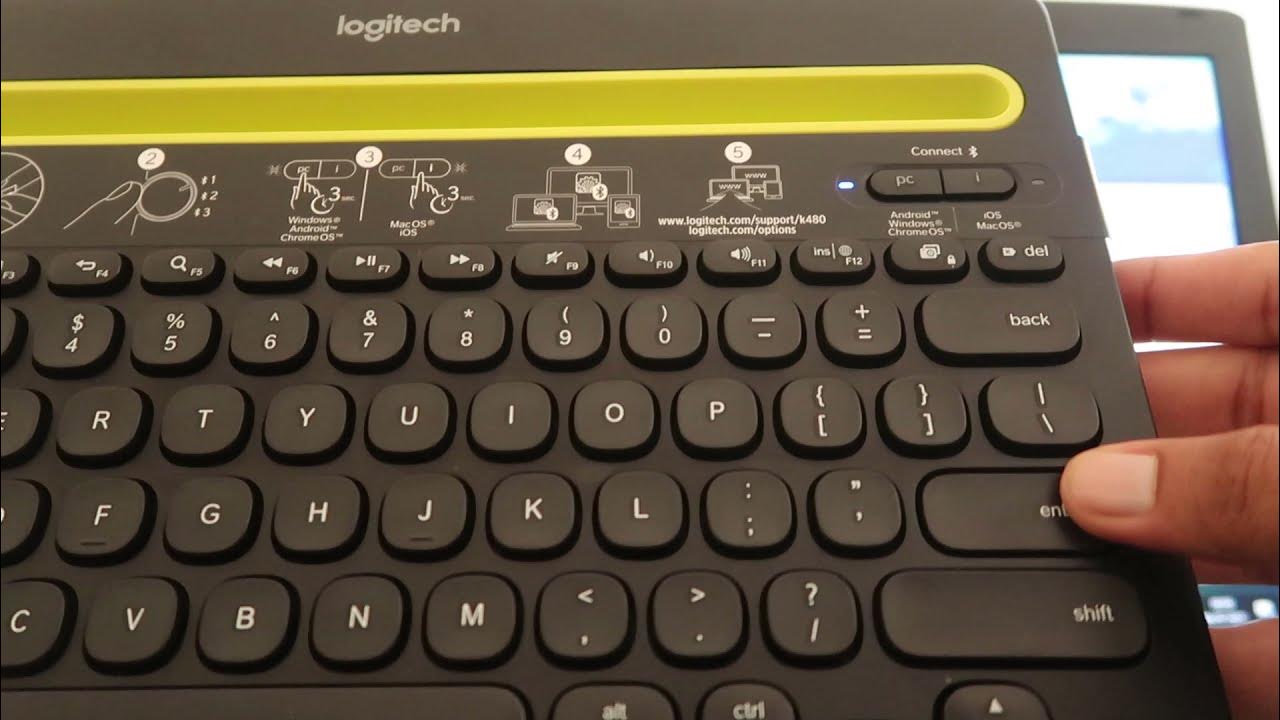
Windows pairing issues usually stem from incorrect Bluetooth settings navigation or passkey misunderstandings. The process differs slightly between Windows versions, but the core steps remain consistent across all recent Microsoft operating systems.
Navigating Bluetooth Settings in Windows Settings Menu
Go to Start > Settings > Bluetooth & devices (Windows 11) or Start > Settings > Devices > Bluetooth & other devices (Windows 10). Click Add device, select Bluetooth, then wait for “Logitech K480” to appear in the scanning list—this can take 10-15 seconds. Critical tip: If you see multiple “Logitech K480” entries, select the one that appears after you activate pairing mode, not the generic listing that sometimes shows up immediately.
Fixing “Device Already Paired” Error Messages
If Windows claims the device is already paired but isn’t working, go to Bluetooth settings, find the existing K480 entry, and click the three dots next to it to select Remove device. Then restart the pairing process from scratch. Never attempt to pair while the keyboard is already listed in your Bluetooth devices—this causes profile conflicts that require a full reset to resolve.
Mac Pairing Guide: Connecting Logitech K480 to MacBook or iMac
MacOS generally offers the smoothest K480 pairing experience, but older Mac models sometimes require additional steps to recognize the keyboard properly.
Bluetooth Menu Bar Shortcuts for Faster Connection
Enable the Bluetooth icon in your menu bar by going to System Settings > Bluetooth and checking “Show Bluetooth in menu bar.” This lets you initiate pairing without navigating through multiple settings screens. With the K480 in pairing mode, click the Bluetooth icon in your menu bar, select Set up Bluetooth device, then choose the blinking “Logitech K480” from the list. Most modern Macs won’t require a passkey, but have “0000” ready just in case.
Resolving “Not Enough Power” Error on Older Macs
If you see “Not enough power” during pairing on older MacBooks, plug your computer into AC power before attempting again—some vintage Macs restrict Bluetooth functionality when running on battery alone. Also ensure your macOS is updated to at least version 10.12.6 (Sierra), as earlier versions have incomplete Bluetooth 4.0 support required by the K480.
iPhone and iPad K480 Connection in Under 1 Minute
iOS devices typically pair with the K480 more reliably than any other platform, but Apple’s Bluetooth interface can be tricky to navigate if you’re unfamiliar with it.
Bypassing iOS Pairing Code Prompts
With your K480 in pairing mode, go to Settings > Bluetooth on your iOS device. When “Logitech K480” appears under “Other Devices,” tap it immediately—don’t wait for it to move to “My Devices.” If a passcode prompt appears, enter 0000 using your on-screen keyboard, then tap Pair. Pro tip: Some iOS versions display “Not Now” instead of a passcode field—tap this to bypass the prompt entirely as newer iOS versions handle pairing automatically.
Troubleshooting “Not Now” Button That Won’t Disappear
If the “Not Now” option persists after tapping, disable Bluetooth completely, wait 10 seconds, then re-enable it while the K480 remains in pairing mode. Some iOS versions require the keyboard to be discovered during an active Bluetooth scan, not when Bluetooth is already enabled. Restarting your iOS device rarely helps—focus instead on timing the pairing attempt during active scanning.
How to Switch Between 3 Devices Without Reconnecting
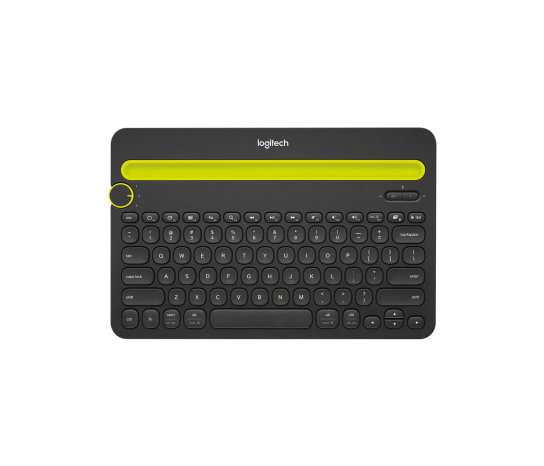
The K480’s channel dial is its superpower, but many users don’t realize how to leverage this feature properly after initial setup.
Channel Dial Mechanics: What Happens When You Turn It
Rotating the channel dial to position 2 or 3 doesn’t just change which device you’re connected to—it actively disconnects from the previous device and initiates connection to the newly selected channel. Expect a 2-3 second delay when switching; the keyboard isn’t broken if it doesn’t respond immediately. If your new device doesn’t receive keystrokes after switching, check that the correct channel was actually paired to that device during initial setup.
Fixing Stuck Channel Selection on Your K480
If the dial feels stiff or won’t stay in position, gently rotate it back and forth between positions while applying slight downward pressure—dust or debris can occasionally jam the mechanism. Never force it, as this can damage the internal contacts. If a channel position consistently fails to connect, re-pair that specific channel rather than attempting a full reset.
Fixing Logitech K480 “Not Discoverable” Error
When your devices can’t find the K480 during Bluetooth scanning, the problem usually lies with power management or interference issues.
Battery Level Checks That Most Users Miss
The K480 uses two AAA batteries that should last up to two years, but weak batteries cause the most common “not discoverable” errors. Look for a red LED flash—this indicates critically low power even if the keyboard appears to function normally. Replace both batteries with name-brand alkaline cells (not rechargeable NiMH) for optimal performance. Cheap batteries often deliver inconsistent voltage that confuses the Bluetooth module.
Bluetooth Range Optimization for Unstable Connections
Keep your K480 within 33 feet (10 meters) of your device with minimal obstacles between them—concrete walls and metal surfaces severely degrade Bluetooth signals. Avoid placing the keyboard near USB 3.0 devices, Wi-Fi routers, or microwave ovens, as these emit interference in the same 2.4GHz frequency band. For tablets in the K480 cradle, ensure the device isn’t blocking the keyboard’s internal antenna (usually located near the channel dial).
When and How to Reset Your Logitech K480 Keyboard
Resets should be your last troubleshooting step after exhausting all other options, as they erase all paired devices and require complete re-pairing.
Soft Reset vs. Factory Reset: Which One You Really Need
Most issues require only a soft reset: turn the power switch OFF, wait 10 seconds, then turn it back ON. This clears temporary connection glitches without losing your pairings. Reserve the factory reset (power off, hold ESC + O for 5 seconds, then power on) for persistent problems where the keyboard won’t enter pairing mode at all. Warning: Factory reset erases all three channel pairings—you’ll need to reconnect every device from scratch.
The Secret Button Combination for Full Factory Reset
With the keyboard powered OFF, press and hold both the ESC key and the “O” key simultaneously, then flip the power switch to ON while continuing to hold these keys. After 5 seconds, release both keys—the LED will flash rapidly, indicating all pairing data has been wiped. Now proceed with standard pairing for each channel as if the keyboard were brand new.
Pro Tips to Prevent Future Connection Problems
Maintain seamless K480 performance with these expert-recommended practices that address the root causes of most connection issues.
Battery Maintenance for 2-Year Wireless Performance
Replace both AAA batteries annually as preventive maintenance, even if the keyboard seems to be working fine—voltage decay begins long before the red LED warning appears. Store spare batteries at room temperature (not in refrigerators), as cold storage can damage alkaline cells. Never mix old and new batteries, as this creates imbalanced power delivery that stresses the Bluetooth circuitry.
Bluetooth Interference Fixes for Office and Home Environments
Position your K480 away from wireless mice, headsets, and other Bluetooth devices that might cause signal contention. If you work in a crowded office with many Bluetooth devices, rotate your K480 channels so your primary work device uses channel 3 instead of channel 1—most users default to channel 1, creating more interference on that frequency. For persistent issues, consider using a USB Bluetooth adapter with better range for your computer instead of relying on built-in Bluetooth.
By following these precise connection steps and maintenance tips, your Logitech K480 will deliver seamless multi-device typing across all your favorite gadgets. Remember that successful pairing depends on strict adherence to the channel selection process and proper battery management—skip either, and you’ll face connection headaches. Now that your keyboard is working perfectly, take advantage of its unique cradle design to transform your tablet into a proper productivity machine.



