
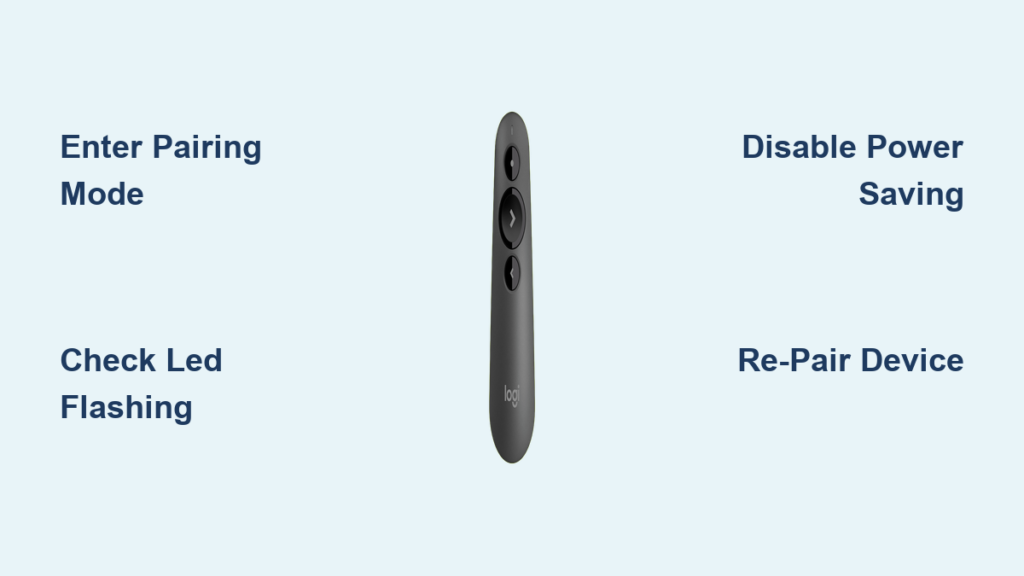
You’re standing in front of your audience, ready to deliver a presentation, but your Logitech R500 presenter won’t connect to your laptop. That blinking blue light mocks you as you frantically click buttons, wasting precious minutes while your audience waits in awkward silence. This frustrating scenario happens more often than you’d think with presenters trying to establish Bluetooth connectivity. The good news is that connecting your Logitech R500 presenter via Bluetooth doesn’t have to be complicated—once you know the exact steps and common pitfalls to avoid.
Unlike many wireless devices that connect automatically, the Logitech R500 requires specific pairing procedures that many users miss during initial setup. Whether you’re preparing for an important business pitch or academic lecture, a reliable presenter connection is non-negotiable. This guide provides the precise steps to successfully pair your R500 with any compatible device, troubleshoot persistent connection failures, and ensure your presenter works flawlessly when it matters most. You’ll learn not just how to connect Logitech R500 Bluetooth, but how to maintain that connection through your entire presentation.
Step-by-Step Bluetooth Pairing for Logitech R500 Presenters

Connecting your Logitech R500 should take less than two minutes when you follow the correct sequence. The key is understanding the specific pairing mode activation that many users overlook.
Activate R500 Pairing Mode Correctly
The most common mistake presenters make is failing to properly activate Bluetooth discovery mode on the R500 itself. Here’s exactly what to do:
- Power on your presenter by pressing the top power button. The LED indicator will illuminate, typically showing a steady white light when powered on but not in pairing mode.
- Enter pairing mode by pressing and holding the Bluetooth button (located next to the power/Bluetooth indicator) for 3-5 seconds. Many users don’t hold it long enough—this is critical.
- Watch for the correct LED pattern. When successful, the indicator will change from steady white to rapidly flashing blue or blue/white. This specific flashing pattern confirms the R500 is discoverable by your device. If you see a slow pulse instead of rapid flashing, you haven’t held the button long enough—start over.
Pro Tip: The pairing mode only remains active for 30-60 seconds, so have your device’s Bluetooth settings ready before activating pairing mode on the R500.
Complete Device Pairing on Your Computer or Phone
Once your R500 is broadcasting, follow these platform-specific steps:
For Windows Users:
– Go to Settings > Bluetooth & devices > Add device > Bluetooth
– Wait for “Logitech R500” to appear in the device list (may take 10-15 seconds)
– Select it and wait for confirmation of successful pairing
– The R500 LED will change from flashing to solid blue when connected
For Mac Users:
– Open System Preferences > Bluetooth
– Click the “+” icon to add a new device
– Select “Logitech R500” from the list
– No PIN required—connection establishes automatically
For Mobile Devices:
– Open Settings > Bluetooth on your phone or tablet
– Select “Logitech R500” when it appears
– Confirm connection if prompted
Critical Check: If pairing fails, immediately check that your R500 LED is still flashing rapidly. If it’s returned to steady white, you’ve missed the discovery window and must restart the pairing process.
Why Your Logitech R500 Won’t Stay Connected (And How to Fix It)
Many users successfully pair their R500 only to have it disconnect immediately after exiting pairing mode—a particularly common issue with certain devices like the Kobo Libra 2 e-reader where users report “connection failed” errors when attempting to reconnect.
Eliminate Power Management Conflicts
This is the #1 cause of disconnections across all platforms. Modern devices aggressively manage power by shutting down “inactive” Bluetooth connections:
- Windows: Go to Device Manager > Bluetooth > Right-click your Bluetooth adapter > Properties > Power Management and uncheck “Allow the computer to turn off this device to save power”
- Mac: Open Terminal and type
sudo pmset -a bluetoothpowerstate 1to prevent Bluetooth sleep - Mobile Devices: Go to Bluetooth settings, find the R500 in paired devices, and ensure “Battery Optimization” is disabled
Warning: If you skip this step, your presenter will likely disconnect after 30-60 seconds of inactivity—right when you’re gesturing to your audience!
Re-Pairing Procedures That Actually Work
When standard pairing fails, follow this verified sequence:
- Remove old connections from your device’s Bluetooth list
- Power cycle the R500 by removing the battery for 30 seconds
- Clear Bluetooth cache on your computer (Windows:
net stop bthservthennet start bthservin Command Prompt as admin) - Re-attempt pairing while holding the R500 within 12 inches of your device
Unlike generic Bluetooth devices, the R500 requires this complete reset process when connections fail—simply turning Bluetooth off and on won’t resolve persistent issues.
Advanced Fixes for Logitech R500 Bluetooth Dropouts
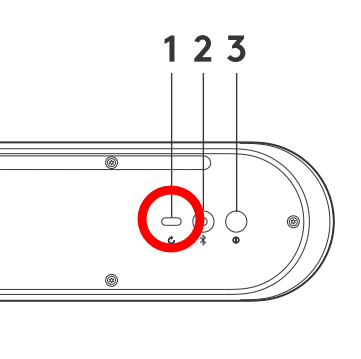
When basic troubleshooting doesn’t resolve your connection problems, these advanced solutions target the specific Bluetooth protocol issues that affect the R500.
Perform a Complete Factory Reset
For stubborn connection issues, a factory reset often solves the problem:
- Power on the R500
- Press and hold both the laser pointer button AND volume down button simultaneously for 10 seconds
- Wait for the LED to flash rapidly in white (this may take up to 15 seconds)
- Release buttons and immediately enter standard pairing mode
This reset clears all previous connection data from the presenter’s memory—a step missing from Logitech’s official documentation but critical for resolving persistent pairing failures.
Address Device-Specific Compatibility Issues
The R500 exhibits well-documented compatibility problems with certain devices, particularly e-readers like the Kobo Libra 2:
- For Kobo devices, install the “kobo-btpt plugin” which modifies Bluetooth protocols to maintain stable connections
- With Windows 10/11, disable Bluetooth “Hands-Free” services which can interfere with presenter functionality
- On MacOS Ventura and later, disable “Bluetooth Discovery Mode” in Accessibility settings to prevent automatic disconnections
Pro Tip: If you primarily use your R500 with a single device, consider using the Logitech Unifying Receiver (sold separately) for rock-solid connectivity that bypasses Bluetooth entirely.
Unlock Full Features: Setting Up Logi Presentation App with R500
While basic slide navigation works through standard Bluetooth pairing, you’re missing 70% of the R500’s capabilities without the official Logi Presentation software.
Install and Configure the Essential Software
- Download the Logi Presentation app directly from Logitech’s website (not the Microsoft Store version, which has limited functionality)
- Install while the R500 is connected via Bluetooth
- Launch the app and allow necessary permissions
- Customize your presenter controls through the app’s settings menu
The app transforms your R500 from a basic slide advancer into a powerful presentation tool with features like:
- On-screen timer that displays discreetly during your presentation
- Digital laser pointer that works on any screen (no physical laser required)
- Highlighter mode for emphasizing specific content on slides
- Notes display that shows your speaker notes on your laptop while the audience sees only slides
Critical Note: The Logi Presentation app manages Bluetooth connectivity more effectively than your operating system’s native settings, significantly reducing disconnection issues during presentations.
Prevent Future Connection Failures
Don’t wait until you’re standing in front of an audience to discover your presenter won’t connect. Implement these preventative measures:
- Test connections 24 hours before presentations—Bluetooth issues often surface only when you need reliability most
- Keep spare batteries on hand—low power causes erratic Bluetooth behavior
- Store your R500 away from other Bluetooth devices to prevent accidental pairing conflicts
- Perform monthly connection tests even when not actively using the presenter
Final Pro Tip: For mission-critical presentations, use the “dual connection” approach—pair via Bluetooth as your primary method but keep the Unifying Receiver plugged in as a backup. This ensures you can switch to reliable USB connectivity in under 10 seconds if Bluetooth fails.
By following these precise steps for how to connect Logitech R500 Bluetooth, you’ll transform a potentially frustrating experience into seamless presentation control. The R500 is a powerful tool when properly configured—don’t let connection issues undermine your professional delivery. Remember that successful pairing requires both activating the correct discovery mode on the presenter and configuring your host device to maintain the connection. With these techniques, you’ll spend less time troubleshooting and more time delivering impactful presentations that engage your audience and achieve your goals.



