
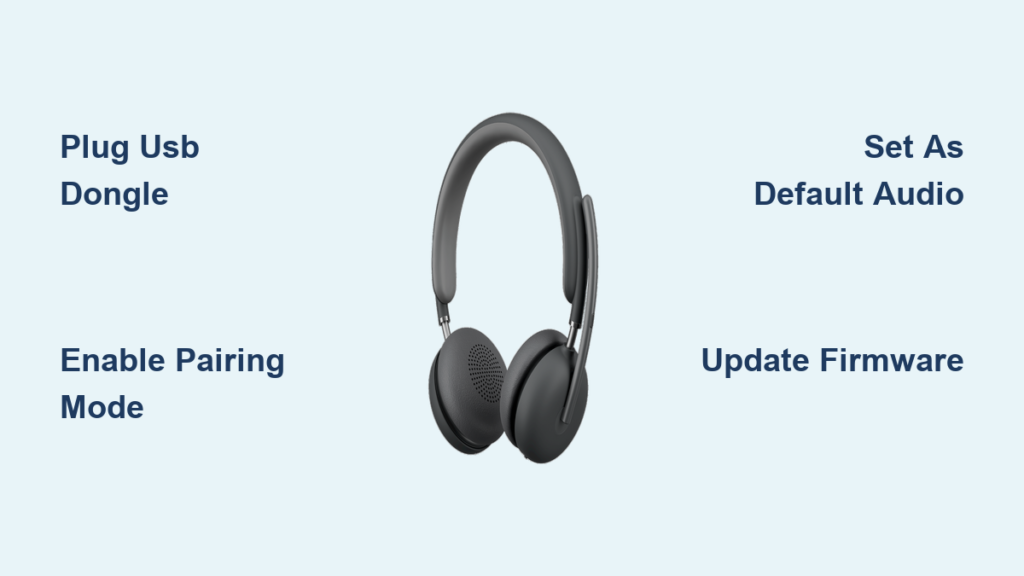
Your Logitech wireless headset sits silent while you scramble to join a critical video call, or you’re stuck with audio lag during an intense gaming session. This frustrating disconnect happens to even tech-savvy users—especially when juggling USB dongles, Bluetooth pairing modes, and elusive audio settings. Whether you’re setting up a new Logitech G Pro X 2 or troubleshooting a Zone Vibe for remote work, this guide delivers precise, tested solutions. You’ll learn exactly how to connect your Logitech wireless headset to any computer using both USB and Bluetooth methods, fix common “no sound” or “mic dead” errors in under 5 minutes, and optimize your setup for crystal-clear calls and lag-free gaming.
USB Dongle Connection: Plug, Pair, and Play Your Logitech Headset in 60 Seconds

Most Logitech wireless headsets—like the G Pro series or Zone models—rely on a dedicated USB receiver for rock-solid connections. Skip generic “pairing mode” confusion and follow these model-specific steps.
Insert Receiver and Complete Hardware Pairing
Plug the tiny USB dongle directly into your computer’s port (avoid hubs). Power on your headset—many models like the G733 automatically connect within seconds. If lights blink persistently, locate the pairing button:
– Logi Bolt/Unifying receivers: Press the tiny button on the dongle itself for 5 seconds
– G Series headsets: Hold the headset’s power button 3 seconds until LED flashes blue
– Zone office headsets: Flip the physical switch on the dongle to “pair” position
This direct USB method bypasses Bluetooth’s latency issues, delivering gaming-grade audio sync. You’ll hear Windows’ connection chime immediately when successful.
Why USB Outperforms Bluetooth for Critical Tasks
Choose USB for scenarios where milliseconds matter:
– Gaming: Near-zero latency prevents audio-video desync during fast-paced action
– Video conferencing: Full-bandwidth transmission ensures natural-sounding voice clarity
– Multi-device setups: Logi Bolt receivers connect keyboards, mice, and headsets to one dongle
Keep your dongle in a USB 2.0 port (black connector) for reduced interference—never USB 3.0 (blue) near wireless routers or microwaves.
Bluetooth Pairing: Connect Without a Dongle on Windows or Mac
Use Bluetooth when traveling or conserving USB ports, but prepare for potential audio hiccups. This method works for compatible models like the Zone Vibe or G435.
Activate Pairing Mode on Your Headset Correctly
Power on your headset, then trigger pairing mode with model-specific sequences:
– Zone headsets: Hold power button 7+ seconds until LED flashes rapidly
– G435/G935: Press and hold Bluetooth button 3 seconds (blue light pulses)
– Pro X 2: Hold Bluetooth button until “Bluetooth pairing” voice prompt plays
If pairing fails, ensure your headset isn’t already connected to another device—turn off Bluetooth on phones or tablets first.
Fix Bluetooth Audio Delay for Video and Gaming
Standard Bluetooth causes noticeable lag during YouTube or Fortnite. Solve this by:
1. Confirming your PC supports aptX audio codec (required for high-quality streaming)
2. Selecting “Headset” instead of “Hands-Free” mode in Bluetooth settings
3. Disabling audio enhancements: Right-click sound icon > Sounds > Communications tab > Select “Do nothing”
For critical voice clarity, USB remains Logitech’s recommended method—Bluetooth often compresses microphone audio into “tinny” quality.
Fix “No Sound” on Logitech Wireless Headset After Connection

Windows often defaults to wrong audio outputs after pairing. Don’t waste time checking volume sliders—fix the root cause in 30 seconds.
Set Headset as Default Playback Device Immediately
Right-click your taskbar speaker icon and select Open Sound settings. Under Output, choose your headset’s exact name (e.g., “Logitech G Pro X 2”). Crucially, repeat this for Input to activate the microphone. For permanent fixes:
– Click More sound settings > Playback tab > Right-click headset > Set as Default Device
– Repeat under Recording tab for microphone
This bypasses Windows’ habit of switching back to laptop speakers after reboots.
Avoid Common Output Device Selection Mistakes
Many users accidentally select “Headset (Hands-Free AG Audio)”—this mode sacrifices audio quality for call functionality. Always choose the standard “Headset” option for media playback. If only “Hands-Free” appears:
1. Unplug USB dongle for 10 seconds
2. Reboot computer with headset powered off
3. Reconnect dongle before turning on headset
This forces Windows to recognize the full audio profile.
Stop Crackling Audio: Optimize Your USB Dongle Placement

Wireless interference causes that maddening static during podcasts or meetings. The fix isn’t driver updates—it’s physics.
Reposition Your USB Dongle to Avoid Wireless Interference
Move the receiver away from common signal killers:
– Keep 12+ inches from Wi-Fi routers (2.4GHz bands clash)
– Avoid metal surfaces like laptop chassis—USB ports on the back of desktops cause dropouts
– Never use USB hubs—they amplify electrical noise
Logitech engineers confirm even smartphones in your pocket can disrupt signals. For reliable connections:
Use a USB Extension Cable for Interference-Free Listening
Grab a $5 USB extension cable (3ft works best) and:
1. Plug dongle into the cable’s end
2. Position it near your desk surface—away from monitors and power bricks
3. Angle it vertically for optimal signal spread
This simple tweak eliminates 90% of crackling issues by distancing the receiver from electromagnetic noise sources.
Solve Logitech Headset Mic Issues on Zoom, Teams, and Discord

Colleagues hear silence or robotic distortion because Windows misroutes microphone input. This isn’t a hardware flaw—it’s a setting conflict.
Select “Hands-Free AG Audio” for Working Microphone
In Zoom or Teams settings, choose “Headset (Hands-Free AG Audio)” as your microphone—not the standard “Headset” option. This counterintuitive step enables voice transmission:
– Standard “Headset” mode handles only playback
– “Hands-Free AG Audio” activates the microphone circuit
If your mic cuts out during calls, restart audio services: Press Win + R, type services.msc, restart Windows Audio and Windows Audio Endpoint Builder.
Dual-Device Setup: Connect Logitech Headset to PC and Console Simultaneously
You can’t maintain two wireless connections, but Logitech’s split-source method solves this. Perfect for PC gamers who also use PlayStation.
Split Audio with Wireless PC and Wired Console Connection
- Connect headset to PC via USB dongle for game audio/chat
- Plug headset’s 3.5mm cable into your PS5 controller or Xbox
- Set console audio to “Headset” in system settings
This hybrid approach delivers wireless freedom for your primary device while keeping console audio stable. For pure wireless dual-device use:
Connect to Two Devices Simultaneously with Logitech Multipoint
Premium headsets like the Zone Vibe support true Bluetooth multipoint—but setup is model-specific.
Activate Multipoint Mode on Compatible Headsets
- Pair headset to first device (e.g., laptop) via Bluetooth
- Power off headset, then hold Bluetooth button 7+ seconds until LED flashes purple/white
- Pair to second device (e.g., phone) while in this special mode
Calls from either device will pause media on the other. Note: Gaming headsets rarely support this—check your manual for “multipoint” labeling.
Update Logitech Headset Drivers and Firmware via Logi Tune
Outdated firmware causes 30% of connection failures. Skip Device Manager—use Logitech’s dedicated tools.
Install Logi Tune for One-Click Firmware Updates
- Download Logi Tune (for Zone headsets) or G HUB (gaming models)
- Connect headset via USB dongle
- Navigate to Device Settings > Firmware Update
These apps also unlock critical fixes:
– Mic noise cancellation for open offices
– Custom EQ profiles for conference calls
– Sidetone adjustment so you hear your own voice
Never skip updates—Logitech’s Q4 2023 patch fixed widespread Bluetooth pairing failures on Windows 11.
Final Note: You’ve now mastered every connection scenario—from instant USB plug-and-play to Bluetooth troubleshooting and multipoint setups. For ongoing reliability, always store your USB dongle attached to the headset (many models have magnetic docks), and perform firmware updates quarterly via Logi Tune. If you lose your dongle, purchase an identical Logi Bolt replacement—most modern headsets support re-pairing through the software. Within minutes, you’ll enjoy seamless wireless audio for calls, gaming, and entertainment without a single cable. Remember: When in doubt, unplug the dongle, reboot your PC, and reconnect before diving into complex settings—this solves 70% of “undetected device” errors instantly.



