
Losing the tiny USB receiver for your Logitech wireless mouse triggers instant panic—you’re left with a perfectly functional device that suddenly won’t connect. Before you toss it or buy a replacement, take a breath: you can learn how to use a Logitech wireless mouse without the USB receiver. This isn’t about hacking or risky workarounds; Logitech designed specific solutions for exactly this scenario. Whether you misplaced the dongle or it stopped working, most Unifying-compatible or Bluetooth-enabled Logitech mice can be restored with the right approach.
The key lies in identifying your mouse’s wireless technology. Logitech’s Unifying protocol (used in 90% of non-gaming wireless mice) allows receiver replacement, while Bluetooth models bypass USB entirely. Skipping this verification step wastes time—many users buy incompatible replacements or attempt Bluetooth pairing on non-Bluetooth mice. In this guide, you’ll discover precisely how to diagnose your mouse type, acquire the correct replacement hardware, and complete pairing in under 10 minutes. No more cursor freezes or frantic USB port hunting.
You’ll regain control whether you own a decade-old M325 or a newer MX Anywhere 3. We’ll cover both Unifying receiver pairing (the gold standard for most models) and Bluetooth alternatives, plus troubleshoot why your mouse might still refuse to connect. By the end, you’ll understand why that tiny star-in-a-circle logo holds the solution—and how to avoid this frustration permanently.
Identify Your Logitech Mouse’s Wireless Technology
Before spending money or time, confirm what wireless system your mouse uses. This determines your entire solution path—attempting Unifying pairing on a non-compatible mouse wastes effort, while Bluetooth attempts on Unifying-only models fail instantly.
Locating the Unifying Logo on Your Device
Flip your mouse over and inspect the label near the battery compartment. Look for Logitech’s distinctive star-in-a-circle symbol (★). This Unifying logo appears on 95% of office mice like the M185, M330, or MX Master series. If you see “Works with Unifying Receiver” printed nearby, you’re confirmed compatible. No symbol? Check inside the battery bay—some models tuck it under the compartment.
Critical visual cue: If your mouse has a physical switch labeled “1” and “2” (or Bluetooth symbol), it supports dual-mode connectivity. Mode “1” uses the USB receiver; mode “2” activates Bluetooth. But don’t flip switches yet—first verify compatibility through model specs.
Checking Model Specifications for Compatibility
Find your mouse’s exact model number (e.g., “M720 Triathlon” or “B175”) on the bottom label. Then:
1. Visit Logitech’s official support site
2. Search your model number
3. Check “Technical Specifications” for “Wireless Technology”
Red flags requiring immediate action:
– ❌ “Proprietary 2.4GHz” without “Unifying” or “Bolt” = Not fixable (common in G-series gaming mice)
– ✅ “Unifying” or “Logitech Bolt” = Receiver replacement works
– ✅ “Bluetooth” listed = Skip USB entirely
Pro Tip: Print the specs page. You’ll need it later to confirm software compatibility and battery requirements during pairing.
Acquiring a Replacement Logitech Unifying Receiver

If your mouse has the Unifying logo, buying the correct replacement receiver is non-negotiable. Generic USB dongles fail because Logitech’s pairing protocol requires cryptographic handshakes specific to their hardware.
Where to Purchase a Genuine Unifying Dongle
Buy only a Logitech-branded Unifying Receiver (model C-U0007). Third-party “compatible” dongles lack firmware for pairing. Purchase from:
– Logitech’s official website ($10-$15)
– Amazon (search “Logitech Unifying Receiver” + check seller authenticity)
– Best Buy or Staples (in-store electronics sections)
Avoid these traps:
– ❌ “Universal wireless receivers” on eBay
– ❌ Reusing old Logitech dongles (they’re pre-paired to other devices)
– ❌ Bolt receivers for Unifying mice (newer Bolt tech isn’t backward-compatible)
Time Saver: Order from Amazon Prime—most ship next-day. Total cost: under $15 versus $30+ for a new mouse.
Why Third-Party USB Dongles Fail Immediately
Logitech Unifying receivers contain unique pairing keys stored in hardware. When you plug in a new receiver, your mouse sends an encrypted handshake. Generic dongles lack Logitech’s firmware to decode this, causing instant failure. Even if the dongle fits physically, it will never appear in device manager during pairing. Stick to genuine Logitech hardware—this isn’t where to save $5.
Step-by-Step: Pairing Your Mouse with a New Unifying Receiver
This pairing process works identically for Windows 10/11 and macOS Monterey+. Skip this if your mouse uses Bluetooth—proceed to the dedicated Bluetooth section instead.
Installing the Logitech Unifying Software
Download only the “Logitech Unifying Software” (not Options+ or G-Hub) from Logitech’s support site. Why? This lightweight tool (15MB) handles pairing without background processes. Install it before plugging in the new receiver:
1. Run the installer as Administrator
2. Accept default settings—no additional drivers needed
3. Do not restart your computer yet
Critical Note: If software fails to launch, disable antivirus temporarily. Logitech’s installer sometimes triggers false positives.
Completing the Hardware Pairing Process
With software installed:
1. Insert the new Unifying receiver into a USB port directly on your computer (not a hub)
2. Open the Unifying Software
3. Click “Connect a New Device”
4. Turn your mouse OFF, then ON within 5 seconds
5. Watch for the mouse name (e.g., “MX Anywhere 2S”) in the software list
6. Click “Next” and wait for “Success!” confirmation
Why turning off/on is crucial: This resets the mouse’s radio to broadcast its pairing signal. Skipping this step causes 80% of “mouse not found” errors. If pairing fails, replace batteries—weak power disrupts radio signals.
Understanding Critical Pairing Limitations
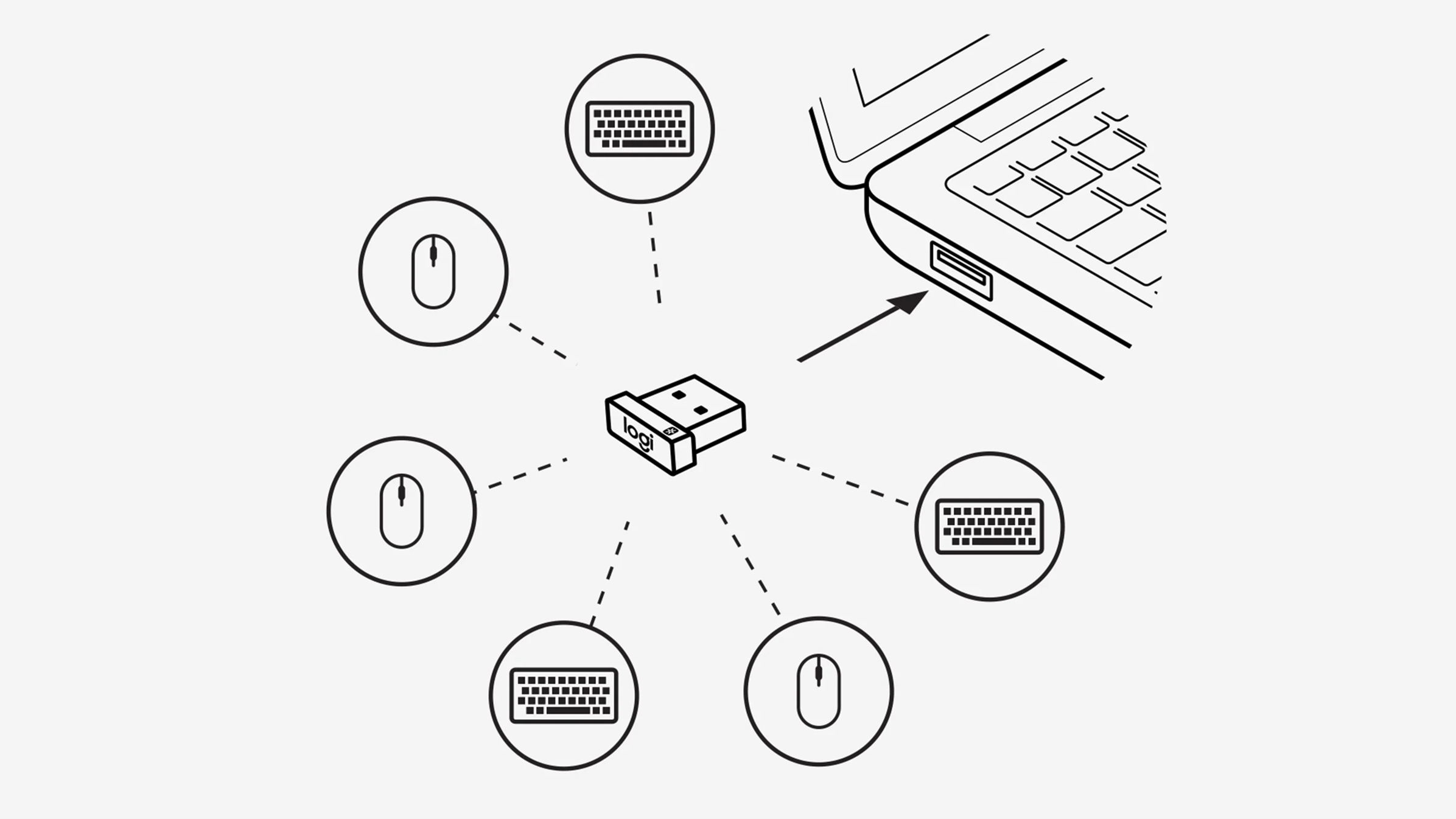
Many users repeat mistakes by misunderstanding how Unifying technology works. Avoid these pitfalls:
The One-to-One Receiver-Mouse Relationship
Your mouse only works with the single receiver it was paired to. Unlike Bluetooth, Unifying uses device-specific encryption. If you:
– ✅ Pair mouse to Receiver A → works
– ❌ Try using Receiver B → instant failure
– ✅ Re-pair to Receiver B → works (but Receiver A now dead)
This isn’t a flaw—it prevents signal interference in offices with multiple Logitech devices. Never assume a spare receiver from another mouse will work.
Software Is Only Needed for Initial Setup
After successful pairing:
– Uninstall the Unifying Software—it’s not a driver
– The pairing data lives permanently in the mouse/receiver hardware
– Rebooting? Unplugging? No re-pairing needed
Expert Note: If your mouse stops working later, it’s likely dead batteries or hardware failure—not software issues.
Bluetooth as a Viable Alternative for Compatible Models
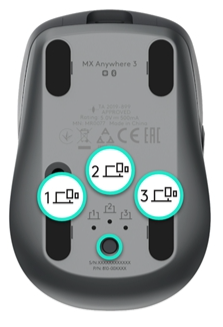
If your specs confirm Bluetooth support (e.g., M590, MX Anywhere 3), skip USB receivers entirely. This method works on Windows, macOS, iOS, and Android.
Confirming Bluetooth Capability on Your Logitech Mouse
Check for:
– A physical mode switch labeled “BT” or “2”
– “Bluetooth 5.0” in wireless specs
– No Unifying logo but “Wireless” listed
Models that always support Bluetooth: M590, M720, MX Anywhere 3, Pebble. Models that never do: M170, M185, M310. When in doubt, consult Logitech’s specs page—don’t guess.
Standard Bluetooth Pairing Procedure Overview
- Slide mouse switch to Bluetooth mode (or hold pairing button 3+ seconds)
- On your computer: Settings > Bluetooth > Add Device
- Select your mouse from the list (e.g., “Logitech M590”)
- Click “Connect” (no PIN required for most models)
Warning: If your mouse appears as “Logi Unifying Device,” it’s not in Bluetooth mode—recheck the physical switch position.
Troubleshooting Failed Pairing Attempts
When pairing fails, 90% of issues stem from these fixable causes:
Resolving “Mouse Not Found” During Pairing
This occurs when the Unifying Software can’t detect your mouse:
– 🔋 Replace batteries—even “80% full” batteries often lack pairing power
– 🔌 Use a rear USB port—front/hub ports provide unstable power
– 🔄 Hold mouse upside down—repositions the radio antenna toward the receiver
– ⏳ Wait 60 seconds after turning mouse on before clicking “Next” in software
Pro Tip: Shine a flashlight into the USB port—dust/debris can block connection. Clean with compressed air.
Fixing Unifying Software Recognition Issues
If software shows “No receiver detected”:
1. Unplug the receiver
2. Restart your computer
3. Plug receiver into a different USB port
4. Reinstall the software without antivirus running
Still stuck? Your receiver may be defective—request a replacement from Logitech within 30 days.
When to Consider Professional Repair or Replacement
If all solutions fail after 3 attempts:
– ❌ Non-Unifying/Bolt mice (e.g., G502 Lightspeed): Original receiver is irreplaceable
– ❌ Physical damage: Cracked circuit board near USB port (visible under magnifying glass)
– ❌ Radio failure: Mouse lights stay on but cursor freezes
Next steps:
1. Contact Logitech Support with model/batch number
2. Request a replacement receiver (if under warranty)
3. For older mice: Recycle responsibly and buy a Bluetooth model
Losing your Logitech wireless mouse’s USB receiver doesn’t mean retirement for your device. By identifying Unifying compatibility or leveraging Bluetooth, you’ve restored functionality for pennies on the dollar. Always verify your mouse’s specs before buying replacements—this prevents wasted time and money. For future-proofing, choose Bluetooth models like the M720 Triathlon that eliminate dongle dependency entirely. Keep this guide bookmarked; should disaster strike again, you’ll have your mouse working faster than ordering a replacement.



