
You’re working on an important project when you reach for F5 to refresh your browser or F2 to rename a file—only to discover your Logitech keyboard suddenly controls media volume instead. This frustrating disconnect between expectation and reality hits thousands of users daily who don’t understand how to use function keys on Logitech keyboard models properly. Whether you’re using an MX Keys, K780, or newer model, the top row of keys holds untapped potential that can transform your workflow—if you know how to unlock it.
Most Logitech keyboards ship with media and system controls as the default function, requiring you to press the Fn key to access standard F1-F12 functionality. This design choice often catches new users off guard, especially when working with software like Adobe Creative Suite, Microsoft Office, or development environments that rely heavily on traditional function keys. The good news is that with a few simple techniques and the right configuration, you can customize these keys to match your specific workflow needs.
In this guide, you’ll discover exactly how to access standard F-key functions instantly, customize your keys for specific applications, troubleshoot common issues, and implement pro-level hacks that turn your Logitech keyboard into a personalized productivity powerhouse. No more guessing which key does what—just clear, actionable steps to master your keyboard’s full potential.
Why Your Logitech Function Keys Control Media Instead of F1-F12

When you first use a Logitech keyboard, pressing F4 might play/pause music instead of triggering a browser refresh, while F10 could mute your audio instead of activating menu options. This happens because Logitech prioritizes media and system controls as the default function for the top row keys. On MX Keys and similar models, each key has a dual purpose:
- F1: Decreases keyboard backlight brightness
- F2: Increases keyboard backlight brightness
- F3: Toggles keyboard backlight on/off
- F4: Play/pause media
- F5: Toggles microphone mute
- F6: Launches calculator (with Logitech software 6.6.0+)
- F7: Mute audio (on MX Keys)
- F8: Previous track
- F9: Stop playback (on MX Keys)
- F10: Play/pause (on MX Keys)
- F11: Next track
- F12: Volume up (on MX Keys)
How the Fn Key Transforms Your Function Keys
The Fn key, typically located between Ctrl and Windows keys in the bottom-left corner, acts as your gateway to standard F1-F12 functionality. To access traditional function keys:
- Hold down the Fn key while pressing your desired function key (e.g., Fn+F5 for browser refresh)
- Release both keys after the action completes
- Repeat for each standard function key you need to use
This two-key combination becomes second nature with practice, but there’s an even better solution if you regularly need standard F-key functions.
When Standard Function Keys Are Essential
Certain applications require traditional F-key functionality without media interference:
- Adobe Creative Cloud: F2 for renaming layers, F3 for find operations
- Microsoft Excel: F2 to edit cells, F4 to repeat last action
- Visual Studio: F5 for debugging, F9 for breakpoints
- Blender: F12 to render scenes
- Video Games: F1-F12 for quick saves, ability slots, and menu navigation
Without proper configuration, these critical workflows become frustratingly inefficient as you constantly fight against media controls.
How to Toggle Between Media Controls and Standard F-Keys Instantly
Instead of holding Fn for every standard function key press, you can flip the default behavior with a simple keyboard shortcut. This eliminates the need for constant modifier key use:
Fn Lock: Your One-Press Solution
Most Logitech keyboards support Fn Lock, which reverses the default behavior:
- Press Fn + Esc to toggle between media-first and F-key-first modes
- Look for the Fn Lock indicator (some models show a small LED)
- Test with F5—if it refreshes your browser without Fn, you’ve successfully toggled
This process takes less than 5 seconds and fundamentally changes how your keyboard operates. On some models, you might need to press Fn + Fn instead of Fn + Esc—check your specific keyboard manual if the first combination doesn’t work.
Why This Matters for Your Workflow
Consider this scenario: You’re editing video in Adobe Premiere Pro where F7 sets an out point and F9 plays your sequence. With Fn Lock enabled (F-keys as primary), you can work without constantly holding the Fn key, reducing finger strain and increasing speed. For media-heavy tasks, simply toggle back to media-first mode with the same shortcut.
Logi Options+ Customization: Remap Function Keys for Maximum Productivity
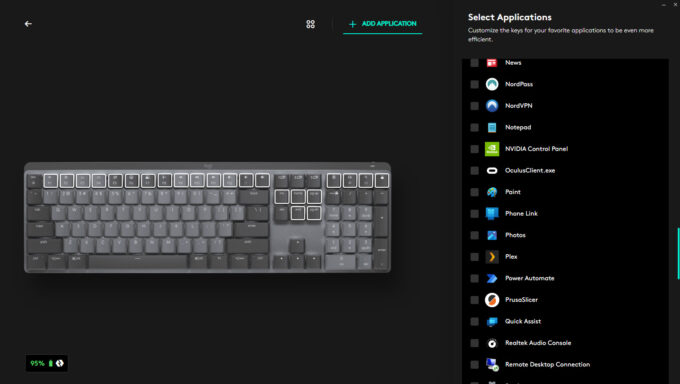
The real power of your Logitech function keys emerges with Logi Options+ software, which transforms generic keys into personalized productivity tools. This free application lets you create custom behaviors that adapt to your specific workflow.
Three Game-Changing Customization Methods
Application-Specific Profiles
Create different function key behaviors for specific programs:
– Set F5 as “Refresh” in browsers but “Debug” in Visual Studio
– Configure F7 as “Find” in Word but “Render” in Blender
– Make F12 “Save” in Photoshop but “Volume Up” in media players
The software automatically switches profiles when you change applications—no manual adjustments needed.
Smart Actions for Complex Workflows
Record multi-step sequences triggered by a single key press:
– Press F6 to open your email, type your signature, and position the cursor
– Assign F7 to launch Slack, navigate to your team channel, and start a new message
– Create F8 to execute complex Excel formulas or data transformations
Layered Key Assignments
Use the Fn key itself as a modifier for secondary functions:
– Press F5 for standard browser refresh
– Press Fn+F5 to launch your project management tool
– Press Fn+Fn+F5 to trigger a custom macro
These layered assignments effectively double your available shortcuts without adding physical keys.
Troubleshooting 5 Common Logitech Function Key Problems
When your function keys behave unexpectedly, these targeted solutions will get you back on track quickly.
Problem 1: Fn Key Doesn’t Toggle Functionality
Solution: Update Logi Options+ to the latest version. If using a wireless keyboard, check battery levels—low power can disable advanced features. For persistent issues, try Fn + Esc multiple times or restart your computer with the keyboard disconnected.
Problem 2: Function Keys Work in Some Apps But Not Others
Solution: This indicates application-specific settings overriding your keyboard. Open Logi Options+, navigate to “Application Settings,” and verify your custom profiles are correctly assigned. Some security software may block keyboard customizations—temporarily disable it to test.
Problem 3: F-Lock Indicator Light Stays On
Solution: Press Fn + Esc twice quickly. If the light remains on, reset your keyboard by holding ESC for 10 seconds (unplug first for wired models). Some MX Keys models require Fn + Left Shift to reset.
Problem 4: Media Keys Work But Standard F-Keys Don’t
Solution: Check your operating system settings:
– Windows: Go to Settings > Devices > Keyboard and ensure “Use F1, F2, etc. keys as standard function keys” is unchecked
– macOS: Navigate to System Preferences > Keyboard and verify “Use F1, F2, etc. keys as standard function keys” is checked
Problem 5: Keys Stick or Require Multiple Presses
Solution: Clean around the affected keys with compressed air. For persistent issues, download Logitech Firmware Update Tool and install the latest firmware—this often resolves sticky key behavior.
Pro-Level Function Key Hacks for Developers and Power Users
Take your Logitech keyboard beyond basic functionality with these advanced techniques that save professionals hours each week.
Create Context-Aware Shortcuts
Set up your F-keys to adapt based on what you’re doing:
– When Chrome is active: F1=New Tab, F2=Close Tab, F3=Address Bar
– When VS Code is active: F1=Command Palette, F2=Rename Symbol
– When Terminal is active: F1=New Window, F2=Split Pane
Implement Smart Macros for Repetitive Tasks
Record complex sequences triggered by a single key:
– F6: Type your full email signature with proper formatting
– F7: Execute a Git commit sequence (add, commit, push)
– F8: Generate boilerplate code for your current project
Combine with External Tools
Enhance Logi Options+ with complementary software:
– Windows PowerToys: Create additional keyboard shortcuts beyond F1-F12
– AutoHotkey: Build sophisticated scripts triggered by function keys
– Logi Tune: For headsets, sync volume controls with keyboard function keys
Mac vs Windows: Critical Function Key Differences You Must Know
Your operating system dramatically impacts how Logitech function keys behave:
Windows-Specific Behavior
- By default, media functions are primary (press Fn for standard F-keys)
- Registry edits can permanently change default behavior (HKEY_LOCAL_MACHINE\SOFTWARE\Microsoft\Windows\CurrentVersion\Policies)
- SetPoint software supports older Logitech models without Options+ compatibility
macOS-Specific Behavior
- Media keys are secondary by default (press Fn for standard F-keys)
- System Preferences > Keyboard controls the “Use F1, F2, etc. keys as standard function keys” setting
- Some Mac-specific shortcuts (like Mission Control) override standard F-key functionality
Cross-Platform Tip
When switching between operating systems, create separate configuration profiles in Logi Options+ that automatically activate based on your connected device. This prevents constant reconfiguration when using the same keyboard with both Windows and Mac machines.
Maintenance Checklist: Keeping Your Logitech Function Keys Working Flawlessly
Prevent future function key problems with these simple maintenance habits:
Monthly Maintenance Routine
- Update Logi Options+ to the latest version (check for updates in-app)
- Clean keyboard surface with compressed air to prevent sticky keys
- Test all function keys in different applications to catch issues early
- Backup your configuration through Logi Options+ settings menu
When Function Keys Fail Completely
- Disconnect and reconnect the keyboard (or replace batteries for wireless models)
- Test on another computer to isolate hardware vs software issues
- Reset to factory defaults through Logi Options+ (Settings > Reset)
- Download and run Logitech Firmware Update Tool
By implementing these function key strategies, you’ll transform your Logitech keyboard from a simple input device into a personalized productivity command center. The initial setup takes just minutes, but the time savings accumulate exponentially with daily use—especially when you customize keys for your specific applications and workflows. Start with one or two essential customizations today, then gradually expand as you discover new ways your function keys can streamline your work.



