
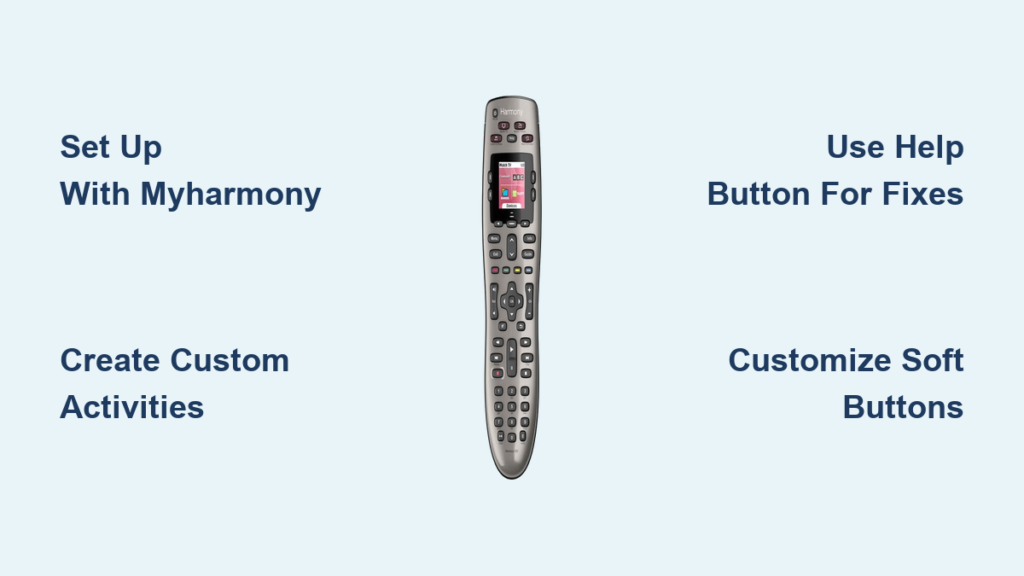
Tired of juggling multiple remotes just to watch your favorite show? The Logitech Harmony 650 remote eliminates that frustration by consolidating control of up to 8 devices into one intuitive interface. Unlike basic universal remotes, this screen-based model learns your entertainment setup and creates custom activities that power on the right devices, switch to correct inputs, and adjust settings with a single button press. Whether you’re battling a tangled mess of remotes or upgrading from an older universal remote, mastering the Harmony 650 will transform your home theater experience. In this guide, you’ll discover exactly how to set up, program, and troubleshoot your Harmony 650 remote for seamless control of your TV, streaming devices, and sound systems.
Setting Up Your Logitech Harmony 650 Remote in 8 Steps
Unlike simpler remotes that work out of the box, the Harmony 650 requires initial setup through Logitech’s desktop software. This essential process connects your remote to your specific devices and creates customized control sequences.
Essential Equipment for First-Time Harmony 650 Setup
Before beginning, gather these critical items: your Harmony 650 remote, the included USB cable, the wall power adapter (not the computer’s USB port for initial setup), a computer with internet access, and your entertainment device model numbers. Having your TV, cable box, soundbar, or streaming device model numbers handy prevents setup delays—check the back panels or original documentation for these details.
Complete Harmony 650 Initial Configuration Process
Connect the remote to your computer using the USB cable while plugging the wall adapter into a power outlet—this dual connection ensures stable power during setup. Download and install the MyHarmony desktop software from Logitech’s official website, then launch the application. Create a Logitech account when prompted, which saves your configuration for future remote replacements.
The software guides you through adding each device by brand and model number. For each device, verify the infrared codes match your equipment—most major brands are supported with precise command sets. Next, create your first activity: click “Add Activity,” select “Watch TV,” then specify which devices power on and their correct input sources. During this phase, customize the screen layout by assigning frequently used commands like “Guide” or “Netflix” to the colored A, B, C, and D buttons.
Complete the process by syncing your configuration to the remote. Keep the USB connection stable and the wall adapter plugged in until the software confirms 100% completion—interrupting this update can corrupt your remote’s software. This initial setup takes 15-20 minutes but pays dividends through years of simplified control.
What Each Button on Your Harmony 650 Remote Actually Does
The Harmony 650’s physical layout combines traditional remote elements with smart screen functionality, creating an interface that adapts to your current activity.
Decoding the Harmony 650’s Physical Controls
The directional pad with center OK button navigates menus and selects activities, while the dedicated Activities and Devices buttons switch between your pre-programmed sequences and direct device control. The channel and volume rockers provide immediate access to these essential functions regardless of your current screen. Notice the four colored buttons (A, B, C, D) above the screen—these soft keys change function based on your activity, displaying labels like “Menu” or “Guide” directly on the screen.
Screen Navigation and Dynamic Button Functions Explained
When watching TV, the screen shows your current activity name, available channels, and customized soft buttons. Press the Devices button to access individual device controls—this bypasses activities when you need to adjust just your soundbar or streaming box. The Help button (marked with a question mark) triggers the remote’s troubleshooting wizard, which diagnoses and fixes common issues like incorrect inputs or unresponsive devices. Understanding these dynamic screen elements prevents confusion when the button labels change between activities.
How to Program Harmony 650 Remote Using MyHarmony Desktop Software
The MyHarmony software transforms your remote from a basic controller into a personalized entertainment hub through strategic programming.
Adding New Devices to Your Harmony 650 Configuration
Launch MyHarmony, click “Add Device,” then select your device category (TV, streaming box, etc.). Enter your device’s brand and model number—be precise for optimal compatibility. If your exact model isn’t listed, the software suggests similar models; test these during setup to confirm proper functionality. For each device, verify basic commands like power and volume work correctly before proceeding.
Creating Custom Activities for One-Touch Entertainment
Click “Add Activity” and choose a template like “Watch Apple TV” or create a custom activity. Select which devices power on (TV, soundbar, streaming box), then specify their correct input sources (HDMI 1, etc.). Customize the activity screen by dragging frequently used commands to the colored buttons—place “Netflix” on button A and “Prime Video” on button B for instant access. Save your activity, then sync changes to the remote using the software’s Sync button. Test each activity thoroughly to ensure all devices respond correctly.
Fixing Common Harmony 650 Remote Problems During Daily Use

Even perfectly configured Harmony remotes occasionally encounter issues that disrupt your viewing experience.
Troubleshooting Unresponsive Harmony 650 Activities
When an activity fails to start correctly (TV powers on but stays on wrong input), press the Help button immediately. The on-screen wizard asks simple yes/no questions like “Is the TV on?” and “Is the correct input selected?” Answer truthfully to receive automatic fixes—most issues resolve in under 60 seconds. If the Help wizard can’t fix the problem, manually power cycle all devices, then re-sync the remote through the Devices menu.
Resolving Screen and Button Responsiveness Issues
If the touchscreen becomes unresponsive, recalibrate through Menu > Settings > Display > Calibrate Screen. Follow the on-screen prompts to tap calibration points accurately. For physical button issues, remove the batteries, wait 30 seconds, then reinstall them—this often resets temporary glitches. When the screen remains blank despite fresh batteries, connect to the wall charger for 15 minutes before attempting use again.
5 Expert Harmony 650 Remote Tips You Won’t Find in the Manual
Maximize your Harmony 650’s potential with these professional configuration strategies that transform it from functional to indispensable.
Customize Soft Buttons for Device-Specific Shortcuts
Don’t waste the colored A, B, C, and D buttons on generic functions. During activity setup, assign device-specific shortcuts like “DVR Menu” for your cable box or “Game Mode” for your TV. In MyHarmony, edit each activity, then drag these specialized commands to your soft buttons—this eliminates multiple menu navigations during viewing.
Extend Battery Life Without Sacrificing Performance
The color screen drains power quickly, but strategic settings prevent constant battery changes. In Settings > Power, reduce screen timeout to 30 seconds and lower brightness to 50%. These adjustments double typical battery life while maintaining usability. For extended viewing sessions, keep the wall charger nearby—connecting during use doesn’t interrupt functionality.
Create Hidden “Quick Access” Activities
Beyond standard activities, create specialized sequences like “Sports Mode” that powers on your TV to HDMI 1, sets picture mode to “Vivid,” and mutes the soundbar for commentary clarity. Or make a “Kids Mode” that limits inputs to approved streaming services. These custom activities live alongside your standard ones but provide tailored experiences for specific viewing scenarios.
Sync Multiple Harmony Remotes to One Configuration
If you have Harmony remotes in multiple rooms, configure one completely in MyHarmony, then export the configuration file. Import this file to other computers running MyHarmony to sync identical setups across all remotes—perfect for consistent control in different home theater locations.
Use the Hidden Diagnostic Mode for Advanced Troubleshooting
When standard Help wizard fixes fail, access diagnostic mode by holding the Help and Menu buttons simultaneously for 5 seconds. This reveals infrared signal strength indicators and device communication logs, helping identify physical obstructions or signal interference issues that standard troubleshooting misses.
The Logitech Harmony 650 remote pays for itself the first time you avoid scrambling for multiple remotes during a movie night. By investing 20 minutes in proper setup through MyHarmony software and implementing these expert configuration techniques, you’ll create a personalized entertainment command center that adapts to your viewing habits. Remember to leverage the Help button for instant troubleshooting and regularly update your configuration as you add new devices. With its activity-based control and customizable interface, your Harmony 650 will simplify your home theater experience for years to come—transforming remote control frustration into seamless entertainment enjoyment.



