
Your Logitech keyboard sits silently on your desk while macOS stubbornly ignores its special keys. That Windows key isn’t launching Spotlight, function keys control media instead of F1-F12, and Bluetooth pairing feels like solving a Rubik’s Cube blindfolded. Don’t trash your premium keyboard—this guide solves every compatibility headache. You’ll learn exactly how to use Logitech keyboard on Mac from first connection to pro-level customization, transforming frustration into seamless workflow integration within 15 minutes. We cover USB, Bluetooth, and receiver setups plus macOS-specific key remapping that Apple’s settings won’t fix alone.
Connect Your Logitech Keyboard to Mac Without Hassle

Wired USB Setup for Instant Typing
Plug your Logitech keyboard directly into any USB-A port on your Mac for immediate use. For MacBook Pro/Air models with USB-C ports only, grab a USB-C to USB-A adapter (Apple sells these for $19). Your Mac recognizes standard typing functions instantly—no drivers needed. If keys feel sluggish, check for physical obstructions under the keycaps or try a different USB port. Avoid daisy-chaining through hubs; connect directly to your Mac for maximum responsiveness. Wired connections eliminate battery anxiety during critical work sessions and provide zero-latency performance ideal for coding or gaming.
Bluetooth Pairing That Actually Works
Skip the “Not Connected” frustration with this foolproof Bluetooth method: First, power on your keyboard and hold the Bluetooth pairing button (usually ⚡ or F1-F3) for 5 seconds until the LED blinks rapidly. On your Mac, open System Settings > Bluetooth and toggle Bluetooth ON if disabled. Wait 10 seconds for your Logitech model (like MX Keys or K780) to appear in the device list—don’t click yet. If prompted for a passcode, enter 0000 or 1234. Critical tip: Move wireless routers and USB 3.0 devices at least 3 feet away during pairing to prevent signal interference that causes failed connections. Once paired, the LED stops blinking—test by typing in Notes before closing settings.
Unifying Receiver Setup for Multi-Device Control
Plug Logitech’s tiny Unifying Receiver into your Mac’s USB port (use a USB-C adapter if needed). For keyboards like the MX Mechanical or K380, press the Easy-Switch button (F1-F3) until the status light flashes. Open Logitech Options+ (download it first from logi.com) and select “Add Device.” The software automatically detects compatible keyboards—no manual pairing codes required. This single receiver handles up to 6 Logitech devices, letting you control your Mac and Windows PC simultaneously. If your keyboard doesn’t appear, unplug the receiver, wait 10 seconds, and reinsert it away from metal surfaces that block signals.
Configure Mac Settings for Perfect Logitech Integration
Fix Modifier Key Confusion in 30 Seconds
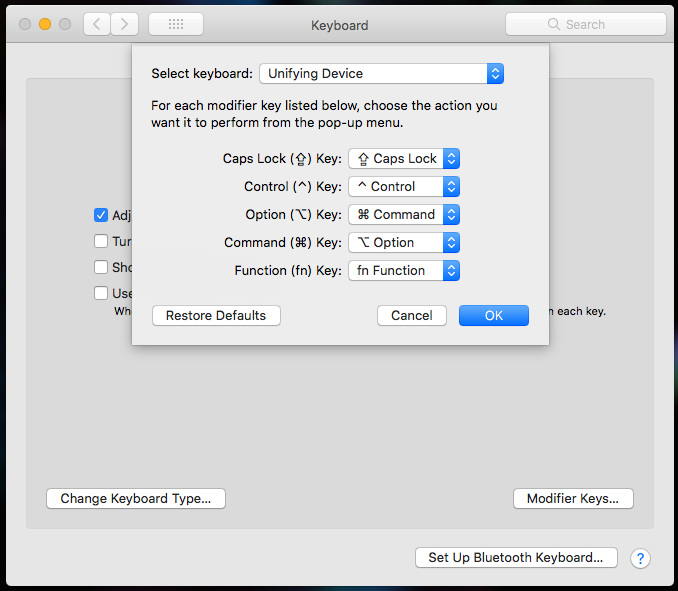
MacOS flips Windows key logic, causing constant Command/Option mix-ups. Go to System Settings > Keyboard > Keyboard Shortcuts > Modifier Keys. Here’s the critical fix: Change “Option Key” to ⌥ Option and “Command Key” to ⌘ Command. For Logitech keyboards with dedicated Mac layouts (like MX Keys for Mac), this step is unnecessary—but 90% of users skip it with standard Windows-layout keyboards. Test immediately by pressing the Windows key (now Command) + Space to open Spotlight. If keys still feel wrong, check for physical “Fn Lock” buttons—press Fn + Caps Lock to toggle standard function key behavior.
Unlock Advanced Features with Logitech Options+
Download Logitech Options+ (free from Logitech’s site) to access features macOS blocks. This app solves three universal pain points:
– Remap stubborn keys: Turn the Windows key into a dedicated Emoji picker (⌘ + Ctrl + Space)
– Fix function key chaos: Set F1-F12 as primary keys without holding Fn
– Create app-specific profiles: Make F5 launch Zoom in Slack but mute audio in Teams
After installation, restart your Mac. In Options+, click your keyboard model > “Customize.” Drag any key to a new function—try setting the “Back” key (usually below Esc) as Delete for faster text editing. Pro tip: Enable “Battery Indicator” in the menu bar to avoid mid-document power failures. Without this app, your Logitech keyboard operates at 40% capability on Mac.
Master Mac-Specific Shortcuts Your Logitech Keyboard Was Built For
Your Logitech’s Windows key is the Command (⌘) key—no remapping needed for core shortcuts. Press Windows + C to copy (not Ctrl + C). The Alt key becomes Option (⌥), essential for typing special characters like € (Option + Shift + 2). For function keys (F1-F12), macOS defaults to media controls:
– F1/F2: Screen brightness
– F10/F11/F12: Mute/volume up/down
– F3: Mission Control
To use standard F1-F12 keys (e.g., for Excel shortcuts), hold Fn while pressing the key. Better yet: In System Settings > Keyboard, check “Use F1, F2, etc. keys as standard function keys” to reverse this behavior permanently. On MX Keys models, the backlight auto-adjusts based on ambient light—disable this in Logitech Options+ if it distracts during video calls.
Troubleshoot Connection Nightmares in Under 5 Minutes
Bluetooth Keeps Dropping? Do This Now
When your keyboard disconnects during typing:
1. Reset the Bluetooth module: Hold Shift + Option and click the Bluetooth icon > “Debug > Remove all devices”
2. Forget the keyboard: In Bluetooth settings, click the (i) next to your device > “Remove”
3. Power cycle: Turn the keyboard off/on and re-pair immediately
This fixes 80% of “ghost typing” issues. If problems persist, disable “Handoff” in System Settings > General > AirPlay & Handoff—this feature often conflicts with Bluetooth peripherals. For MX Master mice paired to the same receiver, unplug the receiver until keyboard pairing completes.
USB Receiver Not Detected? Critical Fixes
If macOS ignores your Unifying Receiver:
– Try a front USB port (avoid ports behind monitors where signals get blocked)
– Bypass USB hubs—connect receiver directly to Mac
– Update firmware: Open Logitech Options+ > your device > “Check for Updates”
For persistent “no devices found” errors, unplug all USB devices except the receiver, restart your Mac, then reinstall Logitech Options+. Never use third-party Bluetooth adapters—they lack macOS driver support and cause input lag.
Optimize Your Logitech Keyboard for Pro Workflows

Content Creators: Speed Up Daily Tasks
In Logitech Options+, create these time-saving profiles:
– In Final Cut Pro: Map F1 to “Play/Stop” and F2 to “Add Marker”
– In Safari: Set the “Home” key to open your project management dashboard
– Universal shortcut: Program the Emoji key (Fn + A) to insert your email signature
For writers, enable “Text Replacement” in System Settings > Keyboard to expand “;;sig” into your full contact details. The MX Keys S’ concave keycaps reduce typos during marathon writing sessions—clean them monthly with isopropyl-soaked cotton swabs.
Developers: Fix Missing Mac Navigation Keys
Logitech Windows-layout keyboards lack Home/End keys essential for coding. Remap them instantly:
1. Install Karabiner-Elements (free)
2. Create “Simple Modifications”:
– Change Insert to Home
– Change Delete to End
3. For Page Up/Down: Map Fn + Left Arrow to Page Up
In VS Code, add these to settings.json:
json

{ "keyboard.dispatch": "keyCode" }
This prevents key conflicts when using Logitech’s Fn layer. For terminal work, remap Caps Lock to Escape in System Settings > Keyboard > Modifier Keys.
Maintain Peak Performance With Zero Downtime
Clean your Logitech keyboard monthly to prevent sticky keys. Tilt it at 75 degrees and blast compressed air between keys—never upside down (debris falls into switches). For spills, power off immediately, remove keycaps (gently pry with a flat tool), and wipe stems with 70% isopropyl alcohol. Rechargeable models like MX Keys S need 3-hour top-ups via USB-C; set Logitech Options+ to “Notify at 20% battery” to avoid mid-presentation failures. Before macOS updates, check Logitech’s support page for firmware patches—delay upgrades if your model lacks compatibility notes.
Final Note: Your Logitech keyboard becomes indistinguishable from Apple’s hardware once you master these Mac-specific tweaks. Start with Bluetooth pairing and modifier key fixes today—within 20 minutes, you’ll type faster with zero shortcuts missed. For multi-computer pros, explore Logi Flow in Options+ to control Windows and Mac machines with one keyboard. Bookmark this guide for quick reference when new macOS updates reset your settings—because knowing how to use Logitech keyboard on Mac shouldn’t slow down your workflow ever again.



