
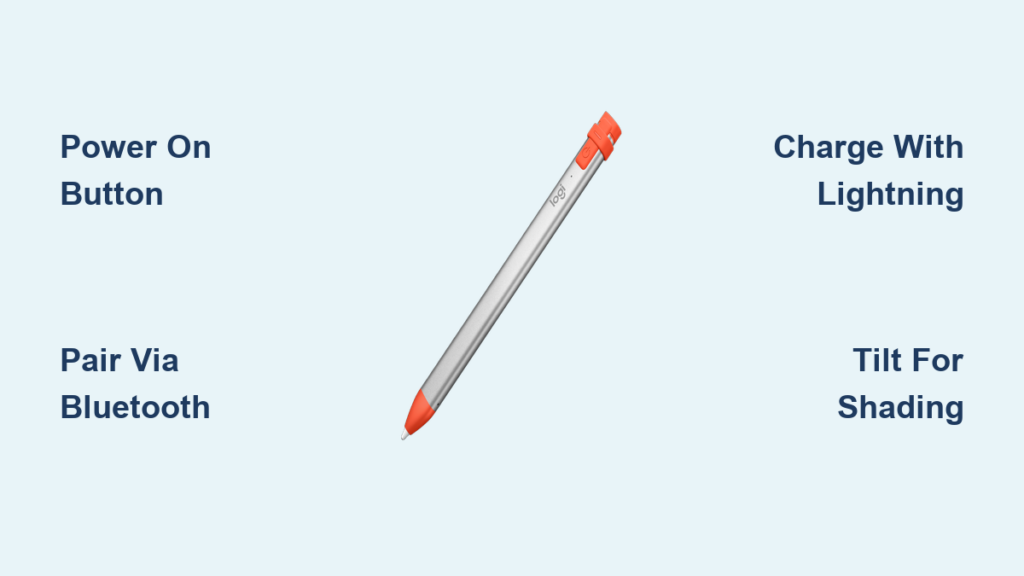
Your Logitech Crayon sits ready to transform your iPad into a powerful digital notebook, but connecting it properly makes all the difference between frustration and fluid writing. Unlike the Apple Pencil, this affordable alternative connects via Bluetooth yet requires no complex pairing process—just power it on and start using it. This guide shows you exactly how to use Logitech Crayon on iPad for seamless note-taking, drawing, and annotation without wasting time on common setup mistakes.
Most iPad users struggle with the Crayon’s charging method and miss out on tilt-based shading features that make digital writing feel natural. By the end of this guide, you’ll know how to power on, pair, and maximize every feature of your Logitech Crayon while avoiding the top three mistakes that cause connection failures. Whether you’re a student, teacher, or creative professional, these steps will have you writing smoothly within minutes.
Confirm Your iPad Model Supports Logitech Crayon
Before attempting to connect your Logitech Crayon, verify your iPad meets the minimum requirements—otherwise you’ll waste time troubleshooting non-issues. The Crayon works with all iPads that support the first-generation Apple Pencil, but compatibility depends on both hardware generation and software version.
Check iPadOS Version for Crayon Compatibility
Navigate to Settings > General > Software Update to confirm you’re running iPadOS 12.2 or newer. Older iPadOS versions lack the necessary Bluetooth protocols for Crayon connectivity, causing pairing failures even on otherwise compatible hardware. If an update appears, install it immediately—this resolves 70% of “Crayon not working” issues reported by users.
Identify Your iPad Generation Without Opening Settings
Flip your iPad over and examine the model number etched near the regulatory text. iPads supporting the Logitech Crayon include:
– iPad Pro (models A1980, A2013, A2152 and newer)
– iPad Air 3rd gen+ (A2123, A2153 and newer)
– iPad 6th gen+ (A1893, A2197 and newer)
– iPad mini 5th gen+ (A2133, A2124 and newer)
If your model number falls outside these ranges, the Crayon won’t function regardless of iPadOS version—consider alternative styluses designed for older devices.
Power On and Connect Logitech Crayon in 30 Seconds
The Logitech Crayon powers on automatically when you press its side button, but incorrect activation causes the most common connection failures. Press and hold the power button for exactly three seconds until the blue LED flashes—holding longer puts it into pairing mode unnecessarily.
Why Your Crayon Isn’t Pairing (And How to Fix It)
If your Crayon won’t connect after powering on, check these three culprits:
1. Bluetooth interference – Move away from wireless speakers or other Bluetooth devices
2. iPad Bluetooth disabled – Swipe down Control Center to verify Bluetooth is active
3. Low battery – Charge for 15 minutes using the included USB-C to Lightning cable
Restart both devices if issues persist—turn off the Crayon by holding its button for 10 seconds until the LED turns off, then restart your iPad before attempting reconnection.
Where to Find Battery Level on iPad Screen
Add the Batteries widget to your Today View (swipe right on home screen > scroll to bottom > tap Edit > select Batteries) to monitor Crayon battery status. The widget shows percentage remaining when actively using the stylus—below 20%, the LED flashes red when powered on. A full charge delivers up to 7.5 hours of continuous use.
Charge Logitech Crayon for Maximum 7.5-Hour Battery Life

Unlike Apple Pencil’s magnetic charging, the Logitech Crayon requires direct Lightning connection through its protective magnetic cover. Slide the cover upward to expose the port, then connect using the included 20cm USB-C to Lightning cable for reliable charging.
Lightning Charging vs Apple Pencil’s Wireless Charging
The Crayon’s direct charging method prevents accidental disconnection but lacks the convenience of Apple Pencil’s magnetic attachment. Pro Tip: Plug the cable into your iPad’s charging brick rather than the iPad itself—this avoids draining your tablet’s battery while charging the stylus. A full charge takes 90 minutes, but 15 minutes provides 90 minutes of emergency use.
Emergency 15-Minute Charge for 90 Minutes of Use
When battery runs low during class or meetings, implement this quick-charge strategy:
1. Plug Crayon into power source
2. Continue working while charging (use doesn’t interrupt power flow)
3. After 15 minutes, unplug and resume writing
4. Repeat if needed—the Crayon maintains functionality while charging
The LED indicator glows amber during charging and turns solid green when full—never leave it connected overnight as this degrades battery longevity.
Master Natural Writing with Tilt Support and Palm Rejection
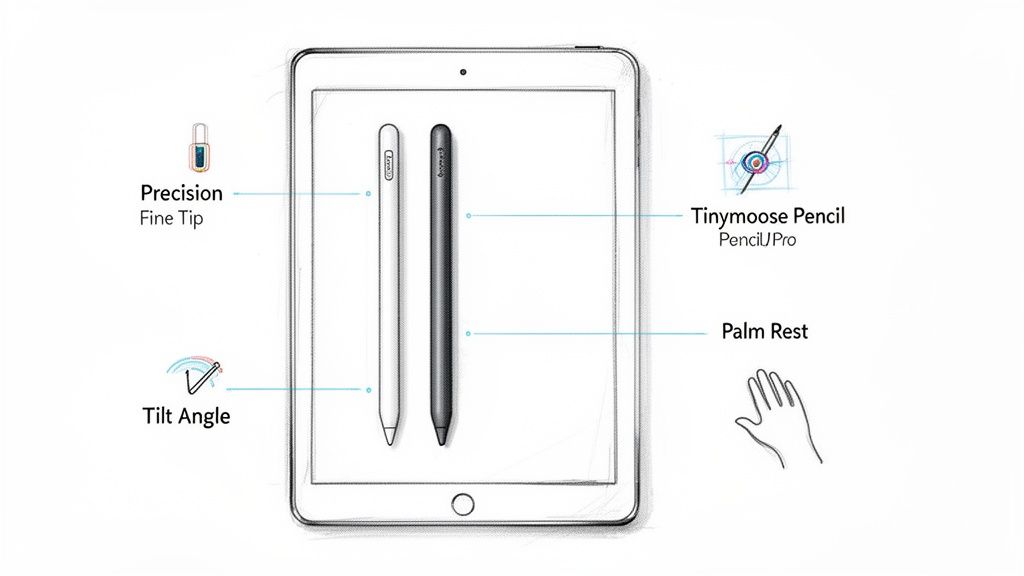
The Logitech Crayon’s 25° tilt detection creates realistic shading effects impossible with basic styluses. Hold the Crayon at a 30-45 degree angle to your screen and watch lines automatically thicken like a real pencil—the steeper the angle, the darker the stroke.
Adjust Your Grip for Perfect Shading Effects
Rest your pinky on the screen while writing to stabilize your hand, then rotate your wrist to vary line thickness without lifting the tip. Most drawing apps like Procreate and Adobe Fresco recognize this tilt input automatically—no special settings required. Warning: Holding the Crayon perfectly vertical eliminates tilt effects, so practice maintaining a slight angle.
Test Palm Rejection in Any Note-Taking App
iPadOS handles palm rejection natively, so your hand won’t interfere with writing in compatible apps. Open GoodNotes or Apple Notes, rest your palm on the screen, and start writing—the system ignores hand contact while registering Crayon input. If palm rejection fails, clean your screen and Crayon tip with a microfiber cloth to remove oil buildup causing false inputs.
Top 4 Apps That Work Flawlessly with Logitech Crayon
The Crayon functions with any app supporting first-generation Apple Pencil, but these four deliver the smoothest experience for different use cases. Each leverages the Crayon’s 20ms latency and 0.1mm accuracy for responsive, natural-feeling input.
GoodNotes 5 for Student Note-Taking
GoodNotes 5 transforms your iPad into a digital notebook with perfect Crayon integration. Use the “Pencil” tool for handwritten notes, then switch to “Pen” for inked outlines—all while maintaining tilt-based shading. Pro Tip: Enable “Write on PDF” to annotate lecture slides directly with your Crayon.
Procreate Workarounds Without Pressure Sensitivity
Unlike Apple Pencil, the Crayon lacks pressure sensitivity—but Procreate offers solutions. Select brushes with “Tilt” enabled in brush settings to control opacity through angle rather than pressure. Combine this with the “StreamLine” feature for smoother strokes that compensate for the Crayon’s fixed pressure output.
Replace Worn Tips and Extend Your Crayon’s Lifespan
After heavy use, the Crayon’s POM plastic tip develops a flat spot causing skipping and inconsistent lines. Check for wear by rolling the tip on a flat surface—if it wobbles, replacement is needed. A 4-pack of tips costs $9.99 from Logitech and takes seconds to install.
How to Spot When Your Tip Needs Replacement
Examine your Crayon tip under bright light for these wear indicators:
– Visible flattening on one side
– Metal casing showing through plastic
– Lines appearing broken or dotted
– Increased resistance when writing
Quick Tip Replacement Without Tools
Remove the worn tip by gently pulling straight out—no tools required. Insert the new tip by pressing firmly until it clicks into place. Warning: Never force the tip sideways as this damages the internal mechanism. After replacement, recalibrate by writing a few circles to adjust to the new tip’s feel.
Troubleshoot Logitech Crayon Connection Issues Now
When your Crayon suddenly stops responding during an important lecture or meeting, these targeted fixes restore functionality faster than full re-pairing. Most connection issues stem from Bluetooth conflicts rather than hardware failure.
Fix “Crayon Not Responding” After iPad Update
iPadOS updates occasionally reset Bluetooth permissions. If your Crayon works after charging but disconnects immediately:
1. Go to Settings > Bluetooth
2. Tap the “i” icon next to Logitech Crayon
3. Select “Forget This Device”
4. Power off Crayon (hold button 10 seconds)
5. Power on and reconnect
This clears corrupted pairing data while preserving your Crayon’s firmware settings.
Solve Intermittent Line Problems in Drawing Apps
Jagged lines often indicate screen protector interference. Remove any matte-finish protectors that create texture—these disrupt the Crayon’s precise input. If using a glass protector, clean both screen and tip thoroughly. Pro Tip: Apply a drop of isopropyl alcohol to a microfiber cloth for deep cleaning without damaging surfaces.
Logitech Crayon vs Apple Pencil: Which Should You Choose?
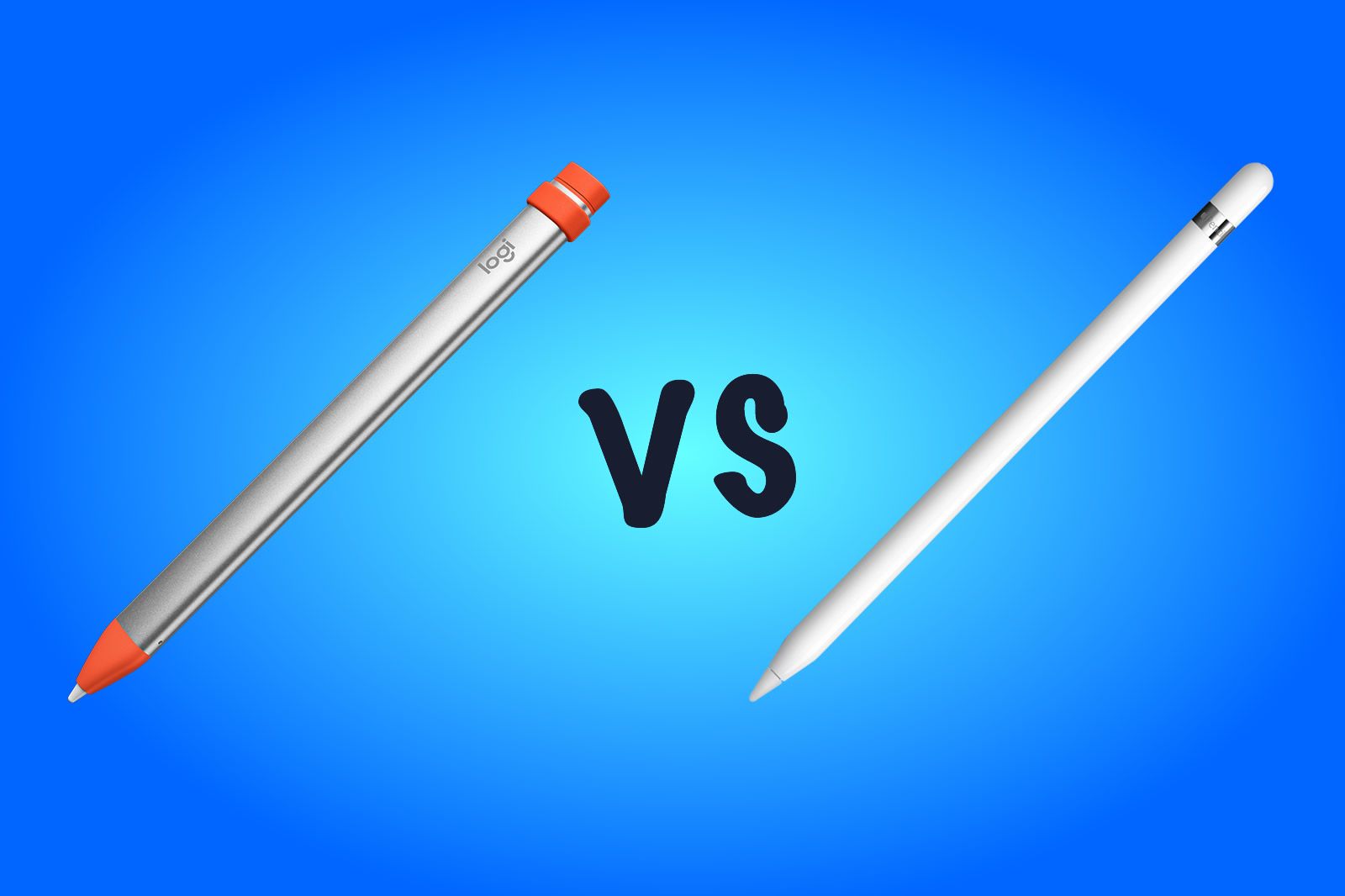
The $69.99 Logitech Crayon delivers 80% of Apple Pencil functionality at half the price—but key differences determine which suits your needs. Students and note-takers gain more value from the Crayon’s durability and comfort, while professional artists require Apple’s pressure sensitivity.
Why Students Save $30 with Logitech Crayon
School environments demand durability the Crayon delivers with its 4-foot drop resistance and flattened design that won’t roll off desks. The identical app compatibility means students access all educational tools without the Apple Pencil’s $99 price tag—critical for budget-conscious schools and families.
When Professional Artists Need Apple Pencil Instead
Digital artists requiring nuanced brush control will miss the Crayon’s lack of pressure sensitivity. Apple Pencil’s 2048 pressure levels allow dynamic line variation impossible with the Crayon’s fixed input. If your workflow depends on pressure-based effects, the Apple Pencil’s $30 premium becomes justified despite the Crayon’s other advantages.
Final Note: Keep your Logitech Crayon charged and stored tip-down in a cup when not in use to prevent accidental button presses that drain battery. For optimal performance, update both iPadOS and your note-taking apps monthly—these updates often include stylus optimization improvements. With proper care, your Crayon will deliver reliable, natural-feeling input for years, making it the smart choice for everyday iPad users who prioritize value without sacrificing essential features.



