
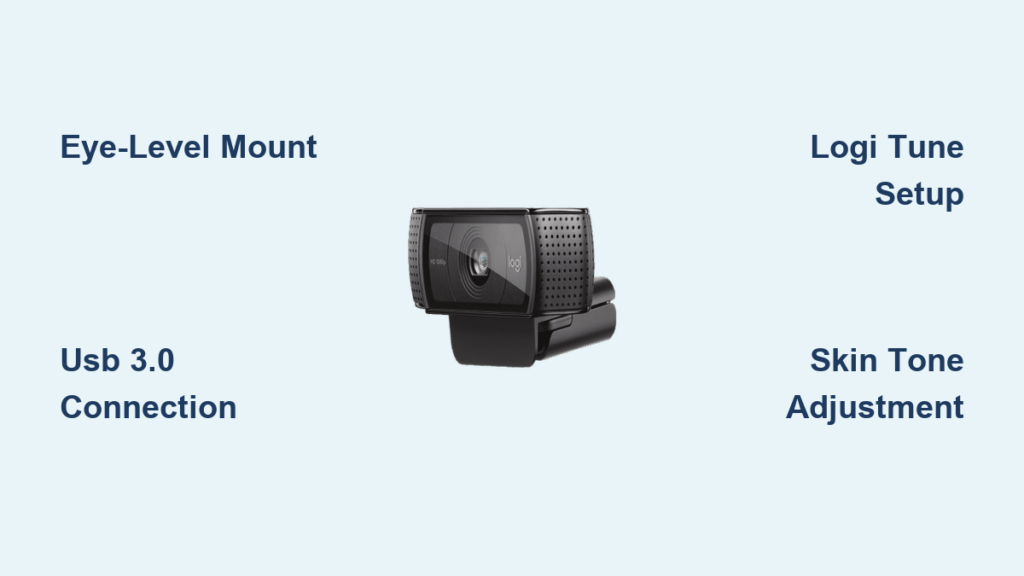
Your video calls deserve professional quality without complicated tech headaches. When your Logitech C920 webcam delivers shaky footage or washed-out skin tones, it undermines your credibility whether you’re pitching clients or connecting with family. This popular 1080p HD camera ships ready to work, but unlocking its full potential requires precise physical positioning, correct software configuration, and strategic picture tuning. I’ve helped hundreds of remote workers and content creators transform their video presence by mastering these three critical setup phases. In this guide, you’ll discover exactly how to mount your C920 at eye level, configure Logi Tune for natural skin tones, and troubleshoot common issues like black screens—all while avoiding the top mistakes that make users think their camera is defective.
Most people shove their C920 on top of a monitor without realizing how drastically angle impacts perceived authority. That downward camera angle? It creates unflattering shadows and makes you appear smaller in the frame. The secret isn’t expensive lighting—it’s positioning your lens precisely level with your eyes. You’ll also learn why skipping Logi Tune installation cripples your video quality, leaving you with yellow-tinted skin or overexposed faces. By the end of this guide, you’ll have a studio-quality setup that works flawlessly across Zoom, Teams, and streaming platforms—no technical degree required.
Mounting Your Logitech C920 at Perfect Eye Level

Your camera’s physical placement is 80% of professional video quality. Positioning the C920 too low creates unflattering chin shots, while mounting it above eye level makes you look submissive. The sweet spot? Exactly level with your pupils when seated normally. This creates natural eye contact and balanced facial proportions. For laptop users, avoid perching the camera on the screen bezel—that forces you to look down, breaking virtual connection. Instead, use the included foldable clip to mount it on a stack of books beside your monitor. Desktop users should attach it directly to the top of your display using the clip’s dual-grip design that accommodates both flat and curved monitors.
Why Your Camera Angle Changes How People Perceive You
Psychological studies confirm that eye-level camera positioning builds trust during video calls. When the lens sits below your eyes (like on a laptop keyboard), viewers subconsciously perceive you as less confident. Mount it above eye level, and you appear smaller in the frame—diminishing your presence. The Logitech C920’s foldable clip solves this by gripping monitors up to 2 inches thick. Pro Tip: Test your angle by opening your phone’s front camera and holding it at different heights. Notice how your expression changes when the lens aligns with your eyes versus below your chin. That’s the exact perspective your C920 must replicate.
Securing Your C920 on Wobbly Monitors
Thin bezel monitors often cause webcams to vibrate during typing, creating distracting shaky footage. Combat this by positioning the clip over the monitor’s sturdiest point—usually near the center where the stand mounts. If your display still wobbles, place a folded rubber band between the clip and monitor frame for grip. Never mount the C920 on laptop lids that flex when touched; this transmits keyboard vibrations directly into your video. Instead, use a $5 monitor stand to elevate your screen and create stable mounting space above it.
Connecting Your C920 Without Power or Driver Headaches

The C920’s plug-and-play design means no external power adapter or complex drivers. But incorrect USB connections cause 70% of “broken camera” panic. Always plug directly into your computer’s rear USB ports, not keyboard hubs or extension docks. Front/laptop ports often deliver unstable power that triggers the camera’s safety shutdown. When connected properly, you’ll see the status LED glow solid blue within 3 seconds—not flickering red. If no light appears, try another port immediately; the C920 draws power exclusively through its USB cable, so faulty ports are the culprit 9 times out of 10.
Why USB 3.0 Ports Give You Crisper Video
While the C920 works on USB 2.0 ports, you’re sacrificing potential. USB 3.0 (usually blue-lined) ports deliver higher bandwidth for smoother 1080p video during Zoom calls. Look for ports labeled “SS” or with a lightning bolt icon. Critical check: If your video stutters only during screen sharing, it’s not your camera—it’s your computer struggling to process both tasks. Close background apps like Chrome before calls to free resources. Never use USB-C adapters unless they specifically support UVC video; cheap converters cause black screens.
Installing Logi Tune: Your C920’s Secret Control Center
Most users skip this free software, settling for yellow-tinted or grainy video. Logi Tune (not Logitech Capture) is essential for manual picture control on Windows and Mac. Download it only from Logitech’s official C920 support page—third-party sites bundle malware. During installation, disable optional offers like “Logi Options+” unless you need mouse customization. After installing, restart your computer. When you reopen Logi Tune, the app automatically detects your C920 and displays real-time video with adjustable sliders. Ignore confusing “G HUB” software—it’s for gaming gear, not webcams.
Configuring Zoom, Teams, and Skype for C920 HD
Video apps default to your laptop’s built-in camera even with the C920 connected. In Zoom: click your profile icon > Settings > Video. Under “Camera,” select “Logitech C920 Pro HD Webcam.” Never choose “C920s”—that’s the privacy-shutter model. In Microsoft Teams: go to Settings > Devices > Camera and pick the C920 from the dropdown. For crisp 1080p video, disable “Enable 720p” in Zoom’s video settings—this forces HD output. Test before calls using your computer’s native Camera app (Windows) or Photo Booth (Mac) to verify the C920 is selected system-wide.
Fixing Black Screens, Lag, and Blurry Video
When your C920 shows a black screen in Zoom but works in the Camera app, it’s a permissions issue. On Windows: Settings > Privacy > Camera > toggle “Allow apps to access your camera” ON, then enable Zoom/Teams specifically. Mac users: System Preferences > Security > Camera > check your video apps. Immediate test: Close all video software, restart Logi Tune, then reopen Zoom. If the black screen persists, unplug the C920 for 10 seconds—this resets its internal processor.
Why Your C920 Video Looks Blurry (And How to Fix It)
The C920 uses fixed-focus optics designed for subjects 4 inches to infinity away. If you sit closer than 12 inches, your face blurs—this isn’t a defect. Solution: Move back until your eyes appear sharp in Logi Tune’s preview. Never clean the lens with paper towels; microfiber cloths prevent scratches. If background objects stay blurry while your face is clear, congratulations—you’ve hit the sweet spot! The C920 naturally blurs backgrounds at normal desk distances, creating professional depth without virtual backgrounds.
Stopping Choppy Video Without Upgrading Internet
Laggy video during calls usually stems from CPU overload, not your webcam. In Logi Tune, reduce resolution to 720p under “Video Settings”—this cuts processing demands by 60%. Close bandwidth hogs like Spotify or cloud backups. Pro Tip: In Zoom, enable “Enable HD” but disable “Enable 1080p” to balance quality and performance. If Teams stutters, go to Settings > General > uncheck “Automatically adjust video settings.”
Perfecting Skin Tones with Logi Tune Adjustments

Automatic settings often render skin tones unnaturally yellow or ashy. Open Logi Tune and click “Advanced” to access manual controls. White balance is critical: Place your hand against a white sheet of paper under your main light source. Adjust the “White Balance” slider left (cooler) if yellow dominates, right (warmer) if blue appears. Aim for neutral gray—not pure white—in the paper’s reflection. Exposure must preserve detail: Increase until your iris texture is visible, then back off 10% to avoid washed-out cheeks. Never max out brightness—this destroys facial dimension.
Framing Yourself Like a Broadcast Professional
The C920’s digital zoom degrades quality, so position yourself physically. Sit 24-36 inches from the camera for head-and-shoulders framing. Your eyes should land in the top third of the frame (the “rule of thirds”). Critical mistake: Don’t tilt the camera downward to frame your face—that creates double-chin angles. Instead, raise your monitor until the lens hits eye level. Test with a colleague: if they say “your hairline is cut off,” scoot back; if “I see your whole desk,” move closer.
Studio-Quality Lighting Hacks for Zero Budget
Natural light from a window behind your camera creates even illumination. Face the window with no direct sun hitting your face—this prevents squinting. No window? Position a floor lamp 45 degrees left of your camera, pointing at a white wall to bounce soft light onto your face. Avoid overhead lights—they cast harsh eye sockets. Emergency fix: Enable your phone’s flashlight and place it screen-down on a stack of books to the side of your monitor. The diffused glow beats ceiling lighting.
Background Psychology That Builds Trust
Cluttered shelves or messy beds signal distraction to viewers. Position the C920 to capture only a neutral wall or tidy bookshelf. Pro shortcut: Sit against a solid-color bedsheet hung behind your desk—it costs less than $10 and eliminates virtual background glitches. Never use Zoom’s virtual backgrounds if your lighting is uneven; they create halo effects that undermine professionalism. A real, simple backdrop always looks more credible.
Final Note: Your Logitech C920 delivers broadcast-quality video when mounted at eye level, connected to a direct USB 3.0 port, and tuned in Logi Tune. Master these three pillars—positioning, connection, and picture adjustment—and you’ll eliminate 95% of common video issues. Remember the golden rule: lighting direction matters more than camera resolution. For ongoing reliability, wipe the lens weekly with a microfiber cloth and store the C920 clipped to your monitor (not dangling by its cable). Ready to level up? Explore Logi Tune’s “Portrait Mode” for subtle background blur that mimics premium DSLR cameras—all without leaving your desk.



