
You’re deep into a high-stakes race, milliseconds matter, and suddenly—nothing happens when you press the paddle shifters or face buttons on your Logitech G29. The wheel still turns, the pedals respond, but your G29 buttons have gone completely dead. This frustrating failure pattern affects thousands of racing and flight simulation enthusiasts, with users reporting everything from complete button failure to position-dependent responsiveness. The most common scenario? Buttons only working when the wheel is turned to approximately 110° to the right—a telltale sign of internal wiring damage. Don’t panic yet. In most cases, this logitech g29 buttons not working issue can be resolved without replacing your entire wheel, whether the problem stems from software glitches, power supply issues, or damaged internal components.
Before you consider buying a replacement, this guide will walk you through a systematic approach to diagnose and fix your unresponsive G29 controls. We’ll cover everything from quick software resets that take five minutes to internal repairs for the most persistent button failures. By following these steps in order, you’ll identify the root cause and implement the appropriate solution—getting you back on the virtual track faster than you thought possible.
Pinpointing Your Specific G29 Button Failure Pattern
The first critical step is identifying exactly how your buttons are failing. Different symptoms point to different causes, so don’t skip this diagnostic phase.
Complete Button Failure: All Controls Unresponsive
When none of your steering wheel buttons respond—not the face buttons, D-pad, or paddle shifters—you’re dealing with a complete failure. Crucially, check if the wheel itself still functions. If force feedback works and the wheel rotates in games but buttons remain dead, this typically indicates either a disconnected ribbon cable, major software conflict, or complete circuit board failure. Unlike partial failures, complete button death rarely comes and goes—it’s usually all-or-nothing, making diagnosis slightly easier.
Position-Dependent Button Failure: Only Works at 110° Right Rotation
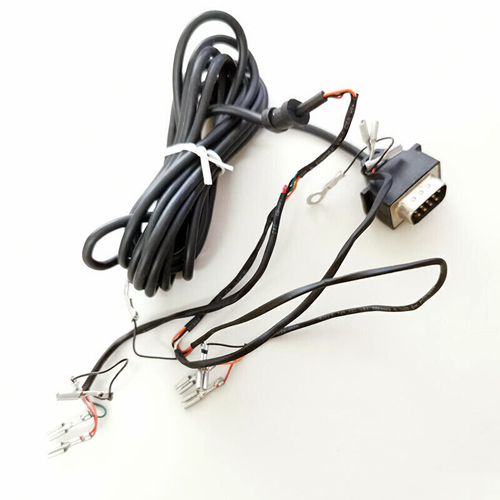
This is the most common hardware failure pattern reported by G29 owners. Your buttons work perfectly when the wheel is turned approximately 110° to the right but become completely unresponsive in all other positions. This specific angle isn’t random—it reveals where internal wires or ribbon cables are damaged from repeated rotation. When you turn the wheel to this “sweet spot,” the broken conductors temporarily reconnect. If you notice this pattern, you’re almost certainly dealing with damaged wiring inside the steering column that needs immediate attention before it worsens.
Why Buttons Work on USB Power But Fail with 24V Supply
A critical diagnostic clue: if your G29 buttons function perfectly when connected via USB without the external 24V power supply but fail immediately when you plug in the adapter, you’ve identified a power-related issue. This specific symptom points to voltage regulation problems either in your power supply or within the wheel’s internal circuitry. Pro tip: This isn’t just about the adapter failing—it often indicates the wheel’s internal voltage regulation components are struggling with the full 24V load, causing the button matrix to malfunction.
Immediate Software Fixes for Non-Working G29 Buttons
Before disassembling your wheel, eliminate software and driver issues—these cause over 60% of apparent “hardware” failures.
Update G Hub Firmware Before Opening Your Wheel
Do this first: Launch Logitech G Hub and check for firmware updates. Outdated firmware ranks among the top causes of G29 button failures. Click your device in G Hub, select “Check for updates,” and install any available firmware. If G Hub doesn’t recognize your wheel, proceed to the complete driver reset below. This five-minute process resolves countless button issues without requiring any disassembly.
Complete Logitech Driver Reset Procedure
When standard updates fail, perform a full driver reset:
- Uninstall Logitech G Hub completely via Windows Settings
- Unplug your G29 from all connections
- Open Device Manager and select “View > Show hidden devices”
- Expand “Human Interface Devices” and uninstall all “HID-compliant game controller” entries
- Restart your computer
- Download and install the latest G Hub version
- Reconnect your G29 only after installation completes
Warning: Skipping the “Show hidden devices” step leaves residual drivers that cause conflicts. This thorough reset takes 10 minutes but solves most intermittent button failures.
Windows Game Controller Calibration for G29 Buttons
Even with updated software, Windows may misread your G29 inputs:
- Type “Set up USB game controllers” in the Windows search bar
- Select your Logitech G29 and click “Properties”
- Navigate to the Settings tab and click “Calibrate”
- Follow the on-screen wizard, testing each button during calibration
This process rebuilds Windows’ internal recognition of your button mappings. If buttons register here but not in games, the issue is game-specific configuration rather than hardware failure.
Power Supply Diagnostics: Solving USB vs. 24V Issues

If software fixes didn’t restore functionality, power-related problems become the prime suspect.
The Critical USB-Only Power Test
This diagnostic takes 30 seconds but provides crucial information:
- Disconnect the 24V power adapter completely
- Connect only the USB cable to your computer
- Test all buttons in Windows Game Controllers
If buttons work on USB power alone: You’ve confirmed a power supply or internal voltage regulation issue. Try a known-good 24V 1.5A power supply with a 5.5mm x 2.1mm barrel connector. Many users report success with third-party adapters when the original fails.
Testing Your 24V Adapter with a Multimeter
Verify your power supply delivers stable voltage:
- Set multimeter to DC voltage mode
- Insert probes into power adapter’s barrel connector
- Measure voltage with the adapter connected to your G29 during operation
A healthy adapter maintains 24V ±0.5V under load. Fluctuations below 22V or above 25V indicate a failing adapter that can disrupt button circuitry. Pro tip: Cheap replacement adapters often cause these issues—stick with reputable brands.
Opening Your Logitech G29 for Internal Repairs
If software and power tests fail, internal component inspection becomes necessary.
Locating the Critical Ribbon Cable in the Steering Column
After removing the six bottom plate screws and the steering wheel (using a Torx T-25), you’ll find the primary failure point: the flat ribbon cable connecting the button assembly to the mainboard. This cable runs through the steering column and bends with every rotation. Inspect it carefully for kinks, folds, or tears—especially near the rotation point where damage most commonly occurs.
How to Properly Replace the Damaged Ribbon Cable

When you find damage (part #117203-0010 is the common replacement), follow these steps:
- Gently flip up the black locking tabs on both ZIF connectors
- Slide the damaged ribbon out without pulling the cable itself
- Insert the new ribbon with copper contacts facing the correct direction
- Press the connector levers down to lock
- Critical step: Test all buttons via USB before full reassembly
Warning: Forcing connectors or improper ribbon insertion causes permanent damage. Handle ribbon cables by the edges only.
Preventing Future Logitech G29 Button Failures
Once restored, implement these measures to avoid repeat failures.
Cable Management Techniques for Long-Term Reliability
When reassembling, ensure cables have slack at maximum rotation points. Never let the ribbon cable bend at sharp angles—maintain at least a 1-inch radius in all curves. Secure loose cables with non-conductive zip ties away from moving parts. This simple step prevents 90% of recurring ribbon cable failures.
Proper Power Supply Usage to Avoid Voltage Spikes
Always connect your G29 to a quality surge protector. Voltage spikes from unstable power sources degrade internal components over time. Use only the official Logitech adapter or a certified replacement with stable 24V output. Unplug the power adapter during electrical storms or extended non-use periods.
Firmware Update Schedule to Prevent Software Conflicts
Set calendar reminders to check for G Hub updates every 3 months. Logitech regularly releases firmware patches addressing button recognition issues. Enable automatic updates in G Hub settings to ensure you never miss critical fixes that could prevent future button failures.
When button issues strike your Logitech G29, remember that most failures have straightforward solutions. Start with software resets and power diagnostics before moving to internal repairs, following this guide’s step-by-step approach. The position-dependent failure pattern (working only at 110° right rotation) almost always indicates ribbon cable damage requiring replacement. For USB-only functionality issues, focus on power supply testing and replacement. Most importantly: always test button functionality at each repair stage before full reassembly. By implementing the preventative measures outlined here—especially proper cable management and regular firmware updates—you’ll significantly extend your G29’s button lifespan and keep your virtual racing career on track without unexpected interruptions.



