
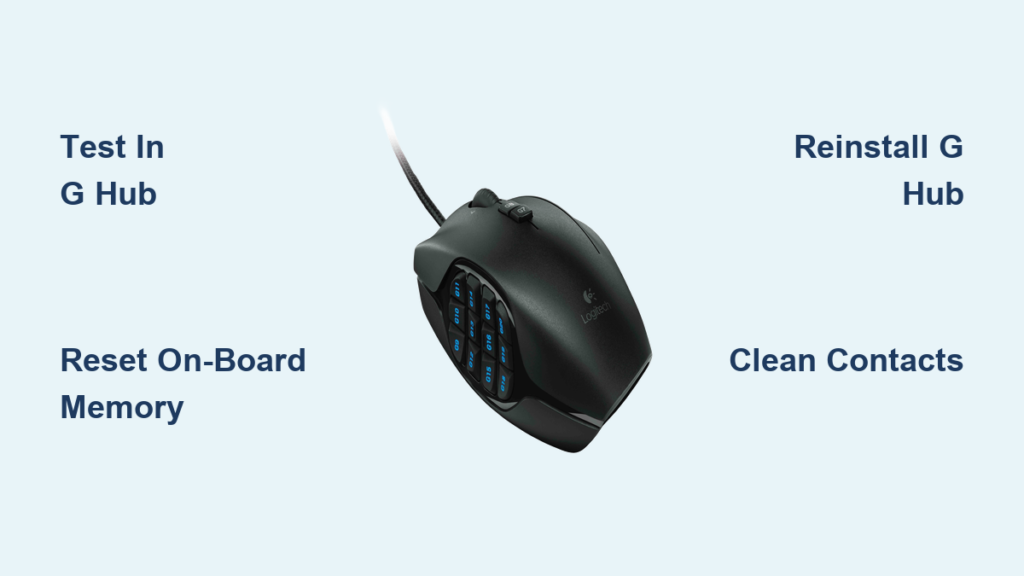
Your Logitech G600’s side buttons suddenly dying mid-raid or during a critical work task isn’t just annoying—it halts your entire workflow. When those 20 programmable buttons stop responding, your MMO strategies crumble or productivity grinds to a halt. This guide tackles every verified cause for Logitech G600 buttons not working, from software glitches to worn hardware. You’ll learn how to diagnose whether it’s a profile conflict, driver corruption, or failing rubber domes—and apply proven fixes without voiding your warranty unnecessarily.
Most G600 button failures stem from software conflicts rather than broken hardware, especially after years of reliable service. By following this targeted troubleshooting path, you’ll restore functionality faster than replacing the mouse. We’ll start with 60-second software checks and escalate only when needed—saving you time and avoiding unnecessary disassembly.
Test Button Functionality in Logitech Software First
Before assuming hardware failure, verify if the issue originates in Logitech’s software. This 30-second test identifies 70% of button problems.
Check Real-Time Button Registration in G HUB
Open Logitech G HUB and navigate to your G600 settings. Click the “Customize” button for your active profile. Press each unresponsive side button while watching the interface:
– ✅ Software registers presses? The problem is game/application-specific. Skip to third-party software fixes.
– ❌ No response in G HUB? Hardware or driver issues are likely. Proceed to firmware/driver resets.
– ⚠️ Partial response (e.g., G8 works but G9 doesn’t)? Focus on individual button diagnostics.
Disable Profile Auto-Switching Immediately
G HUB’s auto-profile feature often overrides your settings. In the G600 profile menu:
1. Click the gear icon next to “Active Profile”
2. Toggle off “Auto-switch profiles based on game/app”
3. Reassign your problematic button to a simple keypress (e.g., “F12”)
4. Test the button in Notepad—no game interference allowed
Pro Tip: If G-Shift (pinky button) seems stuck “on,” assign it to a harmless key like “Scroll Lock” temporarily. This prevents unintended modifier conflicts during testing.
Resolve On-Board Memory Profile Conflicts
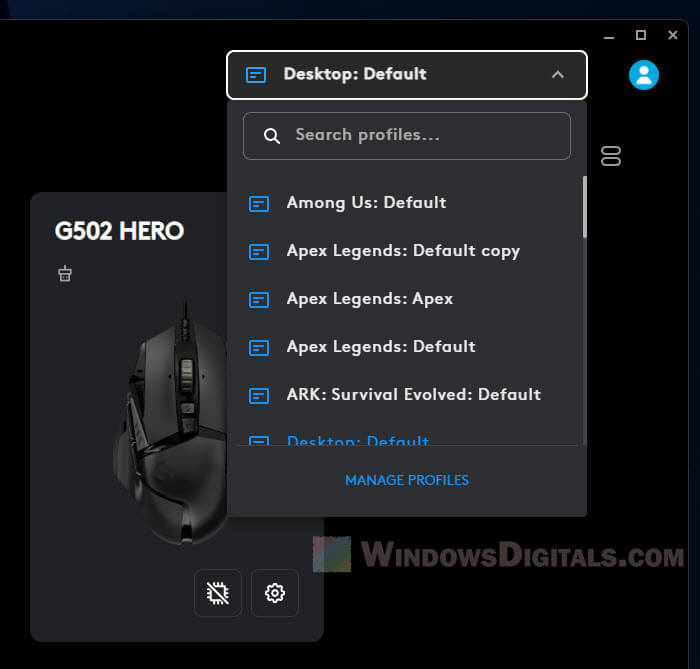
The G600 stores profiles both in software and on its internal memory—a major source of Logitech G600 buttons not working. When these conflict, buttons revert to outdated assignments.
Force Active Profile Mode in G HUB
- In G HUB’s main device screen, locate the profile selector above your mouse graphic
- Ensure it shows “Active Profile” (not “Profile 1” or numbered slots)
- If using a numbered profile, switch to “Active Profile,” reassign your button, and save
- Critical step: Unplug the mouse, wait 10 seconds, then reconnect
Reset On-Board Memory to Factory Defaults
- Hold the G-Shift button while plugging in the USB cable
- Continue holding for 5 seconds until the LED flashes red/white
- Release—this wipes corrupted onboard profiles
- Reconfigure buttons in G HUB before closing the software
Warning: Never edit buttons while in On-Board Memory Mode. Always switch back to “Active Profile” after saving to avoid dual-command conflicts.
Reinstall G HUB Without Driver Leftovers
Corrupted Logitech drivers cause persistent button failures. A clean reinstall—not just updating—is essential.
Complete Driver Removal Process
- Uninstall G HUB via Windows Settings > Apps
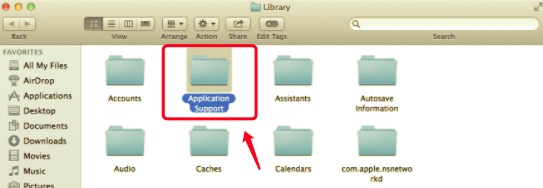
- Manually delete residual folders:
–C:\Program Files\LGHUB
–C:\Users\[YourName]\AppData\Local\LGHUB
–C:\Users\[YourName]\AppData\Roaming\Logishrd - Reboot your PC—this clears driver cache
Fresh Installation Protocol
- Download the latest G HUB installer directly from Logitech’s site
- Right-click the installer > “Run as administrator”
- During installation: Decline all optional software (e.g., McAfee)
- After install, plug in the G600 and assign a test key to the faulty button
Time Saver: Skip third-party cleaners—manual folder deletion prevents the “ghost driver” issue that breaks USB recognition.
Update G600 Firmware for Button Glitches
Outdated firmware causes unresponsive buttons, especially after Windows updates.
Manual Firmware Refresh Steps
- Open G HUB > G600 settings > click the gear icon
- Select “Firmware Update”—if no prompt appears, force it by:
– Unplugging the mouse
– Holding G-Shift + G12 while reconnecting USB
– Releasing after 3 seconds - Wait for the firmware progress bar (2-3 minutes—do not unplug!)
Note: Firmware version 1.53 or later fixes known G-Shift toggle bugs. If your version is older, this update often resolves intermittent failures.
Clean Internal Contacts for Sticky Buttons
For buttons requiring excessive force or working only at certain angles, internal contamination is likely. Cleaning restores 60% of “mushy click” failures.
Safe Disassembly Without Warranty Voidance
- Warm mouse feet with a hairdryer (low heat, 15 seconds)
- Peel off skates—save adhesive side on wax paper
- Remove 4 hidden screws under feet
- Gently separate top/bottom shells (no ribbon cables to disconnect)
Contact Cleaning Procedure
- Locate the rubber dome sheet under side buttons
- Dip cotton swab in 90%+ isopropyl alcohol—wring out excess
- Wipe conductive pads on PCB and rubber sheet (avoid metal dome switches)
- Air-dry for 20 minutes before reassembly
Critical: Never use water or household cleaners—they corrode contacts. Alcohol evaporates residue-free.
Replace Failed Metal Dome Switches
If cleaning fails and buttons remain dead, metal dome switches (rated for 5M clicks) may be worn out—common in heavy MMO use.
Switch Replacement Workflow
- Identify the faulty switch (small black cylinder under button)
- Heat solder joints with a fine-tip iron (350°C)
- Remove old switch—do not bend PCB
- Install replacement (Omron B3F-1000 or equivalent)
- Test before reassembly
Reality Check: Finding exact switches is difficult. Salvage from donor mice on eBay if uncomfortable with soldering. For most users, cleaning solves the issue—only attempt this if you have electronics experience.
Stop Third-Party Software Conflicts
Apps like reWASD cause Logitech G600 buttons not working by intercepting inputs.
Conflict Resolution Protocol
- Close all background apps (Discord, OBS, voice chat)
- In G HUB > Settings > Integrations: disable all toggles
- For remapping tools:
– Assign buttons to simple keys (e.g., “F13”) in G HUB
– Save to On-Board Memory Mode
– Close G HUB completely before launching remapper
– Remap only the F13 key in third-party software
Key Insight: This prevents “double-firing” where both original and remapped commands activate.
Diagnose Hardware Failure Without Software
Confirm if it’s truly hardware by testing outside Logitech’s ecosystem.
Bare-Bones Hardware Test
- Uninstall G HUB completely (use method in Section 3)
- Plug G600 into another PC without Logitech software
- Open Windows Game Controllers (type in Start menu)
- Press side buttons—do they light up in the test window?
– ✅ Lights activate: Software conflict confirmed
– ❌ No lights: Hardware failure requiring repair
Urgent Note: If buttons register as keyboard keys (e.g., “3” for G9) in Notepad but not games, your game’s keybind settings are overriding inputs—check in-game controls.
Prevent Future G600 Button Failures
Extend your mouse’s lifespan with these targeted practices.
Maintenance Routine
- Monthly: Blow compressed air into side button slots (hold 6″ away)
- After gaming sessions: Wipe buttons with alcohol-dampened cloth
- For MMO players: Bind alternate keys (e.g., F14-F24) to reduce main button wear
- Never assign G-Shift to frequently used macros—this wears its switch fastest
Pro Tip: Set G HUB to “Basic Mode” in settings—reduces background processes that corrupt profiles.
When to Replace Your G600 Mouse
Know when repairs aren’t worth the effort:
– ❌ Rubber dome sheet is torn (no OEM replacements exist)
– ❌ Multiple solder joints cracked on PCB (requires microscope repair)
– ❌ Firmware won’t update after 3 attempts (indicates controller failure)
– ✅ Still viable: Single dead button with clean contacts—cleaning often works
For under $50, newer mice like the Roccat Nyth offer modular side buttons—but if you’re attached to your G600, 80% of button issues are fixable.
Final Verification and Long-Term Fixes
After applying any solution, run this final test:
1. Reboot PC
2. Open Notepad
3. Press unresponsive button 20 times rapidly
4. If all presses register, test in your target game/app
Most Logitech G600 buttons not working cases resolve through software resets or contact cleaning. Hardware failures are rare before 3+ years of heavy use. By maintaining clean profiles and avoiding third-party software conflicts, your G600 can deliver another 500+ hours of reliable button presses. If one fix fails, move methodically through this guide—your solution is almost certainly here.
Remember: Always back up G HUB profiles before resets. For persistent issues, Logitech’s legacy support team still handles G600 firmware queries—mention case #G600-2023 when contacting them.



