
You’ve just unboxed your Logitech G920 or G29 steering wheel, connected it to your PC, and launched Burnout Paradise Remastered only to discover the game doesn’t recognize your wheel. Despite widespread claims that Burnout Paradise Remastered doesn’t support steering wheels, there’s a proven method to get your Logitech steering wheel setup working perfectly with this classic arcade racer. The solution requires manual configuration file editing, but the payoff is worth it—a fully immersive driving experience with proper force feedback and responsive controls.
Unlike modern racing games, Burnout Paradise Remastered doesn’t offer native wheel support through its settings menu. Many players mistakenly believe their Logitech steering wheel simply won’t work with the game, but this isn’t true. By editing a specific configuration file and properly mapping your wheel’s unique identifier, you can transform your driving experience from frustrating to fantastic. This guide delivers the exact steps you need to follow, based on verified methods that work with Logitech G920, G29, and compatible wheels.
Why Burnout Paradise Remastered Ignores Your Logitech Wheel Without Manual Configuration
Burnout Paradise Remastered was originally developed for consoles and only received a PC port years later, which explains its limited native wheel support. The game’s input system relies on recognizing specific controller GUIDs (Globally Unique Identifiers), and without the correct configuration, it simply won’t detect your Logitech steering wheel setup. This isn’t a hardware issue—it’s a software recognition problem that requires manual intervention.
The critical missing element is the proper controller GUID mapping in Burnout’s configuration file. When you launch the game normally, it only recognizes standard controllers and keyboards. Your Logitech wheel appears as an unrecognized DirectInput device, causing the game to ignore it completely. This explains why your wheel works in other racing games but sits dead in Burnout Paradise Remastered.
How Burnout’s Input System Actually Works With Wheels
Burnout Paradise Remastered uses a legacy input system that requires explicit mapping of each controller’s unique identifiers. Unlike modern games that automatically detect common wheel models, Burnout needs to be manually told: “This specific GUID belongs to a Logitech steering wheel.” Without this mapping, the game treats your wheel as an unknown peripheral and disables all input from it.
The configuration file controls.ini controls how the game interprets inputs from all connected devices. By adding your wheel’s exact Instance GUID and Product GUID to this file, you’re essentially teaching Burnout how to recognize and communicate with your Logitech steering wheel setup. This isn’t complicated—you just need the right information in the right place.
Hardware and Software Requirements Before Logitech Wheel Configuration
Before editing any files, ensure your hardware and software foundation is solid. A faulty connection or outdated software will derail your Logitech steering wheel setup before you even begin configuration. These prerequisites are non-negotiable for success.
Essential Pre-Configuration Checklist
- Physical Connections: Connect your Logitech G920 or G29 wheel via USB and ensure it’s plugged into a power outlet (wheels require external power for force feedback)
- Logitech G HUB Verification: Launch Logitech G HUB and confirm your wheel appears in the device list with up-to-date firmware
- Initial Game Boot: Start Burnout Paradise Remastered once with a keyboard or controller to generate necessary configuration files
Critical Mistake to Avoid: Don’t skip the initial game boot step. Without this, the game won’t create the Save folder structure needed for your Logitech steering wheel setup. Many users waste hours troubleshooting because they tried to edit files that didn’t exist yet.
Finding and Editing Burnout’s Critical controls.ini File
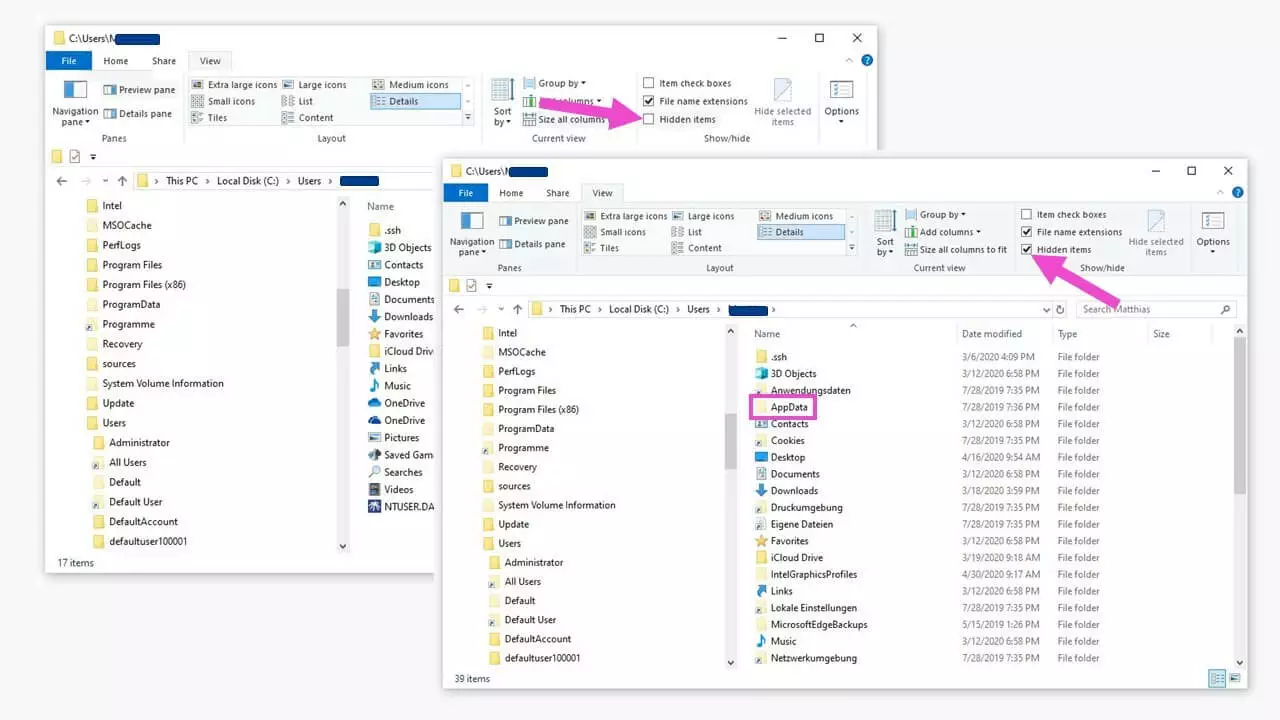
The heart of your Logitech steering wheel setup lies in modifying Burnout’s controls.ini file. This isn’t in the game’s installation directory—it’s hidden in your Windows user data folder. Missing this detail is why most online guides fail to deliver results.
Step-by-Step File Location and Creation
- Press
Win + Ron your keyboard to open the Run dialog - Type
%LOCALAPPDATA%\Criterion Games\Burnout Paradise Remastered\Save\and press Enter - Look for
controls.iniin this folder—if it exists, open it; if not, create a new text file and rename it tocontrols.ini
Why This Location Matters: Steam Cloud saves and game installation directories contain copies of configuration files, but Burnout Paradise Remastered only reads from this specific %LOCALAPPDATA% location during gameplay. Editing files elsewhere wastes your time.
Configuring Your Logitech Wheel’s Unique Controller GUID Correctly
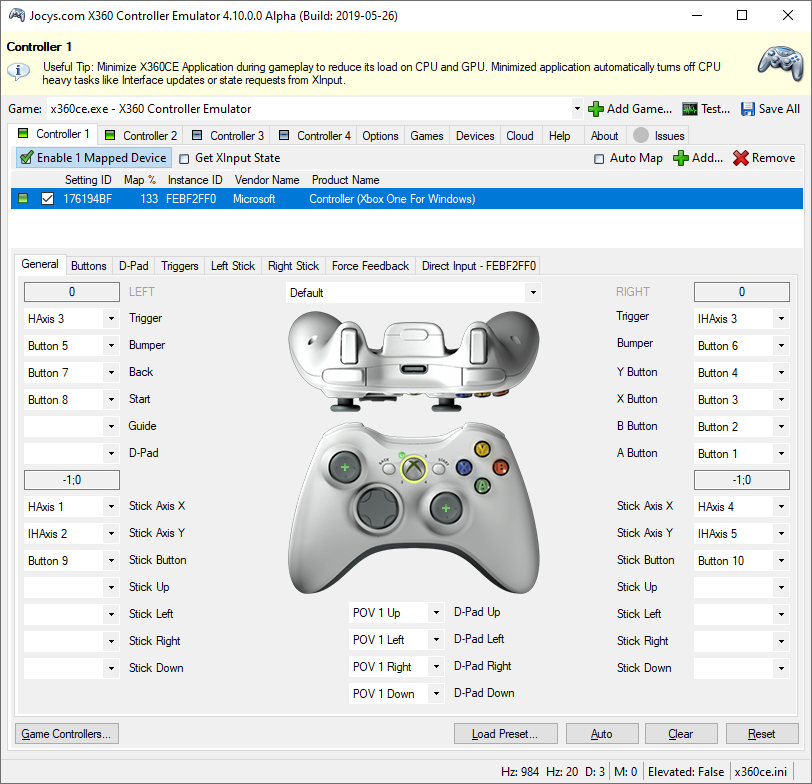
Your wheel’s GUID is like its fingerprint—no two are identical. This is why generic configuration files found online rarely work. You must use your specific GUID for your Logitech steering wheel setup to function.
How to Find Your Exact Controller GUID
- Download and run x360ce (Xbox 360 Controller Emulator)
- Click “Add” to detect connected controllers
- Select your Logitech wheel from the list
- Navigate to the “DirectInput” tab
- Locate your wheel and note both the Instance GUID and Product GUID
Implementing Your GUID in controls.ini
Open your controls.ini file and add these exact lines at the top:
ini

[General]

Version=19

[ConfigUser Configuration]

1 = YOUR_INSTANCE_GUID, YOUR_PRODUCT_GUID, Logitech G HUB G920 Driving Force Racing Wheel USB, 4
Replace YOUR_INSTANCE_GUID and YOUR_PRODUCT_GUID with the values from x360ce. An example would look like:
1 = 32E887F0-E3C0-11EE-8004-444553540000, C262056D-0000-0000-0000-504944564944, Logitech G HUB G920 Driving Force Racing Wheel USB, 4
Pro Tip: Keep x360ce open while editing—you’ll need to reference these GUIDs multiple times during your Logitech steering wheel setup.
Mapping Steering, Pedals and Buttons for Perfect Burnout Control
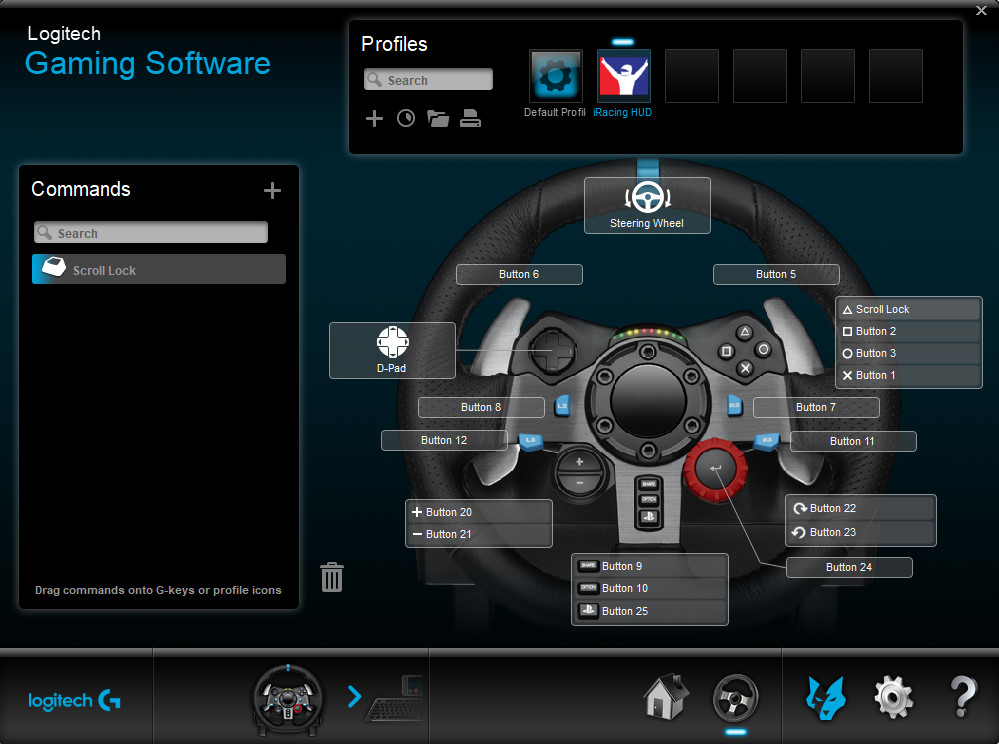
Now that Burnout recognizes your wheel, you need to tell it what each input does. The syntax looks complex but follows a logical pattern once you understand the components.
Essential Control Bindings Syntax Explained
Each line in controls.ini follows this structure:
– K(KEY) = Keyboard fallback (useless for wheel-only play but required)
– C(1,AXISX,0.00,-1.00) = Controller 1, X-axis, min/max values
– D(0.05) = Deadzone (neutral zone where no input registers)
– S(0.80) = Sensitivity (input strength multiplier)
Critical Bindings for Burnout Paradise Remastered
ini

STEERLEFT=K(A) C(1,AXISX,0.00,-1.00) D(0.05) S(0.80)

STEERRIGHT=K(D) C(1,AXISX,0.00,1.00) D(0.05) S(0.80)

ACCELERATE=K(W) C(1,AXISY,1.00,-1.00) D(0.05) S(0.80)

BRAKE=K(S) C(1,AXISRZ,1.00,-1.00) D(0.05) S(0.80)

HANDBRAKE=K(LSHIFT) B(1,BUTTON1) D(0.00) S(1.00)

BOOST=K(SPACE) B(1,BUTTON2) D(0.00) S(1.00)
Key Adjustments for Burnout:
– Set steering deadzone (D) to 0.05 for precise control during Burnout’s signature drifts
– Use 0.80 sensitivity (S) for steering to prevent oversteering at high speeds
– Keep pedal deadzones low (0.02-0.05) for Burnout’s responsive acceleration
Tuning Force Feedback for Burnout’s Arcade Driving Style
Burnout Paradise Remastered isn’t a simulation—it’s an arcade racer that demands different force feedback settings than racing sims. Your Logitech steering wheel setup needs specific FFB tuning to match Burnout’s over-the-top physics.
Optimal Logitech G HUB Settings for Burnout
- Operating Range: Set to 360°-540° (not 900° like in sims) for quicker steering response
- Force Feedback Strength: 70-80%—enough to feel collisions but not so strong it fights your inputs
- Center Spring: Enable at 20-30% to help the wheel return to center after hard turns
In-Game Force Feedback Adjustments
Modify these values in your controls.ini file:
– Collision feedback: S(1.00) for strong crash effects
– Road vibration: S(0.60) for subtle surface feedback
– Curb impacts: S(0.80) for noticeable but not jarring feedback
Why This Matters: Burnout’s physics rely on feeling the road and collisions. Proper force feedback helps you control slides and time your boosts perfectly—critical for Burnout’s crash junctions and road rule challenges.
Troubleshooting Common Logitech Wheel Issues in Burnout Paradise
Even with perfect configuration, you might encounter issues. These targeted fixes address the most frequent problems with Logitech steering wheel setup in Burnout.
Wheel Not Detected After Configuration
- Verify GUID accuracy: Double-check your Instance and Product GUIDs in x360ce
- Check wheel mode: Ensure your Logitech wheel is in “PC” mode, not PS4/Xbox mode
- Test in Windows: Open “Set up USB game controllers” in Windows to confirm detection
Force Feedback Problems
- No FFB: Check power connection to wheel base and verify FFB enabled in G HUB
- Oscillating wheel: Reduce FFB strength to 60-70% and increase deadzone to D(0.10)
- Weak effects: Increase sensitivity values (S) in controls.ini to 0.90-1.00
Input Lag or Unresponsiveness
- Reduce deadzones: Lower D values to 0.01-0.03 for immediate response
- Disable USB selective suspend: In Windows Power Options, turn off USB power saving
- Run as administrator: Right-click game executable and select “Run as administrator”
Final Testing and Optimization for Your Logitech Wheel Setup
Before hitting the streets of Paradise City, validate your configuration with these specific tests:
- Menu Navigation: Verify D-pad or hat switch works in main menu
- Steering Test: Drive in free roam and check for smooth steering without jumps
- Collision Feedback: Intentionally hit objects to test force feedback strength
- Boost Timing: Practice perfect boost launches to ensure button responsiveness
Pro Tuning Tip: Start with D(0.05) and S(0.80) for steering, then adjust in 0.05 increments based on your wheel’s rotation range. More rotation (540°+) needs higher sensitivity; less rotation (270°) needs lower sensitivity.
Once perfected, save a backup of your controls.ini file. This Logitech steering wheel setup will survive game updates and save resets, keeping your Burnout Paradise Remastered experience consistently immersive. The initial configuration takes 15 minutes, but the payoff is years of perfect arcade racing with your Logitech wheel.



