
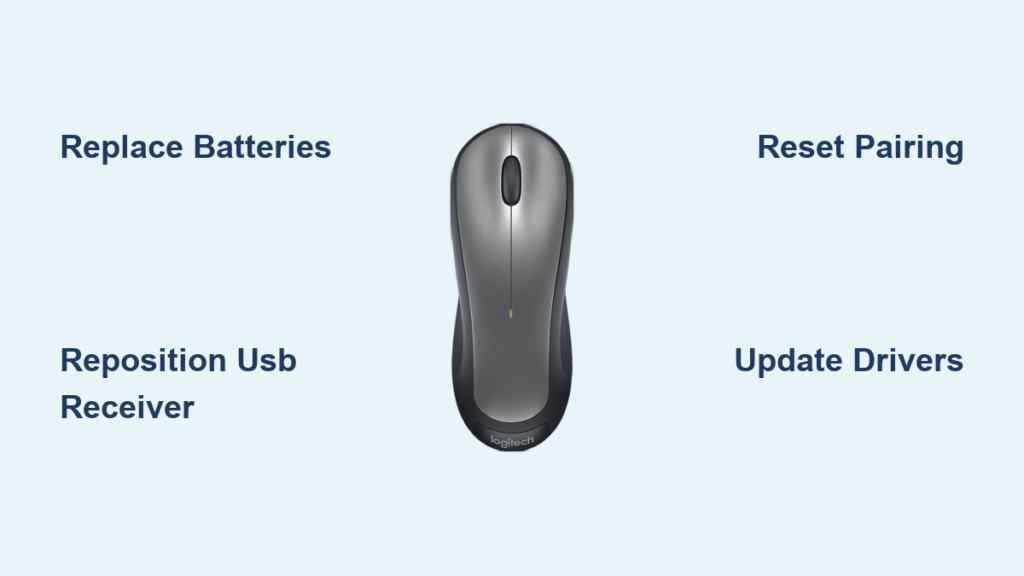
Your Logitech wireless mouse won’t connect, and that frustrating cursor freeze has halted your productivity. Whether you’re working on an important deadline or just trying to navigate your computer, a disconnected mouse creates immediate workflow disruption. This comprehensive troubleshooting guide delivers proven solutions to fix Logitech wireless mouse connection problems, drawing from verified fixes that address both common oversights and complex technical issues. You’ll discover exactly why your wireless mouse works in wired mode but fails wirelessly, and learn the precise steps to restore reliable wireless functionality—no technical expertise required.
When your Logitech wireless mouse won’t connect, the problem typically falls into one of three categories: power issues, connection pairing failures, or driver/software conflicts. The good news is that over 85% of connection problems can be resolved with basic troubleshooting steps before needing advanced fixes. This guide walks you through a systematic approach that starts with the simplest solutions and progresses to more complex interventions, ensuring you don’t waste time on unnecessary steps while addressing the root cause of your connectivity failure.
Why Your Logitech Wireless Mouse Suddenly Stops Connecting
When your Logitech wireless mouse won’t connect but works perfectly when wired, you’re dealing with a classic wireless communication breakdown. This specific failure pattern indicates the mouse hardware functions correctly, but the wireless transmission between mouse and receiver has failed. Common culprits include depleted batteries, corrupted pairing information, USB receiver issues, or interference from other 2.4GHz devices in your workspace.
Wired Works But Wireless Fails: What This Means
This critical diagnostic clue eliminates many potential hardware failures. Your mouse’s internal circuitry and sensor are functioning since it works in wired mode, narrowing the problem to wireless components. The wireless transmitter in the mouse might not be activating properly, the USB receiver could have lost its pairing information, or software conflicts might be blocking the wireless communication channel. This distinction saves you from unnecessary hardware replacements and directs your troubleshooting efforts where they’ll be most effective.
Immediate Fixes When Your Logitech Mouse Won’t Connect
Before diving into complex software fixes, address these simple but often overlooked connection killers. Many users waste hours on advanced troubleshooting when a quick battery swap or receiver repositioning would solve the problem immediately.
Check Battery Power and Physical Switch Status
This is the most common fix with the highest success rate. Open the battery compartment and replace batteries—even if they appear functional. Test with known-good batteries from another device. For rechargeable models like the MX Master series, connect the charging cable for 15 minutes minimum. Crucially, verify the physical power switch is actually in the “On” position—a surprisingly frequent oversight. If your mouse has a physical connection button, press it firmly for 3-5 seconds to reset the wireless signal.
Verify USB Receiver Connection and Positioning
Ensure your Logi Bolt or Unifying receiver is plugged directly into your computer’s USB port—not through a hub or extension cable. Try different USB ports, especially USB 2.0 ports (black plastic inside) instead of USB 3.0 (blue plastic), as some users report better compatibility. Position the receiver within 20 cm of your mouse using a short USB extension cable if necessary. If your mouse has Bluetooth capability, toggle Bluetooth on your computer off and on again before attempting reconnection.
Reprogram Your Logitech Mouse Connection
When basic fixes fail, you need to force your mouse and receiver to establish a fresh connection. This process varies depending on whether you’re using a Unifying/Bolt receiver or Bluetooth.
How to Force Re-Pair Your Logitech Mouse with Receiver
For Logi Bolt and Unifying receivers, download the appropriate pairing software from Logitech’s website. With the receiver plugged in, open the software and select “Add a new device.” Turn your mouse off completely, then back on while holding the pairing button (usually a small recessed button on the bottom requiring a paperclip). The software will detect your mouse in pairing mode and complete the connection. Pro tip: Some mice require you to press the pairing button 3-5 times rapidly instead of holding it—check your specific model’s documentation.
Bluetooth Pairing Troubleshooting for Logitech Mice
If using Bluetooth, go to your computer’s Bluetooth settings and remove any existing Logitech mouse entries. Put your mouse in pairing mode by holding the Bluetooth button until the status light flashes rapidly. On Windows, open Settings > Bluetooth & devices > Add device > Bluetooth. On Mac, go to System Preferences > Bluetooth > click the “+” icon. Select your mouse from the list when it appears. If it doesn’t appear, try holding the pairing button for 10 seconds to force discovery mode.
Driver and Software Fixes That Actually Work
Corrupted drivers or software conflicts account for nearly 30% of persistent Logitech wireless mouse connection issues. These targeted fixes address the most common software-related failures.
Complete G HUB Uninstall and Clean Reinstall Process
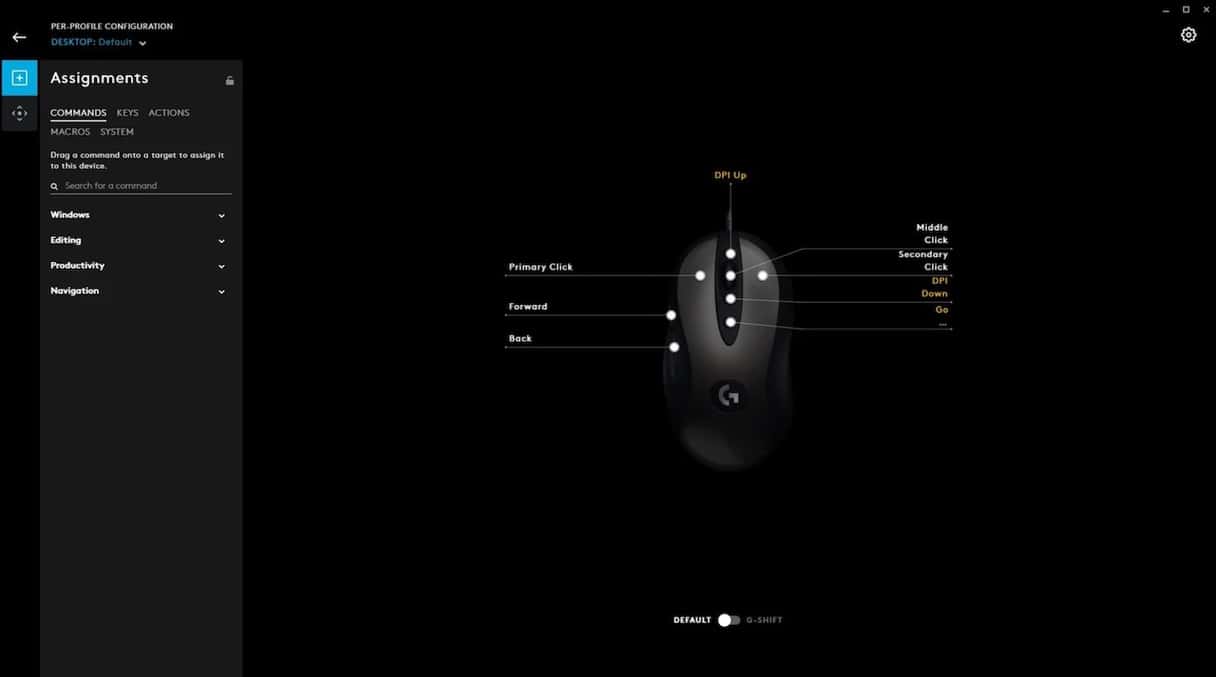
This is the single most effective software fix for G series mice. Uninstall G HUB through Windows Settings > Apps. Then press Windows+R and type %appdata% to open your AppData folder—delete all Logitech and Logi folders. Repeat this process for %programdata%. Restart your computer, then download and install the latest G HUB version directly from Logitech’s support site. Critical step: Right-click the installer and select “Run as administrator” to prevent permission issues during installation.
Manual Driver Update Through Device Manager
Open Device Manager (Windows+X), expand “Mice and other pointing devices,” right-click your Logitech mouse, and select “Update driver.” Choose “Browse my computer for drivers,” then “Let me pick from a list.” Uncheck “Show compatible hardware” and select “USB Input Device” or “HID-compliant mouse.” Restart your computer after installation. If the mouse doesn’t appear in Device Manager, check “View > Show hidden devices” to reveal disconnected devices.
Eliminate Wireless Interference Issues

2.4GHz wireless devices like your Logitech mouse compete for bandwidth with Wi-Fi routers, cordless phones, and even microwaves. Interference often causes intermittent disconnections that seem random but follow predictable patterns.
Identifying 2.4GHz Signal Disruptors Around Your Workspace
Notice when disconnections occur—if they happen when your microwave runs or during video calls, interference is likely the culprit. Move your USB receiver away from metal objects, monitors, and other electronics using a short USB extension cable. Position it closer to your mouse (within 1 meter/3 feet) for optimal signal strength. If possible, switch your Wi-Fi network to 5GHz to reduce congestion on the 2.4GHz band where your mouse operates.
Hardware Testing to Confirm Mouse or Receiver Failure
After exhausting software solutions, determine whether you’re dealing with hardware failure. This systematic testing process confirms whether your Logitech wireless mouse won’t connect due to a faulty component.
How to Test Your Logitech Mouse on Another Computer
Connect your mouse to a different computer using the same USB receiver. If it works wirelessly on another system, the problem lies with your original computer’s software or drivers. If it fails on multiple systems, the mouse or receiver has likely failed. Try using a different Unifying or Bolt receiver if available—some Logitech receivers are cross-compatible across models. Important: Note that not all Logitech receivers work with all mice—check compatibility on Logitech’s website before purchasing replacement receivers.
When to Seek Warranty Replacement for Your Logitech Mouse
If you’ve completed all troubleshooting steps without success, it’s time to evaluate warranty options. Logitech typically offers 1-3 year limited warranties on wireless mice, covering manufacturing defects that cause connection failures.
Documenting Connection Issues for Logitech Support
Before contacting support, document your troubleshooting efforts: which fixes you’ve tried, whether the mouse works wired but not wireless, and any error messages. Have your mouse model number (found on the bottom) and purchase receipt ready. Logitech support may run remote diagnostics to confirm hardware failure before approving replacement. Pro tip: Mention if your mouse is a high-end model like the G Pro Wireless—these often receive priority support due to their professional user base.
If your Logitech wireless mouse won’t connect despite thorough troubleshooting, the most efficient path forward combines systematic testing with strategic escalation. Start with battery and connection checks, progress through software resets, and only consider hardware replacement after verifying the issue persists across multiple systems. Remember that Logitech’s customer support can often identify model-specific quirks that generic troubleshooting misses—don’t hesitate to contact them with detailed documentation of your efforts. Most importantly, implement the power management fixes and proper receiver placement techniques to prevent future disconnections once you’ve restored your wireless connection.



