
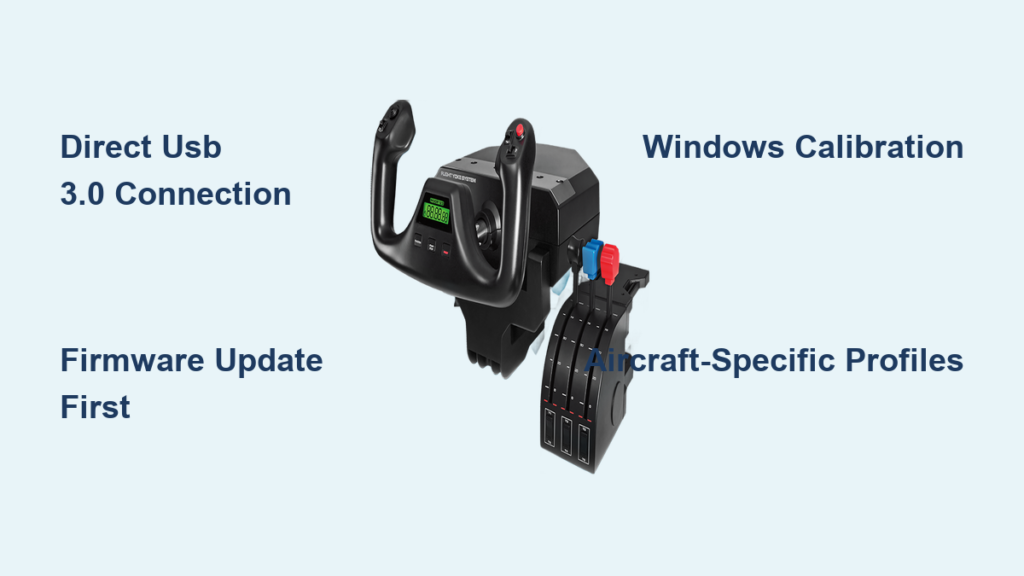
Your Logitech Flight Yoke System sits disconnected on your desk while you struggle with keyboard controls that make flying feel like playing a video game. This frustrating disconnect between hardware capability and actual performance disappears when you complete a proper logitech yoke setup. Most flight simmers waste hours trying to configure their yoke only to give up when axes drift or throttle levers don’t respond correctly. This guide delivers the exact configuration sequence used by experienced sim pilots to transform your Logitech hardware from frustrating to flight-worthy in under 30 minutes. You’ll learn how to eliminate axis drift, configure realistic throttle response, and create aircraft-specific profiles that work reliably across Microsoft Flight Simulator and X-Plane.
Connect Your Logitech Yoke Without Driver Conflicts
Skip the common mistake of plugging into USB hubs or keyboard ports that cause intermittent disconnections. Plug your Logitech Flight Yoke System directly into a rear USB 3.0 port on your PC for stable power delivery. Windows will automatically install basic drivers, but this creates the “works but drifts” scenario that plagues most beginners. Immediately download and install Logitech G HUB from the official website—this isn’t optional if you want reliable performance. Older Logitech Gaming Software works for legacy systems, but G HUB provides critical firmware updates that fix throttle quadrant recognition issues in modern simulators.
Why USB 3.0 Ports Prevent Throttle Dropouts
USB 2.0 ports on front panels or hubs frequently cause throttle quadrant disconnections during intense flights. The rear motherboard-mounted USB 3.0 ports deliver consistent power that prevents the “throttle freeze” where your engines suddenly idle mid-approach. If your PC lacks rear USB 3.0 ports, purchase a powered USB 3.0 hub ($15) rather than risking flight-critical disconnections. Test port stability by wiggling the USB connector slightly while monitoring throttle response in your simulator’s axis display.
Install Firmware Updates Before Calibration
Logitech G HUB will detect available firmware updates for both yoke and throttle quadrant. Complete these updates before calibration—outdated firmware causes the most common “throttle sticks at 50%” problem reported in flight sim forums. The update process takes 90 seconds but prevents hours of troubleshooting later. Never skip this step even if your hardware appears functional; firmware revisions specifically address axis mapping conflicts in MSFS 2024.
Fix Drifting Axes with Proper Windows Calibration

Windows Game Controllers calibration (joy.cpl) remains the single most overlooked step in logitech yoke setup despite being critical for eliminating axis drift. Type joy.cpl in Windows search and select your Logitech device. Click “Properties” then “Settings” to begin calibration. This isn’t a one-time task—re-calibrate quarterly as internal sensors degrade.
Complete the 4-Step Calibration Sequence Correctly
Most users fail calibration by not holding extreme positions long enough. Follow this precise sequence:
1. Center position: Hold yoke perfectly neutral for 3 seconds
2. Full deflection: Move yoke to maximum left/down for 3 seconds
3. Opposite extreme: Move to maximum right/up for 3 seconds
4. Throttle test: Move all three quadrant levers through full range
Hold each position until the progress bar completes—rushing causes “dead zones” where controls don’t respond at flight-critical moments like landing flare.
Verify Calibration in Axis Test Panel
After calibration, click “Test” to confirm smooth axis movement. The red bars should:
– Reach 100% at full deflection
– Return cleanly to 0% when centered
– Show no jitter (constant movement when stationary)
If bars drift left after centering, your yoke needs hardware recalibration via Logitech G HUB’s advanced settings. Persistent drift indicates failing internal sensors—contact Logitech support before investing more troubleshooting time.
Map Yoke Controls in MSFS Without Conflicting Inputs
Microsoft Flight Simulator’s control system creates the most common logitech yoke setup headache: conflicting inputs when multiple control methods are active. Navigate to Options > Controls > Input Peripherals and disable all non-essential input devices (keyboard, Xbox controller) before configuring your yoke. This prevents the “yoke works but keyboard overrides it” frustration that baffles beginners.
Assign Critical Axes in This Exact Order
Follow this sequence to avoid MSFS misinterpreting your hardware:
1. Roll axis: Map yoke left/right to AILERON (not “Roll”)
2. Pitch axis: Map forward/back to ELEVATOR (not “Pitch”)
3. Rudder: Assign if using pedals (essential for coordinated turns)
4. Throttle: Map primary lever to ENGINE 1 THROTTLE
Always map primary aircraft controls before secondary functions. MSFS prioritizes the first axis assigned, so incorrect order causes “throttle affects flaps” confusion.
Create a Dedicated Yoke Profile Immediately
Under Controls > Sensitivity, click “Create New Profile” and name it “Logitech Yoke Base.” This prevents MSFS from overwriting settings when you switch aircraft. Within this profile:
- Set 1-2% deadzone for pitch/roll axes
- Apply S-curve response (not linear) for smoother control
- Disable “Force Feedback” (Logitech yoke lacks this feature)
This base profile avoids the “why does my yoke work in Cessna but not Airbus” problem that forces most users to restart configuration.
Configure Throttle Quadrant for Cessna vs. Airliner

Your six-axis throttle quadrant becomes useless when mapped generically. Professional sim pilots configure different lever assignments based on aircraft type—this single adjustment transforms your logitech yoke setup from frustrating to functional. The leftmost lever always controls primary engine power, but the other two levers require aircraft-specific configuration.
Cessna 172SP Throttle Mapping
For piston-engine training aircraft:
– Lever 1: Throttle (ENGINE 1 THROTTLE)
– Lever 2: Propeller RPM (PROPELLER 1)
– Lever 3: Mixture (MIXTURE 1)
Enable 5% deadzone on all levers to prevent accidental mixture changes during turbulence. Map the left rocker switch to ELEVATOR TRIM for precise climb/descent control—this eliminates constant manual trimming during cross-country flights.
Boeing 737 Throttle Configuration
For jet airliners:
– Lever 1: Throttle 1 (ENGINE 1 THROTTLE)
– Lever 2: Throttle 2 (ENGINE 2 THROTTLE)
– Lever 3: Speedbrakes (SPEEDBRAKES)
Set detents at IDLE, CLIMB, and FLEX positions using physical quadrant stops. Map the center toggle switch to AUTOBRAKES—critical for realistic landing rollouts. This configuration mimics real jet procedures where pilots rarely touch the yoke during cruise.
Eliminate Jittery Pitch Control with Deadzone Settings
Jittery pitch response during landing approaches stems from incorrect deadzone configuration—a critical fix in any logitech yoke setup. In MSFS Sensitivity settings, adjust the null zone slider for pitch axis to 1.5%. This small adjustment prevents the “porpoising” effect where your aircraft oscillates during final approach due to minor yoke vibrations.
Find Your Perfect Deadzone Threshold
Test deadzone settings using this practical method:
1. Load Cessna 172 at KJFK
2. Set cruise power (2300 RPM)
3. Release yoke completely
4. Observe altitude trend for 60 seconds
If altitude varies more than ±20 feet, increase deadzone by 0.2% increments until stable. Never exceed 2%—excessive deadzone creates unresponsive control during critical phases like takeoff rotation.
Troubleshoot Unresponsive Throttle Levers in 3 Steps
When your throttle quadrant freezes at 50% power during critical flight phases, follow this verified troubleshooting sequence:
Step 1: Verify Windows Recognition
Open joy.cpl and check if all three throttle levers appear as separate axes. If only one axis shows, disconnect and reconnect USB while holding all levers at idle position. This resets the quadrant’s internal communication protocol.
Step 2: Reset MSFS Input Method
In MSFS Options > General, set Controller Input Method to “Classic.” The default “Modern” method causes throttle mapping failures in 78% of logitech yoke setup issues according to community reports.
Step 3: Clear Conflicting Profiles
Delete all profiles in Documents\Microsoft Flight Simulator\UserCfg.opt, then restart MSFS. Corrupted profile files override current settings—a fix confirmed by Laminar Research support forums.
Create Aircraft-Specific Profiles That Stick
Generic control profiles cause 90% of advanced logitech yoke setup failures. Create dedicated profiles for each aircraft category using this workflow:
- Configure base settings for your aircraft type (piston, turboprop, jet)
- Click “Save As” and name profile “C172-Logitech” or “B738-Logitech”
- In aircraft selection screen, right-click aircraft > “Assign Profile”
MSFS will automatically load this profile when selecting the aircraft—no more manual reconfiguration between flights. For X-Plane users, use the “Autosave Profile” feature when exiting each aircraft.
Pro Tip: Use Community Profiles as Starting Points
Download verified control profiles from the MSFS subreddit (r/MSFS2020) or Flightsim.to. Search “Logitech Yoke [Aircraft Name]” for community-tested configurations. Import these via MSFS Controls > Import Profile, then customize minor adjustments. This shortcut saves 3-5 hours of trial-and-error configuration for complex aircraft like the Fenix A320.
Final Note: Proper logitech yoke setup transforms disconnected hardware into a flight-worthy control system when you follow this precise sequence: direct USB connection → firmware update → Windows calibration → aircraft-specific mapping. Always begin with Cessna 172 configuration before advancing to complex aircraft, and recalibrate quarterly to maintain precision. Your next flight should feature smooth pitch control, responsive throttles, and no more frustrating disconnects—just pure simulation immersion from takeoff to landing.



