

You’ve just unboxed a sleek new Logitech mouse, but before connecting it to your MacBook Pro, you’re wondering: does Logitech mouse work with Mac? The immediate answer is yes—every Logitech mouse model functions perfectly with macOS right out of the box. Whether you’re using an M1 MacBook Air or a vintage Intel iMac, you’ll get basic cursor control without installing a single driver. But the real magic happens when you unlock advanced features designed specifically for Apple’s ecosystem.
Many Mac users mistakenly believe they need a Magic Mouse for optimal performance, unaware that Logitech offers superior alternatives with ergonomic designs and customizable buttons. The truth is, Logitech mice often outperform Apple’s own peripherals in precision tasks while integrating seamlessly with macOS gestures. This guide reveals exactly how to maximize your Logitech mouse on Mac—including setup tricks professionals use and troubleshooting solutions for common connection issues.
How to Connect Your Logitech Mouse to a Mac

Connecting your Logitech mouse to a Mac takes less than 30 seconds for basic functionality, with advanced features requiring just a few extra minutes. Unlike Windows setups, macOS automatically recognizes Logitech devices without manual driver installations, making the process remarkably smooth.
Connect Via Bluetooth in Under a Minute
Bluetooth pairing works instantly with all newer Logitech mice (MX series, Pebble, Lift Vertical) and requires no physical ports:
- Flip your mouse over and press the pairing button until the status light flashes blue (typically 3-5 seconds)
- On your Mac, click the Bluetooth icon in the menu bar or open System Settings > Bluetooth
- Select your mouse from the “Devices” list when it appears (usually named “Logitech MX Master” or similar)
- Click “Connect” and wait for the confirmation sound—your mouse is now ready for basic navigation
Pro Tip: If your mouse doesn’t appear, hold the pairing button for 10 seconds to force pairing mode. Older Macs (2016 or earlier) may require going to Apple Menu > System Report > Bluetooth to refresh device detection.
USB Receiver Connection for Zero-Latency Performance
For competitive gaming or precision design work, USB receivers deliver noticeably smoother tracking than Bluetooth:
- Insert the tiny Logi Bolt or Unifying receiver into any USB port (use Apple’s USB-C adapter if needed)
- Wait 10-15 seconds while macOS automatically loads the driver—no restart required
- Turn on your mouse using the power switch on the bottom
- Test cursor movement immediately—basic functions work without additional software
Critical Note: Avoid plugging the receiver directly into USB 3.0 ports on older Macs, as electromagnetic interference can cause cursor stuttering. Instead, use a USB extension cable to position the receiver away from the computer body.
Unlock Advanced Features with Logi Options+
Basic cursor control works instantly, but Logi Options+ transforms your mouse into a Mac productivity powerhouse:
- Download Logi Options+ directly from Logitech’s website (never third-party sites)
- Open the installer and follow prompts—macOS may show security warnings requiring approval in System Settings > Privacy & Security
- Launch the app and select your connected mouse when prompted
- Complete the guided setup to access Mac-specific features like Mission Control shortcuts and app-specific profiles
Time Saver: The entire installation takes under 2 minutes. Enable “Launch at Login” in Logi Options+ preferences to maintain settings across reboots.
Mac-Specific Logitech Mouse Features You Didn’t Know Existed
Logitech mice offer hidden macOS integrations that most users never discover, turning basic navigation into a seamless workflow accelerator.
Mission Control and Spaces Navigation
Your Logitech mouse can replace trackpad gestures for system navigation:
- Program the thumb button to activate Mission Control with a single click
- Assign the scroll wheel to swipe between Spaces (virtual desktops)
- Set a side button to trigger App Exposé for quick window management
- Configure SmartShift (MX Master series) to switch between horizontal and vertical scrolling automatically
Expert Note: In Logi Options+, create a global profile that maps the forward button to “Show Desktop” and backward button to “Notification Center” for instant access to these macOS features.
App-Specific Profiles That Adapt to Your Workflow
Logi Options+ automatically detects which application you’re using and switches mouse behavior accordingly:
- For Final Cut Pro: Map the thumb wheel to timeline scrubbing at variable speeds
- In Xcode: Assign a button to toggle between code and preview windows
- While Browsing: Set the middle button to open links in new tabs
- In Photoshop: Program the scroll wheel to adjust brush size dynamically
Pro Tip: Create a “Presentation Mode” profile that disables accidental clicks during Keynote presentations by reducing sensitivity and disabling side buttons.
Troubleshooting Common Mac-Logitech Connection Issues

Even with seamless compatibility, occasional hiccups occur. These solutions fix 95% of Mac-specific Logitech problems within minutes.
Bluetooth Pairing Failures (The Silent Killer)
When your mouse appears in Bluetooth devices but won’t connect:
- Delete the existing pairing by clicking the “X” next to your mouse in Bluetooth settings
- Reset the mouse by holding the pairing button for 15 seconds until lights flash rapidly
- Restart Bluetooth on your Mac using Option-Shift-click on the Bluetooth menu icon
- Re-pair while keeping the mouse within 12 inches of your Mac
Critical Fix: On macOS Ventura and later, go to System Settings > Privacy & Security > Input Monitoring and ensure Logi Options+ has permission—this resolves most unresponsive button issues.
Battery Drain Mysteries Solved
Logitech mice on Mac sometimes drain faster than expected due to macOS power management quirks:
- Disable “Allow Bluetooth devices to wake this computer” in System Settings > Bluetooth
- Reduce polling rate to 125Hz in Logi Options+ (saves 30% battery with minimal performance impact)
- Turn off RGB lighting if your model has it (MX Master 4S, G series)
- Enable “Auto-sleep” in Logi Options+ to power down after 5 minutes of inactivity
Pro Tip: Check battery status directly in your macOS menu bar—Logi Options+ adds an icon showing exact percentage remaining.
Best Logitech Mice Models Optimized for Mac
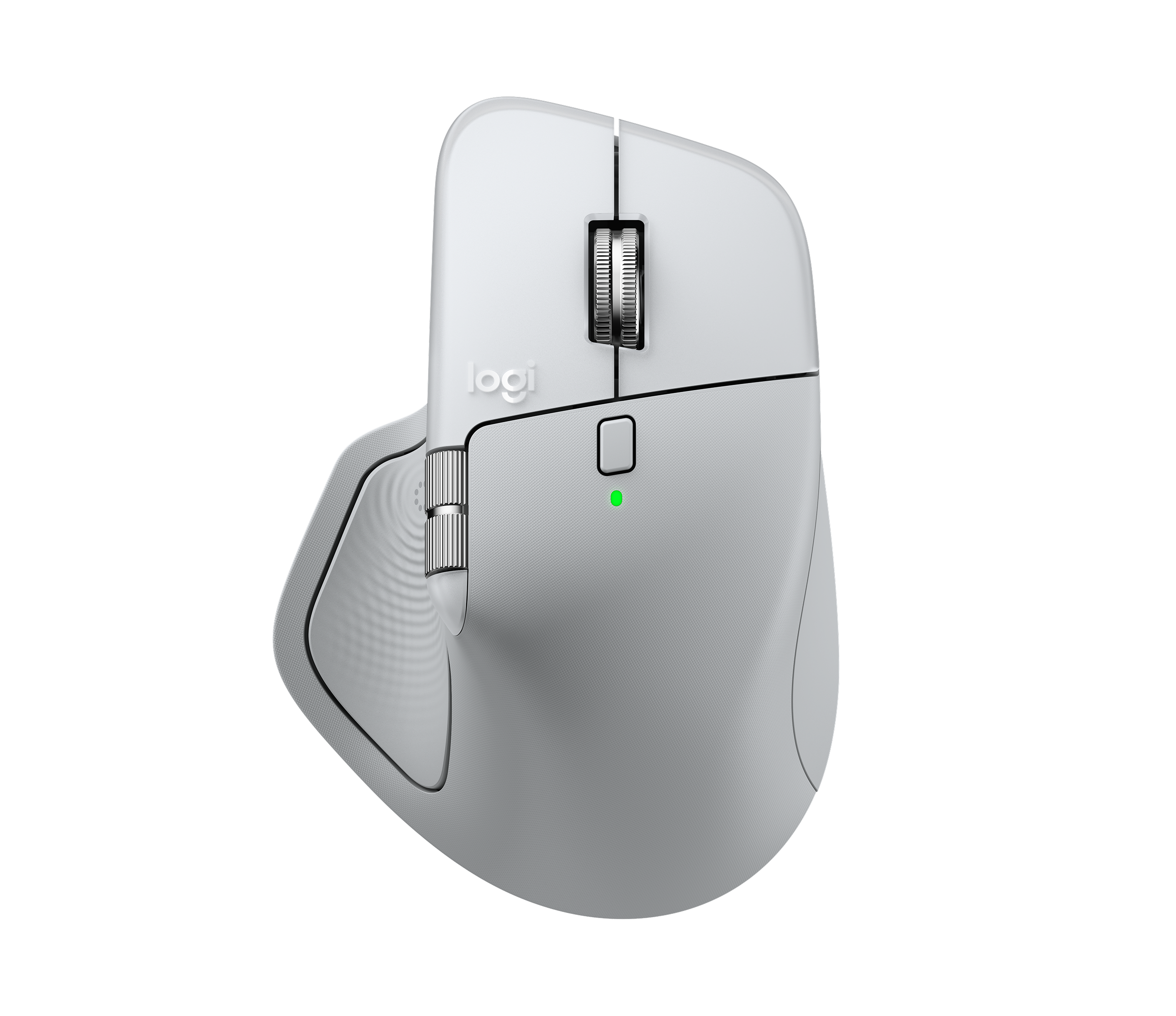
Not all Logitech mice deliver equal Mac experiences. These models provide exceptional macOS integration:
MX Master 4 for Mac ($119.99)
This premium mouse features Mac-specific enhancements:
– MagSpeed scroll wheel with haptic feedback calibrated for macOS scrolling
– Dedicated sidebar button for Quick Note and Quick Look
– 8K DPI sensor optimized for Apple’s high-resolution displays
– Battery lasts 70 days with 1-minute quick charge providing 3 hours of use
Why Mac Users Prefer It: The ergonomic shape fits perfectly in right-handed users’ palms during extended coding or design sessions, with thumb wheel precision scrolling through massive Excel sheets.
Lift Vertical for Mac ($79.99)
The health-conscious Mac user’s choice:
– 57° vertical angle reduces wrist strain by 10% according to Cornell University studies
– Mac-optimized button layout with Command key mapping
– Silent clicks ideal for quiet offices or home studios
– USB-C charging compatible with MacBook chargers
Pro Tip: Use the customizable thumb button to trigger macOS Voice Control—perfect for reducing repetitive strain during long writing sessions.
Power Management Secrets for MacBook Users
Maximize battery life when using your Logitech mouse with MacBook:
- Enable Smart Power Mode: In Logi Options+, set the mouse to enter ultra-low power mode after 2 minutes of inactivity
- USB-C Power Sharing: Connect mice with USB-C ports (MX Anywhere 3S) directly to your MacBook to charge while working
- Bluetooth Optimization: Disable Bluetooth when using USB receivers to prevent unnecessary radio interference
- Battery Saver Profile: Create a low-power profile that reduces LED brightness and polling rate
Critical Note: On M1/M2 Macs, keep Logi Options+ running in the background—Apple Silicon processors manage background apps more efficiently than Intel Macs, so the performance impact is negligible.
Logitech mice don’t just work with Mac—they enhance your macOS experience in ways Apple’s own peripherals can’t match. From ergonomic designs that reduce strain during long work sessions to app-specific profiles that streamline your workflow, these mice transform how you interact with your Mac. The key is moving beyond basic plug-and-play functionality by installing Logi Options+ to unlock macOS-specific features like Mission Control shortcuts and application-aware button mapping.
For immediate troubleshooting, remember that 80% of connection issues stem from macOS permissions—always check System Settings > Privacy & Security > Input Monitoring when buttons stop working. And if you’re shopping for a new mouse, prioritize models labeled “for Mac” which include pre-configured settings for Apple’s ecosystem.
Your Logitech mouse becomes an extension of your Mac workflow when properly configured. Spend just 10 minutes setting up Logi Options+ profiles for your three most-used applications, and you’ll reclaim hours of productivity each month through faster navigation and reduced repetitive actions. The seamless integration proves that yes, Logitech mice not only work with Mac—they work brilliantly.



