
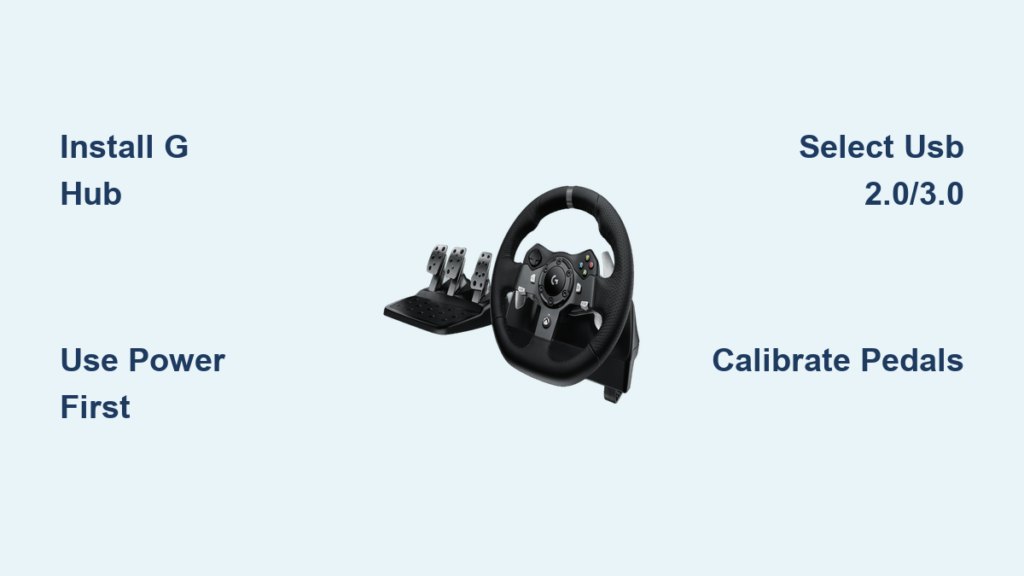
If you’ve just unboxed your Logitech G920 and are wondering “does the Logitech G920 work on PC,” you’ll be relieved to know the answer is a resounding yes. This popular racing wheel is fully compatible with Windows 10 and 11 systems, delivering the same realistic force feedback and precise controls that make it a favorite among sim racers. Unlike many console peripherals that struggle with PC adaptation, the G920 was designed from the ground up with dual-platform functionality, though it requires specific setup steps to unlock its full potential on Windows systems.
Many PC racing enthusiasts mistakenly believe the G920 is Xbox-only because of its Xbox button layout, but this couldn’t be further from the truth. The G920 operates seamlessly across PC racing titles like Assetto Corsa Competizione, Forza Horizon 5, and Euro Truck Simulator 2 when properly configured. In this guide, you’ll discover the exact installation process, game-specific settings, and troubleshooting solutions that transform your G920 from a potential frustration into your most reliable PC racing peripheral. Skip the guesswork and get straight to the track with verified compatibility information and step-by-step configuration.
Why Logitech G HUB Software Is Non-Negotiable for PC Functionality
The most critical factor determining whether your Logitech G920 works on PC is proper software installation. Windows may recognize the G920 as a basic controller without G HUB, but you’ll miss out on essential features like force feedback calibration, profile management, and firmware updates. Without G HUB running in the background, your wheel defaults to “Xbox mode,” causing inconsistent performance in PC racing titles that expect native Windows controller recognition.
How Windows Detects Your G920 Without Proper Drivers
When you first connect your G920 to PC, Windows installs generic drivers that allow basic input recognition but severely limit functionality. You’ll notice these telltale signs of incomplete setup: force feedback feels weak or inconsistent, the wheel rotation doesn’t reach the full 900 degrees, and button mapping appears incorrect in-game. The system recognizes it as a “Logitech G HUB Virtual Controller” rather than the specialized racing device it’s designed to be. To verify your wheel’s detection status, search for “joy.cpl” in the Windows search bar and check if your G920 appears with responsive input testing.
Critical G HUB Features That Transform PC Performance
Installing Logitech G HUB unlocks the G920’s full potential on PC with three game-changing capabilities. First, it provides automatic firmware updates that resolve compatibility issues with new racing titles. Second, it enables custom profile creation so your force feedback settings automatically adjust when switching between Assetto Corsa and Forza Horizon 5. Third, and most importantly, G HUB properly configures the wheel’s 2.3Nm dual-motor force feedback system for Windows environments, delivering the realistic road texture and steering resistance that defines serious sim racing. Without this software layer, you’re essentially racing with one hand tied behind your back.
G920 PC Connection Process: Power Sequence Matters More Than You Think

Connecting your Logitech G920 to PC isn’t as simple as plugging in USB cables—the power sequence dramatically impacts performance stability. Many users experience intermittent force feedback or complete disconnection during intense racing sessions because they skip this critical step: always connect the external power adapter to the wall outlet before establishing the USB connection to your PC. The G920’s dual-motor force feedback system requires substantial power that USB alone cannot provide, and reversing this sequence causes voltage fluctuations that Windows interprets as device disconnection.
Why USB Port Selection Affects G920 Performance on PC
Not all USB ports deliver equal performance for your Logitech G920. For optimal results, connect directly to USB 2.0 or 3.0 ports on your PC’s motherboard rather than front-panel or hub-connected ports. Motherboard-integrated ports provide more stable power delivery and lower input latency, which translates to smoother force feedback and more responsive steering. If your wheel feels “notchy” or unresponsive during high-force moments like curb strikes, try different rear-panel USB ports before adjusting in-game settings. Users consistently report significant improvements when switching from USB 3.1 Gen 2 ports (often blue) to standard USB 3.0 ports for G920 connections.
Verified PC Games with Full Logitech G920 Force Feedback Support

The Logitech G920 delivers exceptional performance across the entire spectrum of PC racing titles, but implementation varies significantly between simulation and arcade experiences. For pure simulation racing, Assetto Corsa Competizione and iRacing showcase the G920’s 900-degree rotation and dual-motor force feedback to their fullest potential, translating subtle tire grip changes and road surface variations directly through your hands. In simcade titles like Forza Horizon 5, the G920 provides immersive but slightly simplified feedback that enhances the open-world driving experience without overwhelming casual players.
Assetto Corsa Competizione Settings That Maximize G920 Performance
For the most authentic experience with your Logitech G920 on PC, Assetto Corsa Competizione requires specific force feedback configuration. Set the in-game force feedback strength to 85-90% to prevent clipping (where the wheel loses detail and vibrates excessively), keep the rotation at 900 degrees to match the G920’s physical capability, and disable any spring or damper effects in G HUB since ACC handles these internally. The game’s advanced force feedback model leverages the G920’s 2.3Nm torque to deliver unparalleled detail about tire temperature, grip levels, and suspension behavior—information critical for setting fast lap times.
Troubleshooting G920 PC Connection Failures That Prevent Force Feedback
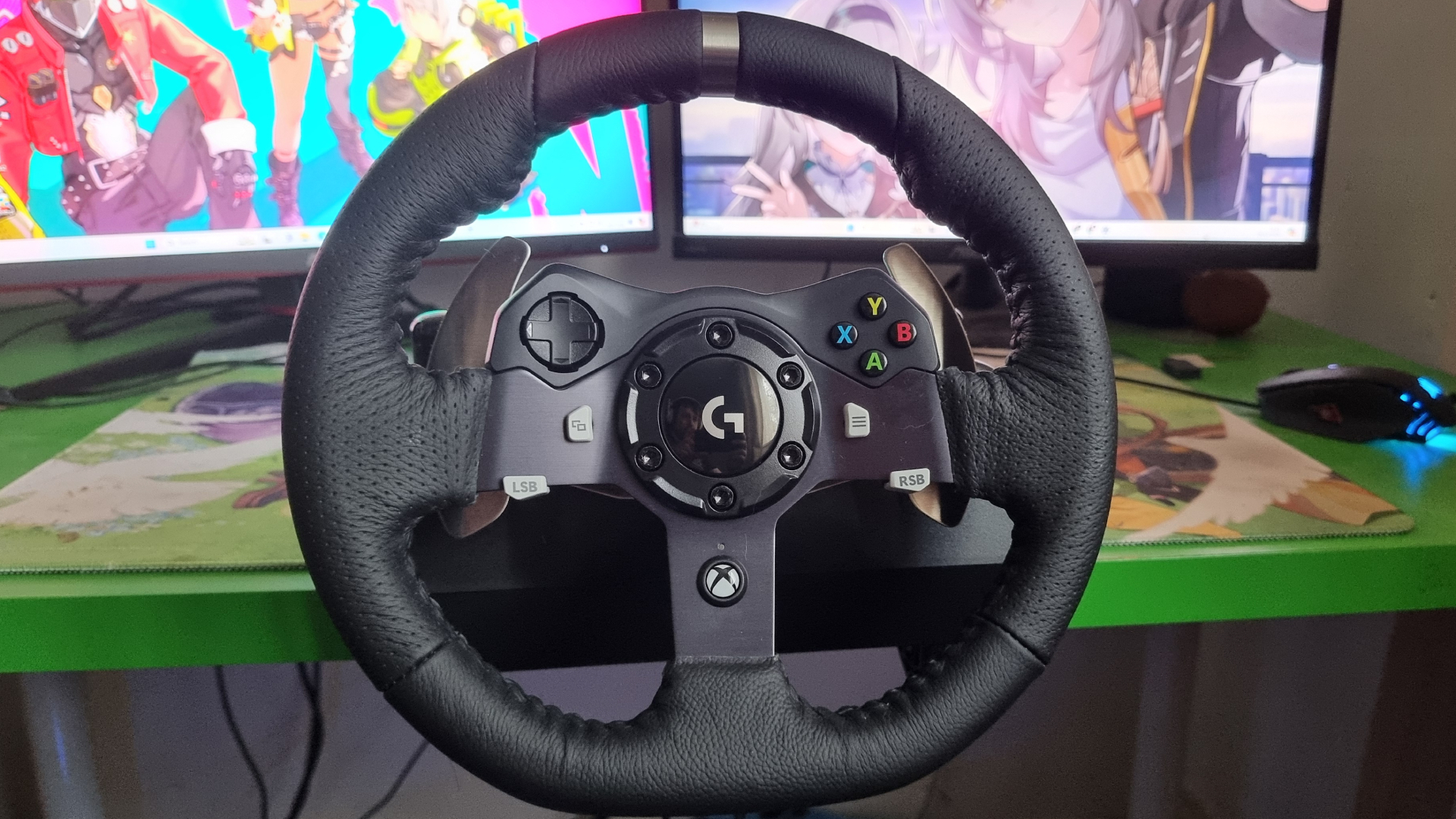
When your Logitech G920 works on PC but lacks force feedback, the issue typically stems from software conflicts rather than hardware failure. The most common culprit is Windows Game Controllers recognizing the wheel in “Xbox mode” instead of native PC mode. To resolve this, open the Windows search bar, type “joy.cpl,” and verify that “Logitech G HUB Virtual Controller” appears rather than “Xbox 360 Controller.” If you see the Xbox designation, completely uninstall G HUB, restart your PC, then perform a clean installation of the latest version from Logitech’s official website.
Fixing Intermittent Disconnections During Intense Racing Sessions
Many PC users experience their G920 cutting out during high-force moments like hard braking or curb strikes—a frustrating problem with a simple solution. This occurs when the USB controller can’t handle the power demands of simultaneous force feedback peaks and input polling. The fix involves changing USB selective suspend settings: navigate to Power Options in Control Panel, select “Change plan settings” for your active plan, click “Change advanced power settings,” expand “USB settings,” and set “USB selective suspend setting” to Disabled. This prevents Windows from powering down the USB port during high-demand racing scenarios.
G920 Pedal Calibration Guide for PC Racing Precision
The G920’s progressive brake pedal often requires calibration to work optimally with PC racing titles, especially simulators like Assetto Corsa that demand precise brake modulation. Unlike console versions where settings transfer seamlessly, PC games require individual pedal curve adjustments to match your driving style. Open Logitech G HUB, select your wheel, navigate to the pedal settings section, and adjust the curve to create a steeper initial resistance followed by smoother travel toward full depression—this mimics real hydraulic brake systems and prevents accidental lockups during critical braking zones.
Why G HUB Pedal Curves Outperform In-Game Calibration
Most PC racing titles include pedal calibration options, but these often lack the precision of Logitech G HUB’s dedicated interface. G HUB allows you to create custom pedal response curves that apply universally across all games, eliminating the need to recalibrate for each title. For sim racing, set a curve with 30% initial resistance that gradually increases to 70% at full depression—this provides the necessary feedback for threshold braking while maintaining smooth modulation. Users consistently report improved lap times and more consistent braking performance after implementing this G HUB-specific calibration rather than relying solely on in-game settings.
G920 PC Mounting Solutions That Eliminate Performance-Killing Desk Flex

Your Logitech G920’s force feedback performance depends as much on mounting stability as software configuration. Even minor desk flex during aggressive cornering dissipates force feedback energy, making the wheel feel vague and disconnected from the virtual track. The included table clamp works adequately for casual use, but serious PC sim racers should tighten all mounting hardware to maximum tension and place heavy weights on the desk edges opposite the clamp point. For permanent setups, bolt the G920 directly to a dedicated racing rig using the standard 100mm bolt pattern—this creates the rigid foundation needed to feel every bump and curb through the 2.3Nm force feedback system.
Table Clamp Adjustments for Maximum Stability During Hard Cornering
When using the G920’s table clamp on PC, most users don’t realize the adjustment screws require significantly more torque than feels comfortable. To prevent movement during intense racing sessions, tighten the clamp’s main bolt until you see slight compression on your desk surface—this creates the necessary counterforce against steering resistance. Additionally, position the clamp as close to the desk’s edge as possible while maintaining stability; this reduces leverage and prevents the entire desk from shifting during hard left turns. Many PC users report dramatically improved force feedback clarity after making these simple mounting adjustments, transforming their G920 from a casual accessory into a serious sim racing tool.
Final Optimization: G920 Firmware Updates That Fix PC-Specific Issues
Regular firmware updates through Logitech G HUB resolve PC-specific compatibility issues that affect force feedback performance in newer racing titles. To check for critical updates, launch G HUB, click the profile icon in the upper-right corner, select “Options,” then “Check for Updates.” Recent firmware versions specifically address clipping issues in iRacing and inconsistent force feedback in rFactor 2—problems that previously required manual in-game adjustments. Never skip these updates, as they often contain performance improvements that enhance your G920’s responsiveness and feedback accuracy without requiring any configuration changes on your part.
The Logitech G920 absolutely works on PC when properly configured, delivering an exceptional racing experience across simulation and arcade titles alike. By installing G HUB, connecting power before USB, selecting the right ports, and implementing game-specific force feedback settings, you’ll transform your G920 into a precision PC racing tool. Remember that consistent mounting stability and regular firmware updates are just as crucial as initial setup for long-term performance. Whether you’re chasing lap times in Assetto Corsa Competizione or exploring open worlds in Forza Horizon 5, the G920 provides the realistic feedback and responsive controls that make PC racing truly immersive. Don’t let initial setup challenges discourage you—once properly configured, the G920 remains one of the most versatile and capable entry-level racing wheels available for Windows systems.



