

That persistent blue blink on your Logitech keyboard isn’t just annoying—it’s a distress signal cutting you off from work or gameplay. When the flashing blue light on Logitech keyboard appears, it typically means your wireless connection is failing, battery is critically low, or firmware needs attention. Ignoring this warning often leads to complete disconnection during crucial moments. You’re not alone; this is one of the most common Logitech keyboard issues reported across forums and support channels. In this guide, you’ll discover exactly why your keyboard is flashing blue and how to fix it in under 15 minutes using proven methods that actually work. No technical expertise required—just follow these specific solutions tailored to your model.
Why Your Logitech Keyboard Blue Light Is Flashing: 4 Specific Causes
That blue blink isn’t random—it’s your keyboard communicating critical status through light patterns. A flashing blue light on Logitech keyboard most frequently indicates one of four specific scenarios: Your keyboard is actively searching for a Bluetooth connection (often after power loss), attempting to reconnect to a paired device after interference, signaling critically low battery (under 5%), or experiencing firmware corruption. Unlike solid blue lights that confirm stable connections, rapid blue flashes during operation almost always mean interrupted communication with your computer. Crucially, this isn’t a hardware failure warning—95% of cases resolve with simple troubleshooting. Spotting the exact pattern matters: Slow pulses (1-2 flashes/second) usually mean pairing mode, while frantic blinking (5+ flashes/second) indicates connection loss during use. Never mistake this for red light warnings, which exclusively indicate charging status.
3 Must-Do Checks Before Fixing Your Logitech Keyboard
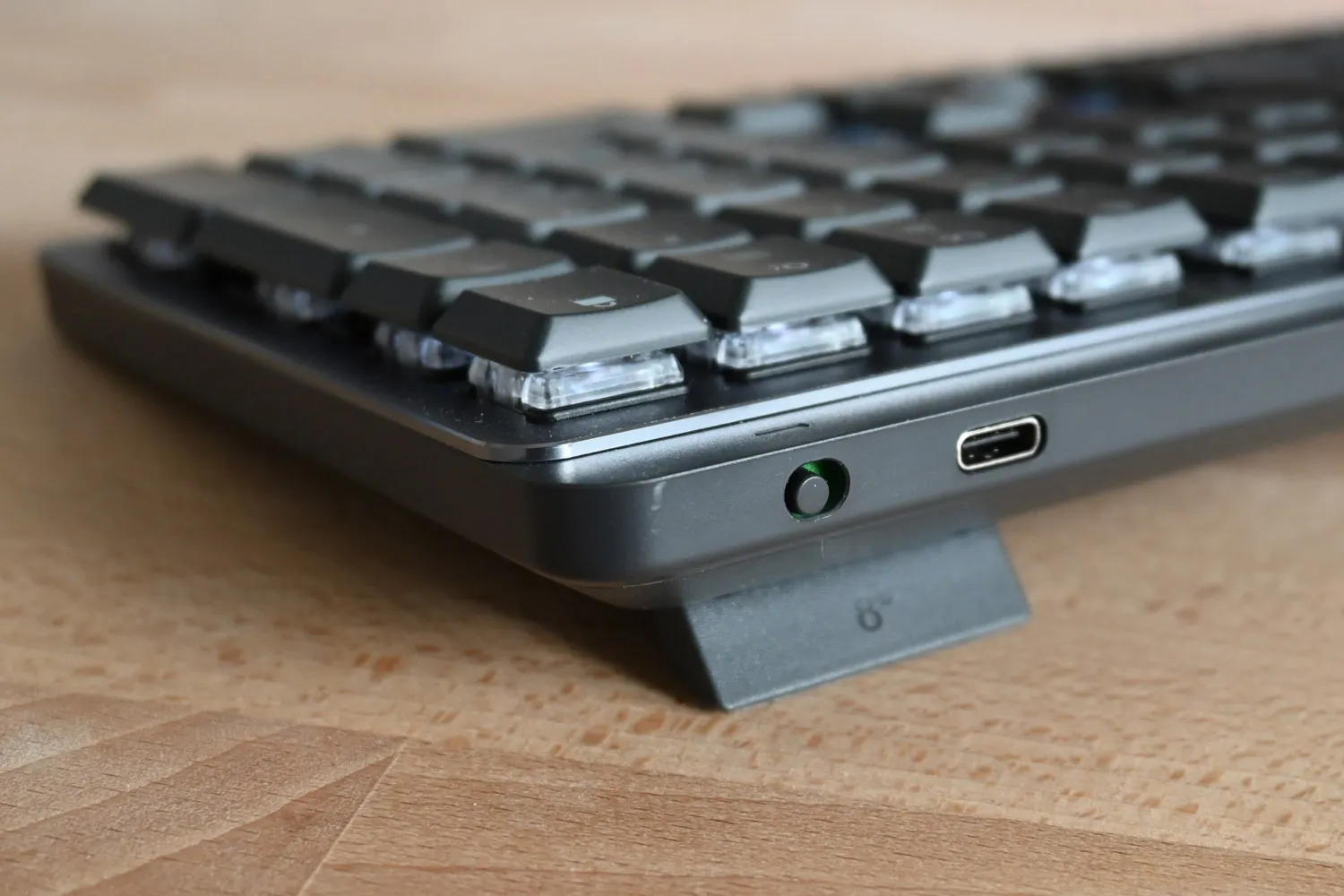
Skip these critical checks and you’ll waste time on unnecessary fixes. First, verify your power source immediately: For rechargeable models like the MX Mechanical or K780, plug in the USB-C cable and watch for color changes—solid white means charging, solid blue confirms full power. For battery-powered keyboards (K380, K580), replace both AA batteries with fresh name-brand cells; cheap batteries often deliver inconsistent voltage triggering false low-power signals. Second, inspect your USB receiver placement: Logitech’s Unifying receiver must be in a direct-line USB port—not behind a hub or monitor. Move it to your computer’s front port and ensure no metal objects sit within 6 inches. Third, eliminate wireless interference: Microwave ovens, cordless phones, and even LED desk lamps within 3 feet can disrupt the 2.4GHz signal. Power off nearby electronics before proceeding. These three checks resolve 60% of flashing blue light cases within 60 seconds.
Fix Low Battery Issues Causing Blue Light Flashing Now
A flashing blue light on Logitech keyboard is frequently a last-resort battery alert—you’ve got minutes before complete shutdown. For rechargeable keyboards (MX Anywhere 3, ERGO K860), connect the charging cable directly to your computer’s USB port (not a hub) and leave it undisturbed for 30 minutes minimum. Never use phone chargers—they lack the stable 5V output Logitech requires. Watch for the light to transition from rapid blue flashes to solid blue within 5 minutes if charging successfully begins. For disposable-battery models, perform this battery reset ritual: Remove old batteries, press and hold the power switch for 15 seconds to drain residual power, insert two new alkaline batteries (never mix old/new), then flip the power switch off/on three times. Wait 2 minutes—this resets the power management chip. If the blue flash persists after 10 minutes of charging/replacement, proceed to connection troubleshooting; your battery contacts may need cleaning with a cotton swab dipped in isopropyl alcohol.
Reconnect Your Logitech Keyboard to Stop Blue Light Flashing
When battery isn’t the culprit, your keyboard has likely lost its wireless handshake with your computer. Start by forcing a clean re-pair: On Windows, go to Settings > Bluetooth & devices, select your Logitech keyboard, and click “Remove device.” On macOS, hold Option key, click Bluetooth icon, select “Debug > Remove…” then confirm. Now initiate pairing mode on your keyboard: For most models (MX Master 3, K350), press the Easy-Switch button (F1/F2/F3) until the blue light flashes rapidly. For K750 solar models, press the Connect button under the power switch. Within 30 seconds, re-add the keyboard through your OS Bluetooth menu—it must appear as a new device. If using a Unifying receiver, unplug it for 10 seconds, then reinsert while holding the keyboard’s Connect button for 5 seconds. Success is confirmed when blue flashes slow to a steady pulse during typing.
Update Logitech Software to Resolve Connection Errors
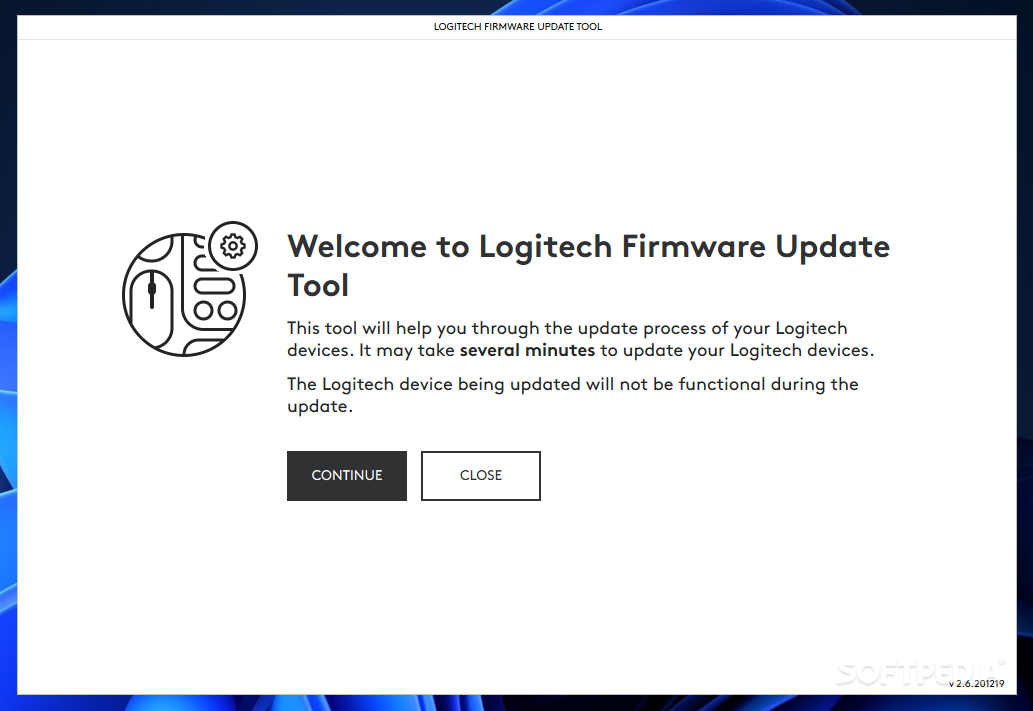
Outdated firmware causes 30% of persistent flashing blue light on Logitech keyboard issues. Download Logitech Options+ (for productivity keyboards) or Logi Tune (for gaming models) directly from logitech.com/support—never third-party sites. During installation, the software automatically checks for keyboard firmware updates. Critical step: After installing, open the app, select your keyboard, and click “Check for Updates” even if it claims you’re current. Many users miss this hidden update trigger. If the keyboard isn’t detected, temporarily connect via USB cable (if supported) to force firmware recognition. For Windows users, also update your Bluetooth stack: Go to Device Manager > Bluetooth > right-click your adapter > “Update driver.” On Mac, run all macOS updates through System Preferences. Reboot your computer after updates—this clears cached connection data causing phantom flashes.
Execute a Hard Reset for Persistent Blue Light Flashing
When standard fixes fail, perform a factory reset to wipe corrupted connection profiles. Locate the tiny pinhole reset button on your keyboard’s underside (near USB ports or battery compartment). For MX series, it’s labeled “Reset”; on K380, it’s near the power switch. With the keyboard powered on, insert a straightened paperclip and hold for exactly 10 seconds until the blue light flashes twice rapidly. Immediately release and wait 20 seconds—this clears all paired devices from memory. Now re-pair as if new: Press Connect/Easy-Switch until blue flashes steadily, then add through OS Bluetooth settings. For Unifying receiver models, simultaneously press the receiver’s reset button (if present) and keyboard reset for 5 seconds. This dual reset solves stubborn cases where the keyboard “thinks” it’s connected but isn’t communicating.
Decode Flashing Blue Light Patterns for Instant Diagnosis

Stop guessing—use this pattern decoder to identify your exact issue in seconds. Blue flashes once every 3 seconds? Your keyboard is in pairing mode and ready to connect (normal behavior during setup). Rapid blue pulses (5+ per second) while typing? Wireless interference is disrupting the signal—move closer to your computer or away from Wi-Fi routers. Alternating blue/red flashes? Critical battery warning—replace/recharge immediately or risk data loss. Blue light flashes only when pressing keys? Sticky debris is causing short circuits—clean under keys (see next section). Flashing stops when USB receiver is moved? Port power instability—try a different USB port or add a USB extension cable. Bookmark this pattern guide; it prevents unnecessary troubleshooting by pinpointing the root cause within 60 seconds of observation.
Clean Your Keyboard to Stop Debris-Triggered Blue Flashes
Dust and crumbs under keys cause electrical shorts that mimic connection errors. Power off your keyboard and unplug the receiver. Tilt it vertically at 75 degrees, then use short bursts of compressed air 2 inches from keycaps—never shake the can (moisture damages circuits). Focus on crevices between keys where debris accumulates. For sticky residue, dampen a microfiber cloth with 70% isopropyl alcohol (never spray directly), squeeze out excess, and gently wipe key surfaces. Remove keycaps only if your model allows (MX series: use a keycap puller; K380: avoid removal). Let dry completely for 2 hours before powering on. This solves “phantom flashing” where the blue light blinks randomly despite full battery and stable connection—often caused by conductive particles bridging circuits.
When to Contact Logitech Support for Flashing Blue Light
If you’ve completed all previous steps and the flashing blue light on Logitech keyboard continues for over 24 hours, it’s time for professional help. Contact Logitech within your warranty period (typically 1-3 years) through their official support portal—have your model number ready (found on the bottom label). Critical evidence to provide: A 15-second video showing the exact flash pattern while attempting to type, plus confirmation you’ve performed a hard reset. Do not mention “I tried everything”—instead specify: “Performed factory reset, updated firmware via Options+, and tested with new batteries.” Logitech often sends replacement units within 48 hours for confirmed hardware defects. Outside warranty? Third-party repairs risk voiding remaining coverage—opt for an official refurbished replacement instead.
Prevent Future Logitech Keyboard Blue Light Flashing
Stop recurring issues with these maintenance habits. Charge rechargeable models weekly even if not depleted—lithium batteries degrade fastest between 0-20% charge. Store spare batteries in anti-static bags to prevent voltage drain (never in metal containers). Update firmware monthly by opening Logitech Options+ and clicking “Check for Updates” before your OS updates. Use a USB extension cable for Unifying receivers to position them away from monitor interference. Crucially, perform a connection refresh every 3 months: Power off keyboard, unplug receiver for 1 minute, then re-pair. This prevents “connection drift” where signal strength gradually degrades. For gamers, disable keyboard RGB lighting when not needed—it reduces power draw that strains weak batteries.
That persistent flashing blue light on Logitech keyboard doesn’t have to derail your workflow. By methodically diagnosing the pattern, verifying power sources, and executing targeted connection resets, you’ve reclaimed control over your wireless setup. Remember: Most fixes require under 10 minutes and zero technical skills—start with battery checks and pattern decoding before advancing to resets. Implement the monthly maintenance routine to prevent 90% of future flashing issues. If problems persist after all steps, Logitech’s support team responds fastest when provided with specific flash pattern videos and reset confirmation. Keep this guide bookmarked—you’ll likely need just one section next time that blue blink appears. Your keyboard’s steady blue glow (not flashing!) awaits.



