
Struggling to connect your Logitech M510 mouse to your laptop? You’re not alone. Despite its reputation for reliability, many users face confusion when setting up this popular wireless mouse—especially when they discover it doesn’t work with Bluetooth as some online guides incorrectly claim. The good news is connecting your Logitech M510 mouse to laptop is actually a straightforward process once you understand its exclusive Unifying Receiver system. Unlike many modern peripherals, this mouse relies solely on its dedicated USB receiver, not Bluetooth technology. In this guide, you’ll learn exactly how to establish a rock-solid connection in under a minute, troubleshoot common issues that prevent proper setup, and maximize your mouse’s performance for seamless daily use. Forget complicated software installations or mysterious pairing processes—by the end of this article, you’ll have your cursor moving smoothly across your screen with minimal fuss.
Plug Your Logitech M510 Mouse into Laptop Successfully
The Logitech M510 mouse connects through a simple plug-and-play process that should take less than 30 seconds when everything works correctly. Understanding the exact sequence prevents common setup mistakes that leave users frustrated.
Immediate Connection Process for Windows and Mac
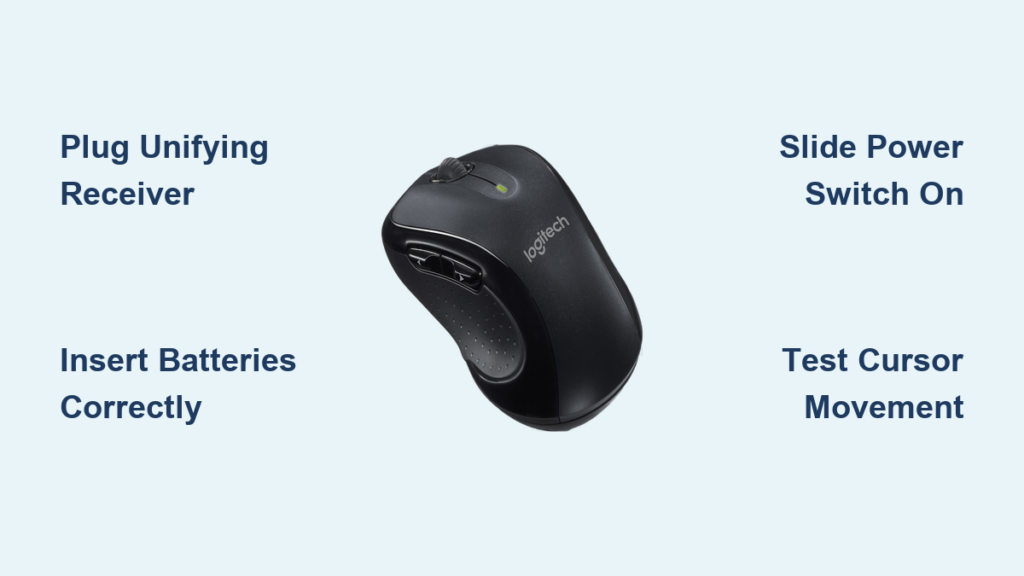
Follow these precise steps to connect your Logitech M510 mouse to laptop without unnecessary complications:
-
Insert the Unifying Receiver: Locate the small USB receiver (about the size of a standard USB drive cap) that came with your mouse. Plug it firmly into an available USB port on your laptop. Windows and macOS will automatically detect and install generic drivers within 10-20 seconds—no additional software is required for basic functionality.
-
Install Batteries Correctly: Open the battery compartment on the underside of the mouse and insert two AA batteries, ensuring the positive (+) and negative (-) ends align with the markings inside. The M510 ships with batteries included, but they may be depleted from storage.
-
Activate the Mouse: Locate the power switch on the bottom of the mouse and slide it to the ON position (marked “I”). A green LED should illuminate briefly, confirming power activation.
-
Test Functionality: Move your mouse across your desk surface. The cursor should respond immediately on your laptop screen. If you see smooth movement within 15 seconds, your connection is successful.
Why Your Laptop Might Not Recognize the M510 Receiver
When your Logitech M510 mouse to laptop connection fails at this initial stage, these specific issues are most likely:
-
USB Port Compatibility Issues: Plug the Unifying receiver into a USB 2.0 port (black plastic interior) rather than a USB 3.0 port (blue plastic interior), as some older Unifying receivers experience interference with USB 3.0 technology. If your laptop only has USB-C ports, use a high-quality USB-A to USB-C adapter.
-
Insufficient Power Supply: Avoid connecting through USB hubs or extension cables during initial setup, as these can reduce power delivery to the receiver. Connect directly to your laptop’s USB port.
-
Driver Conflicts: On rare occasions, previous Logitech software installations can interfere. Restart your laptop after plugging in the receiver to trigger a clean driver installation.
Troubleshoot Logitech M510 Mouse Connection Problems

Even this straightforward mouse sometimes requires troubleshooting when connecting to your laptop. These targeted solutions address the most frequent issues users encounter when setting up how to connect Logitech M510 mouse to laptop.
Mouse Not Responding After Initial Setup
When your cursor remains stationary despite correct battery installation and power activation:
-
Verify Physical Connections: Remove and firmly reinsert both the Unifying receiver and batteries. Check for bent USB port contacts or debris in the battery compartment that might prevent proper electrical connection.
-
Test on Another Device: Plug the receiver and mouse into a different computer to determine if the issue lies with your specific laptop. If it works elsewhere, the problem relates to your laptop’s USB configuration.
-
Reset Mouse Electronics: Press and hold all three main mouse buttons (left, right, and scroll wheel) simultaneously for 5 seconds. This resets the internal electronics without affecting pairing status.
Intermittent Connection or Cursor Lag
If your Logitech M510 mouse to laptop connection works sporadically or with noticeable lag:
-
Address Surface Interference: The M510’s laser sensor requires a non-reflective surface. Avoid glass, mirror, or highly glossy desks. Use a standard mouse pad or textured fabric surface for optimal tracking.
-
Eliminate Signal Obstruction: Ensure nothing metallic or electronic sits between your mouse and the Unifying receiver. Move the receiver closer to your mouse using a USB extension cable (sold separately) if necessary.
-
Clean Tracking Sensor: Power off the mouse, then gently wipe the red sensor lens on the bottom with a soft, dry microfiber cloth. Built-up dust is the most common cause of erratic cursor movement.
Re-pairing Your Mouse with a New Unifying Receiver
When you’ve lost the original receiver or need to replace it:
- Download the official Logitech Unifying Software from Logitech’s website (not third-party sites)
- Install and launch the software, then follow the on-screen pairing wizard
- When prompted, turn your mouse off and back on while holding the pairing button (usually requires removing batteries and reinserting)
- The software will search for your mouse and establish a new connection within 30 seconds
Important note: Replacement Unifying receivers for the M510 aren’t sold separately by Logitech but can sometimes be found through third-party sellers. You’ll need a standard Logitech Unifying receiver (model number C-U0007).
Optimize Your Logitech M510 Mouse Performance
Once you’ve successfully connected your Logitech M510 mouse to laptop, these enhancements maximize functionality and extend device longevity.
Customize Button Functions for Productivity
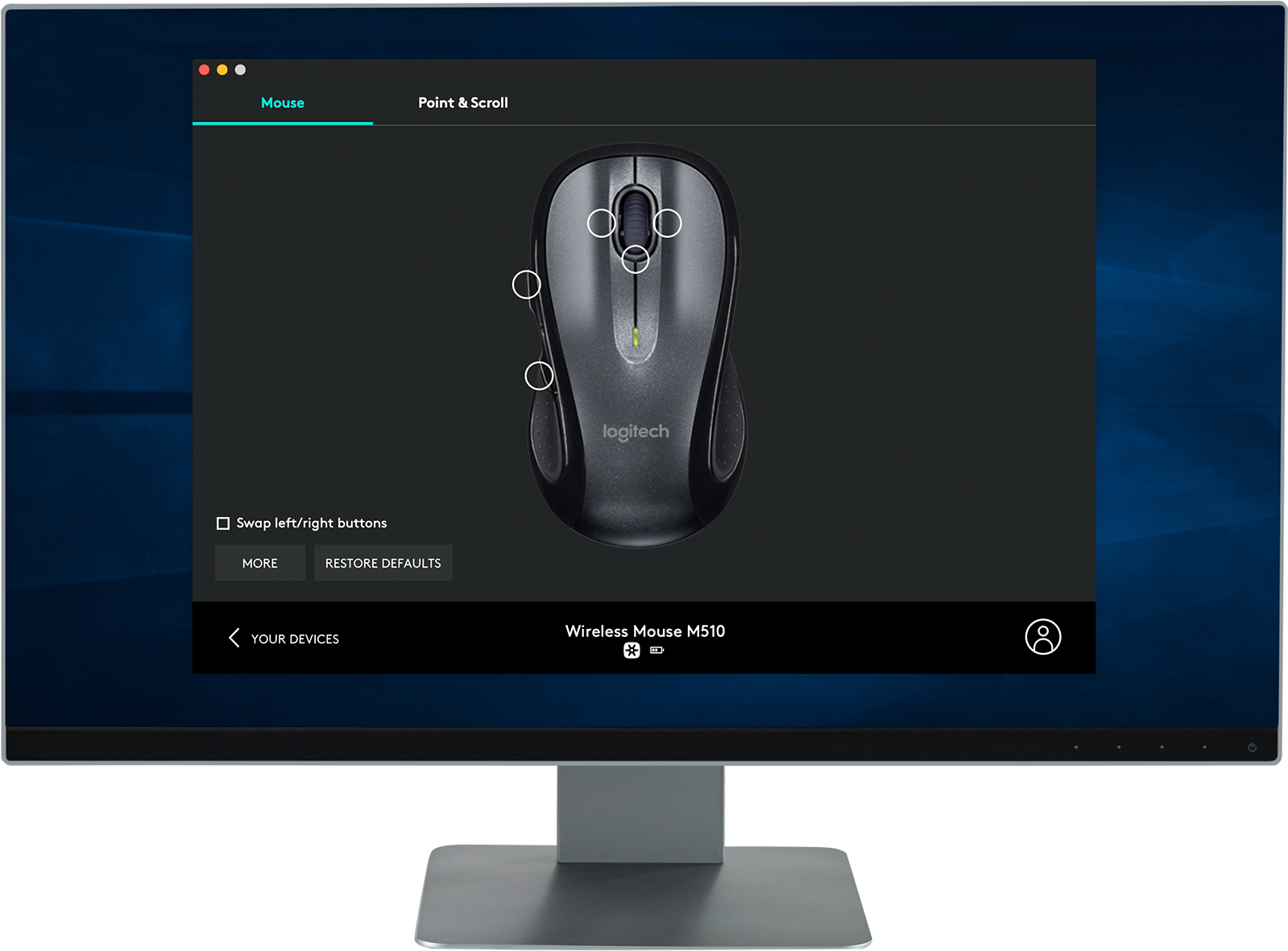
While basic pointing works without additional software, installing Logitech Options+ unlocks valuable customization:
- Reprogram the two thumb buttons for frequently used commands like copy/paste, application switching, or zoom controls
- Adjust scroll wheel behavior between traditional click-by-click scrolling and free-spinning mode
- Modify DPI sensitivity (1000 DPI is standard) for finer cursor control during detailed work
Extend Battery Life Beyond Standard Expectations
The M510 typically delivers 18-24 months of battery life, but these practices maximize performance:
- Always use high-quality alkaline batteries (avoid rechargeable NiMH batteries which operate at lower voltage)
- Keep the power switch in the OFF position when storing the mouse for extended periods
- Clean battery contacts periodically with a cotton swab and isopropyl alcohol to prevent corrosion
Maintain Optimal Tracking Performance
For consistent, reliable movement across your laptop screen:
- Clean the sensor lens weekly with a dry microfiber cloth, especially in dusty environments
- Replace worn mouse feet (available from Logitech) when movement becomes jerky or inconsistent
- Avoid using the mouse on transparent surfaces like glass desks, which the laser sensor cannot track
Critical Limitations to Understand Before Setup

Avoid frustration by recognizing these essential constraints when connecting how to connect Logitech M510 mouse to laptop:
Bluetooth Connection Is Impossible
Despite widespread misinformation online, the Logitech M510 does not support Bluetooth in any capacity. If your laptop lacks USB ports or you specifically need Bluetooth connectivity, consider upgrading to a Logitech model explicitly marketed as Bluetooth-compatible, such as the MX Master series.
Receiver Dependency Creates Limitations
The M510 requires its specific Unifying receiver to function. Unlike some newer Logitech mice, it cannot switch between multiple devices or operate without the physical receiver plugged into your laptop. This means you cannot use the same mouse seamlessly between your work and home computers without physically moving the receiver.
Operating System Compatibility Requirements
While the M510 works with most modern systems, verify your laptop meets these minimum requirements:
– Windows 7 or newer
– macOS 10.11 (El Capitan) or newer
– Chrome OS (with limited customization options)
Key Takeaways for Successful Connection:
– The Logitech M510 mouse connects exclusively through its Unifying receiver—Bluetooth pairing is impossible
– Proper battery installation and USB port selection solve 80% of initial connection issues
– Surface compatibility and sensor cleanliness determine tracking performance more than connection quality
– Replacement receivers require re-pairing via Logitech’s Unifying Software
Following these precise steps ensures your Logitech M510 mouse to laptop connection works reliably for years. When setup correctly, this mouse delivers the “it just works” experience Logitech is known for, with exceptional battery life and responsive tracking that makes daily computing tasks effortless. Remember that the simplicity of this mouse is its strength—when connection problems occur, the solution is almost always a straightforward physical adjustment rather than complex software configuration. Keep this guide handy for future reference, and you’ll never waste time troubleshooting your wireless mouse again.



