
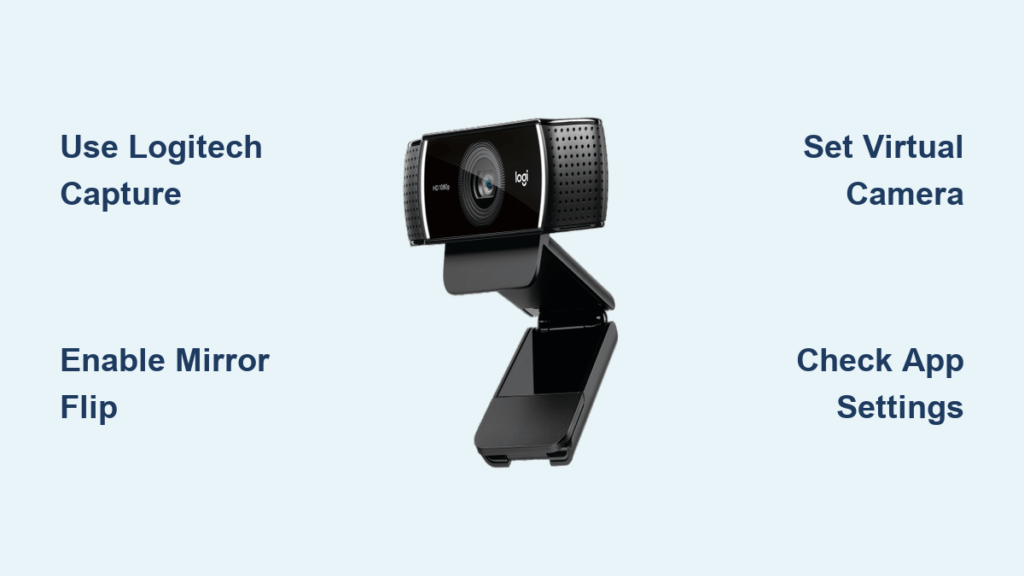
Have you ever held up a sign during a video call only to realize your text appears backwards to viewers? If you’re using a Logitech webcam on Windows 10, you’ve likely encountered the frustrating mirroring issue where your camera feed shows a reversed image. This common problem affects streamers, content creators, and remote workers who need text and gestures to appear correctly to their audience. The good news is that how to flip Logitech webcam Windows 10 settings doesn’t require technical expertise—just the right tools and steps. In this guide, you’ll discover multiple proven methods to flip your Logitech camera feed, from Logitech’s official software to free third-party solutions that work seamlessly with Windows 10.
Unlike smartphones that automatically handle mirroring, Windows 10 doesn’t offer a built-in system-wide setting to flip your webcam feed. This means you’ll need specific software to correct the mirror effect that makes text appear backwards and gestures seem reversed. Whether you’re using a popular Logitech C922 Pro Stream, C920, or another model, the solutions we’ll cover work across Logitech’s product line. You’ll learn exactly which Logitech software actually supports flipping (spoiler: it’s not G Hub), how to implement quick fixes for video calls, and which free tools give you the most control over your camera orientation.
Why Your Logitech Webcam Shows Backwards Text in Windows 10
The Mirror Image Problem Explained
Your Logitech webcam displays a mirror image by default, which feels natural when you’re looking at your own preview but creates confusion for your audience. When you hold up text that reads “Hello,” viewers see “olleH” because the camera feed is horizontally flipped. This mirroring affects more than just text—it reverses all directional cues. If you point to your left, it appears as pointing to the right on your audience’s screen, creating disorientation during presentations or tutorials.
Why Windows 10 Doesn’t Fix This Automatically
Windows 10 treats your webcam as a simple video input device without built-in orientation controls. Unlike mobile operating systems that automatically handle front-facing camera mirroring, Windows expects applications to manage this themselves. Most video conferencing apps default to mirrored previews for your comfort while recording or streaming apps typically show the non-mirrored version for professional output. This inconsistency across applications creates the need for specific flipping solutions tailored to your Logitech webcam model and usage scenario.
How to Flip Your Logitech C920 or C922 Webcam Using Official Software

Logitech Capture: The Only Native Solution That Works
Logitech Capture is your most reliable option for flipping your Logitech webcam feed on Windows 10. Despite what you might expect, neither Logitech Gaming Software (G Hub) nor Logitech Tune offer this essential feature for content creators. This free application from Logitech provides professional-grade controls specifically designed for Logitech webcams like the C920 and C922.
Complete Step-by-Step Process:
1. Download Logitech Capture directly from Logitech’s official website (avoid third-party download sites)
2. Install the application and launch it after connecting your Logitech webcam
3. Click the “+” icon under “Sources” and select “Video Capture Device”
4. Choose your Logitech webcam model from the device list
5. Navigate to the “Video” tab in the top menu bar
6. Locate the “Orientation Settings” section (typically on the right panel)
7. Toggle the “Mirror” or “Horizontal Flip” option to reverse your camera feed
8. Click “Apply” to see immediate changes to your preview
Pro Tip: Logitech Capture works as a virtual camera. After setting up your flipped feed, select “Logitech Capture” as your camera source in Zoom, Teams, or OBS to maintain the flipped orientation across applications. This method takes less than 3 minutes to implement and requires no technical expertise—perfect for beginners who need a quick fix before an important meeting.
Flip Your Logitech Webcam Feed Using Free Streaming Software
OBS Studio: Professional Flipping for Streamers and Content Creators
If you’re using your Logitech webcam for streaming or recording, OBS Studio offers the most flexible flipping solution. This free, open-source software works with any webcam model and provides granular control over your video feed beyond simple mirroring.
Implementation Steps for OBS Studio:
1. Download and install OBS Studio from obsproject.com
2. Open OBS and click the “+” under “Sources” in the bottom-left panel
3. Select “Video Capture Device” and name your source (e.g., “Logitech C922”)
4. Choose your Logitech webcam from the device dropdown menu
5. Right-click the new source in your scene and select “Filters”
6. Click the “+” button under “Effect Filters” and choose “Transform”
7. In the Transform properties, check “Horizontal Flip” and click “OK”
8. Enable OBS Virtual Camera from the “Start Virtual Camera” button
Critical Note: Many users waste time searching OBS settings for a dedicated “flip” option—it’s hidden within the Transform filter. This method adds minimal CPU overhead (typically 2-5% usage) and works reliably with all Logitech webcams on Windows 10 systems. The entire process takes about 5 minutes and gives you additional video enhancement options for professional results.
Quick Fixes for Video Conferencing Without Additional Software
Flip Your Logitech Webcam in Zoom, Teams, and Google Meet
For immediate needs during video calls, most conferencing applications include built-in mirroring controls that work with your Logitech webcam without additional software installation.
Zoom:
– Go to Settings > Video
– Check “Mirror my video” under “My Video” section
– Changes apply instantly without restarting meetings
Microsoft Teams:
– Click your profile picture > Settings > Devices
– Under Camera, toggle “Mirror my video preview”
– Note: This only affects your preview, not what others see
Google Meet:
– During a call, click More (three dots) > Settings > Video
– Toggle “Mirror my video” on or off
– Changes apply immediately to your feed
Warning: These settings are application-specific. Flipping in Zoom won’t affect your Teams meetings. If you frequently switch between platforms, consider using Logitech Capture as your central solution and selecting it as your camera source in all applications.
Troubleshooting Common Logitech Webcam Flipping Issues
“No Flip Option Available” in Logitech Software
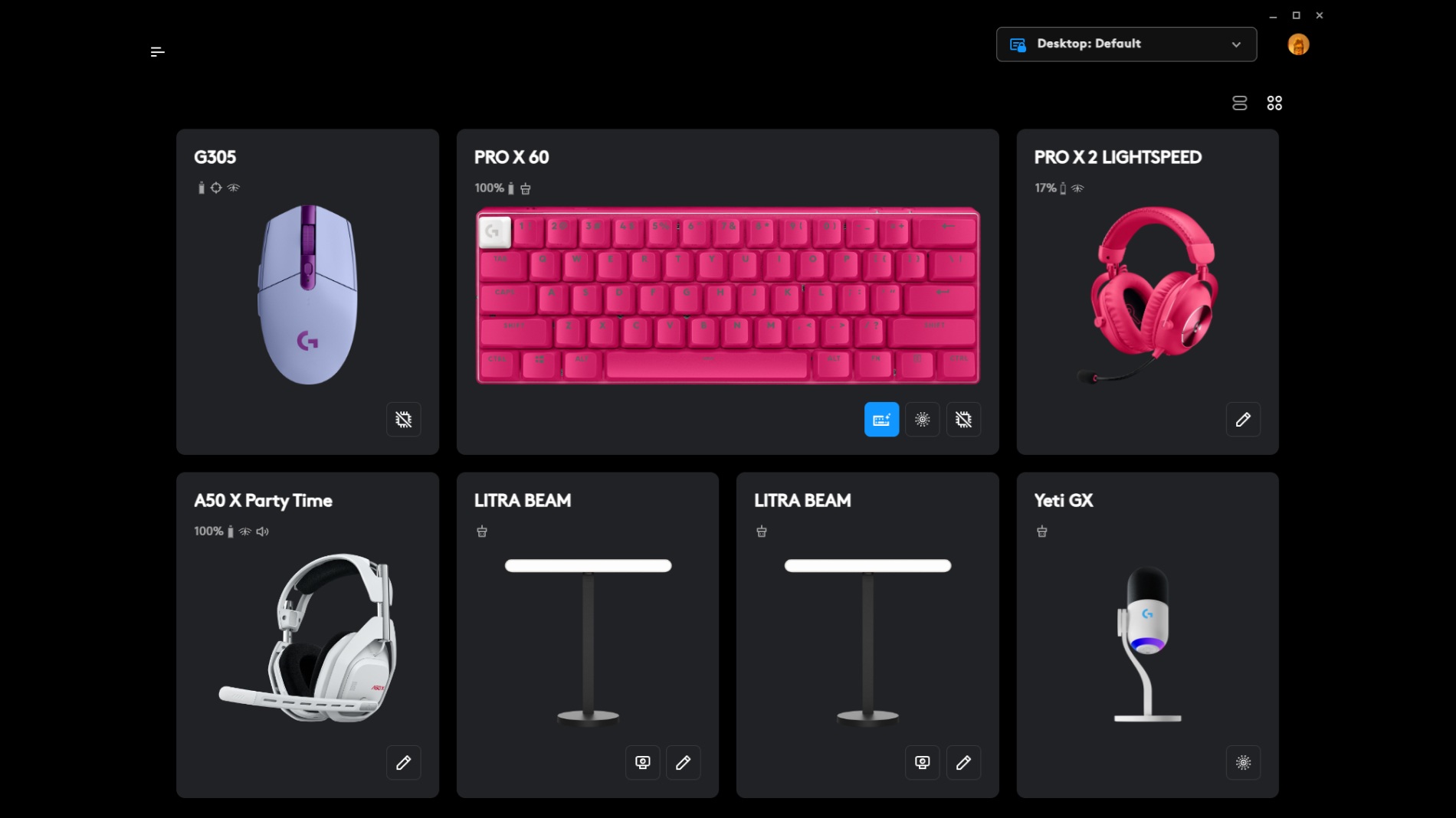
If you can’t find the flip option in Logitech software, you’re likely using the wrong application. Logitech Gaming Software (G Hub) and Logitech Tune do NOT support video flipping—this is a common point of frustration for users. Switch to Logitech Capture, which is specifically designed for webcam control rather than gaming peripherals.
Flipping Works in Some Apps But Not Others
This occurs when applications handle mirroring independently. The solution is to use a virtual camera approach:
1. Set up your flipped feed in Logitech Capture or OBS
2. Enable their virtual camera output feature
3. Select this virtual camera as your source in all applications
This creates a consistent flipped feed across Zoom, Teams, OBS, and other platforms. It adds minimal setup time (about 2 minutes) but solves the inconsistency problem permanently.
Performance Lag After Flipping
Some users report slight lag after enabling flipping, especially on older Windows 10 systems. To fix this:
– Reduce your webcam resolution from 1080p to 720p
– Close background applications consuming CPU resources
– Update your graphics drivers (especially important for NVIDIA/AMD users)
– In OBS, use the “Hardware (NVENC)” encoder instead of software encoding
Maintenance Tips to Prevent Future Flipping Issues
After successfully flipping your Logitech webcam, implement these practices to maintain consistent performance. Always update Logitech Capture when new versions are available—Logitech occasionally improves camera compatibility. Create a dedicated profile in your streaming software specifically for flipped webcam use, saving you setup time for future sessions. Periodically check Windows Camera Privacy settings to ensure no other application is blocking camera access after updates. Most importantly, avoid installing multiple webcam control applications simultaneously, as this causes driver conflicts that can revert your flipping settings unexpectedly.
Final Note: Flipping your Logitech webcam on Windows 10 requires the right approach for your specific needs. For most users, Logitech Capture provides the simplest native solution, while OBS Studio offers the most flexibility for content creators. Video conferencing apps include built-in options for immediate fixes during meetings. Remember that how to flip Logitech webcam Windows 10 settings isn’t a one-size-fits-all solution—your ideal method depends on whether you’re streaming, presenting, or simply joining video calls. Implement one of these proven techniques today to ensure your text appears correctly and your gestures make sense to your audience, transforming your video presence from confusing to professional in minutes.



