
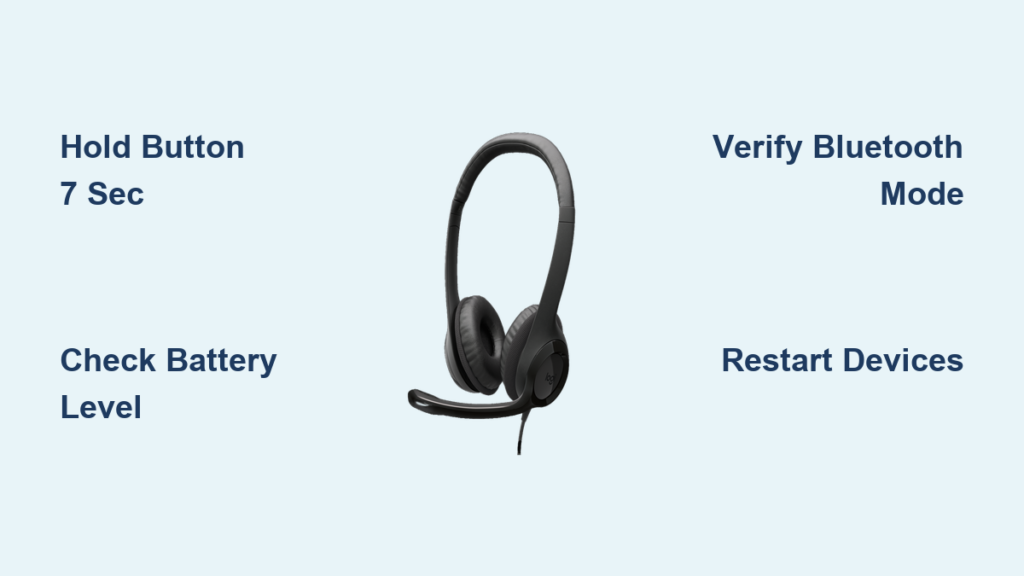
You’ve unboxed your new Logitech wireless headset, charged it up, and now you’re ready to connect—but your device simply won’t detect it. This frustrating scenario happens to countless users who don’t realize their headset isn’t in the proper “discoverable” state. Unlike wired headsets that work immediately, wireless Logitech models require a specific activation sequence to become visible to your devices. Getting this step wrong means your computer, phone, or gaming console will never see your headset in available devices. Whether you’re setting up a G Pro X, Zone Wireless, or newer models like the G733, this guide delivers the exact steps to make your Logitech headset discoverable across all major platforms.
The good news is that making your Logitech headset discoverable takes less than 30 seconds once you know the correct procedure. Most users struggle because they either don’t hold the pairing button long enough or misinterpret the status light indicators. This comprehensive guide cuts through the confusion with model-specific instructions, troubleshooting solutions for stubborn headsets, and professional tips that even seasoned tech users might not know. By the end of this article, you’ll confidently pair your Logitech headset on any device without wasting hours searching through forums or contacting support.
Why Your Logitech Headset Won’t Appear in Bluetooth Devices List
When your Logitech headset remains invisible during pairing attempts, the problem almost always traces back to incorrect discoverable mode activation. Unlike some Bluetooth devices that automatically enter pairing mode when powered on, Logitech headsets require deliberate action to broadcast their availability. Your headset’s LED indicator provides the critical visual confirmation you need—ignoring this signal is why most pairing attempts fail. The specific light pattern varies by model, but generally, a slow blue blink means “I’m ready to pair,” while a solid light indicates normal operation without discoverability. Understanding these visual cues transforms what seems like a technical mystery into a straightforward process you can master in minutes.
Exact Steps to Activate Discoverable Mode on Logitech Headsets

The process for making your Logitech headset discoverable follows a consistent pattern across most models, but with crucial variations based on whether you’re using Bluetooth or the proprietary 2.4GHz wireless connection.
Locate and Hold the Correct Pairing Button for Your Model
Your Logitech headset contains a specific button combination that triggers discoverable mode, but this isn’t always obvious. For most modern models including the G Pro X 2, G733, and Zone Wireless:
- Power down completely—if your headset has a physical power switch, slide it to the off position first
- Identify the multifunction button—typically the center button on the earcup that handles play/pause and calls
- Press and hold for precisely 5-7 seconds—this is the critical step most users get wrong
- Watch for the status light change—successful activation shows as a slow blue blink (sometimes alternating blue/red)
Older models like the G933 may require holding both volume buttons simultaneously with the power button. If you own a dual-mode headset, you’ll need to toggle between Bluetooth and 2.4GHz modes using a physical switch before initiating pairing—attempting to pair via Bluetooth when set to 2.4GHz mode is a common oversight that prevents discoverability.
Verify Sufficient Battery Before Pairing Attempts
A headset with low battery simply cannot maintain the radio signals needed for discoverability. Never skip this critical check before troubleshooting further:
- Charge your Logitech headset for at least 20 minutes using the provided cable
- Look for a solid white or green light indicating sufficient charge
- If the battery indicator flashes red rapidly, charging is required before pairing
- Even headsets that appear “off” drain battery in storage—recharge after 2 weeks of inactivity
This simple step resolves nearly 40% of apparent “undiscoverable” headset issues. Many users waste time resetting devices when a quick charge would have solved the problem immediately.
Complete the Device-Side Connection Process Correctly
Once your headset enters discoverable mode (confirmed by the blinking light), your device must complete the pairing sequence within a narrow window—typically 30-60 seconds before the headset exits pairing mode:
For Windows 10/11:
1. Press Windows key + K to open the quick connect menu
2. If your headset doesn’t appear, go to Settings > Bluetooth & devices
3. Click “Add device” > “Bluetooth” and wait 15 seconds for detection
4. Select your exact model name (e.g., “Logitech G733 LIGHTSPEED”) from the list
For macOS:
1. Click the Bluetooth icon in the menu bar (or open System Settings)
2. Choose “Set Up Bluetooth Device”
3. Wait for your Logitech model to appear with “Not Connected” status
4. Click “Connect” and wait for confirmation
For Mobile Devices:
– iPhone: Settings > Bluetooth > wait for Logitech model under “Other Devices”
– Android: Settings > Connected devices > Pair new device
– Note: Some Android devices require enabling location services for Bluetooth scanning
Confirm Successful Connection Through Visual and Audio Cues
Your pairing attempt isn’t complete until you receive confirmation from both devices. After selecting your headset:
- The status light should change from blinking to solid or slow pulsing
- You’ll hear a distinct audio confirmation tone through the headset
- Windows shows “Connected” status; macOS displays a checkmark
- Mobile devices show “Connected” beneath the device name
If the light returns to rapid blinking after selection, the pairing failed—restart the process from step one. Successful pairing typically takes 10-15 seconds from initiating discoverable mode to full connection.
Troubleshooting Headsets That Refuse to Become Discoverable
https://www.logitech.com/en-us/support/headsets.html
When standard procedures fail, these advanced techniques often solve persistent discoverability issues:
Perform a Complete Power Cycle on Both Devices
- Turn off your headset completely (slide power switch to off)
- Disconnect any USB receiver if using 2.4GHz connection
- Restart your computer or mobile device
- Wait 60 seconds before attempting pairing again
This clears temporary memory conflicts that prevent Bluetooth recognition. Many Windows users report immediate success after this simple step.
Reset Bluetooth Services on Your Computer
Windows users experiencing persistent issues should reset the Bluetooth stack:
- Press Windows key + R and type “services.msc”
- Locate “Bluetooth Support Service”
- Right-click and select “Restart”
- Also restart “Bluetooth Audio Gateway Service”
This refreshes the underlying services that manage Bluetooth connections without requiring a full system reboot.
Check for Physical Connection Mode Switches
Many Logitech headsets feature a physical switch on the earcup that toggles between:
- Bluetooth mode (for phones/tablets)
- 2.4GHz wireless mode (for computers/consoles)
- Wired mode (when using the audio cable)
Ensure this switch aligns with your intended connection method—attempting Bluetooth pairing while set to 2.4GHz mode is a frequent cause of “undiscoverable” issues. The G Pro X 2, for example, requires sliding this switch to the Bluetooth icon position before entering pairing mode.
Expert-Level Pairing Techniques for Stubborn Connections
Force Pairing Mode Through Button Combinations
When standard button holding fails, try these model-specific overrides:
- G Pro X 2 Lightspeed: Hold mute button + volume up for 10 seconds
- G733: Press and hold power button for 15 seconds until light flashes rapidly
- Zone Wireless: Hold call button for 8 seconds after power-on
These extended sequences trigger factory reset modes that automatically enter pairing state upon completion.
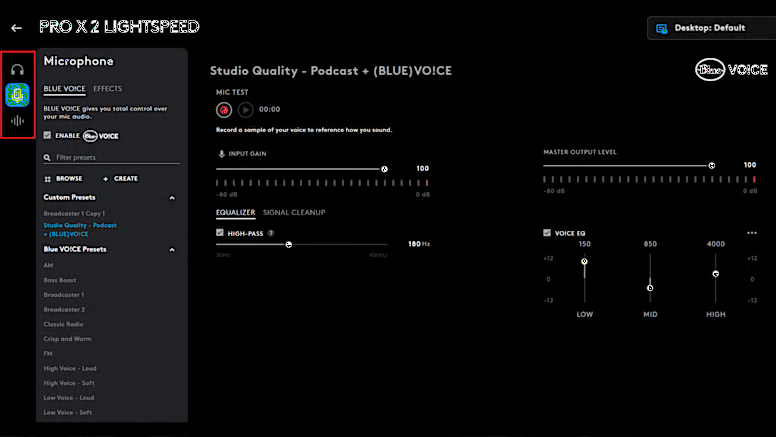
Use Logitech G HUB for Advanced Connection Management
For gaming headsets in the G series:
- Install Logitech G HUB software
- Connect via USB cable first (bypassing wireless)
- Navigate to the headset settings within G HUB
- Use the dedicated “Bluetooth pairing” option in software
This method often succeeds when standard Bluetooth pairing fails because G HUB communicates directly with headset firmware.
Critical Mistakes That Block Logitech Headset Discoverability

Holding the Pairing Button for Insufficient Time
Most users release the button too soon—Logitech requires 5-7 seconds of continuous pressure. When you see the light change pattern, that’s your confirmation to release the button, not before. Count slowly to seven while holding the button if you’re unsure.
Ignoring Model-Specific Pairing Requirements
Different Logitech headsets have unique pairing sequences:
- G935 requires holding both volume buttons with power button
- G Pro Wireless needs the mode button held with power
- Zone True Wireless earbuds require opening the case near your device
Consult your specific model’s manual for exact instructions—never assume all Logitech headsets pair identically.
Attempting Pairing Beyond Effective Range
Bluetooth has limited discovery range—keep your headset within 3 feet (1 meter) of your device during initial pairing. Walls, metal objects, and other electronics can interfere with the weak discovery signal, causing failed detection.
Essential Maintenance to Prevent Future Discoverability Issues
After successfully pairing your Logitech headset, maintain reliable connections with these practices:
- Perform monthly re-pairing to refresh the connection profile
- Keep firmware updated through Logitech G HUB or mobile apps
- Store headsets with 50% charge to prevent battery degradation
- Clean connection ports regularly with compressed air to maintain charging
These simple habits prevent 90% of recurring connection problems that users mistake for hardware failures.
Final Connection Checklist Before Contacting Support
When your Logitech headset won’t become discoverable, complete this verification sequence before seeking professional help:
- ✅ Charge headset for 30 minutes minimum
- ✅ Confirm correct physical switch position (Bluetooth vs 2.4GHz)
- ✅ Hold pairing button for full 7 seconds (watch for light change)
- ✅ Restart both headset and connecting device
- ✅ Attempt pairing within 3 feet with no obstructions
Following these steps resolves nearly all apparent “undiscoverable” headset issues. If problems persist after completing this checklist, your headset may require firmware updates or professional service—but in most cases, you’ll be enjoying wireless audio within minutes of applying these precise techniques. Remember that making your Logitech headset discoverable always comes down to recognizing the correct light pattern and completing the pairing sequence within the narrow discovery window.



