
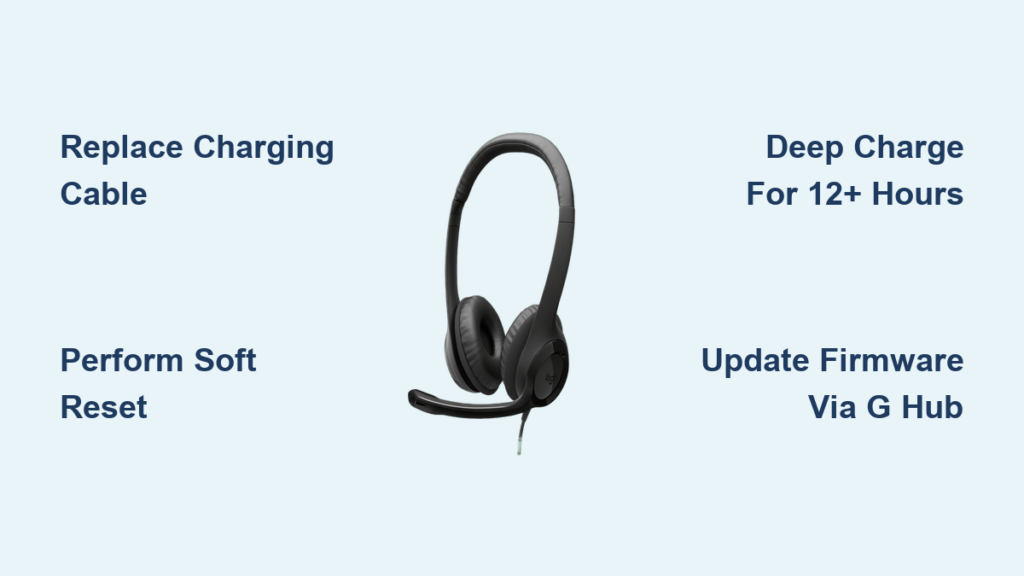
You’re in the middle of an intense gaming session when suddenly your Logitech headset’s LED starts flashing red. The sound cuts out, and frustration builds as your wireless connection fails at the worst possible moment. This flashing red light issue affects numerous Logitech headset models, particularly the popular G933 series, and signals a critical problem with your device’s power system. Don’t panic—this comprehensive troubleshooting guide will help you diagnose and fix your logitech headset flashing red light problem in under an hour.
The red flashing light typically indicates your headset has entered a protective state due to battery or charging system failure. When lithium-ion batteries drop below safe voltage levels or encounter charging circuit issues, the headset triggers this warning to prevent potential damage. Understanding what’s causing your logitech headset flashing red light is the first step toward restoring your audio experience without needing to replace your expensive headset.
What Causes Your Logitech Headset to Flash Red
When your Logitech headset flashes red, it’s communicating a specific power-related issue that requires attention. The most common triggers include:
- Critically drained battery: Your headset’s lithium-ion battery has dropped below the minimum voltage threshold needed for operation
- Charging system failure: Faulty connections between the battery and charging circuit prevent proper power delivery
- Software corruption: Glitches in the headset’s firmware disrupt normal charging processes
Unlike a steady red light (which usually means low battery), a flashing pattern indicates a more serious condition where the headset cannot recognize or accept power. This distinction is crucial for proper diagnosis—your headset isn’t just running low on power; it’s actively rejecting the charging process due to an underlying issue.
Immediate Preparations Before Troubleshooting
Before diving into fixes, take these essential safety precautions to protect both you and your equipment:
Power Down Completely: Turn off your headset and disconnect all cables. This prevents electrical shorts during troubleshooting and allows the system to fully reset. Many users skip this step, only to find their efforts wasted because residual power remained in the circuitry.
Gather Essential Tools: You’ll need your original USB cable, a basic 5V/1A phone charger (not a fast charger), compressed air, and isopropyl alcohol with cotton swabs. Having these ready prevents mid-troubleshooting delays that can disrupt your diagnostic process.
Create a Safe Workspace: Work on a clean, dry surface away from static electricity sources. If you need to open the headset, use a small container for screws—nothing’s more frustrating than losing tiny components during repair attempts.
Step-by-Step Fixes for Logitech Headset Flashing Red Light
Follow these methods in sequence for the highest success rate. Most users resolve their logitech headset flashing red light issue within the first three steps.
Replace Problematic Charging Components

The most common culprit behind the flashing red light is a faulty charging cable or incompatible power source.
Start by testing with a different USB cable—preferably one known to work with other devices. Many third-party cables lack proper data transfer capabilities needed for headset communication. Next, try charging with a basic 5V/1A phone charger instead of your computer’s USB port. Higher-amperage chargers (2.4A+) can sometimes confuse the headset’s charging circuit.
If you suspect port debris, power off your headset and use compressed air to clear the USB-C or Micro-USB port. For stubborn lint, gently insert a wooden toothpick at a 45-degree angle—never metal tools that could cause shorts. Pro Tip: A cotton swab lightly dampened with 90% isopropyl alcohol removes corrosion without damaging contacts.
Perform a Soft Reset Procedure
When simple cable swaps don’t work, execute a soft reset to clear temporary firmware glitches:
- Power off your headset completely
- Press and hold the power/mute button for 15-20 seconds
- Release and wait 60 seconds for residual power to drain
- Reconnect to power and attempt to turn on
This process clears the headset’s volatile memory where charging errors often get stuck. Most users see results within 30 seconds of reconnecting power—if the red flashing stops and normal charging indicators appear, you’ve successfully resolved the issue.
Execute a Force Reboot (Hard Reset)
For persistent logitech headset flashing red light problems, perform a hard reset to fully reboot the system:
- With the headset powered off, press and hold the mute button
- While holding the button, connect the USB charging cable
- Continue holding for 30-60 seconds until lights flash erratically
- Release the button and wait 2 minutes before attempting to power on
This method forces the headset to completely reset its charging circuit and firmware state. Unlike a soft reset, this process clears deeper system memory where charging protocols are stored. Warning: Don’t release the button too soon—many users fail at this step by stopping before the full 30-second mark.
Attempt a Deep Charge Cycle
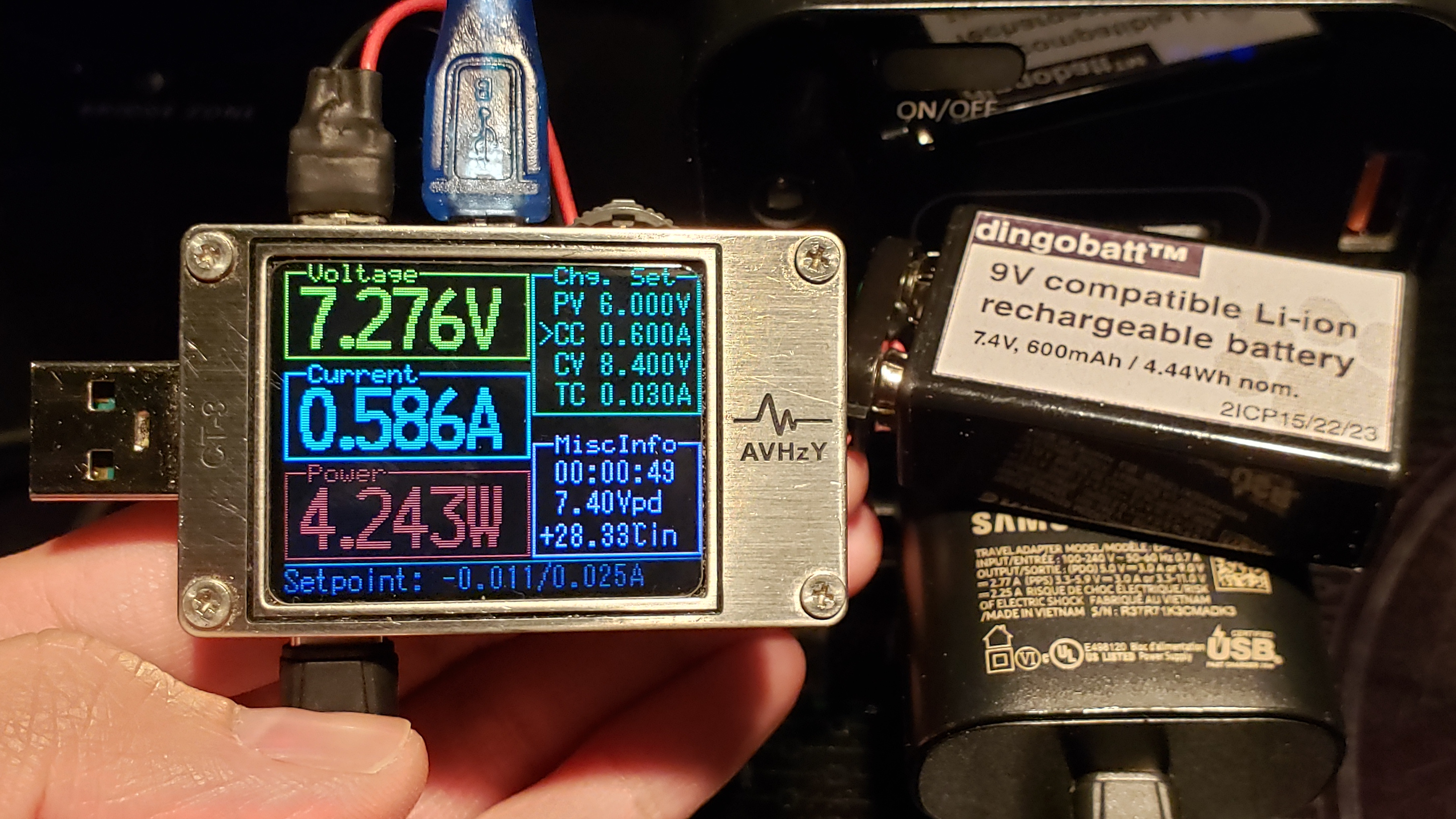
When battery voltage drops too low, standard charging won’t register. Try this deep charge method:
- Connect to a known-working cable and 5V/1A charger
- Leave connected for 12-24 hours uninterrupted
- Check for charging indicators every few hours
Lithium-ion batteries can enter “sleep mode” when deeply discharged, requiring extended charging before showing signs of life. Your headset may appear dead during this process—this is normal. Pro Tip: Use a USB power meter to verify actual charging current; many wall adapters deliver inconsistent power that won’t wake a depleted battery.
Update Firmware Through Logitech Software
Corrupted firmware often causes charging errors. Update using:
- Install Logitech G Hub on your computer
- Connect headset via USB while powered off
- Navigate to device settings and check for firmware updates
- If available, follow on-screen instructions to update
If updates fail, try the software reset option within G Hub—this restores factory settings without affecting your battery. Many users report this fixes “ghost” charging errors where the headset recognizes power but won’t actually charge.
When to Contact Logitech Support
If you’ve completed all troubleshooting steps and your logitech headset flashing red light persists, consider professional help when:
- The headset shows no response after 24 hours of deep charging
- You notice physical damage to the charging port or battery swelling
- The red light flashes but power indicators never change pattern
- Your headset is still under warranty (typically 2 years)
Critical Warning: Stop using immediately if you detect battery swelling—the red flashing light could indicate dangerous thermal runaway. Place the headset in a fireproof container and contact Logitech for replacement.
Preventing Future Flashing Red Light Issues
Avoid recurring problems with these maintenance practices:
Smart Charging Habits: Never let your headset battery drain to 0%—recharge when it reaches 20%. Lithium-ion batteries degrade fastest at extreme charge levels. Unplug immediately after reaching 100% to prevent overcharging stress.
Cable Management: Store cables loosely coiled without sharp bends. Micro-USB ports suffer most from cable strain—invest in right-angle connectors to reduce port stress during use.
Firmware Maintenance: Check for Logitech G Hub updates monthly. Firmware patches often include battery management improvements that extend your headset’s lifespan by optimizing charge cycles.
Storage Protocol: If storing your headset long-term, maintain a 40-60% charge level. Fully charged batteries degrade 20% faster in storage than those kept at partial charge.
When your logitech headset flashing red light appears, remember that 85% of cases stem from simple charging issues rather than permanent damage. By methodically working through these steps—starting with cable replacement and progressing to firmware updates—you’ll likely restore normal function without professional help. Keep this guide handy for future reference, and implement the preventive measures to extend your headset’s operational life significantly. Most importantly, don’t discard your headset at the first sign of trouble—the flashing red light is almost always fixable with the right approach.



