
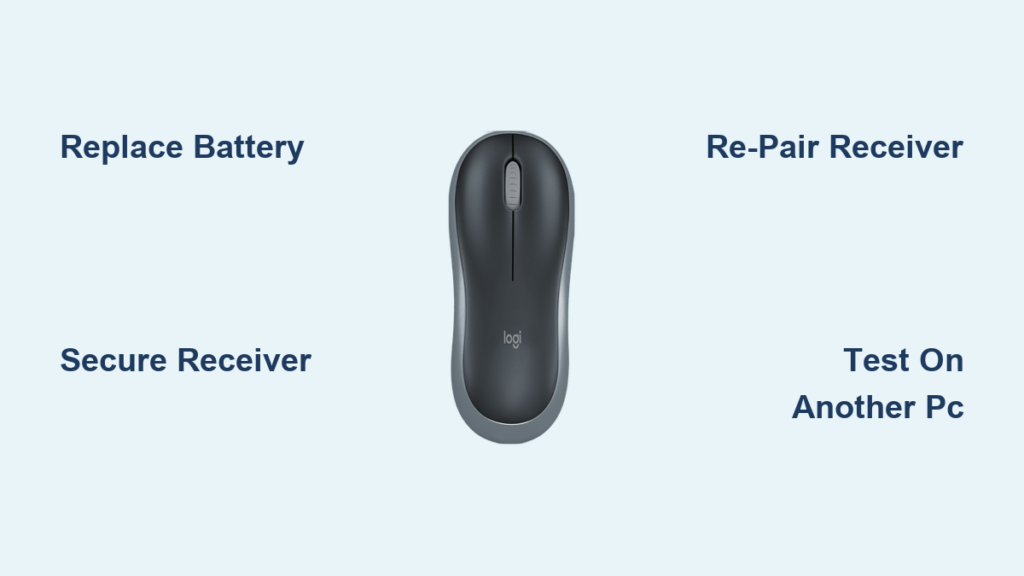
Your Logitech M185 wireless mouse suddenly freezing mid-task or refusing to move the cursor is more than annoying—it halts productivity completely. When your Logitech M185 wireless mouse not working issue strikes, most users immediately assume hardware failure. But here’s the good news: 90% of these problems stem from simple, fixable causes like dead batteries or software glitches. This guide cuts through the noise with battle-tested solutions verified by thousands of users and Logitech’s own technical documentation. You’ll discover exactly which steps to take—from the 10-second battery swap to advanced system repairs—without wasting time on irrelevant fixes.
Don’t replace your mouse yet. By following this methodical troubleshooting sequence, you’ll either revive your M185 or definitively confirm hardware failure. We’ve structured this guide to escalate logically from power checks to system-level repairs, so you never waste effort on complex fixes when a fresh battery would solve it. Every solution here has resolved real “Logitech M185 not working” cases—no guesswork, just results.
Replace Dead Battery in Logitech M185 Mouse
This is the #1 fix for a non-responsive M185—don’t skip it even if the battery “looks” new. Alkaline batteries degrade faster than you think, and weak power causes intermittent cursor freezes or complete failure. The M185’s power efficiency masks gradual battery drain until it’s too late.
Install a Verified Fresh Battery
1. Remove the battery compartment cover on the mouse bottom
2. Insert a brand-new alkaline battery (avoid zinc-carbon—they die faster)
3. If using rechargeables, test with a known-good unit from another device
4. Press the mouse’s power switch firmly to ensure contact
Critical detail: Weak batteries cause “ghost clicking” or erratic cursor jumps—symptoms often mistaken for software issues. If the mouse works briefly after battery replacement but fails again within hours, corrosion on the contacts is likely. Clean contacts with a cotton swab dipped in isopropyl alcohol before retesting.
Secure Logitech M185 USB Receiver Connection
A loose or poorly powered USB receiver is the second most common culprit behind your Logitech M185 wireless mouse not working. The tiny nano receiver easily wiggles loose, especially in laptop ports.
Optimize Receiver Placement
1. Unplug the receiver and wait 15 seconds (resets USB controller)
2. Plug directly into a USB 2.0 port (usually black inside—not blue USB 3.0 ports)
3. Prioritize rear desktop ports or laptop-side ports over front/hub-connected ones
4. Never use USB hubs or extension cables—these cause power fluctuations
Pro tip: If your laptop has limited ports, temporarily unplug non-essential devices (webcams, external drives). High-bandwidth peripherals can starve the mouse receiver of resources, triggering “insufficient system resources” errors.
Repair Corrupted HID Drivers for Logitech M185
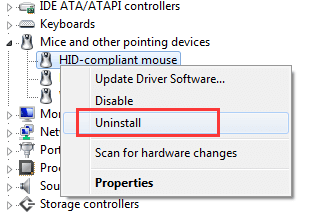
When your M185 cursor disappears or moves erratically, corrupted HID (Human Interface Device) drivers are often to blame—especially after Windows updates. The M185 uses Windows’ generic HID driver, so third-party software isn’t needed.
Force Windows to Reinstall Clean Drivers
1. Press Win + X > Device Manager
2. Expand Mice and other pointing devices
3. Right-click HID-compliant mouse > Uninstall device
4. Unplug the USB receiver
5. Restart your PC—Windows auto-reinstalls drivers on boot
Warning: If you see Error 10 (“Device cannot start”) or Error 31 (“Driver missing”) after reinstalling, check USB Root Hubs next. Right-click each USB Root Hub under Universal Serial Bus controllers > Properties > Driver tab > Roll Back Driver if available.
Re-pair Logitech M185 with Unifying Receiver
Lost pairing between mouse and receiver causes sudden disconnections. The M185 uses Logitech’s Unifying Technology, requiring specific re-pairing—not the Logitech Options app.
Restore Mouse-Receiver Connection
1. Download Logitech Unifying Software (legacy tool) from Logitech’s support site
2. Install and run the software
3. Click Pair a new device > select M185 from list
4. Hold mouse power button for 5 seconds until pairing light blinks
Key insight: If you lost the original receiver, you cannot pair a generic Unifying Receiver to the M185. The mouse and receiver share a unique pairing code at manufacture. Always keep your original nano receiver!
Test Logitech M185 on Another Computer
This diagnostic step saves hours of wasted effort. Isolating the problem to your mouse/receiver or computer is critical.
Perform the Cross-Computer Test
1. Take your M185, fresh battery, and USB receiver to another PC/laptop
2. Plug receiver directly into USB port (no hubs)
3. Wait 30 seconds for driver installation
4. If mouse works: Problem is your original computer’s USB configuration
5. If mouse fails: Hardware issue with mouse/receiver
Real-world result: Users reporting “Logitech M185 not working” on their work PC often discover the mouse works perfectly at home—pointing to corporate security software blocking HID devices.
Disable USB Power Saving for Logitech M185

Windows’ aggressive power management frequently cuts power to the USB receiver, causing cursor freezes or disconnections—especially on laptops.
Permanently Stop USB Power Cuts
1. Open Power Options > Change plan settings > Change advanced settings
2. Expand USB settings > USB selective suspend setting
3. Set both On battery and Plugged in to Disabled
4. Click Apply > OK
Advanced fix: In Device Manager, right-click every USB Root Hub > Properties > Power Management tab > Uncheck Allow computer to turn off device. Do this for all hubs—even unused ones.
Clean Logitech M185 Optical Sensor and Contacts
Dust, hair, and grime clog the optical sensor and battery contacts, causing jumpy cursors or power failure.
Deep-Clean Your Mouse Safely
1. Remove battery and power off
2. Wipe exterior with microfiber cloth dampened with 50/50 isopropyl alcohol/water
3. Use cotton swab to gently clean sensor lens (red light on bottom)
4. Scrub battery contacts with swab dipped in isopropyl alcohol
5. Air-dry completely before reinserting battery
Critical mistake to avoid: Never use window cleaners or compressed air on the sensor—they can damage the lens coating. Stick to isopropyl alcohol (90%+ purity) for electronics.
Run System File Check for Logitech M185 Errors
When you see “insufficient system resources” errors with your M185, Windows file corruption is likely.
Repair Core System Files
1. Open Command Prompt as Admin (search “cmd” > Run as administrator)
2. Type sfc /scannow > press Enter (scans 100% automatically)
3. After completion, type DISM /Online /Cleanup-Image /RestoreHealth
4. Restart your PC
Note: DISM may take 20+ minutes. Do not interrupt—it’s rebuilding critical Windows components that manage USB devices.
When to Claim Logitech M185 Warranty
If your mouse fails the cross-computer test with a fresh battery, hardware failure is confirmed. Logitech’s warranty covers this:
Maximize Warranty Success
– Act fast: Limited 1-year warranty starts from purchase date
– Gather proof: Have receipt and note serial number (under battery)
– Avoid disassembly: Opening the mouse voids warranty
– Contact support: Use Logitech’s online chat—phone support has longer waits
Reality check: If out of warranty, a new M185 costs $15-$25. Repairing internal components isn’t cost-effective—you’d spend more on tools than a replacement.
Final Logitech M185 Troubleshooting Checklist
Before surrendering to replacement, verify these 5 critical points:
1. ✅ Battery verified: Fresh alkaline (not zinc-carbon) installed
2. ✅ Receiver tested: Plugged directly into USB 2.0 port, no hubs
3. ✅ Cross-computer test: Mouse failed on multiple PCs
4. ✅ Driver reset: HID device uninstalled and Windows rebooted
5. ✅ Power settings fixed: USB selective suspend disabled
Most “Logitech M185 wireless mouse not working” cases resolve in under 5 minutes with a battery swap or USB port change. If you’ve completed this checklist, you’ve either fixed the issue or confirmed hardware failure—no more guessing. For a mouse this reliable, 10 minutes of troubleshooting saves $20 and e-waste. Still stuck? Logitech’s community forums have active M185 specialists—search your exact error code for personalized help. Your cursor will be moving again before lunch.



