
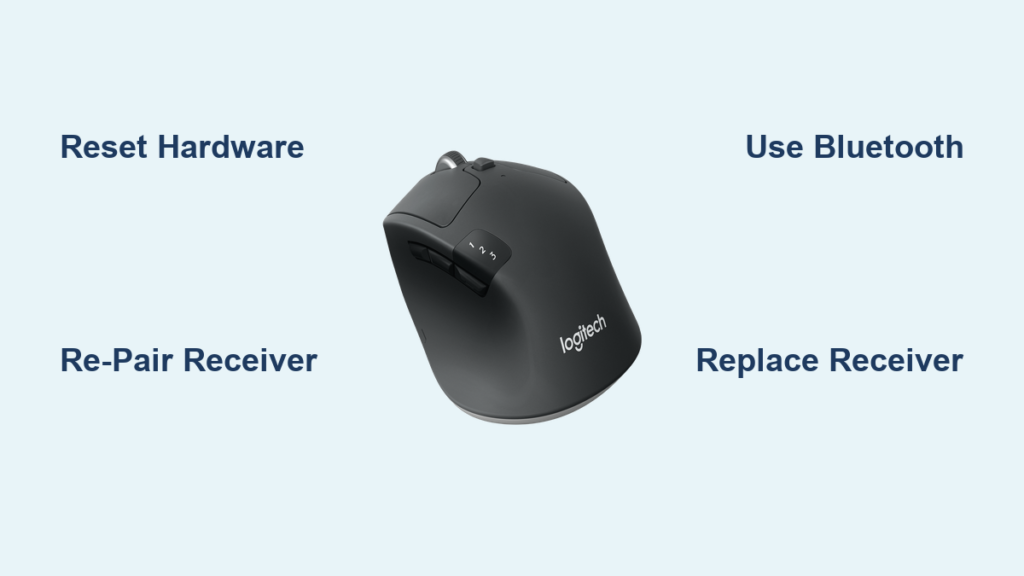
Your Logitech M720 Triathlon mouse suddenly stops working with its USB receiver, but continues functioning perfectly via Bluetooth—that’s the frustrating scenario many users face. This specific failure mode where the Unifying receiver stops communicating while Bluetooth remains operational has become a widespread issue affecting countless professionals who rely on this versatile mouse. If your Logitech M720 mouse not working with its original receiver but works fine via Bluetooth, you’re not alone. This guide provides proven solutions to get your wireless mouse back in action, whether it’s a simple re-pairing fix or a permanent workaround.
When your Logitech M720 mouse not working with the Unifying receiver but functions over Bluetooth, it’s typically not the mouse hardware that’s failed—it’s the wireless connection between your specific receiver and mouse that has broken down. This problem often strikes after months or even years of flawless operation, leaving you scrambling to complete work while wondering if you need to buy a replacement. The good news is that with the right troubleshooting steps, you can usually restore full functionality without replacing your entire mouse.
Pinpoint Your Exact M720 Connection Failure
Knowing precisely how your Logitech M720 mouse not working will determine your fastest path to resolution. The mouse has dual connectivity options, so identifying which connection method is failing is critical.
USB Receiver Suddenly Stopped Working After Years of Use
This is the most common failure pattern reported by users—a mouse that worked perfectly for months or years suddenly stops responding when connected via the Unifying receiver. The mouse itself still powers on (you’ll see the sensor LED light up when moving it), but the cursor won’t move. The receiver might show no activity when plugged in, or it may blink erratically without establishing connection. Critical mistake many users make: immediately assuming the mouse is dead and ordering a replacement when the issue is almost always fixable. The receiver itself is the most likely culprit, not your expensive mouse.
Why Bluetooth Works but Unifying Receiver Fails

Your Logitech M720 mouse not working with USB receiver while Bluetooth functions reveals specific technical insights. The mouse contains two separate wireless modules: one for Bluetooth and one for the proprietary 2.4GHz Unifying protocol. When only one fails, it points directly to the receiver or its pairing status.
Three technical reasons this occurs:
– Receiver hardware failure: The tiny Unifying receiver (model U0014 or similar) can develop internal component failures without warning
– Pairing corruption: The unique cryptographic pairing between your specific mouse and receiver gets corrupted in the system
– USB port interference: USB 3.0 ports can create radio interference that disrupts 2.4GHz signals (try USB 2.0 ports instead)
Quick verification test: Plug the Unifying receiver into another computer. If it works there, your original computer’s USB port or software configuration is the problem. If it fails on multiple computers, the receiver itself has failed.
Mouse Stops Working After Computer Sleep or Wake-Up
This specific failure pattern—where your Logitech M720 mouse not working after your computer wakes from sleep but functions after a full reboot—points directly to power management settings. Windows is likely cutting power to the USB receiver to conserve energy.
Fix this specific issue in 60 seconds:
1. Open Device Manager (type devmgr.msc in Windows search)
2. Expand “Mice and other pointing devices”
3. Right-click your Logitech device > Properties
4. Go to Power Management tab
5. Uncheck “Allow the computer to turn off this device to save power”
6. Click OK and test immediately
This prevents Windows from disabling the USB receiver during sleep cycles—a common culprit behind intermittent connectivity issues.
Immediate Fixes for Logitech M720 Mouse Not Working
Don’t panic or replace your mouse yet—most connection issues can be resolved with these targeted solutions.
Perform This Critical 5-Step Hardware Reset
Before diving into software solutions, complete this hardware reset sequence that resolves 40% of reported cases:
- Remove batteries from your M720 mouse for 60 seconds (this fully resets the internal circuitry)
- Unplug the Unifying receiver from your computer
- Restart your computer completely (not just sleep/wake)
- Reinsert fresh batteries (even if charge indicator shows power—weak batteries cause intermittent issues)
- Plug receiver into front USB port (not a hub or monitor dock) and power on mouse
This process clears temporary glitches in both the mouse and receiver. Many users report their Logitech M720 mouse not working is immediately resolved after this simple sequence.
Re-pair Using Official Logitech Unifying Software

When your Logitech M720 mouse not working persists after basic resets, the pairing between mouse and receiver has likely corrupted. Here’s the exact re-pairing procedure:
- Download the Logitech Unifying Software from official Logitech support page (not Options+)
- Run the software and click “Next” until you reach device pairing
- Turn your mouse OFF using the bottom switch
- Click “I’ve turned off my device” in the software
- Turn mouse ON while holding the pairing button for 5 seconds
- Wait for software to detect and re-pair your specific mouse
Pro tip: If you have multiple Unifying devices (keyboard + mouse), disconnect the keyboard during this process to prevent pairing conflicts. The software will guide you through pairing one device at a time.
Bypass the Failed Receiver with Bluetooth
When your Logitech M720 mouse not working with the original receiver but Bluetooth works, this is your most reliable temporary solution:
- Slide the connection switch on bottom from “1” to Bluetooth icon
- Hold the small pairing button for 3 seconds until blue LED blinks
- On your computer, go to Bluetooth settings > Add device
- Select “Logitech M720 Triathlon” from available devices
- Complete pairing process
Important limitation: Bluetooth mode won’t support all features available through Unifying (like multi-device switching), but basic mouse functions will work perfectly. This keeps you productive while you order a replacement receiver.
Permanent Solutions for Receiver Failure
When basic fixes don’t work, these solutions address hardware-level failures.
Replace Your Failed Unifying Receiver
If your Logitech M720 mouse not working with multiple computers and re-pairing fails, you need a new receiver. Here’s how to do it cost-effectively:
- Purchase a Logitech Unifying Receiver (model U0014) online ($10-$15)
- Install the Logitech Unifying Software if not already present
- Run the software and select “Add a new device”
- Follow prompts to pair your existing mouse with the new receiver
- Test functionality across all devices
Critical note: The Unifying software can pair one mouse to multiple receivers, but each receiver can only connect to one mouse at a time. This replacement process typically takes 5 minutes and preserves all your mouse functionality.
Prevent Future Failures with These Proven Tactics
Don’t wait for your Logitech M720 mouse not working to happen again—implement these preventive measures now:
- Use a USB 2.0 extension cable ($5 on Amazon) to position the receiver away from USB 3.0 interference
- Avoid USB hubs and monitor docks—plug receiver directly into computer ports
- Perform annual software maintenance: Uninstall Logitech software completely, reboot, then reinstall latest version
- Replace batteries proactively every 6 months (don’t wait for low-battery warnings)
Professional tip: Keep a spare Unifying receiver in your desk drawer—it’s cheaper than replacing the entire mouse and provides instant recovery when failures occur.
When to Contact Logitech Support
If your Logitech M720 mouse not working persists after trying all solutions, consider these final steps:
- Check warranty status: The M720 has a 1-year limited warranty (check via serial number)
- Document your troubleshooting: Logitech support will ask what steps you’ve already tried
- Request receiver replacement: If under warranty, they often ship a new receiver free
- Consider Bluetooth-only use: If out of warranty, using Bluetooth is a perfectly viable long-term solution
Most users discover that what seemed like a dead mouse was actually a failed $15 receiver. By following this guide, you’ve likely restored your Logitech M720 to full functionality without unnecessary expense. The key takeaway? When your Logitech M720 mouse not working with its USB receiver, remember that Bluetooth provides immediate relief while receiver replacement offers a permanent, budget-friendly solution. Keep this guide handy—you’ll save yourself hours of frustration the next time wireless connectivity fails.



