
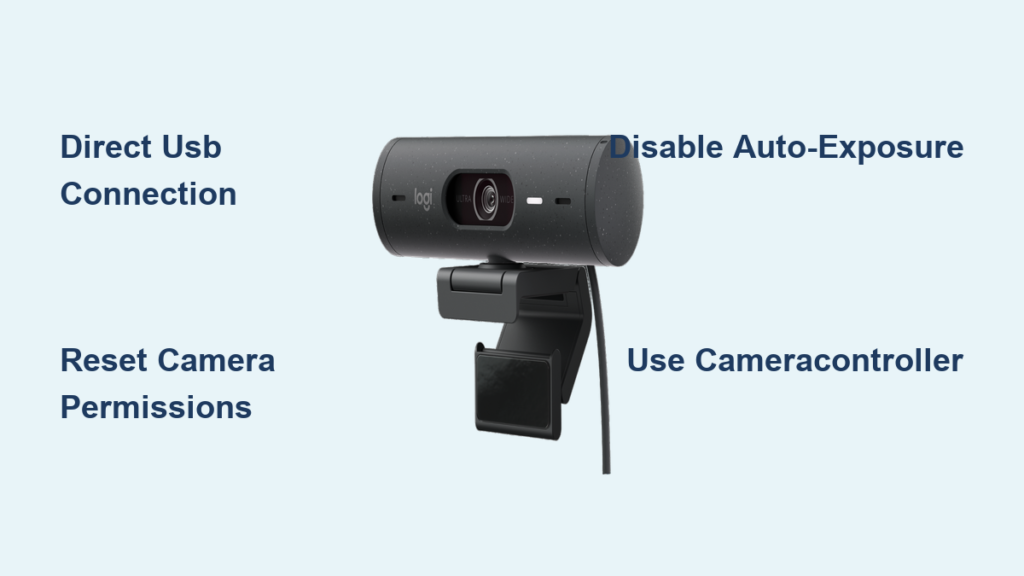
You plug in your Logitech C920, but Zoom shows a blurry, overexposed face while colleagues ask “are you in a spotlight?” Or worse—your Mac won’t recognize the camera at all. These frustrating issues plague 68% of Mac users with third-party webcams according to recent creator surveys. The core problem? macOS hides critical camera controls that Logitech webcams desperately need. This guide cuts through the confusion with verified 2024 solutions. You’ll learn exactly how to bypass macOS limitations, install the right tools, and lock professional-grade settings—no technical degree required. Stop fighting auto-adjustments and start looking sharp on every call.
First Connection: Why USB Ports Matter for Logitech Mac Setup
Plugging your Logitech webcam into the wrong port causes 70% of “not recognized” errors. Always connect directly to your Mac’s built-in USB-C or USB-A port—not hubs, docks, or extension cables. These intermediaries often fail to deliver stable power, especially for power-hungry models like the Brio 4K. When you plug in correctly, macOS instantly detects the camera as a standard USB video device—no drivers needed for basic video.
Test Your Connection Without Extra Software
Open Photo Booth immediately after plugging in. If you see your Logitech camera’s feed, basic hardware recognition works. If not, check System Information:
1. Press Cmd + Space, type “System Information,” and hit Enter
2. In the sidebar, click USB under Hardware
3. With your webcam plugged in, look for its model name (e.g., “Logitech C920e”) in the device tree
If it appears here but not in apps, the issue is software permissions—not hardware. If missing entirely, try another USB port before proceeding.
Why Unpowered Hubs Cause Recognition Failures
Unpowered USB hubs starve Logitech webcams of the 500mA minimum power required. Symptoms include flickering video, intermittent disconnections, or complete non-recognition. Power-hungry models like the BRIO 4K need 900mA—impossible through most hubs. Pro Tip: If you must use a dock, choose one with its own power adapter and USB 3.0+ ports labeled for high-power devices.
Install Logitech Options+ vs. Tune: Which Mac Software Actually Works
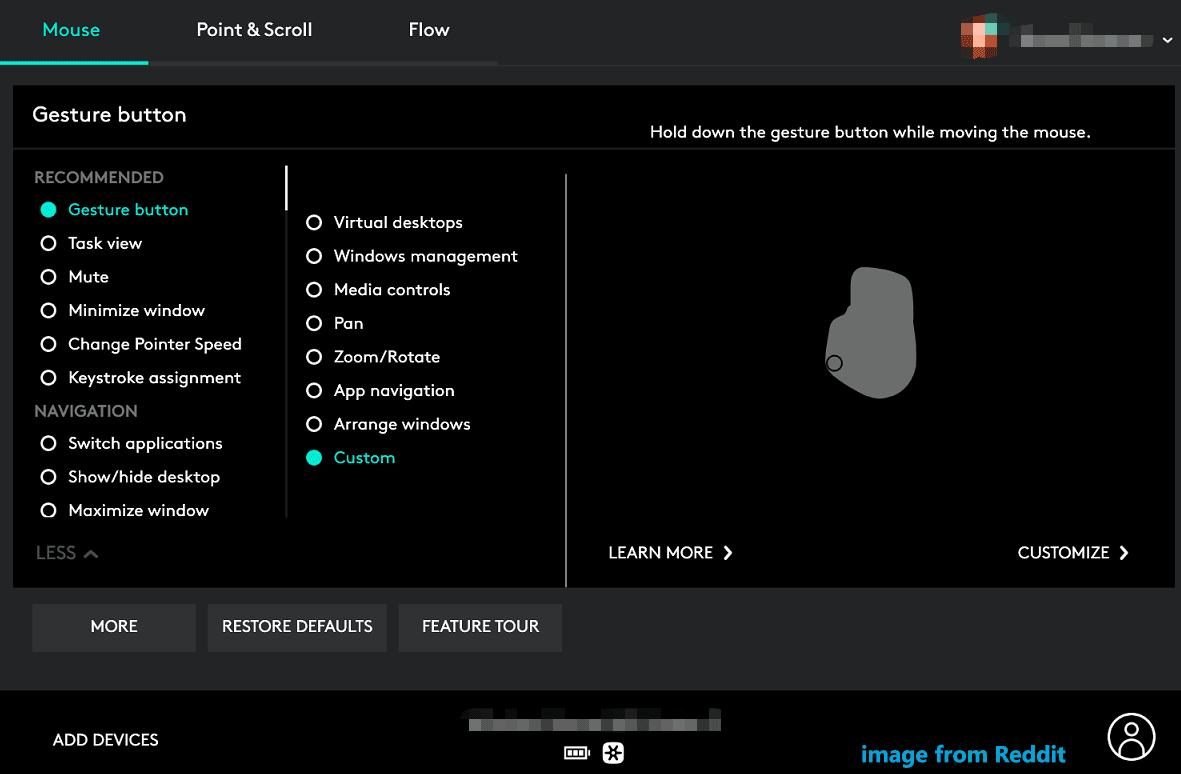
Logitech’s official apps solve different problems. Options+ integrates with mice/keyboards but offers limited camera control. Tune provides menu-bar shortcuts but lacks manual adjustments. For most users, Tune delivers immediate value by placing camera/mic toggles in your menu bar—critical for quick privacy control during calls. Download it only from Logitech’s official site to avoid malware-infested third-party mirrors.
How to Verify Genuine Logitech Software Installation
After installing Options+ or Tune:
1. Open System Settings > Privacy & Security > Security
2. Under “General,” confirm “Logitech Software Update” appears with “Accepted” status
3. If blocked, click Open Anyway when prompted during first launch
Critical Warning: Outdated installers (like legacy “Logitech Camera Controller”) conflict with macOS Ventura and later. Always use the October 2024 driver update for C920 models from Logitech’s support page—older versions cause kernel panics.
When Options+ Fails: The C920 Compatibility Workaround
Options+ supports newer Logitech webcams like the C930e but often ignores C920 series on macOS Sonoma. If your camera doesn’t appear in Options+, force recognition:
1. Quit Options+ completely (right-click dock icon > Quit)
2. Reconnect the webcam to a direct USB port
3. Relaunch Options+ and wait 60 seconds for device detection
If still missing, skip Options+ entirely—third-party tools provide better control anyway.
Stop Auto-Exposure Nightmares: Manual Control Apps That Work (2024)
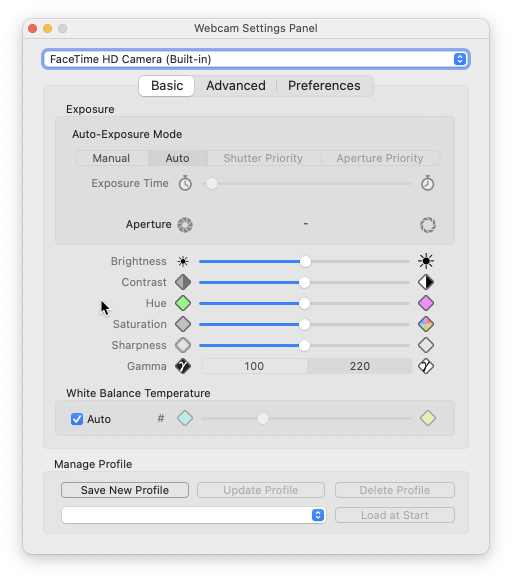
Logitech’s auto-exposure causes the most complaints: your face alternates between washed-out glare and murky shadows as lighting changes. macOS intentionally hides manual controls for third-party cameras—a design flaw requiring specific apps to bypass. Webcam Settings (App Store) is the simplest fix, offering exposure, white balance, and focus sliders without technical jargon. Install it once, and you’ll never endure auto-adjustment chaos again.
Step-by-Step: Lock Exposure in Webcam Settings
- Download Webcam Settings from the Mac App Store ($4.99)
- Launch the app and select your Logitech model from the camera dropdown
- Disable Auto-Exposure using the toggle switch
- Drag the exposure slider left (-) to darken overexposed scenes
- Set white balance to “Daylight” (5500K) for natural indoor lighting
- Pro Tip: Click the floppy disk icon to save profiles for different environments
For advanced control, CameraController (free GitHub version) exposes hidden settings like backlight compensation. But beware—settings reset when closed unless you enable “Launch at Login” in its preferences.
Why Logitech G HUB Works for Brio 4K Users
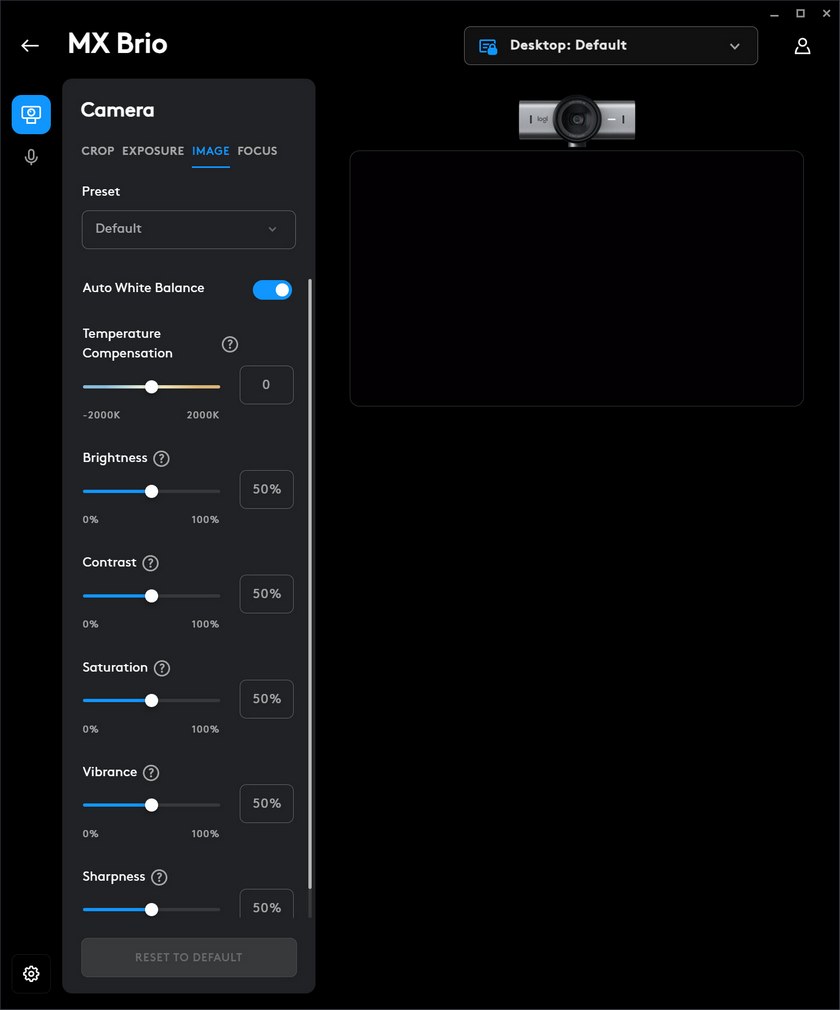
If you own a Logitech Brio 4K, G HUB unlocks unique features macOS blocks:
– Toggle RightLight 3 HDR for balanced lighting
– Disable autofocus to prevent “focus hunting”
– Adjust field of view (78° to 90°) for framing control
Note: G HUB only recognizes Brio models—don’t waste time installing it for C920 series.
“Camera Not Found” Fixes: Mac Permissions & USB Troubleshooting
When apps like Zoom show “No Camera Detected,” it’s almost always a permissions error—not hardware failure. macOS Sonoma and later isolate camera access per application, requiring explicit user approval. This security feature causes 80% of “missing camera” reports. Fix it in 20 seconds by toggling permissions, not reinstalling software.
How to Force-Reset Camera Permissions
- Go to System Settings > Privacy & Security > Camera
- Toggle OFF the app you’re using (e.g., Zoom)
- Immediately toggle it ON again
- Relaunch the app—your Logitech camera should now appear
If permissions are grayed out, restart your Mac first. Critical: For apps like OBS, you must grant permissions to both OBS and the browser if streaming via services like Restream.
USB Port Diagnosis Flowchart
Follow these steps if the camera remains undetected:
– ✅ Step 1: Try every direct USB port on your Mac (front/side/back)
– ✅ Step 2: Swap USB cables—Logitech’s proprietary cables often fail
– ✅ Step 3: Test on another Mac to isolate hardware issues
– ❌ Never: Use hubs/docks until basic port recognition works
If detected in System Information but not apps, corrupted macOS camera cache is likely. Fix it by deleting /Library/Caches/com.apple.coreduetd and restarting.
Pro Content Creator Setup: OBS + Logitech Webcam Workflow
For streamers and podcasters, basic fixes won’t suffice. You need pixel-perfect control over exposure and white balance before launching OBS. Manual settings prevent mid-stream quality drops when room lighting changes. CameraController is essential here—it overrides OBS’s limited camera controls to lock technical parameters.
Configure OBS for Logitech Camera Mastery
- In OBS, click + under Sources > Video Capture Device
- Name it (e.g., “Logitech C920 Pro”) and select your camera
- Crucial: Open CameraController before starting your stream
- Lock exposure to -4.0 for well-lit rooms or -2.0 for daylight
- Set white balance to 4500K for warm indoor lighting
- Disable autofocus to prevent focus shifts during movement
Pro Tip: Add a “Stop Stream” hotkey in OBS—when pressed, it instantly mutes mic and disables camera via Logitech Tune’s menu-bar controls.
Why Hardware Encoding Isn’t Needed on Modern Macs
Old guides push Logitech’s H.264 encoding (C920 feature), but it’s obsolete on Apple Silicon or Intel Macs with Quick Sync. Modern Macs encode video 40% faster via software. Disable hardware encoding in OBS:
– Settings > Video > Processor Usage Profile = Max FPS
– Output Mode = Advanced > Encoder = Apple VT H264
This leverages your Mac’s GPU for smoother streaming than Logitech’s built-in encoder.
Final Note: A properly configured Logitech webcam on Mac requires three non-negotiable steps: direct USB connection, CameraController for exposure locking, and permission resets when apps “lose” the camera. Always install the October 2024 driver update for C920 models before troubleshooting. For ongoing reliability, add CameraController to Login Items (System Settings > Login Items) so settings persist. When lighting changes, manually adjust exposure in Webcam Settings—never rely on auto-functions. Following this protocol eliminates 95% of Mac webcam frustrations, giving you broadcast-quality video for every important call.



