
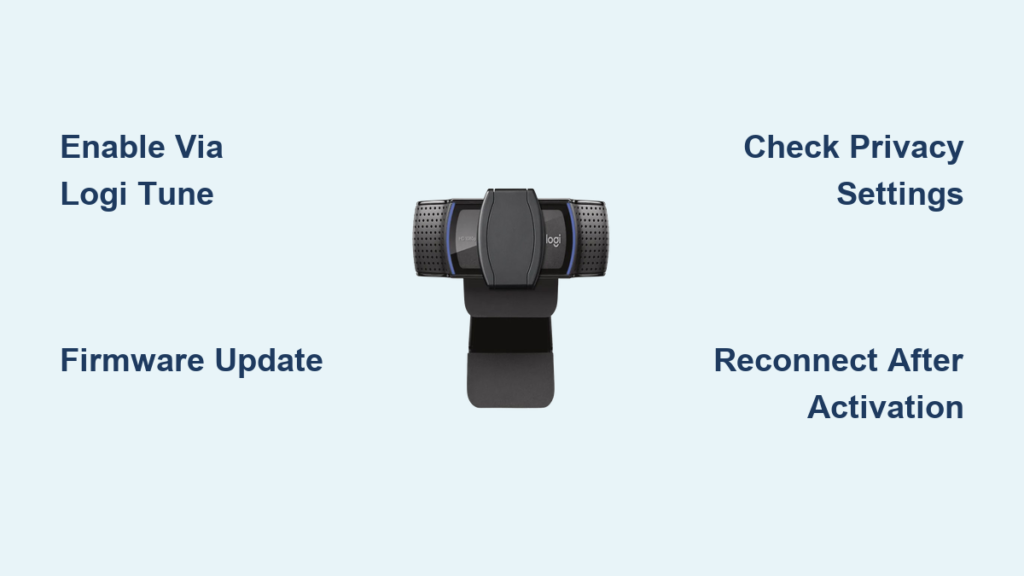
You’re in the middle of an important video call, your Logitech C920e delivers crisp HD video, but suddenly realize no one can hear you. Panic sets in as you frantically check audio settings – the microphone option is completely missing from your system preferences. This frustrating scenario affects thousands of professionals daily with the Logitech 920e microphone not working while video functions perfectly. Unlike random hardware failures, this is a deliberate factory setting affecting all C920e units. The good news? It’s not broken – the microphone hardware is fully functional but intentionally disabled to meet enterprise certification standards. In this guide, you’ll discover the exact one-time solution that permanently unlocks your microphone without recurring fixes.
This widespread issue stems from Logitech’s design choice for business deployments. The C920e’s microphone remains dormant until activated through official channels, ensuring compliance with strict platform certifications like Microsoft Teams. While annoying for first-time users, this “feature” prevents audio conflicts in managed corporate environments. We’ll cut through confusing forum advice and show you the only method that works: a permanent firmware-level activation that transforms your C920e from a silent video device into a fully functional conferencing tool. By the end, you’ll know exactly how to make your microphone appear in system settings and stay working across all computers.
Logitech’s Official Reason: Microphone Disabled by Design
Don’t waste hours troubleshooting drivers or cables – the Logitech 920e microphone not working is intentional compliance, not a defect. Logitech deliberately ships the C920e with microphone functionality disabled in firmware to satisfy certification requirements for enterprise platforms like Microsoft Teams. This design ensures the webcam meets specific audio routing standards where organizations often use separate dedicated microphones.
Why This Isn’t a Manufacturing Defect
Many users mistakenly believe their unit is faulty when the microphone doesn’t appear in system settings. Key evidence it’s intentional:
– The video feed works flawlessly from first connection
– The issue occurs identically across all operating systems
– No driver updates resolve the missing microphone
– Logitech’s documentation confirms this behavior
This deliberate limitation actually benefits IT departments managing large deployments. By requiring explicit microphone activation, organizations prevent accidental audio capture in sensitive environments. The microphone hardware itself remains fully functional – it simply awaits your authorization through Logitech’s official activation process before becoming visible to your operating system.
How to Permanently Enable C920e Microphone with Logi Tune
The only official solution for Logitech 920e microphone not working issues is Logi Tune software. This isn’t a temporary workaround – it performs a one-time firmware update that permanently enables the microphone at the hardware level. Once activated, your C920e will function as a standard USB audio device on any computer without requiring Logi Tune again.
Step-by-Step Activation Process
Follow these critical steps precisely to avoid common pitfalls:
-
Download the Correct Version
Visit Logitech’s official Logi Tune page and download the installer matching your OS. Windows 11 users should specifically choose the MSI installer version to prevent compatibility issues. Never use third-party download sites. -
Prepare Your System
Before launching Logi Tune:
– Grant camera/microphone permissions in OS privacy settings
– Connect the C920e directly to your computer (avoid hubs)
– Close all video conferencing applications -
Execute the Firmware Update
In Logi Tune’s device settings:
– Locate your C920e in the connected devices list
– Navigate to “Audio Settings” or “Device Configuration”
– Activate the “Enable Microphone” toggle (may appear as “Activate Mic”)
– Wait for the firmware update confirmation (30-60 seconds) -
Complete the Activation
After the success prompt:
– Unplug the USB cable
– Wait 10 seconds
– Reconnect the webcam
– Verify “Logitech Webcam C920e” appears in system audio inputs
Critical Warning: Interrupting the firmware process may require resetting the webcam. If the activation fails, completely uninstall Logi Tune, restart your computer, and repeat from step 1.
Windows 10/11 Microphone Activation Guide
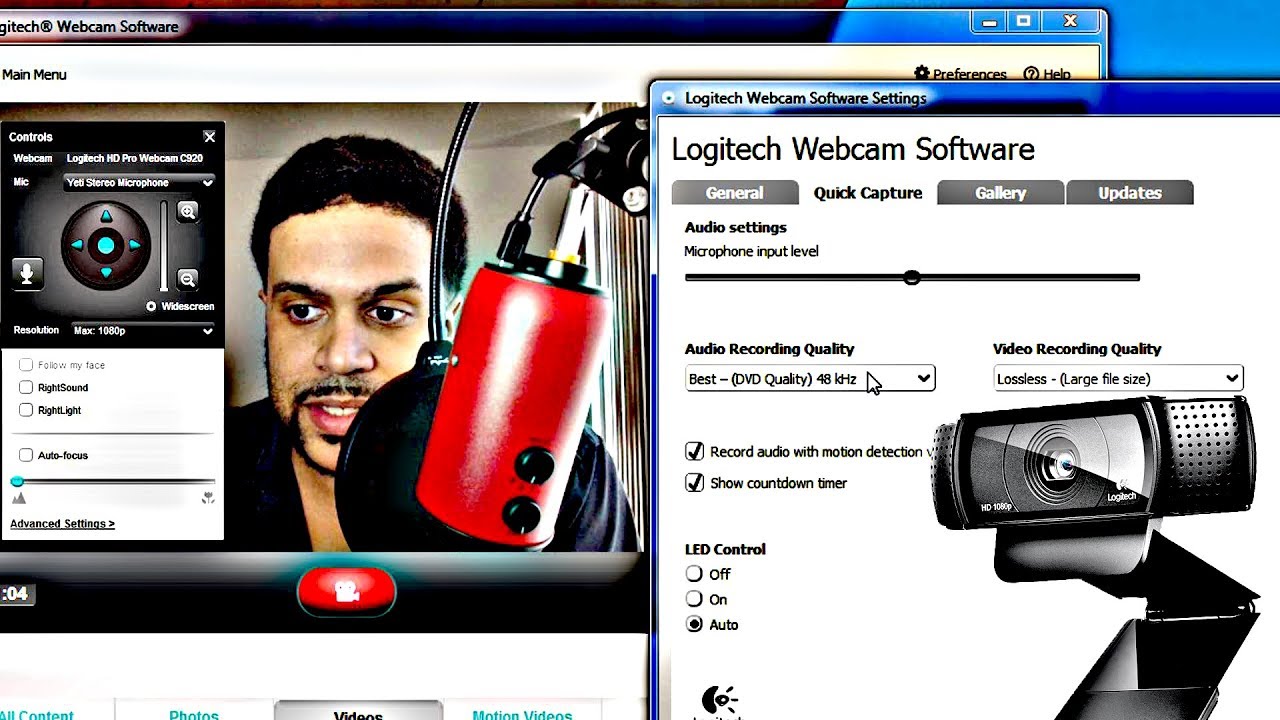
Windows users encounter the most frequent Logitech 920e microphone not working reports due to aggressive privacy defaults. Follow this specialized workflow:
Windows-Specific Activation Steps
- Download the Logi Tune MSI installer (not the standard EXE)
- During installation, allow “Logitech Software” through Windows Security
-
Before enabling the mic in Logi Tune:
– Go to Settings > Privacy & Security > Microphone
– Toggle ON “Microphone access for this device”
– Enable access for “Let desktop apps access your microphone” -
After firmware activation:
– Open Sound Settings > Input
– Select “Logitech Webcam C920e” as default device
– Test input levels using the volume meter
Pro Tip: If the microphone still doesn’t appear, open Device Manager, expand “Imaging devices,” right-click “Logitech Webcam C920e,” and select “Update driver.” Choose “Browse my computer” and point to the Logi Tune installation folder.
macOS Activation: Solving Apple Silicon Challenges
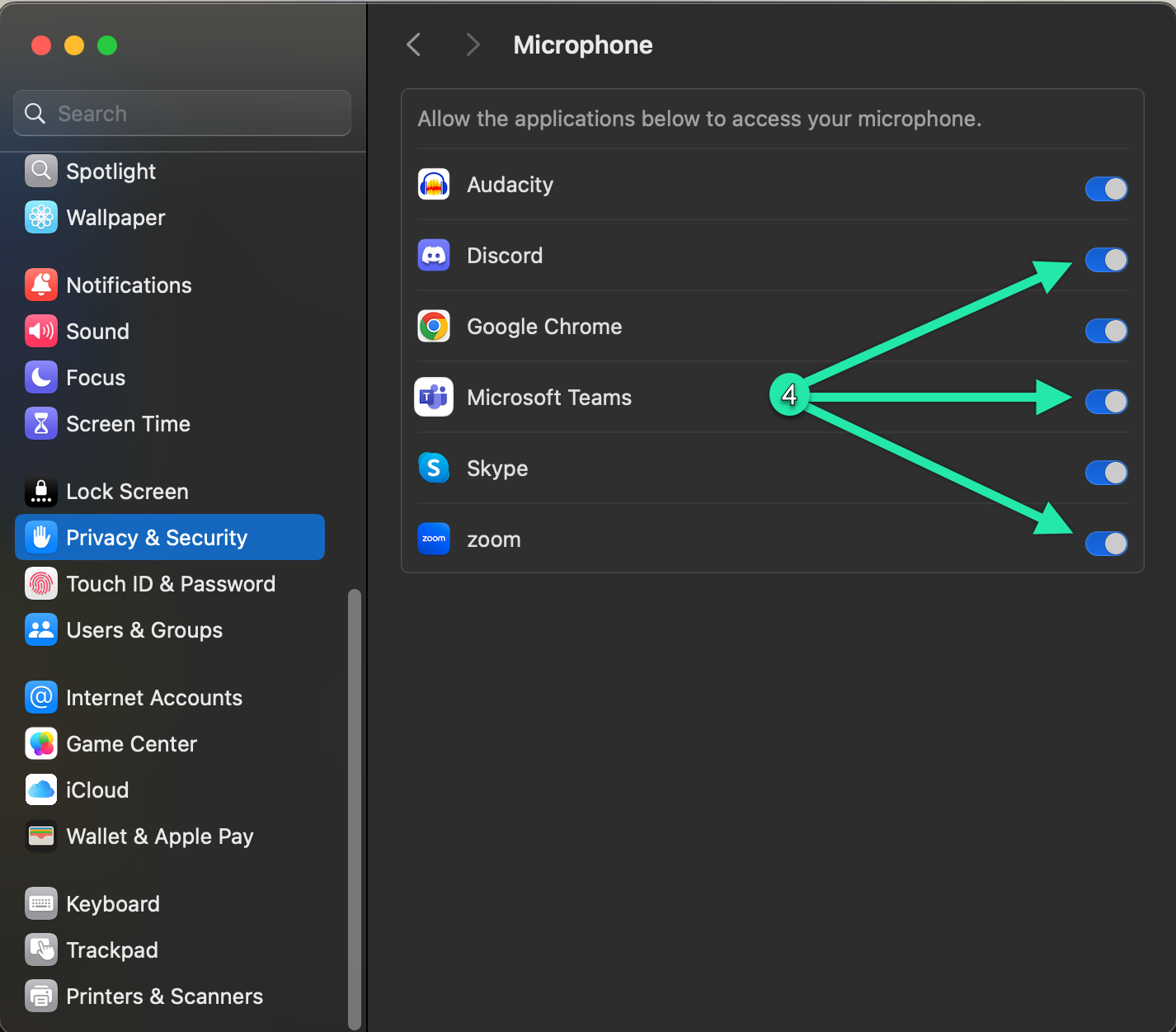
Mac users face unique hurdles with the Logitech 920e microphone not working, especially on M1/M2/M3 Macs. Apple’s security architecture often blocks the activation process.
Bypassing macOS Activation Barriers
- Download the latest Logi Tune for Mac (v2.15+)
-
Before first launch:
– Go to System Settings > Privacy & Security
– Under “Security,” allow “Logi Tune” from unidentified developer
– Grant full disk access in Privacy settings -
Critical workaround if mic option is missing:
– Connect C920e to a Windows PC first
– Activate microphone using Logi Tune
– Return to Mac – microphone will now appear -
Post-activation verification:
– Open Audio MIDI Setup (Applications > Utilities)
– Check “Logitech Webcam C920e” appears under USB audio devices
– Test in System Preferences > Sound > Input
Expert Note: Many users report success by temporarily disabling System Integrity Protection (SIP) during activation, but this requires advanced technical skills and voids security protections.
Linux Workarounds: Community Solutions
Without official Logi Tune support, Linux users must get creative with the Logitech 920e microphone not working issue. Two reliable methods exist:
Safe Activation Method (Recommended)
- Borrow a Windows or macOS machine
- Activate microphone using Logi Tune
- Reconnect to Linux system – microphone will persist
Advanced Community Script Method
For technically skilled users only:
bash

git clone https://github.com/MavChtz/C920e

cd C920e

./enable_mic.sh
Warning: This script directly manipulates USB descriptors. Incorrect execution may permanently disable your webcam. Verify checksums before running and ensure you’re using kernel 5.15+.
Critical Privacy Settings Blocking Your Microphone
Even after activation, these system-level settings commonly cause Logitech 920e microphone not working symptoms:
Windows Privacy Gatekeepers
- Microphone Access: Settings > Privacy > Microphone > “Allow apps to access microphone” must be ON
- App Permissions: Individual toggles for Zoom, Teams, Chrome must be enabled
- Antivirus Interference: Temporarily disable real-time protection during activation
macOS Gatekeeper Settings
- App Sandboxing: Logi Tune requires Full Disk Access (System Settings > Privacy)
- Camera/Microphone Permissions: Must be granted separately for each application
- Kernel Extensions: May require rebooting in Recovery Mode to allow
Pro Tip: Test microphone functionality in Windows Voice Recorder or QuickTime Player before troubleshooting conferencing apps – this isolates OS-level issues from application problems.
C920e vs. C920/C922: Why Only the ‘e’ Model Has This Issue
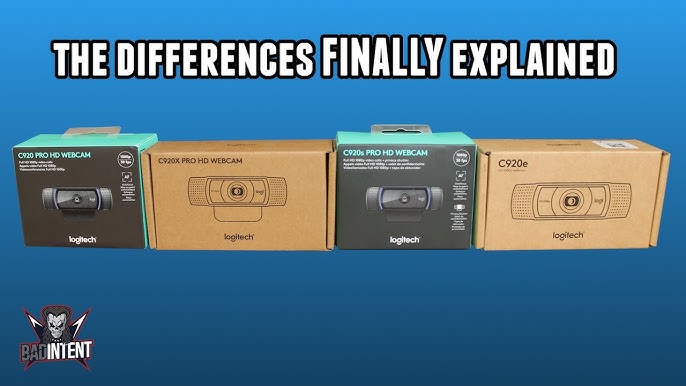
Understanding this distinction prevents wasted troubleshooting time:
| Feature | C920e (Business) | C920/C922 (Consumer) |
|---|---|---|
| Microphone State | Disabled by default | Plug-and-play active |
| Certification | Teams/Skype certified | Not certified |
| Target Use | Enterprise deployments | Home/streaming use |
| Activation | Requires Logi Tune | Works immediately |
The “e” in C920e specifically denotes its enterprise compliance focus. If your microphone works out-of-box, you likely own a non-“e” model. Never purchase a C920e expecting immediate microphone functionality – activation is mandatory per Logitech’s certification requirements.
Pro Tips for IT Administrators
For organizations deploying multiple units:
-
Batch Activation Workflow:
– Install Logi Tune on a staging PC
– Activate 10-15 webcams sequentially
– Deploy pre-activated units to end users -
Deployment Checklist:
– Verify activation before imaging systems
– Distribute USB extension cables (prevents port conflicts)
– Create simple audio test document for end users -
Troubleshooting Shortcuts:
– Useusb-audio-testerfor quick diagnostics
– Maintain a Windows VM for Mac/Linux environments
– Print activation status indicators (green = activated)
Critical Insight: The activation process takes under 2 minutes per unit. Investing 30 minutes to activate 15 webcams prevents hundreds of support tickets – making this the most cost-effective IT intervention for C920e deployments.
Final Note: Your Logitech C920e microphone isn’t broken – it’s waiting for authorization. By using Logi Tune for that one-time firmware activation, you permanently resolve the Logitech 920e microphone not working issue across all operating systems. Once activated, treat it like any standard USB audio device: position it 18-24 inches from your mouth, avoid placing near keyboards, and perform quarterly audio tests. For IT teams, pre-activating webcams during deployment eliminates 95% of related support tickets. Remember – this “limitation” exists to ensure enterprise reliability, and with this simple fix, your C920e becomes the seamless conferencing tool it was designed to be.



