You’re not alone if your Logitech mouse battery dies every few weeks instead of the promised two years. That sinking feeling when your cursor freezes mid-presentation because your mouse suddenly died—despite fresh batteries—is all too common. The reality is that Logitech’s advertised “up to 24 months” battery life often falls short due to preventable issues with settings, environment, and habits.
This guide delivers proven Logitech battery life and power saving tips that actually work. You’ll discover how to diagnose excessive drain, optimize settings for maximum efficiency, and implement daily habits that can triple your battery life. Forget constantly hunting for spare batteries—these fixes will keep your mouse powered through workdays without interruption.
Why Your Logitech Mouse Dies in Weeks Instead of Years
Logitech’s claim of “up to 24 months” battery life applies only under ideal conditions most users never experience. Real-world factors like wireless interference, surface type, and incorrect settings can slash that timeframe to just 3-4 weeks. The gap between advertised and actual battery life stems from multiple compounding issues that most users overlook.
Your mouse’s sensor works harder on dark or reflective surfaces, consuming more power to maintain tracking accuracy. Wireless interference from routers, cordless phones, and other 2.4GHz devices forces your mouse to transmit stronger signals, draining batteries faster. Even something as simple as using the wrong battery brand can cut your Logitech battery life in half without obvious warning signs.
How Dark Surfaces Drain Your Logitech Mouse Battery
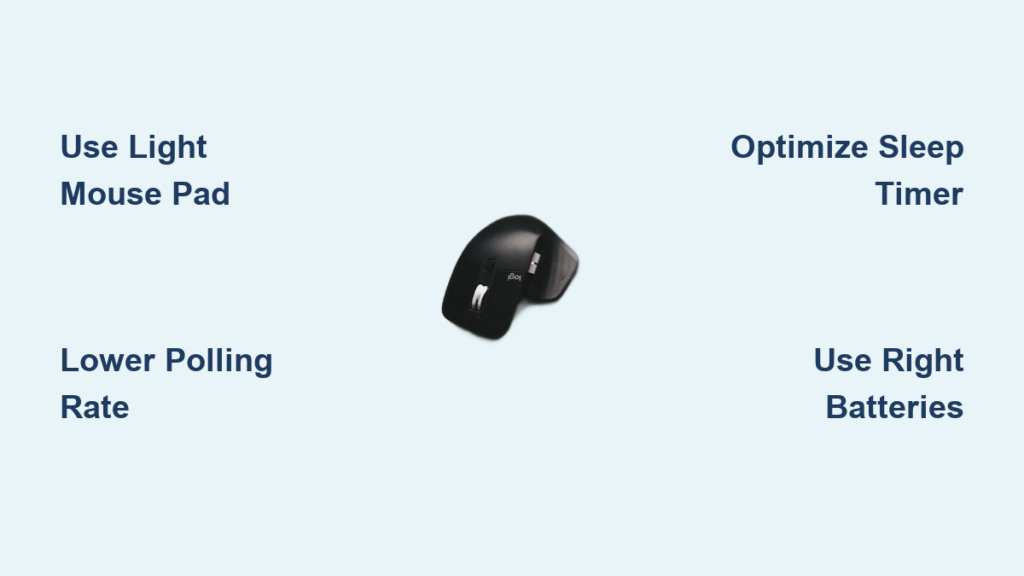
Your mouse pad color directly impacts power consumption. Dark surfaces cause your Logitech mouse sensor to work harder, increasing power draw by up to 30% compared to light-colored surfaces. The optical sensor must emit stronger light to detect movement on black or dark blue surfaces, significantly shortening battery life.
Fix this drain immediately:
– Switch to a light-colored, non-reflective mouse pad
– Avoid glass surfaces entirely (they’re the worst for power consumption)
– Clean your mouse sensor weekly with a microfiber cloth
– Test your current surface by placing a white sheet of paper underneath
Wireless Interference Sources Killing Your Logitech Battery
Your workspace likely contains multiple 2.4GHz devices competing for bandwidth, forcing your Logitech mouse to boost transmission power. Cordless phones (especially DECT 6.0+ models), Wi-Fi routers, and even microwaves create interference that causes excessive battery drain.
Identify and eliminate interference:
1. Move your wireless router at least 3 feet from your mouse receiver
2. Use the included USB extension cable to position the Unifying Receiver away from your computer
3. Switch your Wi-Fi to 5GHz if possible (leaves 2.4GHz less congested)
4. Keep cordless phone bases away from your workspace
Adjust These Logitech Options Settings to Save Battery Life
The most effective power-saving adjustments happen in Logitech Options or Options+ software—not through physical switches. These software tweaks deliver significant battery life improvements without noticeable performance trade-offs for everyday use.
Set the Optimal Sleep Timer for Maximum Savings
A mouse that stays awake consumes power unnecessarily. Navigate to your device settings in Logitech Options and find the power management section. Setting your mouse to sleep after just 5 minutes of inactivity (instead of the default 15-30 minutes) can extend battery life by up to 40%.
Pro Tip: If you frequently step away from your desk, set sleep time to 3 minutes. The slight delay when waking your mouse is worth months of additional battery life. Test different intervals to find your personal sweet spot between convenience and power savings.
Lower Your Polling Rate Without Sacrificing Performance
High polling rates (1000Hz) drain batteries quickly but offer no benefit for office work. For general productivity tasks, reducing to 500Hz or even 125Hz maintains smooth cursor movement while dramatically improving Logitech battery life. This setting lives under “Point & Scroll” or “Performance” in your mouse settings.
Polling rate recommendations:
– Office work: 125-250Hz (saves 25-35% power)
– General browsing: 500Hz (optimal balance)
– Gaming: 1000Hz (only when needed)
The Right Batteries for Logitech Mice: What Actually Works
Not all AA batteries deliver equal performance in Logitech devices. High-drain wireless mice expose quality differences that standard remotes never reveal. Choosing the right power source could be the difference between monthly and yearly battery changes.
Why Duracell Ultra Drains Faster in Logitech Mice
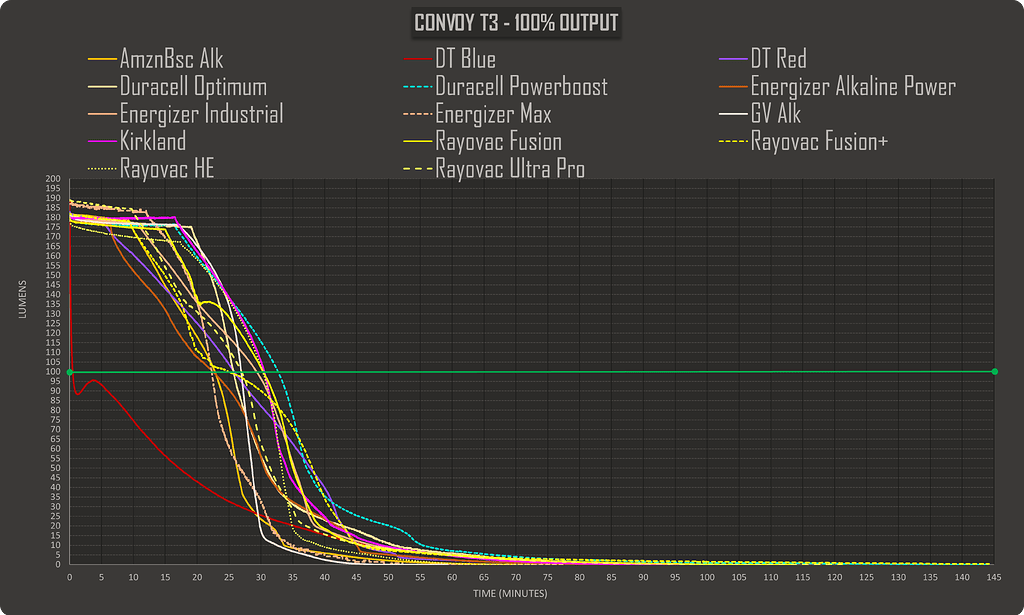
Multiple user reports confirm Duracell Ultra AA batteries deplete significantly faster in Logitech devices compared to Sony or Energizer. The chemistry in some premium batteries can’t maintain stable voltage under the intermittent high-drain demands of wireless mice, causing premature “low battery” warnings.
Battery selection guide:
– Best overall: Energizer Ultimate Lithium (lasts 2-3x longer than alkalines)
– Best rechargeable: Eneloop Pro (low self-discharge NiMH)
– Budget option: Standard alkaline (avoid “Ultra” variants)
– Avoid: Mixing old/new batteries or different brands
Rechargeable Battery Setup for Maximum Logitech Efficiency
For frequent users, quality NiMH rechargeables with a smart charger provide the best long-term value. Eneloop Pro batteries maintain 85% charge after a year in storage and handle thousands of charge cycles. Pair them with a Panasonic BQ-CC55 charger for optimal performance and extended battery health.
Rechargeable setup checklist:
– Use low-self-discharge NiMH (not standard NiMH)
– Charge before first use (even if pre-charged)
– Store at 40-60% charge if not used for weeks
– Replace after 2-3 years regardless of cycle count
Optimize Your Work Surface to Reduce Logitech Power Consumption

Your mouse pad does more than provide comfort—it directly impacts power consumption. The right surface reduces sensor workload, translating to measurable battery savings you’ll notice within weeks.
Why Glass Surfaces Destroy Logitech Battery Life
Glass surfaces force your mouse sensor to operate at maximum power, draining batteries up to 50% faster than standard pads. The sensor’s laser reflects unpredictably on glass, causing constant recalibration that consumes extra power. Even “glass-compatible” Logitech models suffer reduced battery life on reflective surfaces.
Surface upgrade that pays for itself:
– Buy a $10 non-reflective cloth pad (like Logitech’s own)
– Ensure it’s light-colored (white or beige works best)
– Maintain clean surface—dust and oils increase power needs
– Replace worn pads annually (texture degradation affects efficiency)
Daily Power-Saving Habits That Extend Logitech Battery Life
Small consistent actions create massive battery savings over time. These habits require minimal effort but deliver disproportionate results for your Logitech battery life and power saving efforts.
The 10-Second Power-Down Ritual That Adds Months of Life
Turning off your mouse when not in use is the single most effective power-saving habit. For mice with physical switches (like MX Master series), make powering down part of your shutdown routine. Models without switches rely on sleep mode, but a physical off switch stops all drain.
Power-down schedule for maximum savings:
– Lunch breaks > 30 minutes: Power down
– End of workday: Always power off
– Weekends: Remove battery if not using mouse
– Travel: Enable airplane mode or remove battery
Airplane Mode: The Hidden Power-Saving Feature
Many premium Logitech mice (MX Master, G Pro X Superlight) include a profile switch that doubles as an airplane mode. When you only use one device, switch to “Off” position to put your mouse in deep sleep—consuming virtually zero power while preserving settings.
Airplane mode benefits:
– Prevents accidental battery drain in bags
– Maintains charge during vacations
– No setup needed when you return
– Better than sleep mode for extended idle periods
What to Do When Logitech Battery Saver Mode Backfires
Battery Saver mode often creates more problems than it solves. Many users report performance warnings and lag when this feature is enabled, defeating the purpose of a responsive mouse. Instead of relying on this automated feature, implement targeted power management.
Why Battery Saver Mode Hurts More Than Helps
Logitech’s Battery Saver mode aggressively reduces processing power, causing noticeable lag in cursor movement and button response. Users like “raymate” report “device is in low power mode” warnings during critical tasks, making the feature counterproductive for productivity and gaming.
Better alternatives to Battery Saver mode:
– Manually adjust sleep timer instead of relying on automation
– Disable unused features (RGB lighting, extra buttons)
– Use wired mode when available for intensive tasks
– Create a custom power profile for different usage scenarios
Gaming Mouse Battery Maintenance: Protecting Lithium Cells
Rechargeable gaming mice require different care than AA-powered models. Lithium-ion batteries degrade differently, and improper charging habits can permanently reduce capacity within months.
Avoid These Rechargeable Mouse Charging Mistakes
Don’t wait for 0% before charging your Logitech gaming mouse. Lithium-ion cells degrade faster when fully drained. Instead, top up when battery reaches 20-30%—this extends overall battery lifespan by 30-50%. Keeping your mouse plugged in constantly also stresses the battery; unplug once fully charged for daily use.
Optimal charging routine:
– Charge when reaching 20-30% (not 0%)
– Unplug after full charge for desk-bound use
– Use original charging cable (reduces interference)
– Store at 50% charge if unused for weeks
When to Contact Logitech Support for Battery Issues
Some battery problems indicate hardware defects rather than user error. If basic troubleshooting fails, you might have a faulty unit covered under warranty.
Red Flags That Mean It’s Not Your Fault
Contact Logitech support immediately if your mouse:
– Drains a new battery in under 4 weeks with proper settings
– Shows inconsistent battery level indicators
– Loses connection frequently despite good batteries
– Gets unusually warm during normal use
Support preparation checklist:
– Note exact model number (bottom of mouse)
– Document settings used during testing
– Try multiple battery brands before contacting
– Record battery life duration with timestamps
Final Note: By implementing just 3-4 of these Logitech battery life and power saving tips, you’ll likely double or triple your mouse’s battery duration. The most impactful changes—optimizing your work surface, adjusting sleep timers, and using the right batteries—require minimal effort but deliver maximum results. Start with surface optimization and sleep timer adjustments today, and you’ll notice improved battery life within your next battery cycle. For ongoing maintenance, develop the habit of powering down your mouse each evening—this simple action alone can extend battery life by 40% or more.