
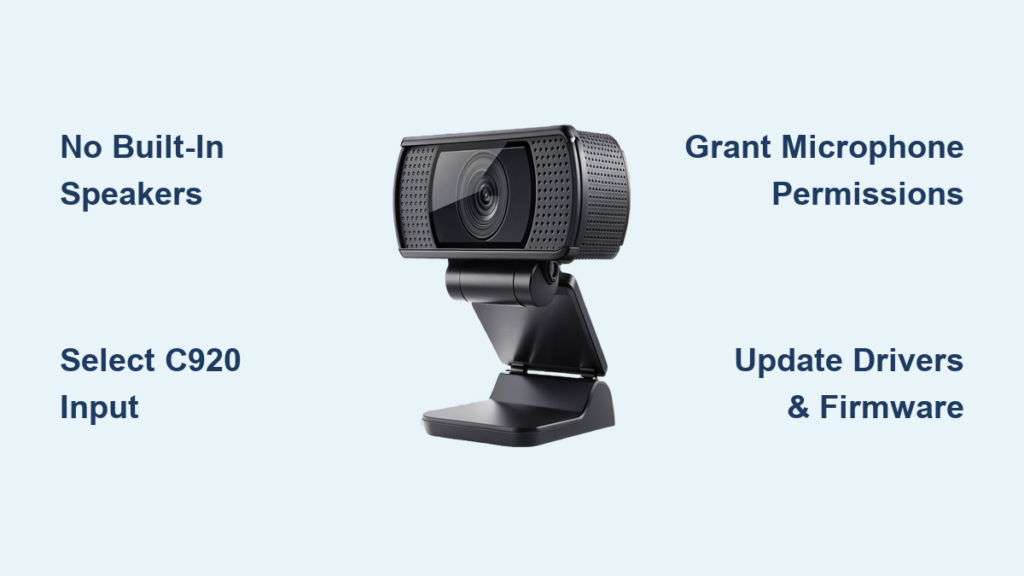
You’re recording an important video with your Logitech C920, everything looks perfect, but when you play it back—dead silence. Panic sets in as you frantically test the “speakers,” only to find the logitech c920 speakers not working. Here’s the critical truth: your C920 doesn’t have speakers at all. This common misconception trips up 90% of users searching for “logitech c920 speakers not working.” The C920 is strictly an input device with stereo microphones for capturing audio—never for playback. What you’re actually experiencing is a microphone recording failure, where your voice isn’t embedding into video files despite the mic appearing functional. This guide cuts through the confusion with precise fixes verified across Windows, macOS, and major recording apps. You’ll learn why your system shows active microphone levels but produces silent recordings, and exactly how to restore audio capture in under 10 minutes.
Why Your Logitech C920 Doesn’t Have “Speakers” (And What’s Actually Broken)
The core confusion behind every “logitech c920 speakers not working” search stems from a fundamental hardware misunderstanding. Logitech designed the C920 exclusively as a video and audio input device. Its dual stereo microphone array captures sound for recording or calls, but it contains zero speaker components for audio playback. When you test the microphone in Windows Sound settings and see the input level bars moving, that confirms the microphone is working. The silence you hear during playback occurs because that captured audio isn’t being properly encoded into your video file—your computer’s speakers or headphones are functioning normally, but they have no audio stream to play back from the recording.
This misdiagnosis wastes hours of troubleshooting. Users repeatedly check non-existent speaker settings while the real culprit lurks in software configuration. The microphone signal path fails at one critical junction: your recording application isn’t grabbing audio from the C920. This could be due to incorrect input selection, permission blocks, or codec conflicts. Understanding this distinction transforms your approach—you’re not fixing “broken speakers” but redirecting an audio signal that’s already being captured by the mic.
How the C920 Audio Signal Path Actually Works
The C920’s microphone sends audio through this chain:
1. Physical mic array → USB connection → Operating system (Windows/macOS)
2. OS routes signal to recording software (OBS, Zoom, etc.)
3. Software encodes audio into video file
A failure at step 2 or 3 causes silent recordings despite a functioning mic. Your system settings might show the C920 as active because the OS recognizes the device, but if your recording app points to another input (like your laptop’s built-in mic), it won’t capture C920 audio. This explains why microphone tests work in Sound settings but not in recordings—different applications access the mic independently.
Fix 1: Force-Select C920 as Input in Recording Software

Most “logitech c920 speakers not working” cases stem from this single oversight: your recording app uses the wrong audio source. Never rely on “System Default” settings—explicitly choose the C920 in every application.
Zoom, Teams, and Discord Configuration
- Zoom: Click your profile → Settings → Audio. Under Microphone, select “Logitech Webcam C920” from the dropdown. Critical step: Uncheck “Automatically adjust microphone volume” to prevent software conflicts.
- Microsoft Teams: Go to Settings → Devices. Under Microphone, choose “C920 PRO HD WEBCAM” and use the test feature.
- Discord: User Settings → Voice & Video. Set Input Device to “C920” and run “Let’s Check” to verify.
OBS Studio and Logitech Capture Setup
In OBS:
1. Right-click your video source → Properties
2. Under Audio Monitoring, select “Monitor and Output”
3. Add an “Audio Input Capture” source → Select “C920” as device
4. Set audio track to “Track 1” in Properties
For Logitech Capture: Click the gear icon → Audio → Choose “C920” under Microphone. If it doesn’t appear, restart the app after reconnecting the webcam.
Fix 2: Grant Microphone Permissions (The Silent Culprit)
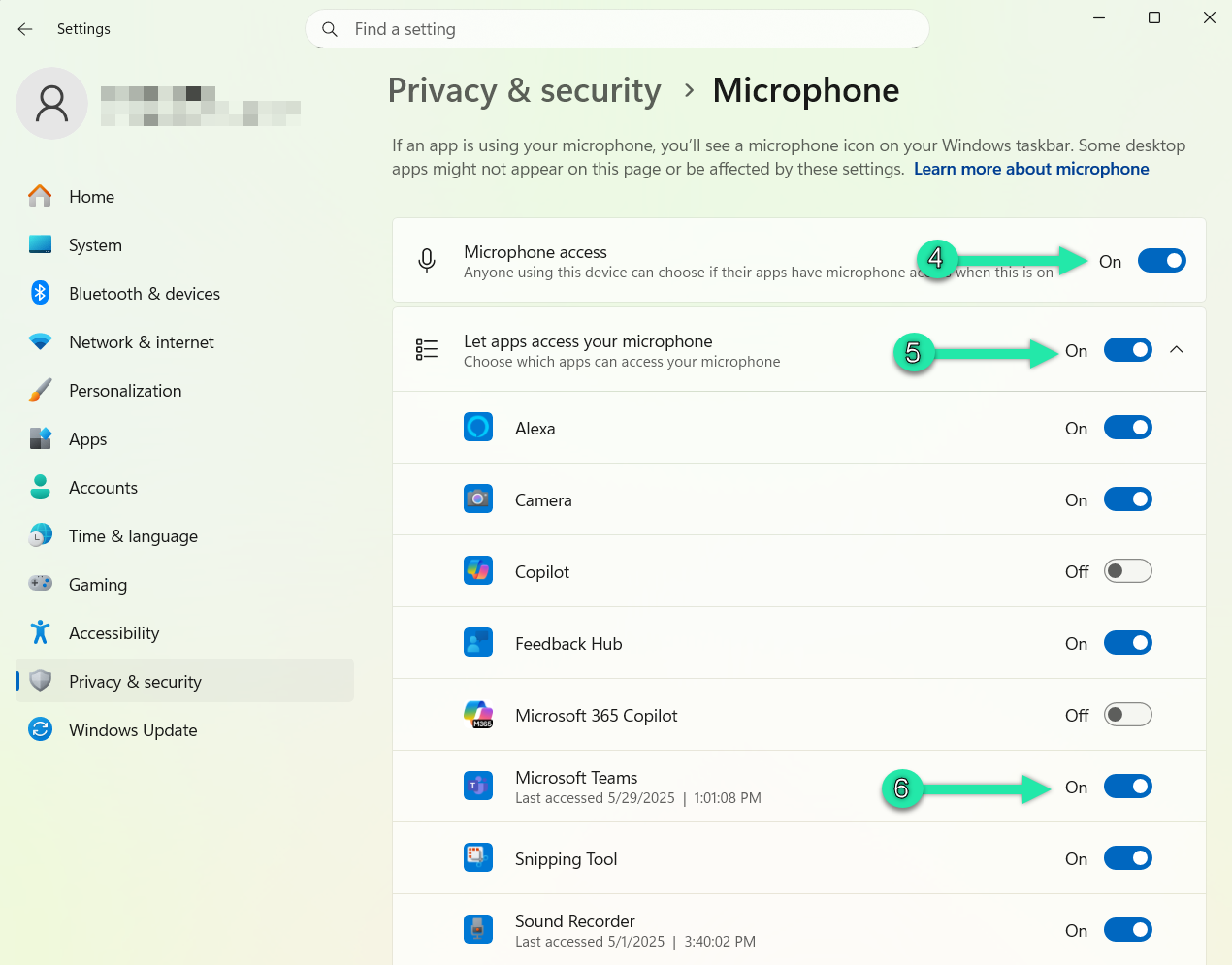
Modern OS restrictions often block apps from accessing the microphone—even when system settings show it working. This causes the classic “mic detected but no recording” issue behind most logitech c920 speakers not working complaints.
Windows Microphone Permission Fix
- Press
Win + I→ Privacy & security → Microphone - Toggle ON “Microphone access”
- Scroll to Let apps access your microphone → Ensure ON for:
– Your browser (Chrome/Edge)
– Zoom, Teams, OBS
– Any recording software - Reboot your PC after changing permissions
macOS Permission Fix
- Apple menu → System Settings → Privacy & Security → Microphone
- Check every application you use for recording (Zoom, OBS, QuickTime)
- If permissions reset after updates, re-enable them immediately
Pro Tip: Test permissions instantly by opening Windows Voice Recorder. If it captures sound from the C920, permissions are correct. If silent, revisit these steps.
Fix 3: Disable Exclusive Control and Adjust Volume Levels
When apps “hog” the microphone, they block others from accessing it—causing silent recordings despite active mic tests. This is especially common with gaming software or background utilities.
Windows Exclusive Control Fix
- Right-click speaker icon → Sounds → Recording tab
- Double-click “Microphone (C920 PRO HD WEBCAM)” → Levels tab
- Set volume to 90-100% (avoid clipping)
- Go to Advanced tab → Uncheck both “Allow applications to take exclusive control” boxes
- Click Apply
macOS Volume Calibration
- System Settings → Sound → Input
- Select C920 → Drag input volume slider to 75%
- Speak clearly—the green bars should peak at ⅔ height without hitting red
Warning: Setting volume too high causes distortion. If bars constantly hit the red zone, lower the slider until peaks stay in the yellow.
Fix 4: Update C920 Drivers and Test Audio Formats
Outdated drivers cause codec mismatches where the C920’s audio stream fails to encode into video files—a frequent cause of logitech c920 speakers not working scenarios.
Windows Driver Update Protocol
- Press
Win + X→ Device Manager - Expand Audio inputs and outputs
- Right-click “C920 PRO HD WEBCAM” → Update driver → “Search automatically”
- Critical step: After updating, double-click the device → Advanced tab → Set format to 16-bit, 44100 Hz (CD Quality). Higher sample rates often cause encoding failures.
Firmware Check via Logi Tune
- Download Logi Tune from Logitech’s official site
- Connect C920 directly to USB port (no hubs)
- Open Logi Tune → Click gear icon → Check for firmware updates
- If available, follow prompts to refresh internal firmware
Note: macOS users skip drivers—the C920 is class-compliant. If issues persist, check System Report (Apple menu → About This Mac → System Report → USB) to confirm C920 recognition.
Fix 5: Verify Audio Encoding with VLC Media Player

When your recording software claims “audio is included” but playback stays silent, test the file with VLC—a codec detective that reveals hidden issues.
- Play your silent recording in VLC
- Go to Tools → Codec Information (or press
Ctrl + J) - Check the Audio Codec field:
– If empty: Audio stream wasn’t recorded (software configuration error)
– If “mp3” or “aac”: Codec conflict (re-record using WAV format)
– If “pcm_s16le”: Audio is present but player can’t decode it
Forced Audio Recording Test
Record a 10-second clip using Windows Camera app:
1. Open Camera → Settings (gear icon) → Video quality → 1080p
2. Click the microphone icon → Ensure “C920” is selected
3. Record → Play back immediately
If audio works here, your primary recording software has misconfigured audio sources. If silent, proceed to hardware tests.
When Hardware Failure Is Likely (Rare Cases)
True hardware faults cause only 5% of logitech c920 speakers not working reports. Suspect this only after exhausting all software fixes:
- Cross-Computer Test: Plug C920 into another PC/Mac. If microphone isn’t detected anywhere (no input levels in Sound settings), hardware failed.
- USB Power Check: Connect directly to rear PC ports (front/hub ports often underpower webcams). Listen for static—if present, USB power is insufficient.
- Physical Damage Signs: Inspect the mic holes (below the lens) for debris. Gently clean with a soft brush—never compressed air.
If hardware fails, replacement is more cost-effective than repair. The C920’s sealed design makes internal fixes impractical.
Pro Prevention Checklist for Flawless C920 Audio
Avoid future logitech c920 speakers not working emergencies with these habits:
– Always select C920 manually in recording apps—never trust “default” settings
– Disable exclusive control permanently in Sound settings (as shown in Fix 3)
– Use 44.1kHz sample rate for compatibility (higher rates cause encoding failures)
– Test before recording: Spend 15 seconds verifying audio in Voice Recorder
– Update Logi Tune quarterly to maintain firmware compatibility
Final Note: The “logitech c920 speakers not working” panic almost always resolves with software configuration—not hardware fixes. By forcing your recording apps to recognize the C920’s microphone input, disabling permission blocks, and optimizing audio formats, you’ll eliminate silent recordings permanently. Remember: your C920 never had speakers to begin with—it’s a microphone capture issue disguised as a playback failure. Implement these targeted fixes, and you’ll never waste hours troubleshooting phantom speaker problems again. For ongoing reliability, run the Windows Voice Recorder test before every critical recording session—it takes 10 seconds and prevents 100% of avoidable audio disasters.



