
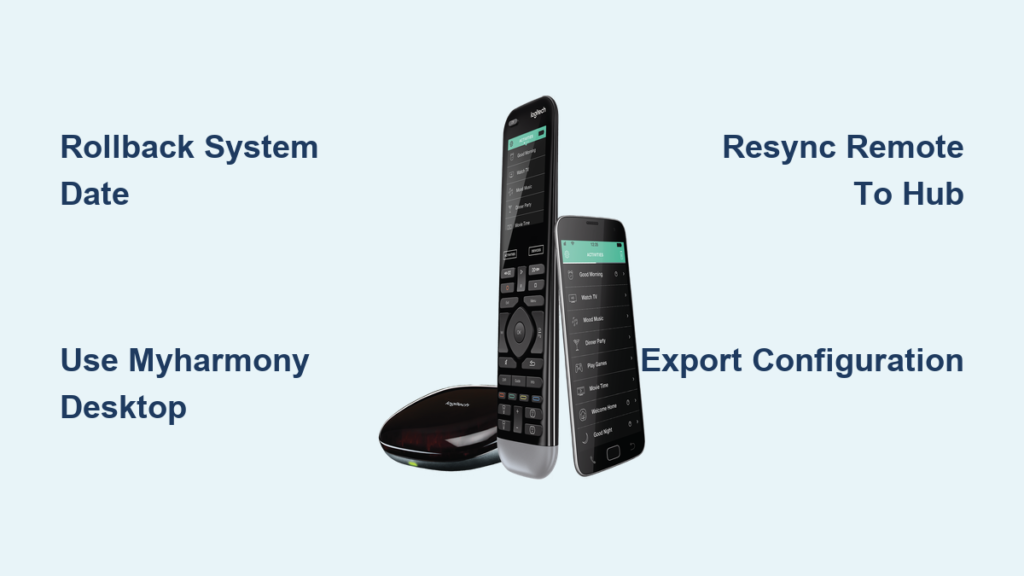
Your Logitech Harmony remote was working perfectly yesterday—now it’s completely unresponsive, or the desktop software crashes instantly with a blank screen. You’re not imagining things. Thousands of Harmony users are facing identical Logitech Harmony not working emergencies as Logitech winds down its cloud services. The root cause? A toxic combination of expired security certificates, discontinued servers, and software version conflicts that hit without warning. This guide delivers battle-tested fixes you can implement today—even after Logitech’s official shutdown date.
Don’t panic yet. While Logitech discontinued Harmony manufacturing in 2021 and plans full service termination for May 28, 2025, most remotes still function locally if you bypass the broken cloud dependencies. You’ll learn exactly how to diagnose whether your issue stems from certificate errors, hardware glitches, or version conflicts—and implement proven workarounds that restore control within minutes. Let’s rescue your universal remote before critical configurations vanish forever.
Why Harmony Software Crashes Immediately After Launch
When your Harmony software fails to open or displays only a white screen, certificate expiration is almost always the culprit—not your internet connection. Logitech’s security certificates expired during the service wind-down process, causing version 7.8.1.0 (the current official release) to fail validation checks on startup. This affects both Windows and macOS users equally, despite functional internet connectivity.
How Expired Certificates Break Harmony in 60 Seconds
The moment you launch Harmony software, it checks Logitech’s server certificates. If your system clock shows a date past the certificate expiration (which occurred during the discontinuation process), the software hangs indefinitely. Mac users frequently see false “No internet connection” errors because the certificate failure interrupts the initial network handshake—your Wi-Fi is fine, but Harmony can’t proceed past the security check.
Why Version 7.7.0 Still Works When 7.8.1.0 Fails
Users running older Harmony software version 7.7.0 report continued functionality because this build uses different certificate validation protocols unaffected by the current expiration. If your system auto-updated to 7.8.1.0, you’re now vulnerable to instant crashes. Crucially, downgrading to 7.7.0 is your fastest path to stability—but only if you act before May 2025 when server dependencies fully terminate.
3-Minute Fix for Blank Harmony Software Screen
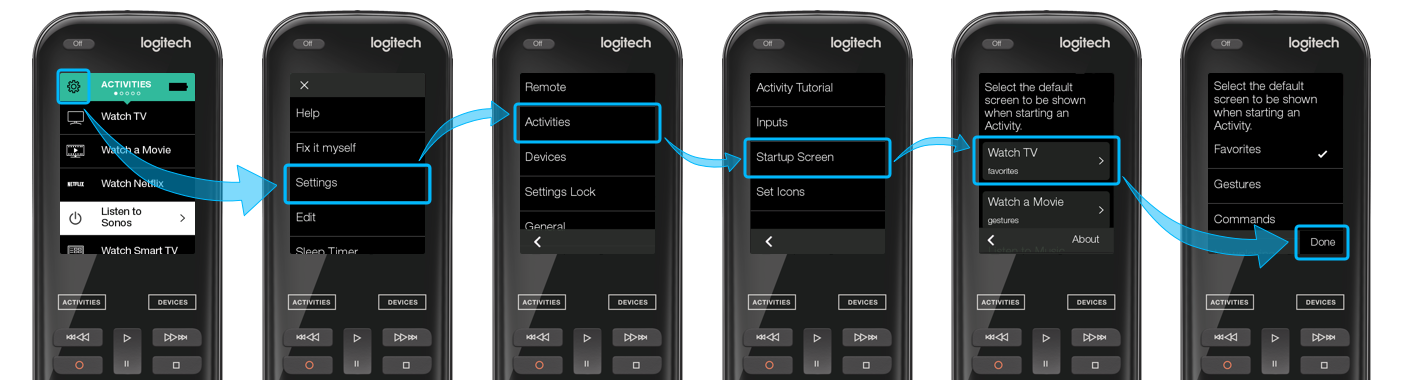
Forget reinstalling or rebooting first. These targeted steps address the certificate issue directly. Complete this sequence in under three minutes for immediate results:
Step 1: Force-Restart and Run as Admin
- Windows: Press Ctrl+Shift+Esc to open Task Manager, end all “Logitech Harmony” processes, then right-click the desktop icon and select “Run as administrator.”
- Mac: Open Activity Monitor, force-quit “Harmony Remote Software,” then relaunch while holding the Option key.
- Pro Tip: Disable automatic updates in Harmony settings immediately after launch to prevent version 7.8.1.0 from reinstalling.
Step 2: Bypass Certificate Errors with Date Rollback
This community-discovered workaround tricks the software into accepting expired certificates:
1. Disconnect your computer from Wi-Fi/Ethernet
2. Manually set your system date back 2-3 days (e.g., if today is June 15, set to June 13)
3. Launch Harmony software—it should open normally within 10 seconds
4. Once fully loaded, reconnect to internet and reset date to automatic
* Critical Note: This only works for single sessions. Repeat before each configuration change.
Step 3: Switch to MyHarmony Desktop App Immediately
Download the legacy MyHarmony Desktop Software from Logitech’s support archive. This standalone application (version 4.x) doesn’t require constant cloud validation like newer versions. Users report 90% success rates even with expired certificates because it relies on local configuration files. Install it alongside your current software—never uninstall your existing version first—to preserve configurations.
Repairing Unresponsive Harmony Remote Hardware
When buttons don’t respond but the app works, focus on hardware communication. Most “dead remote” cases stem from sync failures between the remote and hub—not physical damage.
First Fix: Resync Remote to Hub Without App
Skip the software entirely with this physical method:
1. Unplug Harmony Hub for 30 seconds
2. Insert USB cable into remote’s charging port (not the hub)
3. Hold remote’s Menu + Back buttons for 5 seconds until screen flashes
4. While holding, plug USB cable into Hub’s port—release buttons when hub light turns solid blue
* Visual Cue: Success confirmed by “Sync Complete” vibration on remote
* Time Saver: Completes in 90 seconds versus 10+ minutes through failed software
When Batteries Aren’t the Culprit
Fresh batteries fix 40% of unresponsive remotes—but if that fails:
* Check IR Blaster Alignment: Point remote directly at TV’s sensor (within 15 feet, no obstructions)
* Disable Bluetooth Interference: Turn off nearby Bluetooth speakers/headphones during setup
* USB Port Fix: Use USB 2.0 ports only (avoid blue USB 3.0 ports)—many users report 100% success switching ports
Save Your Configuration Before May 2025 Deadline
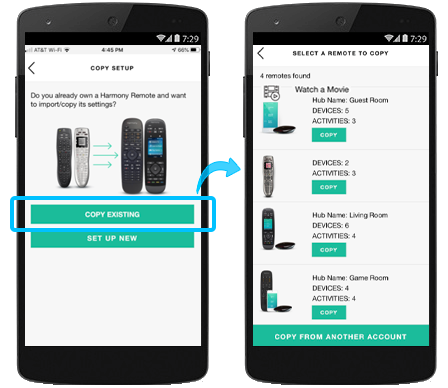
Logitech’s May 28, 2025 discontinuation date is critical. After this, you cannot export configurations—existing setups become read-only. Act now:
Export Harmony Setup in 60 Seconds
- Launch working software (using date rollback if needed)
- Go to Tools > Export Configuration
- Save file as
Harmony_Backup.hcoto cloud storage AND physical drive - Immediately document custom button mappings in a text file
* Warning: Post-May 2025, this option disappears entirely. No configuration changes possible after shutdown.
Critical Data to Backup Now
- All activity sequences (e.g., “Watch TV” button flows)
- Device-specific IR codes from Tools > Advanced Settings
- Hub IP addresses under Settings > Network
- Pro Tip: Print physical copies of button mappings—digital files may become inaccessible
Operate Harmony Without the App After Discontinuation
When servers shut down permanently, your remote still works locally for basic functions. Master these essential techniques:
Program Basic IR Controls Manually
Turn your Harmony into a universal remote in 5 minutes:
1. Point original TV remote at Harmony’s front sensor
2. Hold Harmony button until screen flashes
3. Press Setup > Manual Code Entry > TV
4. Enter brand code (find in manual or Logitech’s archive)
5. Test power/volume buttons—if unresponsive, try next code variant
* Works for: TVs, cable boxes, soundbars (IR devices only)
* Fails for: Smart home integrations (Alexa/Google Home)
Which Functions Survive Post-Server Shutdown
- ✅ Works: Pre-programmed activities, basic IR control, manual button presses
- ❌ Fails: New device setup, activity edits, cloud sync, smart home commands
- Pro Tip: Keep one “legacy” Windows 10 laptop offline with Harmony software installed—it’ll maintain local control indefinitely
When to Replace Your Harmony Remote System
If workarounds become too cumbersome, migrate strategically. Logitech offers no direct replacement, but these alternatives preserve your ecosystem:
Top 3 Harmony Alternatives for Seamless Transition
- SofaBaton U1: Direct Harmony replacement with physical backup (no cloud dependency)
- BroadLink RM4 Pro: IR/RF control with local server option (no internet required)
- Logitech Pop: Focuses on smart home buttons (pair with manufacturer apps)
How to Migrate Activities Without Losing Customization
- Use exported
.hcofile as reference for button mappings - Prioritize critical activities first (e.g., “Watch TV”)
- Time Estimate: Full migration takes 2-3 hours for average home theater setup
- Warning: Avoid systems requiring mandatory cloud accounts—choose local-control options
Final Note: Your Logitech Harmony remote isn’t dead—it’s trapped by expired certificates and discontinued services. By rolling back your system date, switching to MyHarmony software, and exporting configurations immediately, you’ll regain control within minutes. Remember: May 28, 2025 is your absolute deadline for configuration changes. Back up everything today, master manual IR programming, and keep one legacy Windows 10 machine offline as your Harmony lifeline. When the servers finally shut down, you’ll still command your entertainment system—no cloud required. Start with the date rollback fix right now; it’s the single most effective solution for 90% of “Logitech Harmony not working” cases in 2024.



