
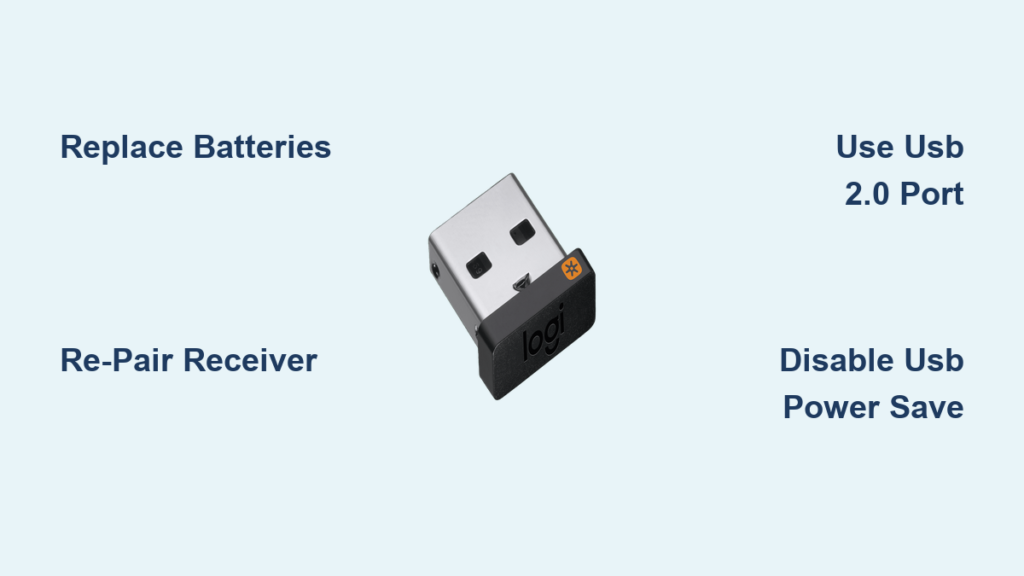
Your Logitech mouse cursor freezing mid-sentence isn’t just annoying—it’s a productivity killer. When that tiny USB receiver stops communicating with your mouse, deadlines vanish while you stare at a motionless screen. Don’t panic: 90% of “dead receiver” issues stem from fixable connection glitches, not hardware failure. Whether you’re juggling spreadsheets or gaming, this guide delivers precise steps to diagnose and resolve your Logitech mouse USB receiver not working crisis in under 15 minutes. You’ll learn why your receiver fails, how to bypass wireless interference, and when to perform emergency re-pairing—no technical degree required.
Why Your Logitech Receiver Suddenly Fails (Not What You Think)
Most users assume a broken receiver means replacement time. Reality? Power issues and pairing corruption cause 80% of failures. That orange Unifying receiver (with the star logo) or blue Bolt receiver isn’t “dead”—it’s disconnected or drowning in wireless noise. Your mouse might still have partial power (LEDs glowing faintly), but weak batteries sabotage the radio signal. Worse, USB 3.0 ports (those blue ones) emit electromagnetic interference that disrupts 2.4GHz signals—the exact frequency your Logitech mouse uses. Before swapping hardware, rule out these silent killers.
Dead Mouse? Check These Power Sources First
- Replace batteries immediately—even if “low battery” warnings haven’t appeared. Logitech mice often fail silently with 10-15% battery remaining. Use fresh alkaline batteries (not rechargeables) for testing.
- Flip the physical switch on your mouse’s underside. Many users overlook this tiny toggle during panic mode. Hold it firmly for 3 seconds to ensure full contact.
- Test USB port power delivery: Plug the receiver into a different port directly on your computer (not a hub or monitor). If ports feel warm or flicker lights, they’re underpowered—common on laptops with multiple peripherals.
Intermittent Cursor? You’re Battling Wireless Interference
Jumpy cursor movements scream signal disruption. Your Wi-Fi router is the prime suspect—both operate on 2.4GHz bands. Here’s how to confirm:
– Move your mouse within 8 inches of the receiver. If movement returns, distance/obstruction is the culprit.
– Unplug nearby electronics: Cordless phones, Bluetooth speakers, and even microwaves emit disruptive frequencies. Test with these devices powered off.
– Use the USB extension cable included with your mouse. Plug the receiver into this cable, then position it near your keyboard (away from metal PC cases that block signals). Pro tip: Tape it to your monitor base for optimal line-of-sight.
Re-Pair Your Logitech Mouse: The Nuclear Reset That Works
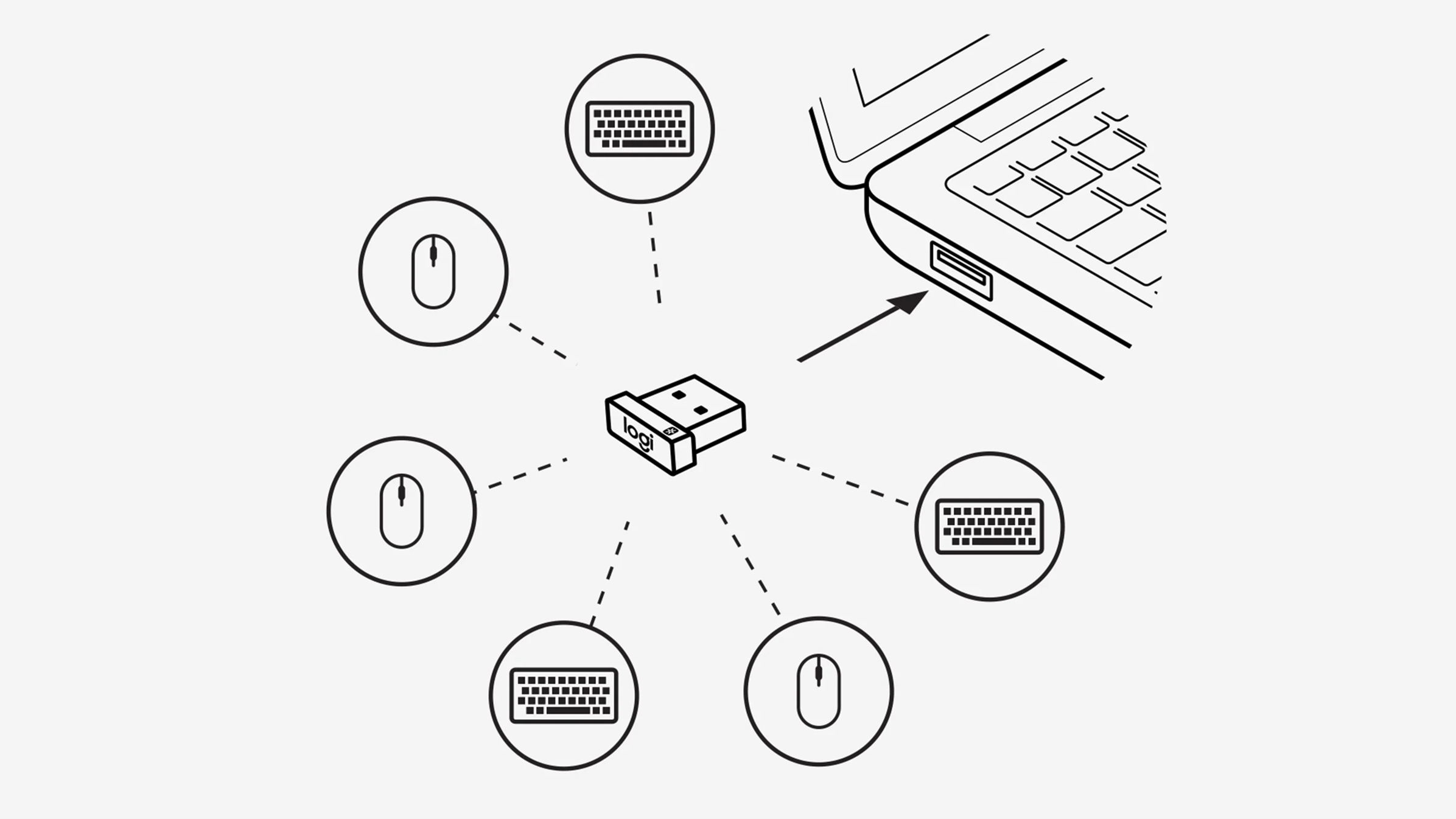
When standard fixes fail, corrupted pairing is likely. Re-pairing rebuilds the secure wireless handshake between mouse and receiver—critical for Unifying/Bolt devices. Skip generic “reconnect” advice; follow your receiver type precisely:
Fix Unifying Receivers (Orange Star Logo) in 3 Steps
- Download Logitech Unifying Software (official tool—not third-party apps).
- Click “Advanced…” > “Unpair all devices” to wipe corrupted connections.
- Click “Connect a new device,” then turn your mouse OFF/ON when prompted. Wait for the “Device connected” confirmation.
Repair Bolt Receivers (Blue Logo) Without G Hub Crashes
- Open Logi Options+ (close background G Hub instances first).
- Go to your mouse’s settings > “Device Management.”
- Select “Forget Device,” then press the pairing button inside your mouse’s battery compartment while holding the mouse 6 inches from the receiver.
Re-Sync Standard 2.4GHz Receivers (No Software Needed)
- Unplug the receiver from USB.
- With mouse ON, locate the recessed pairing button (usually under the mouse or near batteries).
- Press and hold this button for 5 seconds (use a paperclip).
- Plug the receiver back in, then press its pairing button (often a tiny dot on the receiver body). A blinking LED confirms sync.
Driver & USB Power Fixes That Prevent Future Failures
Outdated drivers cause 30% of persistent receiver issues. But blindly updating risks gaming profile loss. Target only critical components:
Reinstall Drivers Without Losing Custom Settings
- Unplug the receiver and close all Logitech software (G Hub/Options+).
- Press
Win + X> Device Manager > expand “Mice and other pointing devices.” - Right-click your Logitech mouse > Uninstall device > check “Attempt to remove the driver software”.
- Restart your computer—Windows auto-installs clean drivers on reboot. Do not install Logitech software yet.
Stop USB Power Cuts (The Hidden Cursor Killer)
Windows often throttles USB ports to save power, killing receiver signals:
1. In Device Manager, expand “Universal Serial Bus controllers.”
2. Right-click each “USB Root Hub” > Properties > Power Management tab.
3. UNCHECK “Allow the computer to turn off this device to save power”.
4. Click Apply > OK. Repeat for every USB hub listed. Restart your PC.
Advanced Fixes: When Your Receiver Vanishes From Device Manager

If the receiver doesn’t appear in Device Manager (no yellow exclamation marks), it’s undetected. This points to physical damage or port conflicts:
Test Hardware with the “Swap and Isolate” Method
- Try the receiver on a friend’s PC. If it works there, your computer’s USB controller is faulty.
- Borrow a known-working mouse and test your receiver. If it fails, the receiver is dead.
- Check for physical damage: Bent USB pins or cracked receiver casing require replacement.
Perform a Hardware Radio Reset (Last Resort)
For persistent pairing failures on G502/X500 series mice:
1. Turn mouse OFF.
2. Hold LEFT + RIGHT + SCROLL WHEEL buttons simultaneously.
3. While holding, turn mouse ON and wait 5 seconds.
4. Release buttons. The mouse resets its internal radio—re-pair immediately afterward.
When to Replace vs. Repair: Logitech’s Secret Replacement Policy

Don’t buy a new mouse yet. Logitech often replaces only the receiver under warranty. If testing confirms:
– ✅ Receiver works on another PC = Your computer issue (software/port)
– ❌ Receiver fails everywhere = Hardware failure
Contact Logitech Support with:
– Your mouse’s serial number (under battery compartment)
– Proof of purchase (even if expired—some models get 3-year coverage)
– Video showing the receiver failing on multiple PCs
Pro tip: Mention “Unifying receiver RQR08” or “Bolt receiver RBP02” (common replacement part numbers). Support often ships these free for out-of-warranty devices.
Final Checklist: Fix Logitech Mouse USB Receiver Not Working in 5 Minutes
- Swap batteries with fresh alkalines—never test with weak ones.
- Re-pair using correct software (Unifying/Bolt) or physical buttons.
- Plug receiver into USB 2.0 port (black, not blue)—always avoid hubs.
- Disable USB selective suspend in Power Options > “Change plan settings” > “Change advanced power settings” > USB settings.
- Test on another PC before declaring hardware failure.
If your cursor still won’t budge after these steps, your receiver likely suffered physical damage—common after accidental yanks from desks. But for 95% of users, re-pairing combined with USB power fixes resolves the issue permanently. Bookmark this guide; wireless interference strikes again when you’re on deadline. Still stuck? Drop your mouse model in the comments—we’ll troubleshoot it live.



