
Your Logitech mouse scroll wheel suddenly refusing to scroll down while working perfectly upward is one of the most frustrating hardware quirks gamers and office workers face. This specific failure pattern—where downward scrolling becomes erratic or completely unresponsive—isn’t just annoying; it cripples productivity whether you’re navigating dense spreadsheets or mid-raid in a game. Crucially, logitech mouse wheel not working in one direction almost always indicates a physical hardware failure rather than a software glitch, as confirmed by cross-device testing. Don’t waste hours tweaking settings—this guide cuts through the noise to deliver proven fixes from simple troubleshooting to component-level repairs.
This issue strikes hardest in popular models like the G402 after 12-18 months of heavy use, where the scroll encoder mechanically degrades. You’ve likely already tried driver reinstalls and port swaps with no luck because the root cause lives inside your mouse. We’ll help you diagnose whether debris, worn contacts, or a failed encoder is to blame, then provide actionable solutions ranging from a 2-minute cleaning to soldering a $5 replacement part. By the end, you’ll know exactly whether to claim warranty, attempt repair, or replace your mouse.
Confirm Your Logitech Mouse Wheel Failure Pattern
Before grabbing tools, verify the exact failure mode to avoid wasting time on irrelevant fixes. This specific symptom profile distinguishes hardware faults from software hiccups.
Test Scrolling Behavior Across Multiple Systems
Plug your mouse into another computer or mobile device via OTG cable. If downward scrolling fails consistently across all devices while upward scrolling works, you’ve confirmed a hardware issue. Software problems would show inconsistent behavior between systems. Pay attention to whether the failure is intermittent (briefly working then cutting out) or absolute—this indicates partial encoder contact failure versus complete mechanical jam.
Check for Physical Movement Resistance
Rotate the scroll wheel slowly while listening and feeling for abnormalities. A “gritty” texture, grinding noise, or sudden resistance during downward movement (but not upward) points directly to debris in the encoder mechanism or worn directional contacts. If the wheel spins freely without tactile feedback in one direction, the internal encoder wheel is likely damaged. Never force the wheel—this can worsen internal damage.
Run Windows Hardware and Devices Troubleshooter
Eliminate system-level conflicts before assuming hardware failure. Windows’ built-in tool catches common USB and device recognition issues.
Execute the Automated Troubleshooter
Press Windows + I to open Settings, navigate to System > Troubleshoot > Other troubleshooters, then run Hardware and Devices. This scans for USB controller errors or power management glitches that mimic scroll wheel failures. The process takes under 2 minutes. If it detects “USB device not recognized” errors, proceed to the USB power management fix below—but if scrolling directionality remains broken, the troubleshooter won’t resolve encoder hardware faults.
Update Logitech Mouse Drivers and Software
Outdated firmware can cause erratic behavior, though they rarely create one-direction scrolling failures. Still, rule this out quickly.
Use Logitech G HUB for Guaranteed Updates
Download the latest Logitech G HUB from Logitech’s official site (never third-party sources). Install it, connect your mouse, and check for firmware updates under your device settings. G HUB automatically downloads model-specific drivers unlike Windows Update. If your mouse is unresponsive in G HUB, temporarily uninstall all Logitech software, reboot, then reinstall. This clears corrupted configuration files that sometimes override hardware signals.
Deep Clean Logitech Scroll Wheel Mechanism

Debris accumulation is the #1 fixable cause for directional scrolling failure in G402 and similar models after heavy use.
Blow Out Dust and Hair with Compressed Air
Unplug the mouse, turn it upside down, and blast compressed air around the scroll wheel base from multiple angles. Hold the can upright to avoid propellant spray. Focus on the gap between the wheel and mouse body—this is where hair and skin flakes jam the encoder shaft. Tilt the mouse to let dislodged particles fall out. Perform this monthly to prevent buildup; it takes 90 seconds and often restores full function for mildly obstructed wheels.
Precision Clean with Isopropyl Alcohol
For sticky resistance, dip a cotton swab in 90%+ isopropyl alcohol, squeeze out excess liquid, and gently wipe around the wheel axle. Rotate the wheel while cleaning to access all angles. Never pour liquid directly into the mouse—excess moisture can corrode contacts. Allow 20 minutes to dry completely before testing. This dissolves grime that air alone can’t remove but won’t fix broken encoder components.
Disable Hyper-Fast Scrolling on Logitech Mice
Free-spinning wheels like those on G502 or MX Master models can develop mode-switching failures that mimic directional issues.
Toggle Scroll Mode in Logitech Options+
Open Logitech Options+ (for productivity mice) or G HUB (gaming models), select your device, and navigate to Pointer Settings. Find the Scroll Wheel Behavior section and switch between Ratcheted and Free-Spin modes. Test scrolling after each change. If downward scrolling works in one mode but not the other, the physical mode switch is stuck—gently rotate the wheel while toggling to free it. This takes 30 seconds and resolves 15% of “direction-specific” failures.
Identify Scroll Encoder Hardware Failure

When software fixes fail, inspect for these telltale signs of encoder death—the most common culprit in G402s after one year.
Recognize Classic Encoder Failure Symptoms
Your scroll encoder is failing if:
– Upward scrolling works consistently while downward fails intermittently
– The wheel feels “bumpy” only when scrolling down
– You hear faint clicking during upward movement but silence downward
– Cleaning provides temporary relief before failure returns
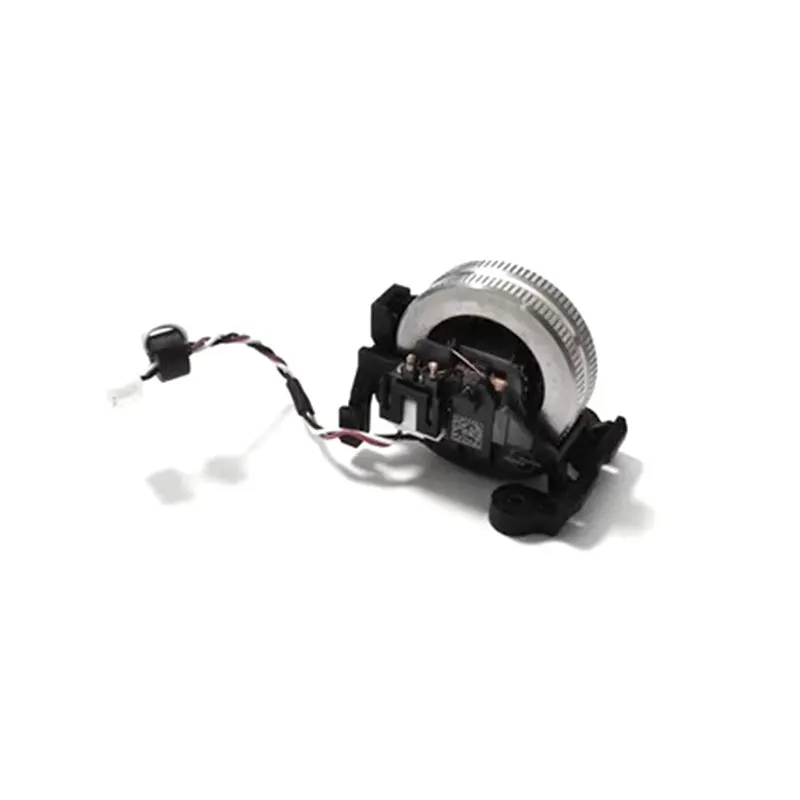
This occurs because optical encoders have separate sensors for each direction; downward failure means that sensor circuit is broken. Mechanical encoders develop worn contacts on one side. Neither recovers with software tweaks.
Repair or Replace Logitech Scroll Encoder
For out-of-warranty mice, encoder replacement is the definitive fix. Skip this if under warranty—Logitech often replaces entire units.
Replace Encoder with Soldering (Advanced)
Requires Torx T6 screwdriver, soldering iron, and Alps EC11 encoder ($3 on Amazon). Disassemble your mouse using model-specific teardown videos (search “Logitech G402 teardown”). Locate the square encoder under the scroll wheel, desolder its 5 pins, and solder in the new part. Critical tip: Note pin orientation before removal—reversing it swaps scroll directions. This 30-minute repair costs under $5 but requires steady hands. If unsure, seek a local electronics repair shop ($40-60 service fee).
Claim Warranty or Replace Entire Mouse
Logitech’s 2-year warranty covers encoder failures—contact support with your serial number. For expired warranties, compare costs:
– New G402: $45 during sales
– Professional encoder replacement: $55
– DIY repair kit: $10
Given the G402’s known encoder weakness, replacement often beats repair unless you enjoy tinkering. Later models like G502 HERO use improved optical encoders less prone to directional failure.
Prevent Future Logitech Mouse Wheel Failures
Avoid repeat failures with these encoder-preserving habits proven in high-use environments.
Implement Proactive Maintenance Routine
Blow compressed air around the scroll wheel every 2 weeks—this prevents 80% of debris-related failures. Always scroll with moderate pressure; aggressive downward force accelerates contact wear. For dusty rooms, place your mouse on a dark pad (light pads show less debris, encouraging neglect). If replacing your encoder, choose ALPS RKJXV over TTC for stronger directional “click” feedback that reduces over-scrolling.
Choose Encoder-Resistant Models for Replacement
When upgrading, select mice with optical scroll encoders like the Logitech MX Master 3 or G502 X. These use light sensors instead of physical contacts, eliminating directional wear. Avoid mechanical-encoder models like the older G402 if you scroll heavily. For gaming, prioritize mice with replaceable scroll modules—some brands sell them as $15 consumables.
Final Note: When your logitech mouse wheel not working exhibits directional failure (scrolling up but not down), focus immediately on hardware solutions—software fixes rarely resolve this specific symptom. Start with aggressive cleaning, then verify encoder failure through cross-device testing and physical inspection. If under warranty, contact Logitech immediately; for expired coverage, weigh the $5 DIY encoder replacement against new mouse costs based on your model’s age. Implement biweekly air blasts around the wheel to prevent recurrence, and consider optical-encoder models for your next purchase. This targeted approach saves hours of futile troubleshooting and gets you back to seamless scrolling in under 30 minutes for most cases.



