
Your Logitech mouse buttons suddenly stop responding to custom settings, or the Options app crashes every time you try to open it. This frustrating scenario leaves you unable to use advanced features like gesture controls or DPI adjustments on your MX Master, MX Anywhere, or G-series devices. When Logitech Options not working on macOS, it’s often due to permission blocks, certificate issues, or software conflicts after system updates—especially common after upgrading to Sonoma, Sequoia, or other recent macOS versions.
This isn’t just an annoyance—it cripples your workflow when thumb buttons revert to defaults or scroll wheels malfunction. The good news is most issues stem from fixable software glitches rather than hardware failures. By following these targeted troubleshooting steps, you’ll restore full customization control without replacing your peripherals.
Logitech Options Crashing or Failing to Launch
When Logitech Options won’t even open, you’re facing the most urgent barrier to device customization. Recognizing these specific failure patterns helps pinpoint the solution.
Immediate Crash on Startup
You double-click the app icon, see it bounce once in the Dock, then vanish completely. Alternatively, it opens to a frozen purple or blue screen with no menu options visible. This classic symptom often indicates macOS security blocking the application. The system may display errors like “The application can’t be opened” or “Not verified by Apple.” These failures frequently occur after macOS updates when Gatekeeper security rejects outdated certificates.
Device Recognition Failures
Your mouse or keyboard connects as a basic input device—cursor moves and keys type—but Logitech Options shows “Device not found.” Critical features like horizontal scrolling stop working, and custom button assignments disappear. The MX Master’s thumb wheel or G502’s macro buttons revert to factory defaults. This happens when the software detects your peripheral but can’t communicate properly due to permission gaps or corrupted configuration files.
Settings That Won’t Save or Apply
You successfully open Options, remap a button, but clicking it still triggers the original function. After restarting your Mac, all custom profiles reset to defaults. This points to corrupted preference files or conflicts preventing the software from writing settings to your device’s onboard memory. The issue often follows incomplete software updates or macOS permission changes.
Why Logitech Options Stops Working on macOS
Understanding these root causes helps you skip ineffective fixes and target the real problem. Modern macOS security features are the usual culprits—not your hardware.
Permission Blocks Preventing Device Control
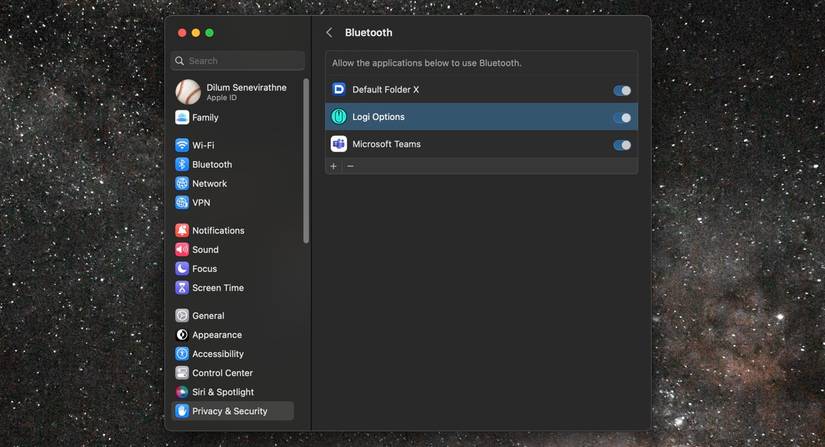
macOS actively blocks Logitech Options from accessing input devices if critical permissions are missing. The software requires explicit access in Privacy & Security > Accessibility for both “Logi Options Daemon” and “Logi Options” (or “Logi Options+”). Without Input Monitoring permissions, it can’t detect button presses or scroll actions. These blocks often reset after macOS updates, especially on M1/M2 Macs running Ventura or newer.
Expired Security Certificates
Logitech’s digital certificates validate the software’s authenticity to macOS. When these certificates expire—as happened industry-wide in April 2023—Gatekeeper security blocks the app entirely. You’ll see “App is damaged and can’t be opened” errors even with the latest installer. This primarily affects Options+ version 1.40.0.xxxx and older builds. Apple’s notarization requirements mean unsigned updates simply won’t launch.
Corrupted Preference Files
Leftover configuration files from previous installations can sabotage new setups. Damaged files in ~/Library/Preferences/com.logitech.* or ~/Library/Application Support/Logitech/ cause crashes during launch or prevent settings from saving. This often follows forced quits during updates or conflicts with security software like Little Snitch.
macOS Version Incompatibility
Outdated Logitech software frequently breaks after macOS upgrades. Options built for Monterey may fail on Sonoma due to deprecated APIs. Conversely, installing the latest Options+ version on older macOS versions (like Catalina) causes instability. Firmware mismatches between your device and software also trigger “Device not detected” errors.
Step-by-Step Fixes for Logitech Options Not Working
Address issues systematically—starting with quick permission checks before moving to deeper repairs. Test your device after each step.
Step 1: Force Restart Logitech Processes
Begin with instant solutions that resolve 30% of cases:
1. Click the Logitech icon in your menu bar and select Quit Logitech Options. If unresponsive, open Activity Monitor, search for LogiOptionsDaemon and Logi Options, then force-quit both.
2. Restart your Mac immediately—this clears temporary system conflicts.
Pro Tip: Hold Shift during restart to enter Safe Mode first if other apps crash too. Logitech Options often works in Safe Mode, confirming a software conflict.
Step 2: Grant Critical macOS Permissions
Missing permissions cause most launch failures:
1. Go to System Settings > Privacy & Security > Accessibility.
2. Click the + button and add Logi Options Daemon and Logi Options (toggle both ON).
3. Repeat for Input Monitoring—this is non-negotiable for button remapping.
4. For devices like the MX Anywhere 3S with camera features, also enable Camera permissions.
Warning: If permissions vanish after restart, disable System Integrity Protection (SIP) temporarily during reinstall.
Step 3: Perform a Clean Reinstall
A proper uninstall removes hidden files that sabotage fresh installs:
1. Uninstall completely: Use AppCleaner (free) to drag Logi Options+ into its window—it auto-finds related files. Delete all flagged items.
2. Remove leftovers manually: Go to ~/Library/Application Support/ and delete the Logitech folder. Also clear ~/Library/Preferences/com.logitech.*.
3. Reinstall correctly: Download only from Logitech’s official site (not the App Store). Install as administrator and immediately grant permissions when prompted.
Time Saver: For MX Master 3/3S or G502 LIGHTSPEED, use Logitech G Hub’s Onboard Memory Manager instead—it stores settings on the device.
Step 4: Fix Certificate Validation Errors
For “damaged app” errors after April 2023:
1. Download Logitech Options+ version 1.44 or newer—this includes renewed certificates.
2. If blocked during install, go to System Settings > Privacy & Security. Under “Security,” click Open Anyway next to the warning.
3. Still blocked? Run this Terminal command to reset validation:
sudo codesign --remove-signature "/Applications/Logi Options.app"
Then reinstall the latest version.
Step 5: Resolve Bluetooth and USB Conflicts
When devices connect but features fail:
– For Bluetooth devices: Remove your mouse/keyboard from System Settings > Bluetooth, then re-pair it. Turn Bluetooth off/on first.
– For USB receivers: Plug directly into your Mac (no hubs/docks). Prefer USB 2.0 ports (non-blue) over USB 3.0 to avoid interference.
– Test connectivity: Try the device on another computer. If issues persist there, update firmware via Logitech’s official updater.
When Software Fixes Fail: Hardware and Advanced Checks
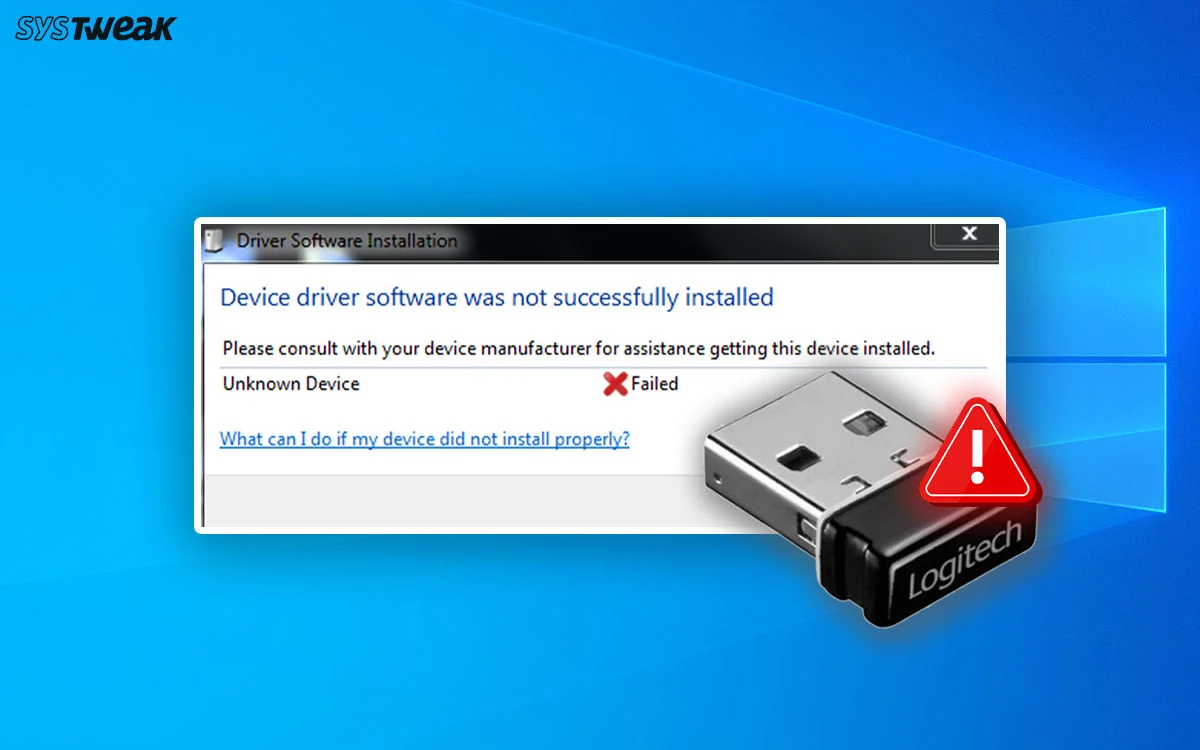
If Logitech Options still won’t cooperate after reinstalling, investigate these often-overlooked hardware factors.
Test Your USB Receiver and Ports
Faulty USB connections mimic software failures:
1. Try every USB port on your Mac—avoid hubs and docks.
2. For wireless devices, replace the USB receiver with Logitech’s Unifying receiver if possible.
3. Clean USB ports with compressed air; debris causes intermittent connections.
Critical: On M1/M2 Macs, use USB-C to USB-A adapters for older receivers—direct USB-C ports sometimes cause power issues.
Analyze Console Logs for Clues
macOS logs reveal hidden errors:
1. Open Console.app (in Utilities folder).
2. Filter for “Logi” or “com.logitech” while launching Options.
3. Look for “certificate expired,” “permission denied,” or “USB device not found” errors.
Example: “lghub_agent[421]: Connection failed” indicates Bluetooth pairing issues needing reset.
Prevention Strategies for Future Stability
Avoid recurring problems with these proactive measures:
– Update religiously: Check Logitech’s site monthly for new versions—especially after macOS updates.
– Backup settings: Export button profiles via Options’ menu before major system changes.
– Use wired during updates: Connect via USB cable when updating firmware to prevent corruption.
– Skip the App Store: Always install from Logitech’s website—App Store versions lack critical drivers.
If all steps fail, your device may need hardware service. Contact Logitech Support with your Console logs—they often identify unlisted firmware bugs. Most “broken” devices actually just need a clean certificate-aware reinstall. By methodically addressing permissions, certificates, and conflicts, you’ll keep your Logitech peripherals performing at their peak without replacing a single piece of hardware.



