Your Logitech USB headphones not working can derail your entire workday, especially when you’re counting on them for critical meetings or gaming sessions. That sudden silence when you plug in your headset—no familiar Windows connection sound, no audio playback, and worst of all, your microphone failing during an important call—is incredibly frustrating. Whether you’re using a Logitech H600, G PRO X, or any other USB model, this guide delivers proven solutions to diagnose and fix your “Logitech USB headphones not working” problem in minutes, not hours.
When your Logitech USB headset stops functioning properly, it’s rarely a single-point failure. The issue could stem from driver conflicts, improper settings, hardware faults, or software interference. Many users waste time trying random fixes without understanding the root cause. This systematic approach will help you pinpoint exactly why your Logitech USB headphones not working and provide targeted solutions that actually work. By following these steps in order, you’ll save yourself hours of frustration and potentially avoid unnecessary headset replacement.
Diagnose Your Specific Logitech USB Headset Failure

Before attempting fixes, you need to identify your exact problem type. Is it a complete failure where Windows doesn’t recognize the device at all, or are you experiencing partial functionality issues? The troubleshooting path differs significantly based on your symptoms, so accurate diagnosis is critical before proceeding.
My PC Doesn’t Recognize My Logitech Headset at All
When your computer fails to detect your Logitech USB headphones, start with these essential hardware checks:
-
First Hardware Verification Steps
- Try connecting your headset to a different USB port, preferably a USB 3.0 port (typically blue inside) directly on your computer rather than through a hub. Many users report success simply by switching from USB 2.0 to USB 3.0 ports.
- Test the headset on another computer. If it works elsewhere, the problem is with your original PC’s configuration. If it fails on multiple systems, you’re likely dealing with hardware failure.
- Listen carefully for the Windows connect/disconnect sound when plugging in the headset. No sound often indicates a fundamental recognition problem.
-
Device Manager Deep Check
- Right-click the Start button and select Device Manager
- Expand both “Sound, video and game controllers” and “Audio inputs and outputs” sections
- If your Logitech headset appears under “Sound, video and game controllers” but shows a yellow exclamation mark or down arrow (indicating it’s disabled), right-click it and select Enable device
- If it’s completely missing from both sections, right-click the top-level “Computer” entry and select Scan for hardware changes
Fix Audio Playback When Logitech Headset Is Recognized But Silent
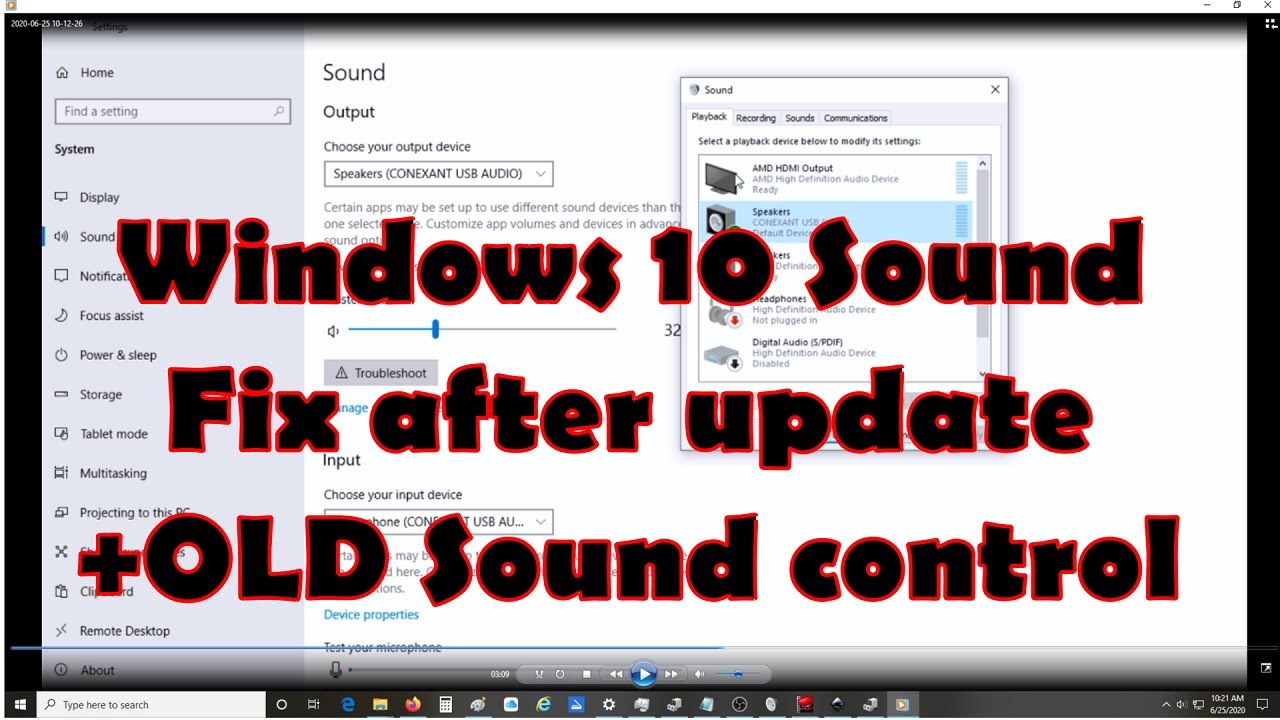
If Windows sees your headset but you can’t hear anything, follow these precise steps:
-
Set Your Logitech Headset as Default Playback Device
- Right-click the speaker icon in your system tray and select Open Sound settings
- Under “Output,” select your Logitech headset from the dropdown menu
- Click Make this my main communications device to ensure consistent usage
-
Critical Service and Settings Verification
- Press
Win + R, typeservices.msc, and press Enter - Confirm both Windows Audio and Windows Audio Endpoint Builder services are running
- Right-click your headset in Sound settings > Properties > Advanced tab
- Uncheck Allow applications to take exclusive control of this device to prevent conflicts
- Press
Fix Microphone Issues with Systematic Testing
When your Logitech USB headphones not working includes microphone failure, use this proven approach:
-
Physical Hardware Check
- Many Logitech headsets feature a physical mute switch or flip-to-mute microphone. Check for these first before diving into software fixes.
- Verify the microphone boom is properly seated in its connector if applicable.
-
Windows Privacy and App Permissions
- Go to
Settings > Privacy & Security > Microphone - Ensure Microphone access is toggled ON at the top
- Scroll down and confirm your specific applications (Zoom, Teams, Discord) have microphone permissions enabled
- Open Sound settings and check that your Logitech headset appears as the selected input device
- Go to
Resolve Logitech G HUB Software Conflicts

G HUB software often causes recognition problems with Logitech USB headphones not working:
-
Quick G HUB Reset Procedure
- Right-click the G HUB icon in your system tray
- Select Exit to completely close the application
- Restart G HUB and check if your headset appears correctly
-
Complete G HUB Reinstallation
- Uninstall G HUB via Windows Settings > Apps
- Download and run Revo Uninstaller (free version) to remove residual files
- Delete the
C:\Users\[YourName]\AppData\Local\LGHUBfolder - Restart your computer
- Download and install the latest G HUB version from Logitech’s official website
Perform a Full Driver Clean Reinstall
For persistent “Logitech USB headphones not working” issues, a complete driver reset often works:
- Open Device Manager and locate your headset under “Sound, video and game controllers”
- Right-click it and select Uninstall device
- Crucially, check the box that says “Attempt to remove the driver software for this device”
- Click Uninstall and wait for the process to complete
- Unplug your headset, restart your computer, then reconnect the headset
This process forces Windows to rebuild the driver stack from scratch, resolving many stubborn recognition issues that simple updates can’t fix.
Identify When It’s Hardware Failure
If software fixes fail, determine if your headset has hardware failure:
-
Definitive Hardware Test
- Connect your Logitech USB headphones to another computer—if they fail there too, hardware failure is confirmed
- Check Device Manager for Code 22 errors which indicate “The device is disabled” at a system level
- Note if your headset appears under “Sound, video and game controllers” but not “Audio inputs and outputs”—this specific pattern often indicates internal hardware failure
-
USB Power Delivery Check
- Try connecting directly to a USB 3.0 port on your computer’s motherboard (not front panel or hub)
- Test with a powered USB hub to rule out insufficient power issues
- Some headsets require more power than standard USB 2.0 ports provide
Prevent Future Logitech USB Headset Problems
Avoid recurring “Logitech USB headphones not working” issues with these proactive measures:
-
Software Maintenance Routine
- Keep Windows fully updated—many audio issues get resolved in cumulative updates
- Periodically check Logitech’s website for firmware updates for your specific model
- Avoid installing multiple audio control panels (Realtek, Nahimic, Sonic Studio) that can conflict with G HUB
-
Physical Care Best Practices
- Gently clean USB ports with compressed air to prevent connection issues
- Avoid frequent plugging/unplugging which can wear out USB connectors
- Store your headset properly when not in use to prevent cable damage
If your Logitech USB headphones not working persists after trying all these solutions, and testing confirms failure on multiple computers, contact Logitech support for warranty replacement. Most Logitech headsets come with a 2-year limited warranty, and hardware failure after one year of use (as documented in our knowledge base) typically qualifies for replacement. For immediate needs, consider using a standard 3.5mm audio headset as a temporary solution while awaiting your replacement. Remember that systematic troubleshooting—starting with the simplest solutions and progressing to more complex ones—saves time and prevents unnecessary frustration when dealing with audio device failures.