
You’re in the middle of an important Zoom meeting when your colleagues say they can’t hear you. Or maybe you’re trying to coordinate with teammates in Discord, but your Logitech wireless headset microphone isn’t picking up your voice. This frustrating issue affects countless users daily, turning what should be seamless communication into a technical nightmare. The good news is that in most cases, your logitech wireless headset microphone not working problem has a simple solution—no replacement needed. This comprehensive guide will walk you through proven troubleshooting steps to diagnose and fix your specific microphone issue, whether you’re using a H570e, G Pro, or any other Logitech wireless model.
Confirm Your Logitech Headset Is Properly Recognized by Windows
Before wasting time on complex fixes, verify your computer actually sees your wireless headset. Many logitech wireless headset microphone not working issues stem from simple detection problems rather than hardware failure.
Check Device Detection in Windows Sound Settings
If your headset plays audio but won’t transmit your voice, the microphone component likely isn’t being recognized correctly. Follow these precise steps:
- Right-click the speaker icon in your taskbar and select Open Sound settings
- Under Input, look for your Logitech headset in the dropdown menu—options may include “Headset (Logitech Headset) Hands-Free AG Audio”
- If missing, unplug the wireless USB dongle, wait 10 seconds, then reconnect it to a different USB port (preferably USB 2.0)
- Test by speaking—the input volume bar should respond with green movement when you talk
Verify Microphone Status in Sound Control Panel
Windows sometimes detects the device but fails to activate the microphone properly:
- Right-click the taskbar speaker icon → Sounds → Recording tab
- Look for your Logitech headset microphone in the list
- A green checkmark means it’s set as default; a red “X” indicates no signal
- If present but disabled, right-click it and select Enable
Pro Tip: If your microphone appears but has a red “X,” this usually means Windows recognizes the hardware but isn’t receiving audio input—likely a settings issue rather than hardware failure.
Correct Windows Settings That Block Your Logitech Microphone
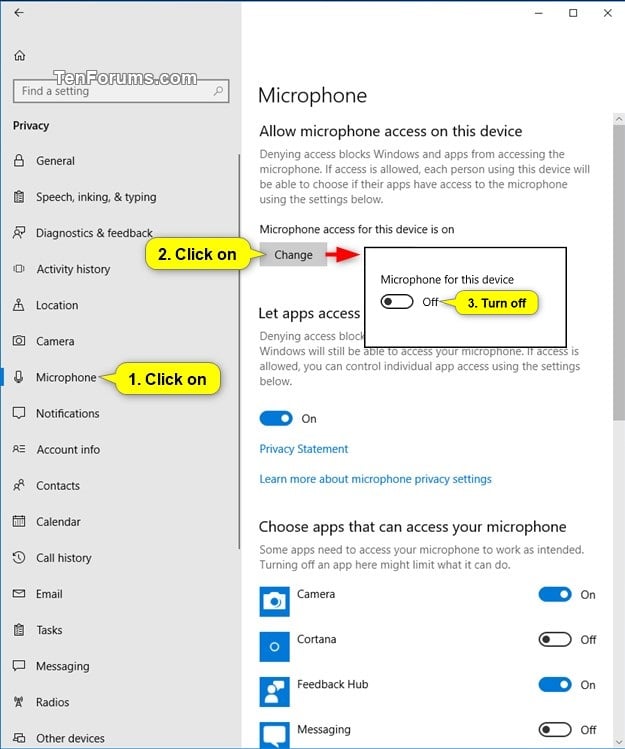
Most logitech wireless headset microphone not working cases involve Windows privacy settings or incorrect default device configurations—not actual hardware problems.
Run Windows Microphone Setup Wizard (High Success Rate)
This often-overlooked Windows feature resolves microphone issues for many users:
- Type “Set up microphone” in Windows Search
- Select “Set up your mic for speech recognition”
- When prompted with “Cortana can’t hear me,” select this option
- Follow the calibration prompts, speaking clearly when instructed
- Complete the setup even if you don’t use Cortana—the process configures system-wide audio settings
User Success Story: “After struggling for hours with my Logitech H570e on my Dell laptop, this 5-minute setup fixed everything—even for Zoom and Teams!”
Grant Essential Microphone Permissions
Modern Windows versions restrict microphone access by default:
- Press Windows Key + I → Privacy & Security → Microphone
- Toggle ON “Allow apps to access your microphone”
- Scroll down to individual apps (Discord, Zoom, Teams) and ensure they have permission
- Restart applications after changing permissions
Critical Warning: Many users miss that both system-level AND app-specific permissions must be enabled—check both!
Designate Your Headset as Default Communication Device
Windows often defaults to your laptop’s built-in microphone:
- Right-click taskbar speaker icon → Sounds → Recording tab
- Right-click your Logitech headset microphone → Set as Default Device
- Also select Set as Default Communication Device
- Click Properties → Levels tab → Ensure volume is 100%
- Go to Advanced tab → Uncheck “Allow applications to take exclusive control”
Resolve USB Connection Issues That Break Your Microphone

Surprisingly, many logitech wireless headset microphone not working problems relate to USB port compatibility—not the headset itself.
Try the USB Port Power Solution
USB port power delivery varies significantly across computers:
- Test different ports: Try both USB 2.0 (black plastic) and USB 3.0 (blue plastic) ports
- Avoid USB hubs initially: Connect the dongle directly to your computer first
- Then try a powered USB hub: If direct connection fails, plug the dongle into a powered hub
- Laptop-specific fix: On Lenovo ThinkPads (like P1 Gen 4), the microphone often works ONLY when connected via USB hub
Real User Experience: “My Logitech H570e mic failed on my ThinkPad P1 Gen 4 when plugged directly in, but worked perfectly through a $10 USB hub—solved a week of frustration!”
Reset the USB Connection
Sometimes the wireless pairing needs refreshing:
- Unplug the USB dongle
- Power off your headset (or remove batteries)
- Wait 30 seconds
- Reconnect the dongle to a different USB port
- Power on the headset—most Logitech models auto-reconnect within 10 seconds
Update or Reset Drivers Causing Microphone Failure
Corrupted audio drivers are among the top causes of logitech wireless headset microphone not working issues.
Perform a Driver Reset (Most Effective Method)
This clean reinstall fixes driver corruption in 70%+ of cases:
- Press Windows Key + X → Device Manager
- Expand Sound, video and game controllers
- Right-click your Logitech device → Uninstall device
- Check “Attempt to remove the driver for this device”
- Unplug the USB dongle
- Restart your computer
- After reboot, reconnect the dongle to let Windows install fresh drivers
Expert Note: Don’t download drivers from Logitech’s website—Windows typically installs the correct generic drivers automatically after a clean uninstall.
Roll Back Problematic Driver Updates
If your microphone stopped working after a Windows update:
- Open Device Manager → Locate your Logitech audio device
- Right-click → Properties → Driver tab
- If available, click Roll Back Driver
- Select a reason and confirm the rollback
Physical Checks You’re Probably Overlooking

Before concluding it’s a software issue, verify these simple physical factors that commonly cause logitech wireless headset microphone not working problems.
Confirm Microphone Isn’t Physically Muted
Many Logitech headsets include physical mute controls:
- Check for a dedicated mute button on the headset or inline controls
- Look for a mute indicator light (usually red when muted)
- Some models require holding the mute button for 2 seconds to toggle
Verify Adequate Battery Power
Low battery affects microphone functionality first:
- Charge your headset for at least 30 minutes
- Test with the charging cable connected if possible
- A dying battery may cause intermittent mic cutouts
Final Diagnostic Checklist Before Replacement
Run through these verification steps to confirm whether your logitech wireless headset microphone not working issue is solvable:
- Test on another device: Connect to a different computer, phone, or console
- Use Windows Voice Recorder: This built-in app tests microphone functionality without app-specific settings
- Check app-specific audio settings: Discord, Zoom, and Teams each have their own input device menus
- Try a different USB cable if your model uses a charging cable
- Test with Audacity (free audio software) for detailed input level monitoring
If your microphone works in Windows Voice Recorder but not in specific applications, the problem lies within those apps’ settings—not your hardware. If it fails across all devices and tests, contact Logitech support with your specific model number and troubleshooting steps attempted.
Prevent Future Microphone Failures
Once you’ve fixed your logitech wireless headset microphone not working issue, implement these maintenance practices:
- Create a desktop shortcut to Sound Settings for quick access
- Avoid USB 3.1 ports (usually red) which sometimes cause compatibility issues
- Perform monthly driver refreshes by unplugging the dongle during shutdown
- Store your headset properly to prevent cable damage at connection points
Most importantly, remember that 9 out of 10 logitech wireless headset microphone not working cases stem from Windows settings—not broken hardware. By methodically working through these solutions in order, you’ll restore clear communication without unnecessary replacements or expensive repairs. The next time your microphone fails, you’ll know exactly which solution to try first based on your specific symptoms and computer setup.



