

That tiny USB receiver for your Logitech wireless mouse has disappeared again. You’ve checked every desk drawer, patted down your pockets, and even dug through the couch cushions—nothing. Your perfectly functional mouse sits useless on your desk, and you’re left wondering if you need to buy an entirely new device. Don’t panic. When your Logitech wireless mouse is missing its receiver, there are multiple solutions ranging from direct replacements to alternative connection methods. This guide covers everything you need to know about recovering functionality from your wireless mouse without its original receiver, including exact steps to identify your mouse type, where to get genuine replacements, and how to connect via Bluetooth instead.
Why Your Logitech Wireless Mouse Won’t Work Without Its Specific Receiver
Logitech wireless mice rely on precise communication between the mouse and its dedicated receiver. Unlike standard Bluetooth devices, most Logitech wireless mice use proprietary 2.4GHz technology that requires matching hardware components to function. Each receiver contains unique pairing information that connects specifically to your mouse model. When your Logitech wireless mouse is missing receiver components, the mouse can’t establish that secure connection, rendering it inoperable despite having full battery power.
The frustration comes from how easily these receivers get lost—they’re smaller than a standard USB drive and often slide out of ports unnoticed. What makes this particularly challenging is that not all Logitech receivers are interchangeable. Your MX Master 3 won’t work with the same receiver as your older M325 mouse, even though both are Logitech products. Before spending money on replacements, you need to identify exactly what type of receiver your specific mouse requires.
Identify Your Exact Logitech Receiver Type Before Buying Replacements
Check for Unifying, Bolt, or Lightspeed Technology
Flip your mouse over and examine the bottom surface and battery compartment for specific logos that indicate which wireless technology your device uses:
- Logitech Unifying Receiver: Look for an orange sun-like logo (resembling an asterisk). These receivers support multiple compatible devices and have a 6-digit serial number printed on them. Compatible with hundreds of Logitech devices released between 2011-2020.
- Logi Bolt Receiver: Check for a dark grey tab on the receiver and a Bolt logo. These newer receivers offer enhanced security with 256-bit AES encryption and are found on mice released after 2020.
- Lightspeed Receiver: If you have a gaming mouse (G-Series), look for a small “G” logo on the receiver. These provide ultra-low latency for gaming but are only compatible with specific gaming peripherals.
- Non-Unifying Receiver: Older Logitech mice may use standard 2.4GHz receivers without special logos, typically dedicated to a single device.
How to Find Your Mouse Model Number
Locate your mouse’s exact model number—usually printed on a label underneath the mouse or inside the battery compartment. This 4-6 character code (like MX Anywhere 3 or M720 Triathlon) is essential when searching for compatible replacement receivers. Logitech’s website has a compatibility checker where you can enter this model number to confirm which receiver type your mouse requires.
Where to Get Genuine Logitech Replacement Receivers (2023 Guide)
Official Logitech Replacement Process
Your most reliable option for replacing a missing Logitech wireless mouse receiver is through Logitech’s official channels:
- Visit Logitech’s Replacement Parts page on their support website
- Enter your mouse model number to verify compatibility
- Purchase a new receiver for $15-25 USD (Unifying) or $25-40 USD (Bolt)
- Expect delivery within 3-7 business days for most regions
Logitech occasionally includes receiver replacement under warranty, especially if your product is still within its standard 1-3 year coverage period. Contact their customer support with your product registration information for the best chance at a free replacement.
Third-Party Options With Verified Compatibility
If you need a faster solution, consider these third-party options with proper verification:
- Amazon Authorized Sellers: Search “[your mouse model] replacement receiver” and filter for “Ships from/Sold by Amazon.com” to ensure authenticity
- eBay Verified Listings: Look for sellers with 98%+ positive feedback who provide clear photos of the receiver’s serial number matching your requirements
- Computer Specialty Retailers: Stores like Best Buy or Micro Center sometimes carry universal receiver kits that include Logitech-compatible options
Warning: Avoid generic “universal” receivers that claim compatibility with all wireless devices. Most won’t properly pair with Logitech mice or may disable advanced features like gesture controls and multi-device switching.
Step-by-Step: Pairing a New Logitech Unifying Receiver to Your Mouse
Required Tools and Preparation
Before starting, gather these essentials:
– Your Logitech mouse (with fresh batteries)
– New Unifying receiver
– Computer with internet access
– Logitech Unifying Software (free download)
Pairing Process for Unifying Receivers
- Insert the new Unifying receiver into a USB port directly on your computer (not a hub)
- Download and install the Logitech Unifying Software from Logitech’s official site
- Launch the software and click “Advanced…” in the bottom right corner
- Select “Pair a new device” from the menu
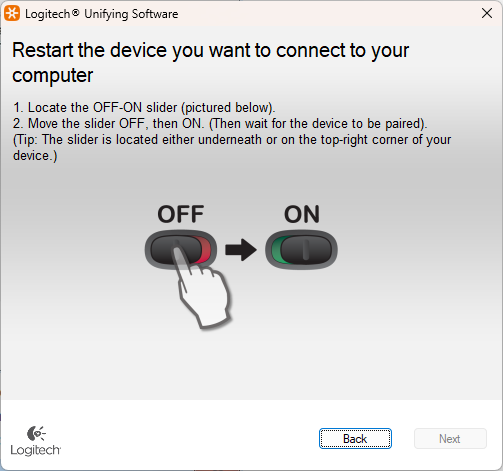
- Turn your mouse off, then press and hold the pairing button (usually on the bottom) for 5 seconds
- When the LED starts blinking rapidly, click “Continue” in the software
- Follow on-screen prompts to complete pairing (typically takes 20-30 seconds)
Pro Tip: If your mouse has multiple pairing modes (like the MX Master series), ensure you’re using the Unifying pairing mode rather than Bluetooth. The indicator light will blink differently for each mode.
How to Connect Your Logitech Mouse via Bluetooth Instead of a Receiver
Check If Your Mouse Supports Bluetooth
Many modern Logitech mice (MX Master 3, MX Anywhere 3, MX Vertical) offer dual connectivity. Verify Bluetooth capability by:
– Looking for a Bluetooth symbol on the mouse bottom
– Checking for a dedicated Bluetooth button (often labeled “B”)
– Consulting your mouse’s manual or Logitech’s product page
Direct Bluetooth Pairing Instructions
- Turn on your mouse and press the Bluetooth button until the status light blinks blue
- On your computer, open Bluetooth settings (Windows: Settings > Devices > Bluetooth; Mac: System Preferences > Bluetooth)
- Click “Add Bluetooth or other device” and select “Bluetooth”
- When your Logitech mouse appears in the device list, select it
- If prompted, enter the pairing code (usually 0000)
- Complete installation of any required drivers that appear automatically
Time-Saving Shortcut: For MX series mice, press the Easy-Switch button until the indicator light shows the correct device number, then follow standard Bluetooth pairing steps. This process takes about 2 minutes and eliminates the need for any receiver.
Troubleshooting: When Your Found Logitech Receiver Still Won’t Work

USB Port and Connection Issues
If you recover your missing receiver but it doesn’t work:
- Test the receiver in a different USB port (preferably a USB 2.0 port, often black instead of blue)
- Avoid USB hubs—connect directly to your computer’s ports
- Try the receiver on another computer to determine if the issue is with the receiver or your system
- Clean the USB port gently with compressed air to remove dust buildup
Re-pairing When Connection Fails
When your Logitech wireless mouse is missing receiver connection despite having the hardware:
- Uninstall existing Logitech software through Control Panel > Programs
- Restart your computer
- Reinstall the latest Logitech Options+ or Unifying Software
- Use the software’s “Discover” feature to locate and re-pair your mouse
- For persistent issues, reset your mouse by holding all buttons for 10 seconds
Preventing Future Receiver Loss: 3 Smart Storage Solutions
Receiver Storage Techniques That Actually Work
- Label Your Receiver Immediately: Use a fine-tip permanent marker to write your name or device name on the receiver’s plastic casing
- Use the Built-in Storage Slot: Many Logitech mice (MX series, M720) have a dedicated slot inside the battery compartment—make it a habit to store the receiver there when not in use
- Create a Receiver Leash: Attach a small keyring or lanyard to the receiver using a paperclip through the hole many receivers have near the USB connector
Pro Tip: Keep a spare Unifying receiver ($15) stored with your other computer accessories as an emergency backup—this could save you hours of frustration when the primary receiver goes missing.
When to Replace Your Mouse Instead of Finding a New Receiver
Cost-Benefit Analysis for Receiver Replacement
Consider these factors before investing in a replacement receiver for your Logitech wireless mouse:
- If the replacement receiver costs more than 50% of a new mouse’s price (e.g., $25 receiver vs. $50 new mouse)
- If your mouse is older than 3-4 years—other components may be nearing failure
- When newer models offer significant improvements like longer battery life or multi-device capabilities
- If you’ve lost the receiver multiple times—indicating you might not be careful with small accessories
Expert Insight: For older Logitech models (pre-2018), replacement receiver availability is decreasing. In these cases, upgrading to a newer mouse with Bluetooth connectivity often provides better long-term value than hunting for increasingly scarce replacement parts.
Losing the tiny USB receiver for your Logitech wireless mouse doesn’t have to mean replacing the entire device. By identifying your exact mouse model and wireless technology, you can source a compatible replacement receiver directly from Logitech or connect via Bluetooth if your mouse supports it. The pairing process takes just minutes once you have the correct replacement hardware, and implementing simple storage solutions can prevent future receiver losses. Remember that for mice older than three years, upgrading might provide better value than replacement—especially when newer models offer dual connectivity options that eliminate receiver dependency altogether. Keep this guide handy for the next time your Logitech wireless mouse goes receiver-less, and you’ll have your setup working again in no time.



