
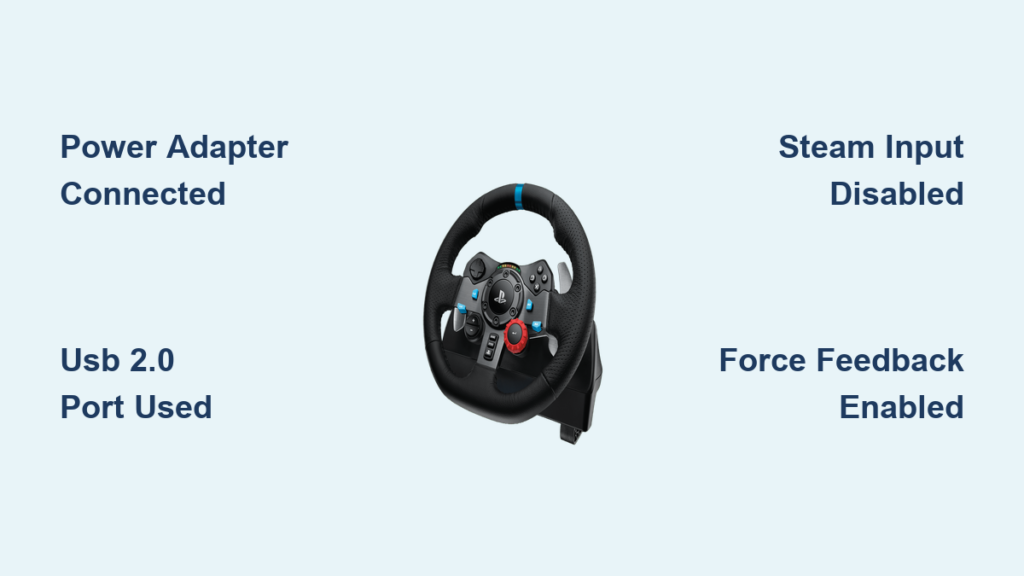
You’ve unboxed your new Logitech G29 racing wheel, connected it to your PC, and… nothing happens. If you’re wondering “does Logitech G29 work on PC?”, you’re facing a common frustration that stops many racing sim enthusiasts in their tracks. The good news is that the Logitech G29 is specifically designed as a plug-and-play racing wheel for Windows systems, but several setup nuances can prevent proper recognition and functionality right out of the box.
Despite its reputation for seamless PC compatibility, many users encounter connection issues that make them question whether the G29 actually works with PC systems. This complete guide cuts through the confusion with actionable steps to get your wheel functioning properly. You’ll learn exactly what’s required for PC recognition, how to troubleshoot the most common issues, and optimization techniques to maximize your racing experience.
Correct Power Connections for PC Recognition

Your Logitech G29 won’t function without proper power configuration—a critical detail many PC users miss during initial setup. Unlike gaming controllers that run solely on USB power, the G29 requires both the AC power adapter and USB connection to operate correctly on your PC. Skipping the power adapter is the #1 reason why your G29 won’t turn on or be recognized by Windows.
Follow these specific connection steps for immediate PC recognition:
- Plug in the AC adapter to a working wall outlet first, then connect it to the wheel base—don’t skip this step even if the wheel appears to have power
- Set the physical mode switch to PS3 position (some newer models require PS4 position for PC use)
- Connect the USB cable directly to your PC’s motherboard ports (avoid USB hubs or front-panel connectors)
- Power on the wheel after connections are secure—listen for the calibration spin
Warning: USB 3.0/3.1 ports sometimes cause connection issues—try a USB 2.0 port if your PC has one available. If your wheel base lights don’t illuminate after proper connection, double-check that the power adapter is fully seated at both ends.
Why Your G29 Won’t Connect to PC (And How to Fix It)

When Windows fails to detect your Logitech G29, the problem usually stems from one of three specific issues: incorrect switch position, USB port conflicts, or missing software dependencies. Before assuming hardware failure, methodically check these common connection blockers.
Device Manager Verification Steps
Open Device Manager (right-click Start menu > Device Manager) and look under these sections:
- Human Interface Devices – Should show “Logitech G29 Driving Force” without yellow warning icons
- Sound, video and game controllers – Should list your G29 as a game controller
- Universal Serial Bus controllers – Check for unrecognized USB devices
If your G29 appears with warning symbols, right-click the entry and select “Update driver.” If it doesn’t appear at all, try toggling the physical mode switch between PS3 and PS4 positions while the wheel is connected—this often triggers proper recognition.
USB Port Troubleshooting Protocol
Not all USB ports provide equal power delivery, which critically affects your G29’s performance:
- Test rear motherboard ports first – These typically provide more stable power than front-panel connectors
- Avoid USB 3.1/3.2 Gen 2 ports (usually blue or red) – Many users report connection issues with these newer ports
- Disable USB selective suspend – Go to Power Options > Change Plan Settings > Change Advanced Power Settings > USB settings > USB selective suspend setting > Disabled
- Try different port combinations – Some motherboards have power delivery issues with adjacent ports
Solving Steam Input Conflicts with Logitech G29
Steam’s controller configuration system frequently overrides your G29 settings, causing games to ignore your racing wheel entirely. This is one of the most common reasons why your G29 works in Windows but not in popular racing titles like Assetto Corsa or rFactor 2.
Complete Steam Configuration Fix
For proper G29 functionality in Steam games:
- Open Steam Settings > Controller > General Controller Settings
- Uncheck all boxes – Disable Xbox Configuration Support, PlayStation Configuration Support, and Generic Gamepad Configuration
- For individual racing games, right-click in Library > Properties > Controller > Select Disable Steam Input
Pro Tip: Launch Steam as administrator (right-click Steam shortcut > Run as administrator) to prevent permission conflicts that block proper wheel recognition in racing games.
Force Feedback Troubleshooting for PC Gamers

That “clunky” or “notchy” sensation in your G29’s force feedback is often mistaken for hardware failure when it’s actually a configuration issue. The G29’s gear-driven system naturally produces some mechanical resistance, but proper settings can significantly smooth the experience.
Force Feedback Optimization Checklist
For buttery-smooth force feedback in your racing sims:
- In Logitech G HUB or Gaming Software, disable “Allow game to adjust settings” – This prevents games from overriding your preferred settings
- Set Centering Spring to 0% in software profiles for true direct-drive feel
- Reduce Overall Effects Strength to 85-90% to minimize gear noise
- Adjust Damper settings between 15-25% for optimal resistance
Critical: Always verify force feedback is enabled in both your Logitech software AND the game’s control settings—many racing titles have separate FFB toggles that default to off.
Driver Reinstallation: The Nuclear Option That Works
When basic troubleshooting fails, a complete driver reset often solves persistent recognition issues. This process removes conflicting software layers that prevent proper G29 functionality on your PC.
Clean Driver Reinstallation Process
- Uninstall all Logitech software through Windows Settings > Apps
- Download the Logitech Unifying Uninstaller for complete removal
- Use Microsoft’s Program Install and Uninstall Troubleshooter to remove residual files
- Restart your PC before proceeding
- Download the latest Logitech G HUB (or Gaming Software if you prefer)
- Install software BEFORE connecting the wheel
Warning: Never install both Logitech Gaming Software and G HUB simultaneously—this creates driver conflicts that prevent wheel recognition. Some users report better G29 compatibility with Logitech Gaming Software version 9.02.65 or later rather than G HUB.
Optimizing G29 Performance in Racing Simulators
Once recognized by your PC, fine-tuning your G29 for specific racing titles dramatically improves your driving experience. Different games require unique configuration approaches to maximize the wheel’s 900-degree rotation and dual-motor force feedback.
Game-Specific Configuration Guide
Forza Horizon Series:
– Enable “Logitech G29” checkbox in game settings
– Set rotation to 900° in both game and Logitech software
– Disable in-game steering assist for authentic feedback
iRacing:
– Use Logitech Gaming Software (not G HUB) for best results
– Set rotation to match your selected vehicle (typically 270-540°)
– Calibrate pedals with iRacing’s built-in calibration tool
Euro Truck Simulator 2:
– Disable “Steering Wheel Simulation” in game settings
– Set rotation to 360° for truck realism
– Increase dead zones slightly to compensate for pedal sensitivity
Pedal Calibration Issues and Solutions for PC
Unresponsive or erratic pedals often indicate calibration problems rather than hardware failure. The G29’s pedal unit requires precise configuration to deliver accurate brake and throttle response in racing simulations.
Pedal Calibration Protocol
- Open Logitech G HUB or Gaming Software
- Select your G29 and click Settings > Pedals
- Click Calibrate and follow on-screen instructions
- For brake sensitivity issues, increase dead zone to 5-10%
- For inconsistent throttle response, decrease dead zone to 2-3%
Expert Note: If your brake pedal feels “grabby” or unresponsive, adjust the physical tension knob on the pedal unit itself—turning it clockwise increases resistance for more precise braking control.
When to Contact Logitech Support for PC Issues
If you’ve completed all troubleshooting steps and your G29 still doesn’t work properly on PC, it’s time to determine if you’re facing a hardware failure. Most genuine hardware issues present as consistent problems across multiple computers and configurations.
Hardware Failure Indicators
- No calibration spin after powering on (should rotate lock-to-lock 2-3 times)
- Erratic LED behavior or no lights despite proper power connection
- Mechanical grinding noises during operation
- Complete lack of response across multiple PCs and USB ports
Before contacting support, test your G29 on another PC—this is the definitive way to determine if the issue is with your wheel or your computer’s configuration. If the wheel functions properly elsewhere, the problem lies with your original PC setup, not the hardware.
The Logitech G29 absolutely works on PC when properly configured, but requires attention to specific connection details many users overlook. By following these targeted troubleshooting steps—from correct power connections to software configuration—you’ll transform your frustrating setup experience into smooth, immersive racing performance. Remember that the G29’s gear-driven mechanism naturally produces some mechanical resistance, but proper configuration significantly enhances the driving experience. With your wheel now fully operational, focus on fine-tuning your in-game settings to match your preferred racing style and vehicle types for the ultimate sim racing experience.



