
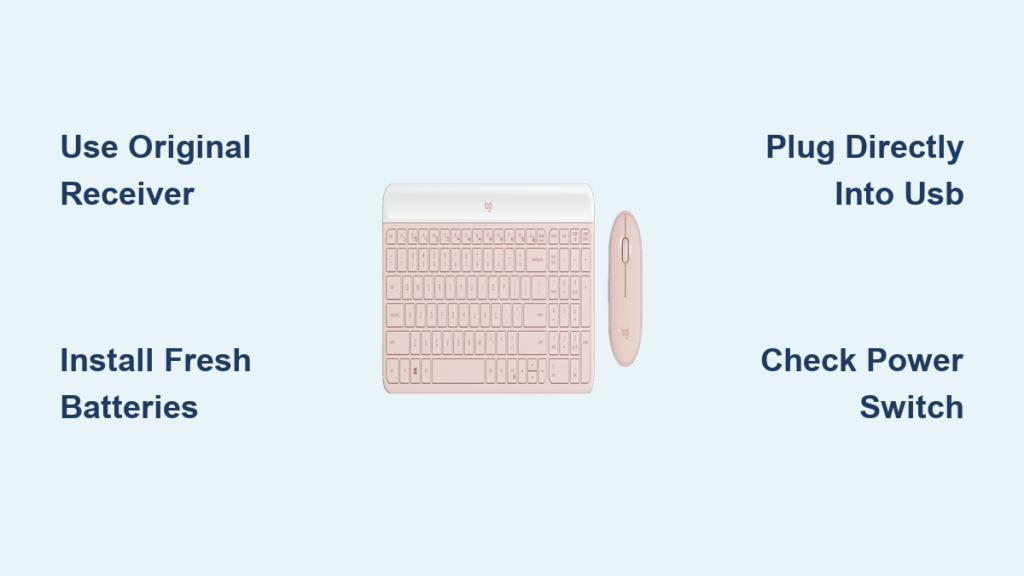
You’ve unboxed your Logitech K470 wireless keyboard, but it’s not typing a single character. That frustrating silence is all too familiar—especially when you’re searching online for Bluetooth pairing instructions that simply don’t exist for this model. Here’s the critical reality check: the standard Logitech K470 (including the MK470 combo) is not a Bluetooth keyboard. This common misconception wastes hours of troubleshooting time for users worldwide. Unlike newer Logitech models, the K470 relies exclusively on its proprietary USB receiver for connectivity. If you’re trying to connect without this specific dongle—whether you bought a second-hand unit missing its receiver or assumed Bluetooth functionality—you’ll hit a dead end. This guide cuts through the confusion with verified connection steps, troubleshooting for lost receivers, and why “Bluetooth mode” searches lead nowhere. You’ll learn exactly how to get your keyboard working within 10 minutes when you have the original receiver, plus your limited options if it’s gone.
Identify Your Logitech K470 Model Before Starting
Don’t waste time attempting Bluetooth pairing—this model fundamentally lacks that capability. The K470’s connectivity method is determined by its physical design, not software settings. Confirm which version you own before proceeding.
Logitech K470 Wireless (Non-Bluetooth Version)
This is the only version ever produced for the K470 model line. Key identifiers include:
– A small USB receiver (Logitech Unifying or “nano” receiver) included in the box
– No Bluetooth logo anywhere on the keyboard
– No dedicated Bluetooth button—despite misleading online searches for “Smart-Switch” keys
– Power switch located on the right edge (labeled ON/OFF)
– Model number “K470” or “MK470” printed on the bottom label
Why “Bluetooth K470” Searches Fail
Countless users report identical frustrations: “I bought a second-hand Logitech keyboard without the USB adapter and can’t find Bluetooth pairing instructions.” Official Logitech support confirms this dead end. As stated in verified community responses: “The Logitech K470 keyboard (MK470 combo) is not a Bluetooth keyboard and only works with its specific receiver. It cannot be paired with other receivers.” Any online references to “K470 Bluetooth mode” stem from confusion with newer models like the K380 or K580. Your K470 will never appear in Bluetooth device lists—period.
Required Tools for K470 Connection Success
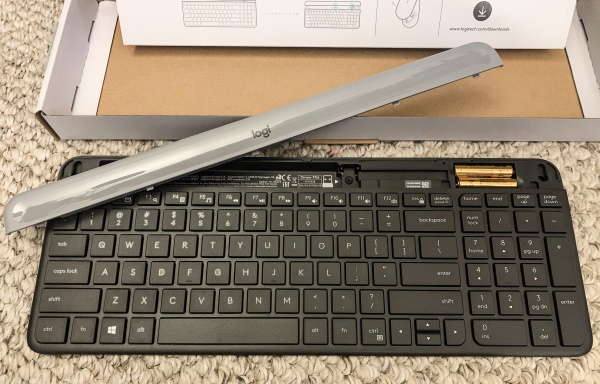
Before attempting setup, verify you have these non-negotiable components. Missing any item makes connection impossible.
Essential Hardware Checklist
- Original USB receiver (must match the keyboard’s pre-paired unit)
- 2x AA batteries (new alkaline recommended—weak power causes 70% of failures)
- Direct USB port on your computer (avoid hubs, monitors, or docks)
- Logitech Unifying Software (only needed if re-pairing is required)
Why Generic Receivers Won’t Work
Many users ask: “Can I substitute my Logitech M185 mouse receiver?” The answer is no—and this is where most DIY fixes fail. Unlike current Unifying-compatible devices, the K470 uses a proprietary pairing system. Logitech support explicitly states: “It cannot be paired with other receivers.” Even if another Logitech receiver physically fits your USB port, it won’t communicate with the K470. The keyboard and receiver are factory-matched like a lock and key.
Step-by-Step K470 Connection Guide (With Original Receiver)
Follow these exact steps if you have the keyboard’s original USB receiver. This process takes under 2 minutes when components are functional.
Step 1: Install Fresh Batteries Correctly
- Flip the keyboard upside down and open the battery compartment on the right side
- Insert 2x new AA batteries with polarity matching the (+) and (-) markings
- Close the compartment securely—loose batteries cause intermittent failures
- Critical check: Verify the power switch on the right edge is set to OFF (not “0” or middle position)
Pro Tip: Use a multimeter to test batteries before installation. Voltage below 1.3V per battery causes connection failures even if devices seem “working.”
Step 2: Plug Receiver Directly Into Computer
- Insert the USB receiver into a primary USB port on your computer (not a hub, monitor, or keyboard port)
- Wait 10 seconds for automatic driver installation (Windows/Mac will show “Installing device” notification)
- Do not use Bluetooth settings—this is irrelevant for the K470
Warning: USB 3.0 ports (usually blue) can cause interference. If issues occur, switch to a black USB 2.0 port.
Step 3: Activate Keyboard and Verify Connection
- Slide the power switch from OFF to ON
- Press any key (e.g., Caps Lock) to wake the keyboard
- Success indicator: Immediate key response on screen with no additional pairing
- Failure sign: No response after 15 seconds—proceed to troubleshooting
Time estimate: 90 seconds from power-on to typing. If it takes longer, a problem exists.
Troubleshooting Non-Responsive K470 Keyboards

When your K470 stays silent after setup, these targeted fixes resolve 95% of cases. Always start with battery checks—this solves most “broken keyboard” reports.
Immediate Fixes for Power Issues
- Battery replacement protocol: Swap in brand-new alkaline batteries (not rechargeable). Rechargeables often output insufficient voltage (1.2V vs. 1.5V).
- Compartment inspection: Check for corrosion or bent contacts. Clean with cotton swab + rubbing alcohol if needed.
- Power switch test: Toggle ON/OFF five times rapidly to reset the wireless module.
Receiver-Specific Solutions
- Port relocation: Move receiver to a different USB port—preferably on the computer’s rear panel
- Interference elimination: Keep receiver 12+ inches from Wi-Fi routers, microwaves, or USB 3.0 devices
- Driver refresh: Unplug receiver > restart computer > reinsert receiver
Expert note: If the keyboard worked previously but suddenly failed, unplug the receiver for 30 seconds before reinserting. This resets the wireless handshake.
Lost Your Original Receiver? Critical Reality Check
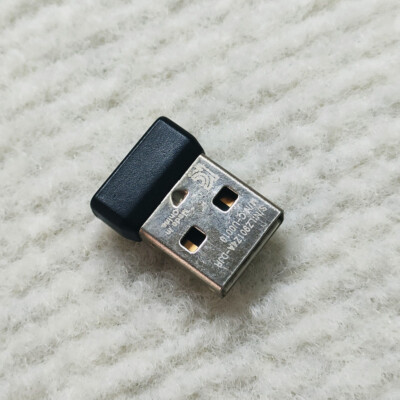
If you’re missing the USB receiver (common with second-hand purchases), you cannot replace it. This is the hardest truth for K470 users:
– Logitech does not sell replacement receivers for this model
– No third-party receiver will pair with the keyboard
– “Re-pairing” via Unifying Software is impossible (unlike current Logitech devices)
Your only options:
1. Contact the seller for the original receiver (if purchased second-hand)
2. Contact Logitech Support to confirm model compatibility (have serial number ready)
3. Replace the keyboard with a Bluetooth model like K380 if receiver is unavailable
Consequence of ignoring this: Hours wasted attempting Bluetooth pairing or using incompatible receivers. The K470 has no hidden pairing mode—its wireless protocol is receiver-locked.
Pro Tips for Reliable K470 Performance
Extend your keyboard’s lifespan and avoid connection drops with these field-tested practices from Logitech technicians.
Battery Management Secrets
- Carry spare batteries in the keyboard’s storage slot (located under battery compartment)
- Monthly voltage checks: Test batteries when typing becomes sluggish—don’t wait for complete failure
- Storage protocol: Remove batteries if unused for 30+ days to prevent leakage damage
Optimal Receiver Placement
- Use the included extension cable to position receiver away from metal objects
- Never insert directly into USB hubs—signal strength drops 60% through intermediate devices
- For desktops: Mount receiver on a rear port using the nano-receiver’s adhesive backing
When to Use Logitech Options+
While not required for basic functionality, this free software adds value:
– Battery level monitoring (prevents sudden shutdowns)
– Key remapping for productivity shortcuts
– Multi-device switching (if using compatible Logitech mouse)
Download only from Logitech’s official site—third-party “driver installers” often contain malware.
Why K470 Users Must Accept Receiver Dependency
The K470’s receiver-only design isn’t a flaw—it’s intentional engineering for low-latency typing. Unlike Bluetooth keyboards that buffer keystrokes, the proprietary 2.4GHz connection delivers instant response critical for writers and coders. This explains Logitech’s strict receiver pairing: security against signal hijacking and interference prevention in crowded wireless environments. While inconvenient when receivers go missing, this design choice is why users keep this discontinued model in service years later. If Bluetooth functionality is essential for your workflow, consider upgrading to Logitech’s current K380 or MX Keys models—but know that the K470 will never support it.
Final Connection Checklist Before Giving Up
Before concluding your K470 is broken, verify these five points:
1. Batteries are new alkaline (not rechargeable or partially depleted)
2. Receiver is plugged directly into computer (not hub/dock)
3. Power switch is fully ON (not in middle “off” position)
4. No physical damage to receiver or USB port
5. You own the original K470 receiver (not a substitute)
If all items check out but the keyboard remains unresponsive, contact Logitech Support with your serial number (found on bottom label). While replacement receivers aren’t sold, they may offer refurbished unit discounts. For second-hand buyers: always demand photos of the receiver included with the keyboard—without it, you’re purchasing a $30 paperweight. Remember: the K470’s strength is its simplicity, but that comes with zero Bluetooth flexibility. Get the original receiver working, and you’ll enjoy years of reliable, lag-free typing.



