
That moment when you raise your right hand but your video feed shows a left-hand movement can be incredibly disorienting during important video calls. If you’ve ever wondered how to invert Logitech webcam settings to get a natural-looking image, you’re not alone. Many professionals and content creators struggle with the default mirrored view that makes you appear reversed to yourself while others see the correct orientation. This comprehensive guide delivers proven methods to flip your Logitech webcam feed—whether you’re using a C920, C922, Brio 4K, or other popular models—so you can present yourself professionally across all your video applications.
Unlike what many online tutorials suggest, simply checking a box in your video app often isn’t enough for a permanent solution. The mirroring issue stems from how webcams and applications handle video feeds differently. Your Logitech camera actually captures a non-mirrored image, but most conferencing software flips it for your local view to feel more natural (like looking in a mirror). However, this “selfie” view creates confusion when you’re trying to present documents or demonstrate physical movements. By the end of this guide, you’ll know exactly how to invert your Logitech webcam feed either temporarily for single applications or permanently across your entire system.
Why Your Logitech Webcam Shows a Mirrored Image (And How to Fix It)
Most Logitech webcams, including the popular C920, C922, and Brio series, default to showing you a mirrored view during video calls. When you move your right hand, your on-screen image moves its left hand—creating that disorienting mirror effect. This happens because video conferencing applications prioritize your comfort over accuracy, making your movements feel intuitive as if you’re looking in a mirror. However, the person you’re calling sees the correct, non-mirrored orientation.
Here’s what most people don’t realize: Your Logitech webcam actually captures a non-mirrored image. The mirroring happens in software, either at the application level (Zoom, Teams) or through your operating system. The good news is that this means you can reverse the process to see yourself as others see you—giving you better spatial awareness during presentations or when demonstrating physical tasks.
How Logitech Webcam Mirroring Actually Works
Logitech webcams don’t have a physical “mirror” setting built into the hardware. Instead, the mirroring occurs through software processing after the camera captures the image. When you enable mirroring in an application, it applies a horizontal flip transformation to the video feed before displaying it to you. Understanding this helps you choose the right inversion method for your needs:
- Application-level mirroring: Affects only your view in that specific app (like Zoom’s “Mirror my video” setting)
- System-level mirroring: Uses virtual camera software to flip the feed for all applications
- Hardware-level mirroring: Rarely available on consumer Logitech models, requires specific firmware support
Quickly Identify Your Logitech Webcam Model for Proper Inversion

Before attempting any inversion method, you must know your exact Logitech webcam model. Different models have varying capabilities and support different mirroring solutions. The C920 and C922 respond well to software solutions, while the Brio 4K offers more advanced settings through Logitech G HUB.
How to Find Your Logitech Model Number in 30 Seconds
On Windows: Press Win+R, type devmgmt.msc, expand “Imaging devices,” and look for your Logitech camera name. Alternatively, check the sticker on the bottom of your webcam.
On Mac: Click Apple menu > About This Mac > System Report > USB, then locate your Logitech webcam in the device list.
Critical identification tip: Logitech model numbers often include subtle variations like “C920s” (with the “s”) which may have different software compatibility than the standard C920. Getting this detail right prevents wasted time trying incompatible solutions.
Flip Your Logitech Webcam Instantly in Zoom, Teams & Google Meet
For quick fixes during an active video call, application-specific settings provide the fastest solution. These methods take less than 15 seconds to implement but only affect your local view in that specific application.
Zoom: One-Click Logitech Webcam Inversion
- While in a Zoom meeting, click the arrow next to “Stop Video”
- Select Video Settings
- Under “My Video,” check the box for Mirror my video
- Important: This setting only affects your local view—participants still see the correct orientation
Pro tip: Enable this setting permanently by going to Zoom Settings > Video > My Video and checking “Mirror my video” before your next call.
Google Meet: Browser Extension Workaround
Google Meet lacks native mirroring controls, but you can use the free “Webcam Flip & Mirror” Chrome extension:
- Install the extension from Chrome Web Store
- Click the extension icon during a Google Meet call
- Select “Horizontal Flip” to invert your Logitech webcam feed
- Warning: Some extensions may reduce video quality—test before important meetings
Invert Your Logitech C920/C922 Using Logitech G HUB Software
Logitech’s official software provides the most direct path to invert your webcam feed, though results vary by model. This method works best for C920, C922, and newer Business series webcams.
Step-by-Step G HUB Configuration
- Download and install Logitech G HUB (not Gaming Software for newer models)
- Connect your Logitech webcam and launch G HUB
- Click the Settings (gear) icon in the top-right corner
- Select your webcam from the device list
- Look for “Mirror Effect” or “Horizontal Flip” toggle
- Enable the setting and click Apply
Troubleshooting tip: If G HUB doesn’t detect your webcam, try connecting directly to a USB port (not through a hub) and restart the application. Some users report needing to run G HUB as administrator for settings to take effect.
Set Up OBS Studio to Permanently Invert Your Logitech Webcam Feed
For a permanent, system-wide solution that works across all applications, OBS Studio creates a virtual camera with your inverted feed. This method takes 5 minutes to set up but solves the problem permanently.
Complete OBS Inversion Process
- Download and install OBS Studio from obsproject.com
- Launch OBS and click the + under Sources
- Select Video Capture Device and name it “Logitech Inverted”
- Choose your Logitech webcam from the device dropdown
- Right-click the new source and select Filters
- Click + under Effect Filters and choose Mirror
- Go to Tools > Start Virtual Camera
Critical step: In your video applications (Zoom, Teams, etc.), select “OBS-Camera” as your webcam source instead of your physical Logitech camera. This ensures you’re using the inverted feed.
Fix Logitech Webcam Mirror Settings That Won’t Stick After Reboot
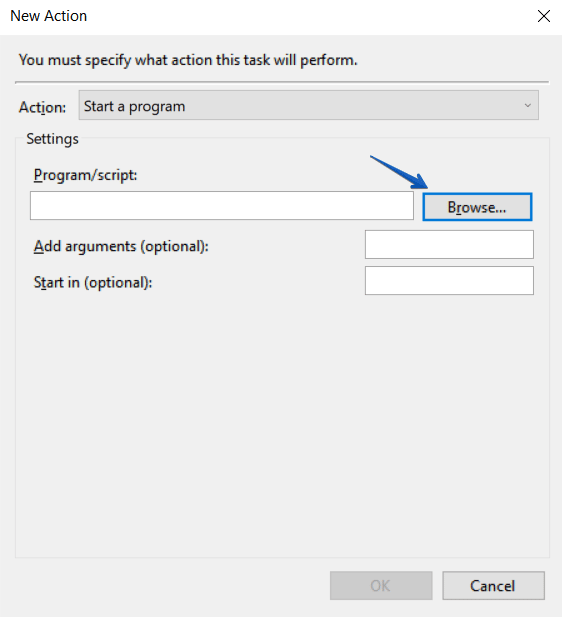
Many users report that mirror settings reset after restarting their computer or unplugging the webcam. This frustrating issue affects most Logitech models except some Business series cameras with onboard memory.
Persistent Inversion Solutions
For Windows users: Create a startup script that reapplies settings:
- Open Notepad and paste:
start "" "C:\Program Files\obs-studio\bin\64bit\obs64.exe" --startvirtualcam - Save as
inverted_cam.baton your desktop - Press Win+R, type
shell:startup, and move the .bat file to this folder - Now OBS will launch automatically with virtual camera enabled
Alternative method: Some advanced users modify registry settings at HKEY_CURRENT_USER\Software\Logitech\Logitech Webcam Software, but this can cause instability and isn’t recommended for casual users.
Troubleshoot Black Screen Issues When Inverting Logitech C930e
Black screens after enabling mirroring typically indicate a resource conflict or incorrect configuration. This problem commonly affects the C930e and Brio models when using third-party software.
Quick Black Screen Fixes
- First step: Ensure no other application is using your webcam (close Skype, Teams, etc.)
- Second step: In OBS, right-click your webcam source > Properties > change resolution to match your camera’s native setting
- Third step: Update your Logitech webcam drivers through Device Manager
Critical warning: If you see “Error 10” in Device Manager, your USB port may be drawing too much power—connect the webcam directly to your computer rather than through a hub.
Create a Permanent Virtual Camera for Your Inverted Logitech Feed
For professionals who need consistent inverted feeds across multiple applications, setting up a dedicated virtual camera provides the most reliable solution.
Professional Virtual Camera Setup
- Install ManyCam (free version available)
- Add your Logitech webcam as a source
- Apply the Mirror effect from the Effects panel
- In ManyCam settings, enable “ManyCam Virtual Webcam”
- Select this virtual device as your camera in all applications
Time-saving tip: ManyCam allows saving multiple profiles—create one for meetings (inverted) and one for recording (non-inverted) and switch with one click.
Professional Tips: Maintain Flipped Logitech Webcam Settings Across All Apps
The most reliable approach combines OBS Studio with strategic application settings to ensure consistent inverted viewing across your entire workflow.
Three-Step Professional Workflow
- Configure OBS with your inverted Logitech feed as described earlier
- Set OBS Virtual Camera as your default webcam in your operating system:
– Windows: Settings > Bluetooth & devices > Camera > Default camera
– Mac: System Preferences > Camera > Default camera - Create application exceptions for software that requires non-inverted feeds (like some recording applications)
Pro maintenance tip: Every month, check for OBS updates—new versions often improve virtual camera performance and compatibility with the latest applications.
Final Note: Consistently inverted webcam feeds transform your video presence from confusing to professional. While application-specific settings offer quick fixes, the OBS Virtual Camera method provides the most reliable, permanent solution for how to invert Logitech webcam feeds across all your applications. Bookmark this guide for future reference—when your next important presentation demands perfect visual alignment, you’ll know exactly how to make your Logitech webcam work for you, not against you. For Logitech C920 and C922 users, this solution typically takes less than 10 minutes to implement and works flawlessly for daily professional use.



