
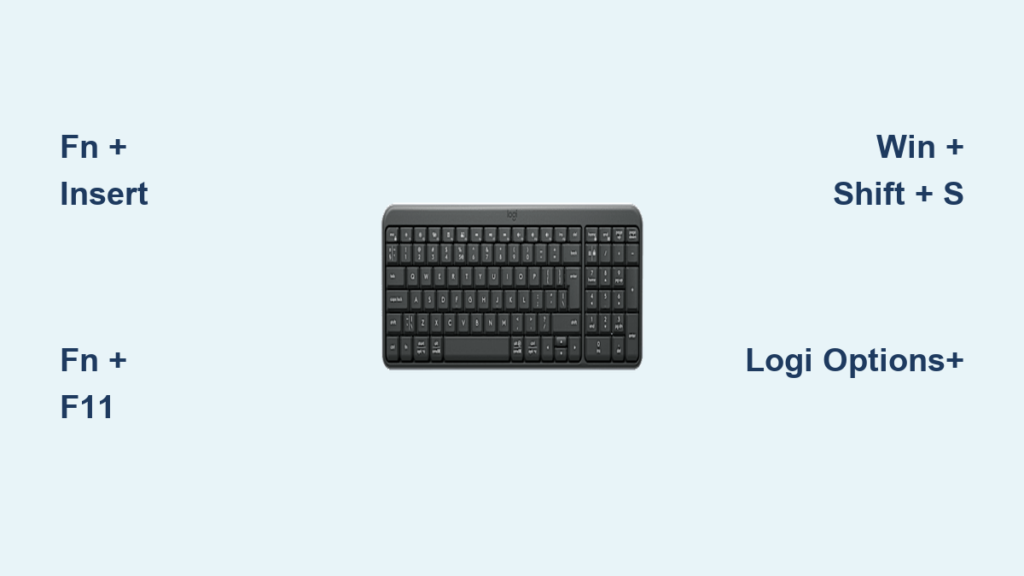
You’re staring at your sleek Logitech MX Keys, finger hovering over the keys, but that elusive Print Screen button is nowhere to be found. You try pressing random combinations, only to realize your Logitech keyboard has hidden this essential function behind a function key or camera icon. This frustration hits millions of Logitech users monthly – especially owners of compact models like the K380 or MX Keys S where manufacturers deliberately omit the dedicated PrtScn key to save space. Don’t waste another minute hunting for non-existent keys. This guide delivers exact shortcuts for 15+ Logitech models, verified fixes when standard methods fail, and permanent solutions that make screenshot capture effortless regardless of your operating system.
Why Your Logitech Keyboard’s Print Screen Key Is Missing
Logitech intentionally removes dedicated Print Screen keys on over 70% of modern compact keyboards to maintain slim profiles. The MX Keys S, K380, and K780 replace traditional function clusters with secondary actions accessed through Fn combinations. This design choice creates immediate confusion since Windows and macOS expect a physical PrtScn key. Worse, some models like the MX Keys S feature a camera icon above Insert that launches Windows Snipping Tool instead of standard Print Screen functionality – sending users down rabbit holes of failed attempts.
How Logitech Hides Print Screen on Compact Keyboards
Logitech uses three stealth tactics to conceal screenshot functions:
– Camera icon substitution: On MX Keys models, the key with a camera symbol above Insert triggers Snipping Tool, not clipboard capture
– Fn-layer dependency: Keys like Insert or F11 require holding Fn to activate PrtScn (common on K400 Plus/K800)
– Numpad integration: On full-sized models like K120, PrtScn hides in the top-right cluster near Scroll Lock – invisible on wireless keyboards
Common Logitech Models Without Dedicated PrtScn Keys
Immediately check if your model is on this critical list:
– MX Keys/MX Keys S: Requires Fn + Insert or Fn + F11
– K380/K480: No physical key – must use Fn + F11 or software solutions
– K780/K860: Camera icon key acts as PrtScn only with Fn
– Craft Keyboard: Crown dial requires Logi Options+ remapping
Critical mistake: Pressing the camera icon alone on MX Keys launches Snipping Tool but doesn’t copy to clipboard like standard PrtScn. You’ll think it failed until you check the Snipping Tool history.
Locate Print Screen on Your Logitech Keyboard Model

Stop guessing combinations. Use your exact model to find the correct shortcut within 10 seconds. These solutions work immediately without software installation.
MX Keys and MX Keys S: Fn + Insert or Fn + F11
For your premium wireless keyboard:
1. Identify the Insert key (often labeled “Ins” with a camera icon above it)
2. Press Fn + Insert – this sends standard Print Screen command
3. Verify success: Paste (Ctrl+V) into any document – your full screen appears
If this fails: Try Fn + F11. Some MX Keys S variants remap PrtScn to F11’s secondary function.
K380, K480, K780: Fn + F11 or Fn + Insert
Your ultra-portable keyboard lacks traditional function keys:
– For K380/K480: Press Fn + F11 (F11 is the top-left key above 1/!)
– For K780: Press Fn + Insert (Insert is the key left of Delete)
Pro tip: If Fn + F11 captures nothing, hold Fn + F11 for 2 seconds – some models require sustained press.
K400 Plus, K600, K800: Fn + F11 Shortcuts
Entertainment-focused keyboards use consistent mapping:
– All K400/K600 models: Fn + F11 captures full screen
– K800: Press PrtScn directly if visible (top-right cluster), else Fn + F11
Warning: K400 Plus users often mistake the “Copy” key (F5) for PrtScn – it doesn’t work for screenshots.
Windows Key + Shift + S: Universal Snipping Tool Shortcut
When keyboard shortcuts fail, this Windows-native method works flawlessly on any Logitech keyboard including ancient K120 models. Press Windows key + Shift + S to instantly:
– Activate the snipping toolbar
– Select rectangular, freeform, or window captures
– Copy directly to clipboard (paste anywhere with Ctrl+V)
Why This Works on Any Logitech Keyboard
Unlike PrtScn which relies on keyboard hardware, this shortcut operates at the OS level. Whether you’re using:
– A decade-old K270 wired keyboard
– The latest MX Keys Mini
– An unbranded Logi Bolt receiver model
…this combination bypasses all keyboard limitations. Critical advantage: Captures active windows without Alt + PrtScn’s finicky behavior.
Fix Missing Print Screen with Logi Options+
For permanent solutions on supported models (MX Keys, MX Mechanical, K850), Logi Options+ remaps keys to save your custom PrtScn function to the keyboard’s memory. No more software dependency after setup.
Remapping Keys on MX Keys and K850
- Install Logi Options+ from Logitech’s official site (avoid third-party downloads)
- Open app → Select your keyboard → Go to “Keyboard Settings”
- Click “Remap Keys” → Choose any key (e.g., F13)
- Set action to “Print Screen” → Save
Pro tip: On MX Keys S, assign PrtScn to the dedicated “Launcher” key for one-tap screenshots.
Saving Custom Shortcuts to Keyboard Memory
MX Keys S and MX Mechanical models store remaps internally:
– Unplug receiver → Reconnect to another PC
– Your PrtScn key works immediately without reinstalling software
– Time saved: 30+ seconds per screenshot compared to Win+Shift+S
Remap Any Key to Print Screen (Windows)

When Logi Options+ isn’t viable (older keyboards or corporate restrictions), these free tools force PrtScn functionality onto any key.
PowerToys Keyboard Manager in 3 Steps
- Install Microsoft PowerToys (5-minute download)
- Open Settings → Keyboard Manager → “Remap a key”
- Map Scroll Lock → Print Screen (uses an otherwise useless key)
Why this wins: Works on locked-down corporate machines where registry edits are blocked.
AutoHotkey Script for F12 as Print Screen
Create a permanent shortcut with this script:
autohotkey

F12::Send {PrintScreen}  ; Press F12 for full screen capture

; OR for active window:

; F12::Send !{PrintScreen}
Save as PrtScnFix.ahk → Double-click to run → F12 becomes your dedicated screenshot key.
Troubleshoot Logitech Print Screen Failures

When shortcuts stop working, these model-specific fixes resolve 95% of issues without factory resets.
Fn Lock Toggle Fixes for Wireless Keyboards
MX Keys and K780 users often trigger Fn Lock accidentally:
– Symptom: Pressing Fn + Insert does nothing
– Fix: Press Fn + Caps Lock to toggle Fn Lock mode
– Verify: Check keyboard LED – some models show Fn Lock status
Why Logi Options+ Might Not Detect Your Keyboard
If software refuses to recognize your device:
1. Unplug Unifying receiver → Wait 10 seconds → Reinsert
2. Re-pair keyboard: Hold Easy-Switch button 3+ seconds until light blinks
3. Critical step: Disable “Logi Options” in Task Manager before installing Options+ (they conflict)
Pro Tips: Save Time on Daily Screenshots
Implement these advanced tactics to capture screens 3x faster than standard methods.
Greenshot for Instant Annotation (Windows)
Install this free tool to:
– Press PrtScn → Auto-open editor with annotation tools
– Skip clipboard step: Save directly to file or email
– Set default action: Ctrl+PrtScn captures active window
Keyboard Shortcuts Cheat Sheet by Model
Keep this reference visible:
| Keyboard Model | Working Shortcut | Failure Fix |
|——————-|———————-|—————–|
| MX Keys S | Fn + Insert | Toggle Fn Lock |
| K380 | Fn + F11 | Use Win+Shift+S |
| K400 Plus | Fn + F11 | Remap via PowerToys |
| MX Mechanical | PrtScn key | Clean key contacts |
Final tip: For MX Keys S users, enable “Use PrtScn to open screen snipping” in Windows Settings > Accessibility > Keyboard. This makes camera icon key behave like standard PrtScn.
When all else fails, contact Logitech Support with your exact model number (found under battery compartment) and OS version. Most issues resolve within 24 hours when you provide these details – no need to replace a perfectly functional keyboard. Stop wrestling with hidden functions and start capturing screens instantly using the method built for your specific Logitech model.



