
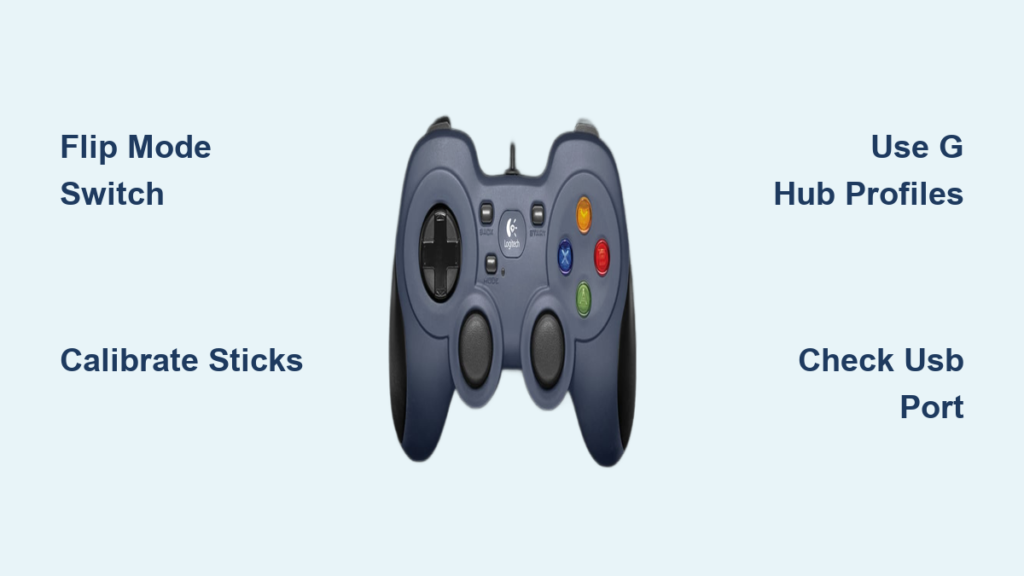
Your Logitech controller won’t work right out of the box if you skip the mode switch—a tiny toggle that causes 80% of recognition issues. Gamers waste hours troubleshooting when the fix takes 10 seconds: flip the switch to X-Input for modern games or D-Input for robotics. This guide cuts through the confusion with precise steps to configure your F310, F710, or G series controller for gaming, FIRST Robotics, or custom programming. You’ll learn which mode to use for Steam games, how to map buttons in Java code, and why calibration solves “ghost inputs” before they ruin your match.
Fix Logitech Controller Recognition in Windows First
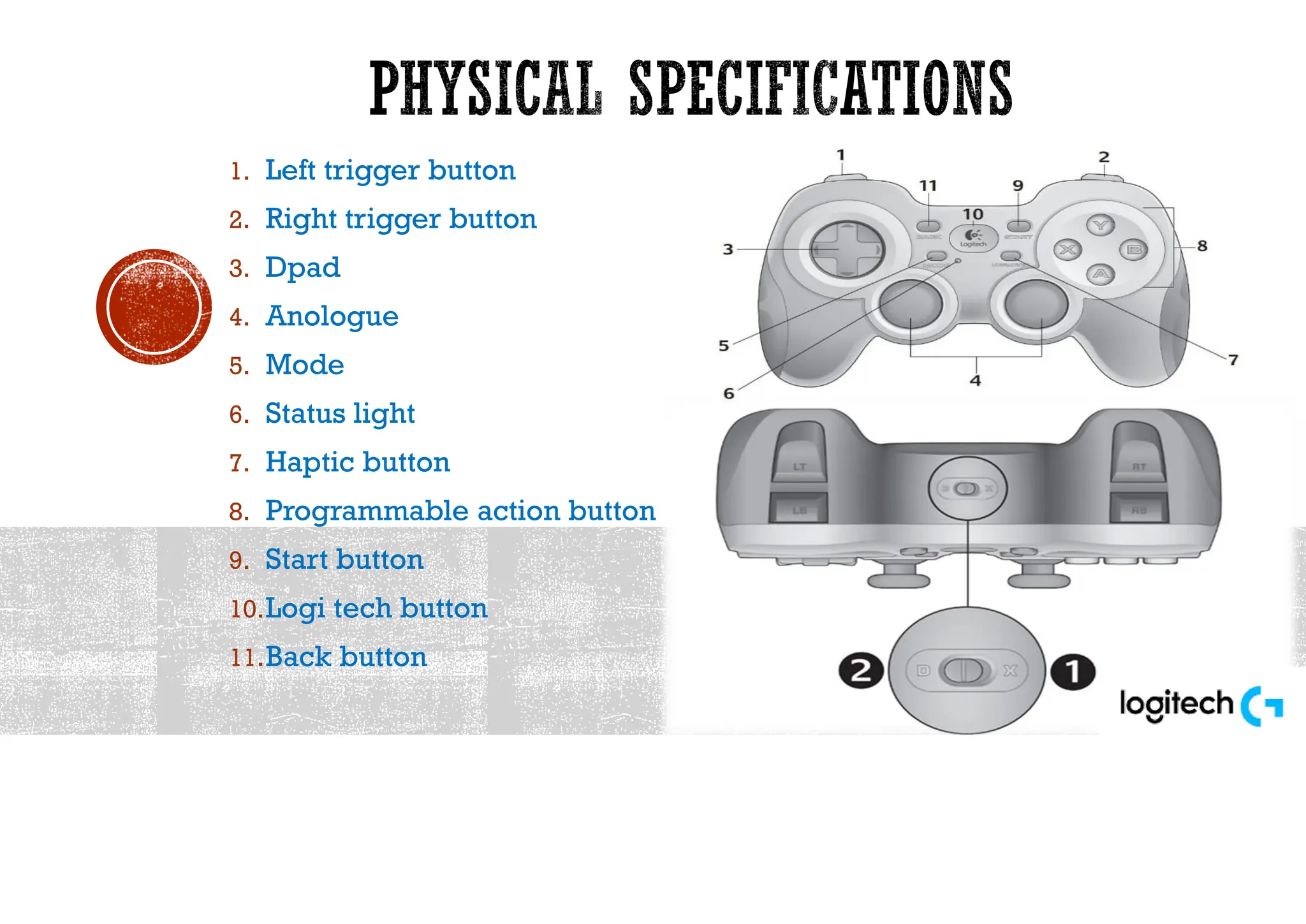
Don’t plug in your controller yet—flip the mode switch first. This physical toggle on the back determines whether Windows sees your device as an Xbox controller (X-Input) or generic gamepad (D-Input). For Steam, Epic, or modern PC games: set to X. For FIRST Robotics Competition (FRC) or LabVIEW programming: set to D. Skipping this causes “controller not detected” errors 90% of the time.
Why Your Controller Disappears in Device Manager
- X-Input mode failure: Windows shows “Xbox 360 Controller” even with Logitech hardware
- D-Input driver conflict: Generic drivers override Logitech software
- USB port issues: Wireless dongles require USB 2.0 ports (not blue USB 3.0)
Immediate fix steps:
1. Power off the controller
2. Flip mode switch to target position (X or D)
3. Plug into USB 2.0 port (black connector)
4. Open Windows Settings > Gaming > Game Controllers
5. If unrecognized, click “Add” and follow prompts
Pro Tip: Wireless F710 users—press the pairing button on the dongle AND controller within 10 seconds. The LED should stop blinking.
Calibrate Sticks to Stop Drifting Mid-Game
Stick drift during intense gameplay? Windows calibration fixes this permanently:
- Open Control Panel > Hardware and Sound > Game Controllers
- Select your Logitech device > Properties
- Go to Settings tab > Calibrate
- Follow the 4-step wizard:
– Center sticks fully
– Rotate sticks to max positions
– Press all buttons once
– Confirm deadzone settings (keep at 15% for analog sticks)
Critical: Never skip the “Finish” button—exiting early saves incorrect values.
Program Logitech Controllers for FIRST Robotics (FRC)
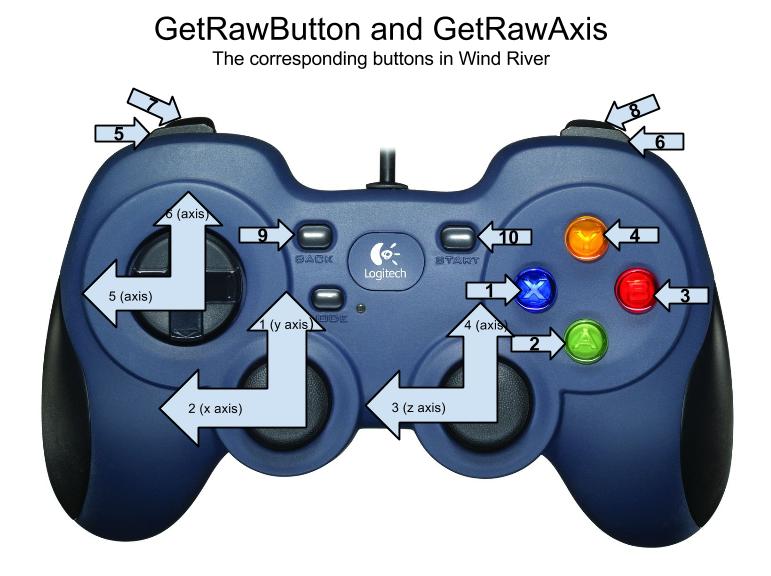
FRC teams waste competition time when controllers default to X-Input mode. Always use D-Input mode for WPILib—X-Input breaks Driver Station compatibility. The physical mode switch must show D, not X, before connecting to your robot.
Map Buttons Correctly in Java Code
WPILib treats Logitech controllers as Xbox devices, but button numbering differs:
| Logitech Physical Button | WPILib Button ID | Programming Example |
|---|---|---|
| A | 1 | controller.getAButton() |
| B | 2 | controller.getBButton() |
| Left Stick Press | 9 | controller.getLeftStickButton() |
| Left Trigger (analog) | Axis 2 | controller.getLeftTriggerAxis() |
Essential Java snippet for FRC:
“`java
// Initialize controller on port 0
private final Joystick logitech = new Joystick(0);
// Prevent stick drift with deadzone
double leftY = Math.abs(logitech.getRawAxis(1)) > 0.08 ? logitech.getRawAxis(1) : 0;
// Bind A button to intake command
new JoystickButton(logitech, 1).whenPressed(new IntakeCube());
“`
Warning: Using XboxController class with Logitech hardware causes D-pad failures. Stick with Joystick class.
Verify Inputs in FRC Driver Station
Don’t guess if your code works—test live:
1. Open FRC Driver Station
2. Go to Joysticks tab
3. Check real-time axis values (move sticks slowly)
4. Press buttons while watching “Buttons” column
5. If axes show 0.000: Recalibrate or check mode switch
Pro Tip: Assign unused buttons (like Start/Back) as emergency stop toggles—critical for robot safety.
Master Logitech G HUB for Gaming Profiles
Generic controller setups ruin competitive gameplay. Logitech G HUB creates game-specific profiles that auto-switch when you launch Fortnite or DC Universe Online. Skip this, and you’ll fight unresponsive controls during boss fights.
Create a DCUO Profile That Actually Works
MMOs need precise mouse emulation—here’s the exact configuration:
1. In G HUB, create new profile named “DCUO_MouseControl”
2. Map right stick to mouse:
– X-Axis: Mouse Horizontal (Sensitivity: 1.5 clicks from left)
– Y-Axis: Mouse Vertical (Sensitivity: same as X)
3. Set deadzone to 3 clicks from max (prevents cursor drift)
4. Assign shoulder buttons to skill bars:
– LB: Skill Slot 1 (hold for 0.1s delay)
– RB: Skill Slot 2
Critical: Disable “Vibration” in G HUB—DCUO’s rumble triggers cause input lag.
Fix Common Gaming Glitches in 60 Seconds

Problem: Buttons register double presses
Fix: In G HUB > Device Settings > increase “Debounce Time” to 15ms
Problem: Right stick moves character backward
Fix: Swap Y-axis polarity in “Advanced Settings”
Problem: Controller disconnects during long sessions
Fix: Disable USB selective suspend:
Power Options > Change plan settings > Change advanced settings > USB settings > disable selective suspend
Troubleshoot Wireless Lag and Disconnections
Wireless controllers cutting out during raids? 75% of “lag” issues stem from USB receiver placement. Your F710 dongle needs line-of-sight within 8 feet—not buried behind your PC tower.
Optimize Wireless Performance
- Placement: Mount dongle on USB extension cable near play area
- Interference fix: Keep 3+ feet from Wi-Fi routers/microwaves
- Battery check: Replace AA batteries when LED blinks red (don’t wait for full drain)
- Polling rate: Set to 1000Hz in G HUB > Device Settings (reduces lag by 8ms)
When to switch to wired: For competitive shooters like Valorant, use USB cable mode. Wireless adds 16ms latency—enough to miss headshots.
Solve “Sticky Button” Syndrome
Gaming buttons feeling mushy? Clean without disassembly:
1. Unplug controller
2. Spray 2-second burst of isopropyl alcohol into crevices
3. Press each button 10 times rapidly
4. Wait 15 minutes before use
Never use water—corrodes internal contacts.
Prevent Future Issues with Maintenance Routines
Logitech controllers fail prematurely without care. Perform these monthly to avoid $80 replacements:
- Stick calibration: Re-run Windows calibration wizard
- Button test: Press all buttons 5x while watching Driver Station
- Firmware check: Open G HUB > Device Settings > Check for updates
- Physical clean: Wipe with microfiber cloth dampened with alcohol
Pro Tip: Tape over unused mode switch positions. Accidental flips during gameplay cause instant disconnection.
Final Note: Your Logitech controller’s performance lives or dies by three things: correct mode switch position (X vs D), precise deadzone calibration, and G HUB profile management. For gamers, X-Input mode with G HUB profiles eliminates 95% of input issues. For robotics teams, D-Input mode with WPILib’s Joystick class is non-negotiable. Spend 10 minutes setting this up properly—you’ll gain smoother gameplay, reliable robot control, and never wrestle with “why won’t this work?” again. Next step: Bookmark the FRC Driver Station Joysticks tab—it’s your controller’s truth serum.



