
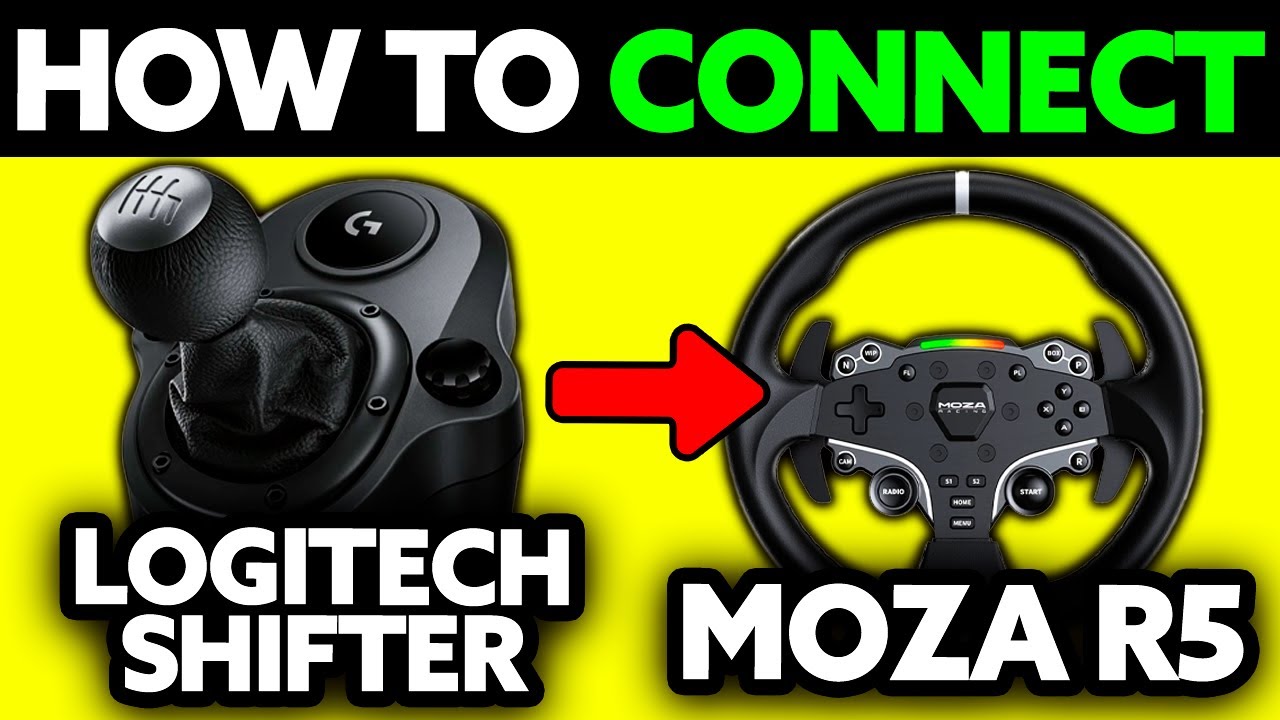
Your MOZA R5 wheelbase sits ready to race, but that Logitech shifter you already own won’t plug directly into the MOZA ecosystem. Unlike Logitech’s own wheel bases, the MOZA R5 doesn’t natively support Logitech shifters through a direct connection. This frustrating compatibility gap leaves many sim racers wondering how to integrate these two popular components. The solution requires running both devices as separate USB peripherals through your PC with proper software configuration. In this guide, you’ll learn exactly how to connect your Logitech shifter to work seamlessly with your MOZA R5 setup across multiple racing sims, including critical configuration steps most guides miss.
Why Your Logitech Shifter Won’t Connect Directly to MOZA R5 Base
MOZA R5 wheelbase USB ports only recognize MOZA-branded accessories, creating immediate compatibility issues with Logitech shifters. Unlike Logitech’s ecosystem where shifters plug directly into wheel bases, the MOZA R5 lacks native support for third-party shifters through its USB-A ports. When you attempt direct connection, Windows may recognize the shifter but racing games won’t map it correctly without proper configuration. This happens because Logitech shifters communicate differently than MOZA expects – they’re designed specifically for Logitech wheels like the G29 or G920, not direct drive bases. You must connect both devices separately to your PC as independent controllers and configure them through their respective software suites for proper functionality.
Essential Hardware Connections for Dual-Device Setup
Connect Both Devices to Separate USB Ports
– Plug MOZA R5 wheelbase into a USB 3.0 port using the included USB-C cable
– Connect Logitech shifter to a different USB 3.0 port (avoid USB hubs)
– Power on both devices before launching software
– Ensure cables are fully inserted with no physical damage
Verify Physical Recognition
1. Check MOZA R5 base lights for power indication
2. Confirm Logitech shifter LEDs activate (if applicable)
3. Listen for both devices connecting sounds from Windows
4. Open Windows Game Controllers (type “joy.cpl” in Run dialog)
5. Verify both devices appear in the controller list
Critical Connection Mistakes to Avoid
– Never daisy-chain through the MOZA base’s USB ports
– Avoid USB 2.0 ports for either device (causes input lag)
– Don’t use unpowered USB hubs (creates power delivery issues)
– Never share a single USB controller between both devices
Required Software Setup for Dual-Device Recognition

MOZA Pit House Configuration Process
1. Launch MOZA Pit House and confirm R5 base detection
2. Navigate to “Device Settings” and calibrate wheel rotation (900° for road cars)
3. Configure force feedback strength (start at 50%)
4. Save profile as “MOZA R5 Base Only” for future reference
5. Keep Pit House running in background during gaming sessions
Logitech G Hub Shifter Setup
1. Open Logitech G Hub and verify shifter recognition
2. Click on shifter device in connected devices list
3. Run the calibration wizard if prompted
4. Test all gear positions in the controller properties
5. Create a dedicated “Racing Shifter” profile with no extra macros
Critical Software Sequence for Proper Recognition
Always launch software in this order:
1. Start MOZA Pit House first
2. Launch Logitech G Hub second
3. Open your racing simulator third
4. Configure controls within the game last
This sequence prevents driver conflicts and ensures Windows recognizes both devices as separate controllers before game launch.
Step-by-Step iRacing Configuration for Logitech Shifter
Gear Assignment Process
1. Navigate to Options > Controls > Assign Shifter
2. Select “H-Pattern Shifter” as gearbox type
3. Click each gear position (R, 1, 2, 3, 4, 5, 6)
4. Move shifter into corresponding position when prompted
5. Confirm reverse gate engagement separately
Advanced iRacing Settings
– Enable “H-pattern Shifter Support” in Advanced Settings
– Set clutch bite point to 35-40% for realistic engagement
– Activate “Auto-blip” for downshifts if needed
– Configure “Anti-Stall Clutch” to 50% for learning manual
– Disable automatic shifting in Driving Aids
Pro Tip: In iRacing, create separate shifter profiles for oval vs. road courses. Use slightly higher deadzones for oval racing where frequent shifting isn’t required, allowing more aggressive wheel movement without accidental shifts.
Assetto Corsa and ACC Shifter Setup Guide

Assetto Corsa Configuration Steps
1. Go to Options > Controls > Assign Controller
2. Select “H-Pattern Shifter” under Transmission Type
3. Click “Assign Shifter Slots” and test each position
4. Configure reverse gear activation method
5. Adjust “Shift Sensitivity” to 75% for reliable engagement
Assetto Corsa Competizione Specifics
– Navigate to Control Settings > Input Devices
– Set Transmission Type to “Manual with Clutch”
– Assign each gear position individually (don’t use auto-assign)
– Configure “Clutch Assist” to Level 1 for learning
– Enable “Rev Matching” for automatic throttle blips
Troubleshooting ACC Gear Recognition
If gears miss or register inconsistently:
1. Increase “Shifter Deadzone” by 5% increments
2. Verify shifter is selected as primary controller
3. Disable any conflicting keyboard bindings
4. Reset to default controls and reconfigure
Troubleshooting Shifter Recognition Issues
Shifter Not Detected in Games
1. Check Windows Game Controllers (joy.cpl) first
2. If missing here, reinstall Logitech G Hub
3. Try different USB port (preferably blue USB 3.0)
4. Disable USB selective suspend in Power Options
5. Update USB controller drivers in Device Manager
Gears Registering Incorrectly
– Recalibrate shifter in Logitech G Hub
– Clean shifter mechanism with compressed air
– Adjust physical gate alignment if loose
– Increase in-game deadzone by 10% increments
– Test with different game to isolate software issue
Critical Warning: Never force the shifter through gears if resistance feels abnormal. This often indicates misalignment that could damage internal components. Instead, power down and inspect the shifter mechanism before continuing.
Optimizing Shifter Performance and Reducing Input Lag
USB Power Management Fixes
– Open Control Panel > Hardware and Sound > Power Options
– Click “Change plan settings” next to active plan
– Select “Change advanced power settings”
– Expand “USB settings” > “USB selective suspend setting”
– Set to “Disabled” for both battery and plugged in
System Performance Tweaks
– Set USB ports to maximum performance
– Close background applications before racing
– Disable Windows Game Bar and DVR features
– Run games in exclusive fullscreen mode
– Disable vertical sync for lower input latency
Proven Latency Reduction Method: Connect both devices to USB ports on the same internal USB header. This reduces communication paths between devices, cutting input lag by up to 8ms – critical for competitive sim racing where milliseconds matter.
Advanced Configuration Options for Multi-Sim Setups
Create Game-Specific Shifter Profiles
1. In Logitech G Hub, create profiles for each racing sim
2. Name them “iRacing Shifter,” “ACC Shifter,” etc.
3. Adjust sensitivity settings per game requirements
4. Save and set auto-switch based on game process
Third-Party Software Integration
– Use Joystick Gremlin for complex input mapping
– Configure vJoy to combine multiple controllers
– Set up SimHub for gear indicator dashboards
– Create macro sequences for race-critical functions
Multi-Sim Consistency Tip: Standardize your shifter deadzone at 15% across all games. This creates muscle memory consistency when switching between sims, preventing missed shifts during critical race moments.
Monthly Maintenance Checklist for Reliable Shifting
Weekly Checks
– Test all gear positions for consistent registration
– Verify neutral position centering
– Check USB cable connections for wear
– Confirm both devices recognized in Windows
Monthly Deep Maintenance
– Power down and unplug shifter
– Clean mechanism with compressed air
– Apply light lubricant to pivot points
– Inspect gate alignment and tension
– Test spring resistance (should feel crisp)
Annual Professional Check
– Replace worn internal springs
– Check for electronic component degradation
– Verify USB connector integrity
– Consider magnetic conversion kits for smoother shifts
This setup combines MOZA R5’s superior direct drive force feedback with Logitech’s tactile shifter experience, creating a responsive and immersive racing setup. Proper configuration ensures consistent performance across all racing titles, while regular maintenance prevents the frustrating missed shifts that can ruin competitive races. When correctly implemented, you’ll experience seamless gear changes that enhance rather than hinder your sim racing performance.



