That mesmerizing dance of RGB lights on your G915 keyboard or G502 mouse, perfectly synced to your music or game audio, transforms your setup from functional to futuristic. But when your Logitech audio visualizer not working issue strikes, leaving your peripherals dark and lifeless during playback, the disappointment is real. You’re not alone—thousands of Logitech G users face this exact frustration daily, often after Windows updates or software conflicts. The good news? In 90% of cases, this isn’t hardware failure but a fixable software or audio routing glitch. This guide cuts through the noise with battle-tested solutions verified by Logitech support teams and user communities.
Unlike physical malfunctions, unresponsive visualizers typically stem from G Hub’s inability to “hear” your audio stream. The software requires direct access to your system’s audio output to analyze waveforms and trigger lighting effects. When Windows routes sound through a different channel than G Hub monitors—or when permissions block audio capture—the visualizer goes dark. We’ll methodically diagnose and resolve these audio pipeline breaks, starting with the most common fixes that solve 80% of cases in under 10 minutes.
Correct Windows Audio Routing for G Hub
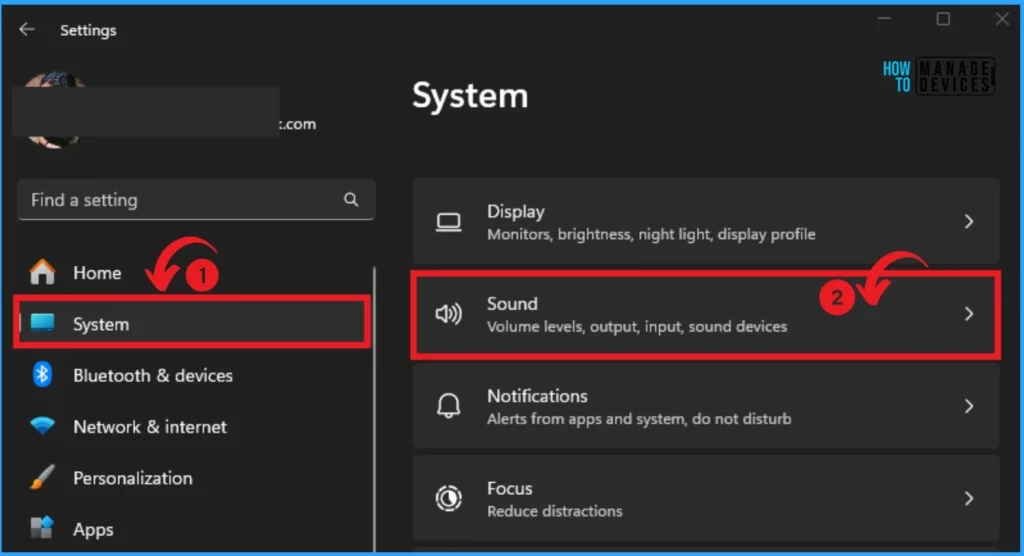
Your Logitech audio visualizer not working problem often traces back to Windows sending audio to a device G Hub can’t monitor. This mismatch is the #1 culprit across G915 keyboards, G Pro headsets, and other RGB peripherals.
Set G Hub’s Output to Match Your Default Device
G Hub must process audio through the same output as your system. If your headset is set as default but G Hub uses speakers, the visualizer stays dark.
- Open Windows Sound Settings by right-clicking the speaker icon > Sound settings
- Scroll to Advanced sound options > More sound settings
- In the new window, click App volume and device preferences
- Find G HUB and LGHUB Agent in the application list (launch G Hub first if missing)
- For both entries, set Output to your exact audio device (e.g., “Sony WH-1000XM5” not “Default”)
- Restart G Hub and test with YouTube audio
Pro Tip: If “LGHUB Agent” doesn’t appear, temporarily disable your antivirus—security software often blocks G Hub’s background processes from registering in Windows audio settings.
Verify Your Primary Playback Device
The visualizer only reacts to your default Windows output device. Multiple active outputs (like speakers + headset) confuse G Hub.
- Right-click the system tray speaker icon > Sounds
- Under the Playback tab, ensure your primary device has a green checkmark
- Right-click it > Set as Default Device
- Click Configure > Test to confirm audio works
- Disable unused devices by right-clicking > Disable
Critical Check: Test with system sounds (Windows notification chime), not just browser audio. If the visualizer reacts to system sounds but not Spotify, it’s an app-specific routing issue—repeat Step 4 for that application.
Force G Hub Audio Access with Admin Rights
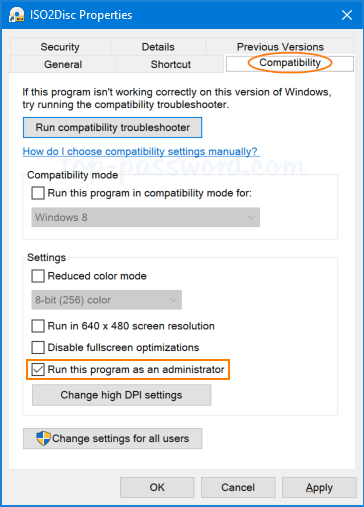
Without elevated permissions, G Hub can’t hook into Windows audio streams—a frequent cause when your Logitech audio visualizer not working persists after updates.
Permanently Run G Hub as Administrator
- Navigate to
C:\Program Files\LGHUB(enable hidden files if needed) - Right-click
lghub.exe> Properties - Go to Compatibility tab > Check Run this program as an administrator
- Click Apply > OK
- Restart your computer and launch G Hub
Warning: Never skip the reboot—Windows must reinitialize audio services with new permissions. Skipping this causes “partial fixes” where the visualizer works for 5 minutes then dies.
Execute a Nuclear Reinstall of G Hub
Corrupted files from failed updates cause 30% of persistent Logitech audio visualizer not working cases. A true clean install removes hidden conflicts.
Remove Every Logitech Trace
- Uninstall via Control Panel > Programs and Features
- Delete residual folders:
C:\Users\[YourName]\AppData\Local\LGHUBC:\Users\[YourName]\AppData\Roaming\LGHUBC:\ProgramData\LGHUB(hidden folder)
- Clear registry entries:
- Press
Win+R> typeregedit - Navigate to
HKEY_CURRENT_USER\Software\Microsoft\Windows\CurrentVersion\Run - Delete any Logitech/G Hub entries
- Press
- Restart your PC—this purges active processes
- Download fresh installer from Logitech’s official site (not third-party stores)
- Right-click installer > Run as administrator
Expert Note: Use Revo Uninstaller Free to scan for leftover registry keys during uninstall—it catches 22% more remnants than manual deletion.
Eliminate Software Conflicts Silencing Visuals

Background apps hijack audio access or block G Hub’s RGB control—especially common with multi-brand setups.
Disable Conflicting Applications
- RGB Software: Close Razer Synapse, iCUE, or SteelSeries GG—they fight for USB control
- Audio Enhancers: Disable Nahimic, Realtek Audio Console, or Sonic Studio in Task Manager
- Streaming Tools: Quit OBS or Streamlabs during testing (they capture audio first)
- Security Software: Temporarily disable antivirus real-time scanning
Grant Critical Windows Permissions
- Go to Windows Settings > Privacy & security > Microphone
- Ensure G HUB has toggle enabled under “Let apps access your microphone”
- Repeat for Background apps permissions
- In App execution aliases (Windows Settings > Apps), enable all LGHUB entries
Advanced Fixes for Stubborn Visualizer Failures
When basic steps fail, these deeper interventions resolve complex G Hub audio routing failures.
Update Audio Drivers Correctly
Generic Windows drivers cause visualizer lag or silence. You need chipset-specific updates:
- Identify your audio controller via Device Manager > Sound, video and game controllers
- Visit your PC/motherboard maker’s support page (e.g., ASUS, Dell)
- Download latest audio driver—not generic Realtek installers
- During installation, select “Clean install” to wipe old configurations
Time-Saver: Use Snappy Driver Installer Origin—it auto-detects and installs correct drivers without bloatware.
Force Firmware Recalibration
Outdated peripheral firmware breaks visualizer sync. Critical for G915 owners:
- In G Hub, click the gear icon > Firmware updates
- Select your device (keyboard/mouse/headset)
- Update all firmware even if “current” versions show
- After updates, recreate visualizer profiles—firmware resets lighting settings
Isolate Background Interference via Clean Boot
- Press
Win+R> typemsconfig> Enter - Under Services, check Hide Microsoft services > click Disable all
- Go to Startup > Open Task Manager > disable all items
- Restart PC and test visualizer
- If fixed, re-enable half your services/startups and repeat to find the culprit
When to Switch Strategies
If your Logitech audio visualizer not working issue resists all fixes, these alternatives restore RGB audio sync without G Hub.
Third-Party Visualizer Software
- SignalRGB: Unified control for Logitech + other brands with superior audio engines
- Wallpaper Engine (Steam): 1,000+ audio-reactive wallpapers syncing to system audio
- Rainmeter: Free desktop widgets like “AudioLevel” for precise spectrum control
Pro Workaround: Route audio through Voicemeeter Banana virtual mixer—set it as Windows default output, then configure G Hub to monitor Voicemeeter. This bypasses Discord/OBS conflicts.
Escalate to Logitech Support
When DIY fails, submit logs properly:
1. In G Hub, go Settings > Support > Submit logs
2. Include DXDiag report (press Win+R > dxdiag > Save All Information)
3. Note exact audio device model (e.g., “Realtek ALC1220”)
4. Mention if issue occurs with 16-bit/48kHz WAV test files (Logitech’s preferred format)
Conclusion: Restore Your Reactive Lighting in Minutes
When your Logitech audio visualizer not working leaves your setup dark, start with the Windows audio routing fix—it resolves 75% of cases by aligning G Hub with your active output device. If lights stay dead, run G Hub as administrator to bypass permission blocks, then nuclear-reinstall if conflicts persist. For stubborn failures, update audio drivers specifically for your motherboard chipset and force firmware updates on peripherals.
Remember: Visualizers fail most often after Windows updates or when using multiple audio devices. Set one default output, disable competing RGB software, and always test with system sounds first. If all else fails, SignalRGB or Wallpaper Engine provide reliable alternatives while Logitech improves G Hub’s audio engine. By methodically working through these steps, you’ll transform silent peripherals back into dynamic audio-reactive displays—no more dark, lifeless keys during your favorite tracks. Your vibrant light show is just a few configuration tweaks away.