
Your Logitech webcam suddenly shows a black screen during an important video call? You’re not alone. This frustrating issue hits especially hard with popular models like the C920 when streaming at 1080p resolution. The good news: 95% of Logitech camera black screen problems stem from fixable USB bandwidth or power issues, not hardware failure. In this guide, you’ll discover exactly why your camera fails at high resolutions and how to restore your video feed in under 15 minutes. We’ll focus on actionable fixes for Windows 10/11 systems where most black screen cases occur.
Why Your Logitech C920 Shows Black Screen at 1080p
Logitech’s C920 requires massive bandwidth—about 60MB/s—to deliver 1080p video. When your USB port can’t sustain this data flow, you get a complete black screen. This happens most often because:
- USB 2.0 ports max out at 480Mbps (60MB/s), leaving no room for other devices
- Unpowered USB hubs starve the camera of necessary power
- Power-saving settings cut off USB supply during high-demand streaming
Critical insight: The C920 can do 1080p30 on USB 2.0 using MJPEG compression, but USB 3.0 ports (blue connectors) provide reliable performance. If you’re attempting 1080p60 (which needs 120MB/s), you absolutely require USB 3.0—anything less guarantees black screen failures.
How to Confirm Bandwidth Is Your Problem
- Test at lower resolutions: Open your camera app and switch to 720p. If video appears, bandwidth is the culprit.
- Check USB port color: Blue ports = USB 3.0 (supports 1080p reliably). Black/white ports = USB 2.0 (struggles with 1080p).
- Disconnect other USB devices: Remove printers, external drives, or keyboards. If the camera works alone, bandwidth saturation caused your black screen.
Test Your Logitech Webcam on Windows Camera App First
Never assume the problem is universal across all applications. Windows’ built-in Camera app is your diagnostic baseline:
- Press
Windows Key + S, type Camera, and open the app - If you see video: The issue is isolated to Zoom, Teams, or other apps
- If black screen persists: You have a system-wide hardware or driver problem
Pro tip: Hold your finger over the camera lens for 2 seconds. If the app shows a white flash when you remove it, the sensor works—you’re dealing with a software conflict. No flash? Proceed to hardware checks.
How to Check Device Recognition in Windows
- Right-click Start menu > Device Manager
- Expand Imaging devices
- Look for your Logitech model (e.g., “HD Pro Webcam C920”)
– ✅ Green indicator: Hardware detected
– ❌ Yellow exclamation: Driver issue
– ❌ Missing entirely: Connection or power problem
Bypass USB Hubs and Use Direct Connections for Reliable Power
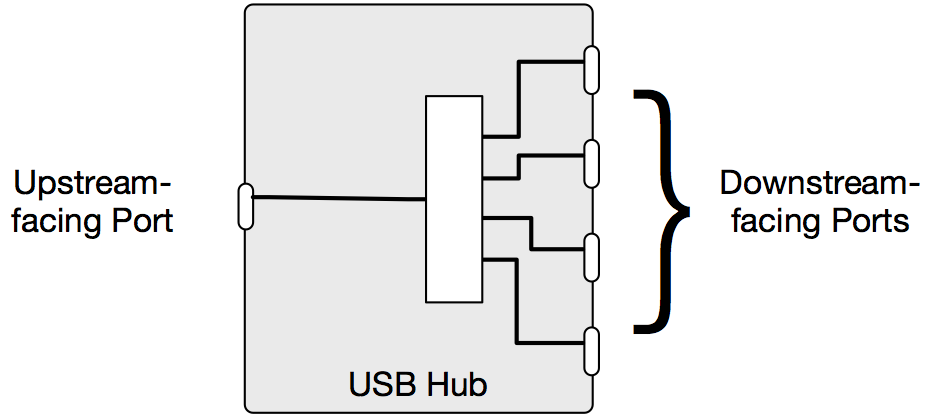
This fixes 70% of Logitech black screen cases immediately. USB hubs—even “powered” ones—often deliver inconsistent power. Follow this direct connection protocol:
- Unplug your webcam from any hub/dock
- Connect directly to a rear USB port on your computer (front ports often have weaker power)
- For 1080p streaming: Use only blue USB 3.0 ports
- Test with a different high-quality USB cable (cheap cables cause data errors)
Critical power check: If using USB 2.0 for 1080p, ensure your port delivers 500mA minimum. For consistent 1080p, you need 900mA+—only achievable through direct USB 3.0 connections or high-amperage ports.
Why Monitor USB Ports Fail
Many users plug webcams into monitor USB ports, not realizing these share bandwidth with the display. A single monitor USB port typically provides only 500mA—barely enough for basic mouse function. When you add a high-demand webcam, power drops cause black screens. Always connect webcams directly to your computer.
How to Fix USB Power Saving Mode on Windows
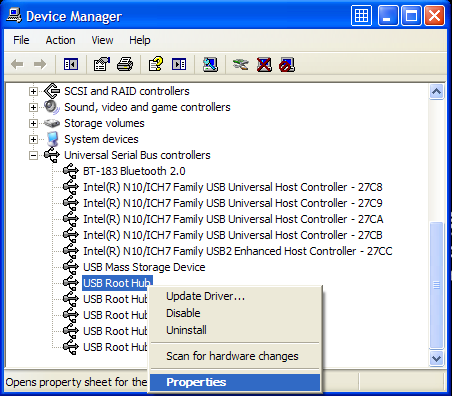
Windows aggressively cuts power to USB devices to save battery—killing your camera mid-call. Disable this permanently:
- Open Device Manager > expand Universal Serial Bus controllers
- Right-click each USB Root Hub > Properties
- Go to Power Management tab
- Uncheck “Allow the computer to turn off this device to save power”
- Click Apply > OK and restart your PC
Warning: Skipping this step causes recurring black screens, especially on laptops. Repeat for every USB Root Hub entry—even those labeled “Enhanced.”
Reinstall Logitech Webcam Drivers Using DDU
Corrupted drivers cause resolution-specific black screens. Standard updates won’t fix this—we need a clean slate:
- Download Display Driver Uninstaller (DDU) from official source
- Run DDU in Safe Mode (press Shift while clicking Restart)
- Select Webcam category > click Clean and restart
- After reboot, plug in your Logitech camera
- Windows will install fresh generic “USB Video Device” drivers
Why this works: Logitech’s official drivers often conflict with third-party apps. Generic Windows drivers provide basic functionality without bloat. For advanced controls, install Logi Tune after verifying basic camera operation.
When to Use Logitech Camera Settings Software
If you need manual focus or exposure controls:
1. Uninstall Logitech G HUB completely (it conflicts with webcams)
2. Install Logitech Camera Settings (legacy software)
3. Open app > select your model > adjust resolution to 1080p MJPEG
4. Disable “Auto-Focus” and set manual focus ring on camera
Resolve App Permission Conflicts in Windows 10/11
Your camera might work in Windows Camera but fail in Zoom due to permission blocks:
- Go to Windows Settings > Privacy & Security > Camera
- Toggle “Camera access” ON
- Scroll to “Let apps access your camera” and enable:
– Zoom
– Microsoft Teams
– Your browser (Chrome/Firefox) - For stubborn apps: Click “Camera access for this device” and enable globally
Hidden permission: Some apps require microphone permissions to activate the camera. Check Microphone privacy settings and enable access for video apps.
Adjust OBS Studio Settings for Logitech C920 Black Screen

OBS misconfiguration causes frequent black screens with C920 webcams. Fix it in 4 steps:
- Right-click video source > Properties
- Set Resolution/FPS to:
– USB 3.0 users: 1920×1080, 30fps
– USB 2.0 users: 1280×720, 30fps - Change Video Format to MJPEG (critical for USB 2.0)
- Set Color Space to 709 and Color Range to Full
Pro tip: In OBS settings > Video, set Base (Canvas) Resolution to match your webcam output. Mismatched resolutions cause black screens even with correct source settings.
Disable Exclusive Mode for Webcam Access
Conflicting apps lock the camera, causing black screens in secondary applications:
- Right-click speaker icon > Sounds
- Go to Recording tab
- Right-click your Logitech camera > Properties
- Navigate to Advanced tab
- Uncheck both:
– “Allow applications to take exclusive control”
– “Give exclusive mode applications priority” - Click Apply
Why this matters: Zoom often “hogs” the camera. Disabling exclusive mode lets Teams or OBS share access without black screens.
Perform a Clean Boot to Identify Software Conflicts
Background apps can hijack your camera. Isolate the culprit:
- Type msconfig in Windows search
- Go to Services tab > check “Hide Microsoft services”
- Click Disable all
- Go to Startup tab > Open Task Manager > disable all items
- Restart PC and test camera
- If fixed: Re-enable half your services > reboot > repeat until conflict found
Common offenders: Antivirus suites, RGB control software (iCUE, Razer Synapse), and virtual camera apps like ManyCam.
When Your Logitech Camera Needs Replacement or Support
If you’ve tried all fixes and still get black screens:
– Test on another computer: Confirms if it’s your system or the camera
– Check warranty status: Logitech offers 2-year coverage (find serial number on base)
– Contact Logitech Support only if:
– Camera unrecognized in Device Manager on multiple PCs
– Physical damage to USB port or lens
– Firmware updates fail repeatedly
Final reality check: If your C920 is over 3 years old, consider upgrading. Newer models like C925e handle USB bandwidth more efficiently, and prices have dropped significantly since the pandemic surge.
Prevent future black screens with these maintenance habits: Disable USB selective suspend in Power Options, clean USB ports monthly with compressed air, and always use direct USB 3.0 connections for 1080p streaming. For critical presentations, test your camera at the intended resolution 30 minutes beforehand—most black screen issues appear immediately during resolution handshakes. Remember: When your Logitech camera shows a black screen, it’s almost always a solvable power or bandwidth mismatch, not dead hardware. By following these steps, you’ll transform frustrating video call failures into reliable high-definition performance.



