Your Logitech keyboard’s F1-F12 keys have suddenly stopped working during a critical moment—maybe F5 won’t refresh your browser, F10 can’t open developer tools, or presentation shortcuts have failed mid-meeting. This common frustration affects thousands of Logitech users monthly, especially after Windows updates or software conflicts. Don’t panic: 90% of these issues stem from simple software misconfigurations or connection problems rather than hardware failure. In this guide, you’ll discover exactly why your Logitech F keys aren’t responding and proven fixes to restore full functionality—whether you’re using an MX Keys, G915, K380, or any other Logitech model. You’ll learn to diagnose hardware versus software causes, reset keyboard firmware, and prevent future meltdowns.
Confirm If It’s Hardware or Software Sabotaging Your F Keys
Before wasting hours on complex fixes, pinpoint whether your Logitech function keys issue originates from hardware or software. This 60-second diagnostic prevents unnecessary driver reinstallations or software tweaks. Start by connecting your keyboard to another computer—if the F keys work there, your main PC’s settings are the culprit. Next, open Windows’ On-Screen Keyboard (press Win + Ctrl + O or search “On-Screen Keyboard”) and press physical F keys while watching the virtual display. If keys register virtually but not in apps, it’s a software conflict. Finally, test F keys across different programs: if F11 enters full-screen in your browser but F12 won’t open DevTools in VS Code, that specific application is overriding default behavior. Critical red flag: If multiple F keys fail in the On-Screen Keyboard test, skip software fixes and jump to hardware reset procedures.
Why Your Logitech F Keys Work in Some Apps But Not Others
Application-specific F key failures usually mean software hijacking. Common offenders include:
– Remote desktop tools like TeamViewer or Synergy intercepting function keys for host control
– Game launchers (Steam, Epic) reserving F keys for in-game overlays
– Macro utilities such as AutoHotkey remapping keys without notification
– Creative software (Adobe Suite, DaVinci Resolve) using F keys for tool shortcuts
Temporarily disable these applications through Task Manager > Startup tab. If F keys work after disabling a specific app, adjust that program’s keyboard settings—most allow you to disable global hotkey capture.
Fix Logitech Wireless Connection Failures Causing Dead F Keys
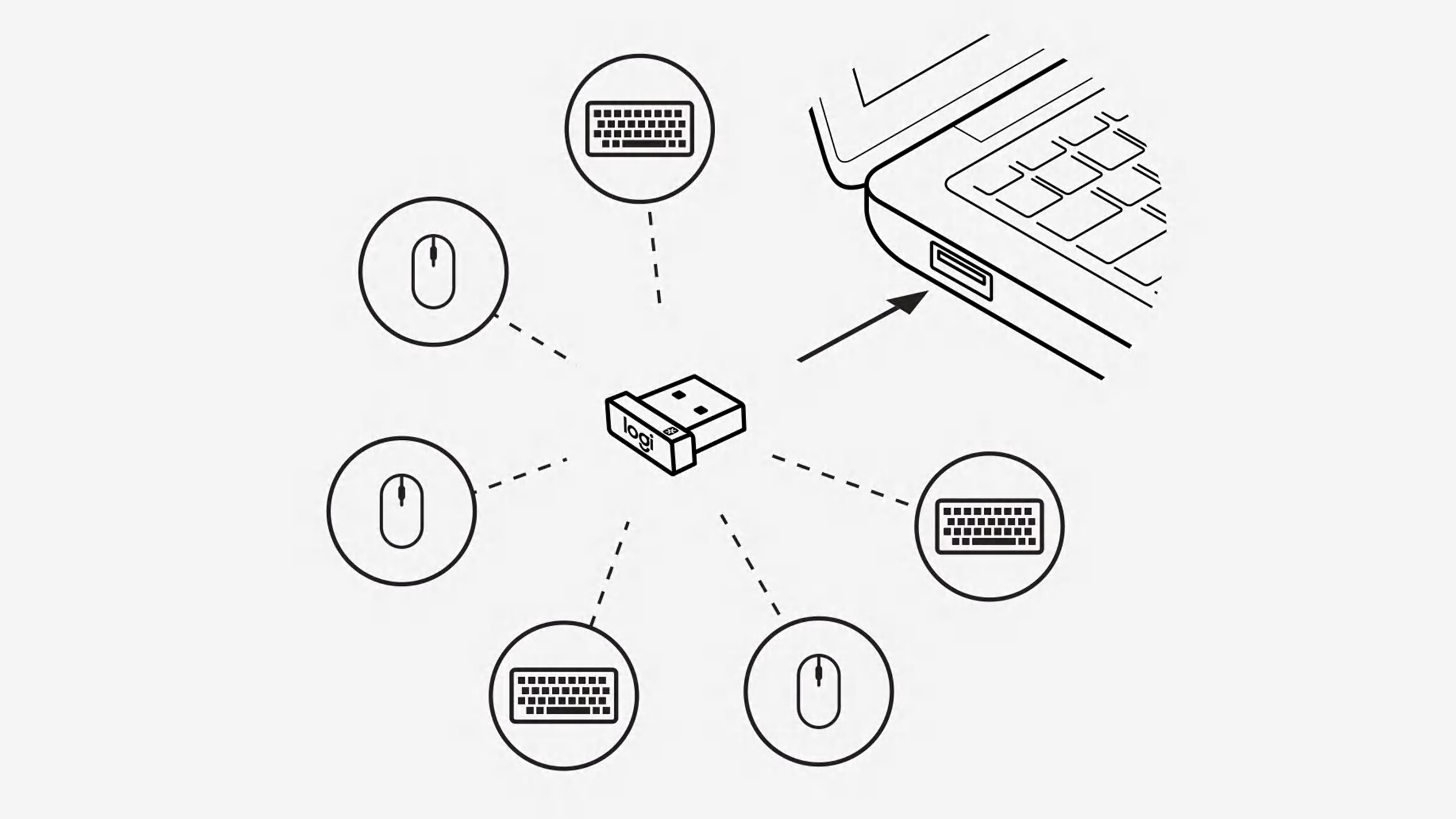
Wireless interference or power-saving settings frequently disrupt Logitech function keys. Begin by checking your keyboard’s battery level—low power often causes partial key failure (like only F1-F6 working). For rechargeable models like the MX Mechanical, plug in the USB-C cable even if showing partial charge; unstable power delivery cripples wireless transmission. Replace batteries in older models like the K750 immediately if below 20%. Crucially, never use USB hubs or docking stations for the Logi Bolt receiver—connect directly to a rear PC port. If using Bluetooth, toggle airplane mode on/off to reset the connection, then re-pair through Windows Settings > Bluetooth. For persistent issues, disable USB selective suspend: Open Device Manager > expand “Keyboards” > right-click your Logitech device > Properties > Power Management > uncheck “Allow computer to turn off this device.”
How to Force-Repair Your Logitech USB Receiver Connection
When F keys work intermittently, corrupted pairing data is likely. Unplug the USB receiver, then hold down the keyboard’s Connect button (usually on the bottom) for 10 seconds. Reinsert the receiver while still holding Connect—your keyboard should flash rapidly during re-pairing. For multi-device keyboards like the MX Anywhere 3, press the device number button (1-3) before reconnecting to ensure correct channel assignment.
Reset Logitech F Key Behavior Using Hardware Shortcuts
Your Logitech function keys might be locked in “media key mode” instead of standard F1-F12 operation—a common trap after accidental key presses. Immediately try Fn + Esc—this universal toggle switches between media controls (volume/brightness) and traditional function keys on nearly all Logitech models. If that fails, locate your keyboard’s dedicated F Lock key (often near the top-right numeric pad on full-size keyboards). Press it once; many users accidentally activate this during cleaning. For compact keyboards like the K380 without F Lock, hold Fn + Caps Lock for 3 seconds to reset key mapping. These hardware resets bypass software entirely and work even when drivers fail.
Model-Specific Logitech F Key Reset Procedures
Different keyboards require unique reset sequences when Fn + Esc fails:
– MX Keys/MX Mechanical: Hold Esc + O for 3 seconds, then press R to reset Bluetooth pairing
– G Pro Wireless: Press and hold G1 + G5 + Scroll Lock for 5 seconds
– K780: Press Fn + F8 until the status light blinks
– Wireless Combo MK270: Unplug receiver, hold F12 for 10 seconds, then reconnect
Always consult Logitech’s support site for your exact model number (found on the bottom label)—reset procedures vary significantly between business and gaming lines.
Repair Corrupted Logitech F Key Drivers Without Reinstalling
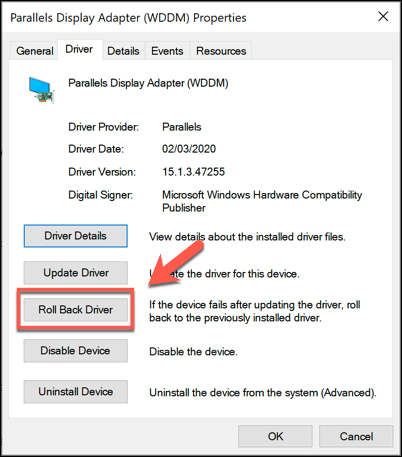
Outdated drivers frequently cripple function keys after Windows updates. Instead of full reinstallation—which deletes custom profiles—perform a targeted driver refresh. Press Win + X and select Device Manager, then expand “Keyboards.” Right-click your Logitech device and choose Update driver > “Search automatically.” If Windows claims drivers are current, click Properties > Driver tab > Roll Back Driver if available (useful after problematic updates). For deeper fixes, run sfc /scannow in Command Prompt (Admin) to repair system file corruption affecting keyboard functionality. Never uninstall drivers unless absolutely necessary—this forces Windows to use generic drivers that ignore Logitech’s F key mappings.
Disable Windows Accessibility Features Blocking F Keys
Windows’ accessibility tools often sabotage Logitech function keys without warning. Navigate to Settings > Accessibility > Keyboard and verify these critical toggles are OFF:
– Sticky Keys (intercepts sequential key presses like Fn + F1)
– Filter Keys (ignores “rapid” keystrokes including F key combos)
– Toggle Keys (emits sounds that disrupt key registration)
These features activate accidentally when Shift is held for 5+ seconds—a common occurrence during intense typing. If you need accessibility tools, configure them in Settings > Accessibility > Keyboard > Advanced keyboard settings to exclude function keys.
Update Logitech Firmware to Fix F Key Glitches
Firmware bugs silently break F key functionality—especially after major Windows updates. Open Logitech Options+ or G HUB, select your keyboard, and click the gear icon (Settings). Under Device Settings, check for firmware updates; if available, install immediately. Critical step: After updating, click Reset to Default Layout in the same menu—this clears corrupted key mappings without deleting your profiles. For keyboards without onboard memory (like the K580), also reset the Default Profile to factory F key assignments. Never skip firmware updates; Logitech frequently patches F key-specific bugs in releases like the MX Keys S firmware v2.43.121.
Bypass Software Conflicts Hijacking Your F Keys
Background applications are the #1 cause of selective F key failure. Launch Task Manager > Startup and disable non-essential items—particularly:
– Other peripheral software (Razer Synapse, Corsair iCUE)
– Screen capture tools (OBS Studio, NVIDIA ShadowPlay)
– Remote access apps (AnyDesk, Chrome Remote Desktop)
– Input enhancers (SharpKeys, KeyTweak)
Test F keys after each disablement. For stubborn conflicts, boot into Safe Mode with Networking (hold Shift while clicking Restart). If F keys work here, a startup program is the culprit. Use msconfig to perform a clean boot and isolate the offender.
When to Contact Logitech Support for Dead F Keys
If all fixes fail and specific F keys remain unresponsive (confirmed via Keyboard Tester), hardware failure is likely. Immediately check warranty status—Logitech covers most keyboards for 1-3 years. Gather these details before contacting support:
– Exact model number (e.g., 920-009048 for MX Keys S)
– Serial number (bottom of keyboard)
– Video demonstrating the issue
– Summary of all troubleshooting steps attempted
Logitech often provides RMA replacements within 48 hours for under-warranty units. For out-of-warranty keyboards, request a repair quote—but consider replacement if >2 years old, as switch mechanisms degrade over time.
Pro Prevention Tactics to Avoid Future F Key Failures
- Create hardware profiles: In Logitech Options+, save F key layouts to keyboard memory (available on MX Master 3S, G915)
- Disable Fast Startup: Control Panel > Power Options > “Choose what power buttons do” > uncheck “Turn on fast startup”
- Use dedicated USB ports: Assign one rear port exclusively for your Logitech receiver
- Monthly maintenance: Run firmware updates every 30 days via Logitech software
Most Logitech F key issues resolve with the Fn + Esc toggle or a firmware update—yet users waste hours on unnecessary repairs. By methodically isolating hardware versus software causes using these targeted fixes, you’ll restore full F1-F12 functionality in under 10 minutes. When F5 finally refreshes your browser without a hitch, you’ll wonder why you ever doubted your Logitech keyboard. For persistent problems, Logitech’s replacement process moves faster than chasing phantom software conflicts—don’t hesitate to leverage that warranty.