
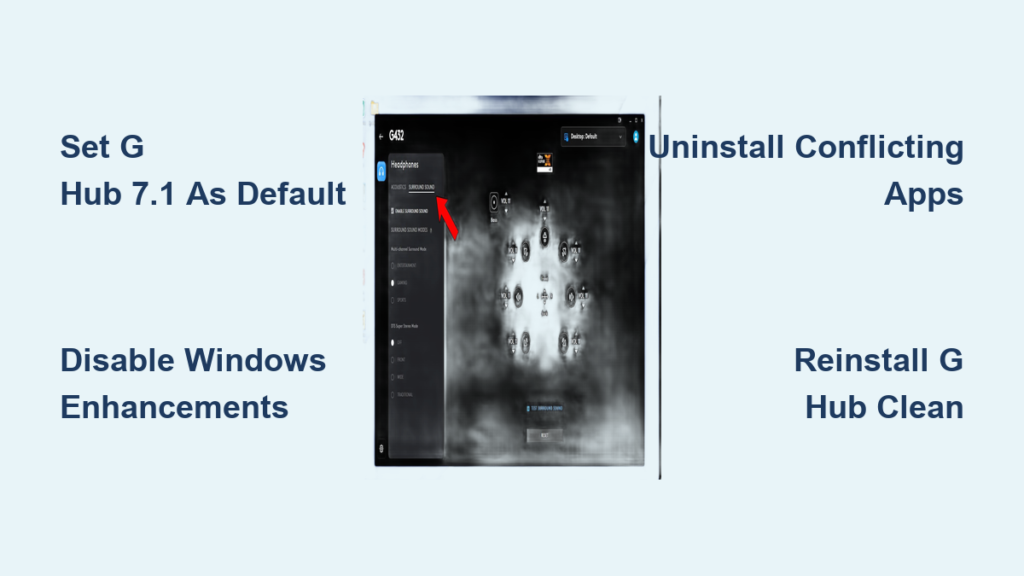
Your Logitech gaming headset suddenly pumping out flat stereo sound instead of immersive 7.1 surround? You’re not imagining it – when Logitech G Hub surround sound stops working, that rich directional audio crucial for competitive gaming and cinematic experiences vanishes without warning. Many G Pro X, G933, and G535 owners face this exact frustration where explosions no longer echo from behind or footsteps lose positional accuracy. The culprit usually isn’t your expensive headset but preventable software conflicts or misconfigurations. This guide delivers battle-tested fixes to restore true 7.1 audio processing in under 15 minutes.
This widespread issue typically strikes after Windows updates, driver changes, or when competing audio software hijacks control. Crucially, G Hub’s virtual surround relies on a specific audio pathway – when Windows defaults back to your physical headset instead of the “G HUB 7.1 Surround” virtual device, stereo sound takes over. We’ll diagnose whether your problem stems from third-party app clashes, corrupted profiles, or simple setting missteps. Follow these proven steps in order to systematically eliminate each failure point and reclaim your immersive audio experience.
Force Windows to Use G HUB 7.1 Virtual Device

The most frequent cause of Logitech G Hub surround sound not working is Windows silently switching audio output to your physical headset instead of the virtual 7.1 processor. This bypasses all surround processing, forcing stereo output even when G Hub shows surround as “active.”
Set G HUB 7.1 as Default Playback Device
- Right-click the speaker icon in your taskbar and select Sounds
- Navigate to the Playback tab
- Locate G HUB 7.1 Surround Sound (may appear as “G HUB Audio” or similar)
- Right-click it and choose Set as Default Device → Click OK
Pro Tip: If you don’t see this option, your G Hub installation is likely corrupted – skip to the clean reinstall section. This virtual device is mandatory for 7.1 processing; without it selected, G Hub can’t apply surround effects regardless of software settings.
Disable Conflicting Windows Audio Enhancements
Windows’ own audio processing sabotages G Hub’s surround engine when enhancements are enabled:
1. With G HUB 7.1 selected in Playback devices, click Properties
2. Go to the Advanced tab
3. Uncheck “Enable audio enhancements” and “Allow applications to take exclusive control”
4. Click Apply → OK
Why this works: Windows Sonic or Dolby Atmos settings in the Spatial Sound tab override G Hub. Disabling these ensures no competing spatial processing occurs. Always verify this setting after Windows updates – they frequently re-enable enhancements.
Reset G Hub’s Audio Engine
A quick software refresh often resolves temporary glitches:
1. Open Logitech G Hub
2. Click your headset image → Find the Surround Sound toggle
3. If enabled, turn it OFF → Wait 10 seconds → Toggle ON again
4. Restart G Hub completely if the issue persists
Critical Note: If surround deactivates again after restarting G Hub, you likely have a profile corruption issue requiring deeper fixes. Persistent toggling problems indicate software conflict.
Eliminate Third-Party Audio Software Conflicts
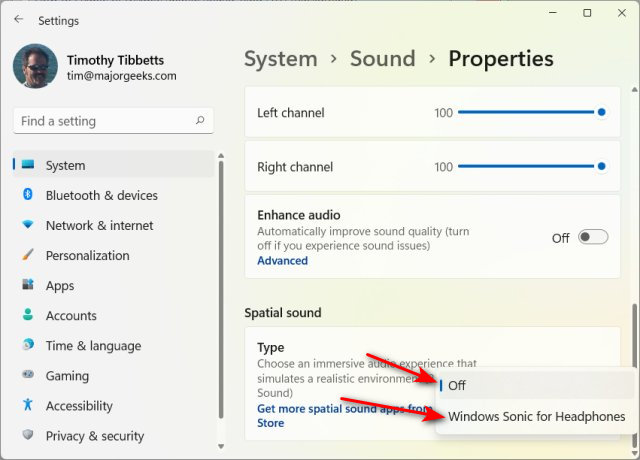
Competing spatial audio apps are the #1 cause of Logitech G Hub surround sound failures. Dolby Access, DTS Sound Unbound, or even Windows Sonic actively block G Hub’s processing when active.
Disable Windows Spatial Sound Features
- Right-click taskbar speaker icon → Sounds → Playback tab
- Right-click your physical headset (e.g., “G Pro X”) → Properties
- Go to Spatial sound tab → Set dropdown to Off
- Navigate to Enhancements tab → Check Disable all sound effects → OK
Warning: If “Dolby Atmos for Headphones” or “Windows Sonic” appears here, it’s actively hijacking audio. Setting to “Off” forces Windows to route cleanly to G Hub’s processor. Never enable multiple spatial sound technologies simultaneously.
Uninstall Competing Audio Applications
- Press Windows + I → Apps → Apps & features
- Uninstall any of these:
– Dolby Access / Dolby Atmos for Headphones
– DTS Sound Unbound
– Realtek Audio Console (if causing conflicts) - Restart your PC after each removal
- Test surround sound in G Hub after each uninstall
Pro Tip: For Dolby issues, completely remove the Dolby Access app from Microsoft Store AND the Dolby Atmos integration in Windows Sound settings. Partial removals often leave background processes active.
Perform a Deep G Hub Reinstallation
When basic fixes fail, corrupted files or profiles are likely blocking surround processing. A surgical reinstall removes hidden conflicts.
Execute a Clean G Hub Uninstall
- Download Logitech’s official G Hub Uninstaller from support site
- Run as administrator → Follow prompts to remove all components
- Press Windows + R → Type
%appdata%→ Delete lghub and LGHUB folders - Repeat for
%programdata%and%localappdata% - Restart your PC
Why standard uninstall fails: Registry entries and hidden profile folders persist, causing “ghost conflicts” that break 7.1 processing. The dedicated uninstaller eradicates these remnants.
Reinstall with Correct Permissions
- Download latest G Hub installer directly from Logitech
- Right-click installer → Run as administrator
- During install, disable all antivirus/firewall temporarily
- After installation, restart again before testing
Key Insight: Antivirus often blocks critical audio service files during install. Running as admin ensures proper driver registration. Always reinstall headsets while connected via USB (not Bluetooth) for firmware recognition.
Fix Game-Specific Surround Sound Failures

Some titles like Fortnite or Call of Duty require explicit 7.1 configuration within the game itself, regardless of G Hub settings.
Configure In-Game Audio Outputs
- Launch the problematic game → Navigate to Audio Settings
- Locate Audio Output or Speaker Configuration
- Change from Stereo to 7.1 Surround or Home Theater
- Set Windows audio output to G HUB 7.1 Surround in game properties
Critical Timing: For many games (e.g., CS2), you must set 7.1 output before launching. Changing mid-session rarely applies correctly. If audio remains stereo, verify the game’s audio engine supports virtual surround.
Resolve App-Specific Audio Routing Issues
Discord, Zoom, and media players often default to stereo outputs, breaking surround immersion during streams or calls.
Configure Communication Apps Correctly
In Discord:
1. Go to User Settings → Voice & Video
2. Under Audio Subsystem, switch from Standard to Legacy
3. Set Output Device to G HUB 7.1 Surround Sound
In OBS:
1. Settings → Audio → Set Desktop Audio Device to G HUB 7.1
2. Disable “Stereo Mix” if enabled in Windows Sound settings
Pro Tip: For YouTube/Netflix audio issues, these services stream stereo content that G Hub can’t magically convert to 7.1. Surround only activates for native multi-channel audio sources.
Emergency Fixes for Critical Audio Failures
When standard solutions fail, these targeted interventions resolve severe cases:
- Single-ear audio failure: Open G Hub → Headset settings → Balance slider. Reset to center (50/50). Accidental extreme balancing disables center channels, mimicking surround failure.
- “Mono” audio collapse: Disable all Windows enhancements → Toggle G Hub surround off/on → Restart G Hub service via Task Manager.
- Mic/surround conflict: In G Hub → Microphone settings → Set input to Default Device (not “Stereo Mix”).
If all steps fail after 20 minutes of troubleshooting, your headset may have hardware-related audio processing faults. Contact Logitech support with your model number (e.g., G935) – they often replace units within warranty when firmware updates fail. For immediate immersion, use G Hub’s built-in EQ to simulate directional audio until repairs complete. Remember: persistent Logitech G Hub surround sound not working issues almost always stem from software conflicts, not broken hardware – systematic diagnosis always wins.



