
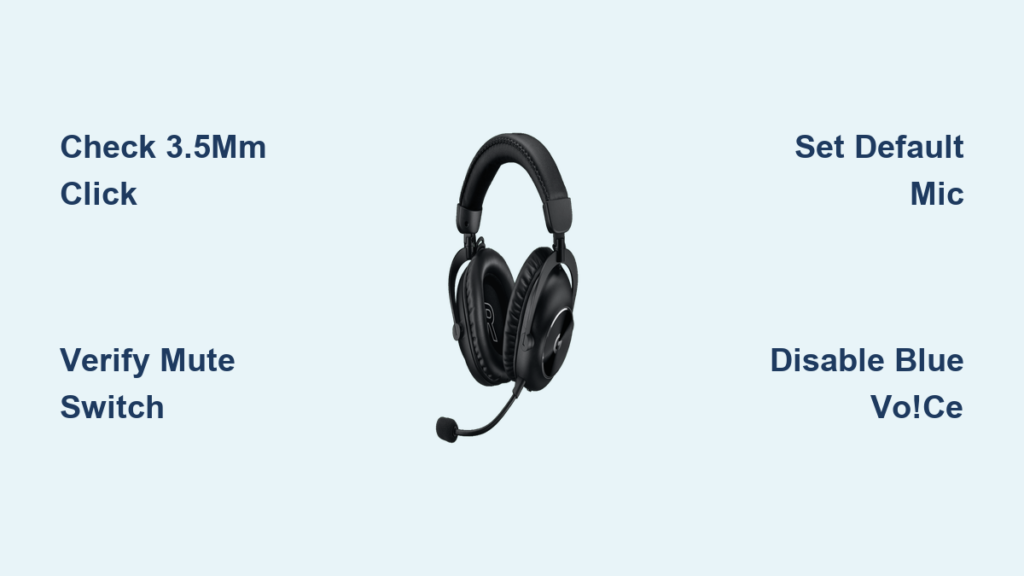
Your Logitech G Pro headset microphone suddenly cutting out during an intense gaming session or important meeting is incredibly frustrating. When your Logitech G Pro headset microphone not working, you lose that competitive edge or professional presence you rely on. Don’t panic—most microphone issues with the Logitech G Pro X can be resolved quickly with the right approach. This guide delivers proven fixes from simple physical checks to advanced driver solutions, helping you diagnose and solve your Logitech G Pro headset microphone not working problem in under 15 minutes.
Diagnose Your Logitech G Pro X Microphone Not Working Issue
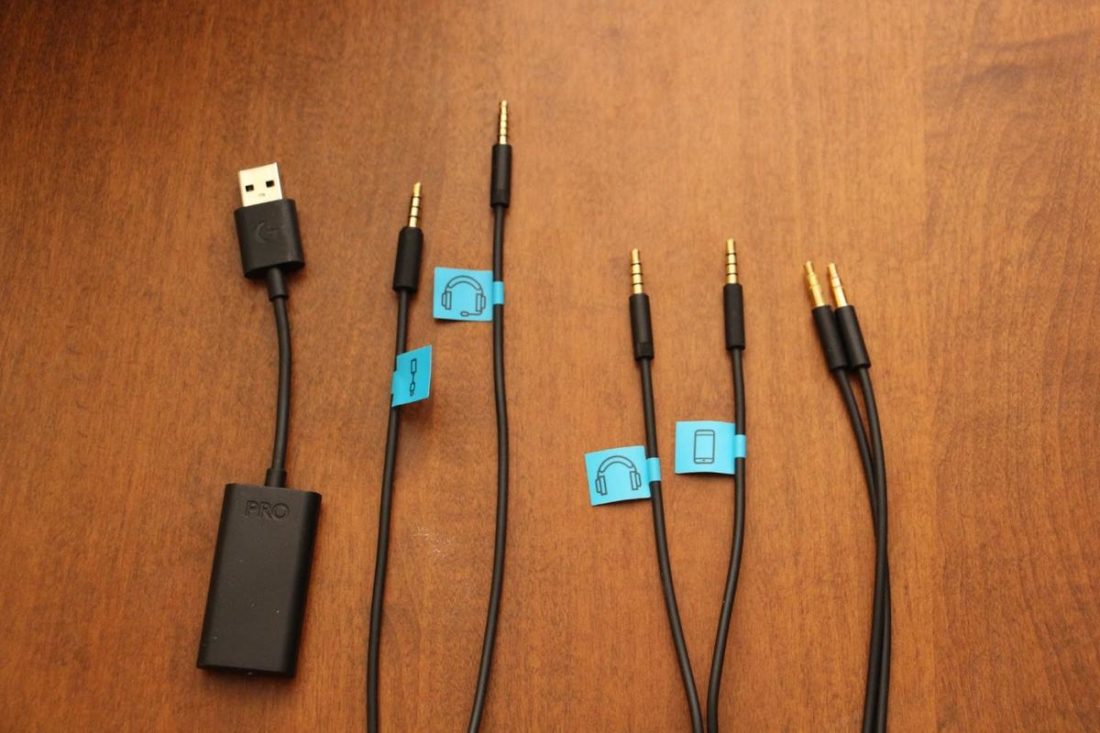
Before diving into complex solutions, rule out simple hardware problems that cause most Logitech G Pro headset microphone not working scenarios. A methodical approach saves you hours of unnecessary troubleshooting.
Confirm Proper 3.5mm Cable Insertion with Two Distinct Clicks
The most common reason your Logitech G Pro X microphone fails is improper cable connection. This headset requires a specific two-click insertion process that many users miss:
- Listen for the second click: When inserting the 3.5mm aux cable, push firmly until you hear and feel a distinct second, deeper click. The first click enables audio only, while the second activates the microphone circuit.
- Apply proper pressure: Many users report needing to push harder than expected for that critical second click—don’t be afraid to apply firm, steady pressure.
- Check cable orientation: Ensure the USB-C end (with volume and mute controls) connects to the headset, while the 3.5mm jack goes into your device or USB-C dongle.
- Test alternative ports: Plug the USB-C dongle into a rear motherboard USB port instead of front-panel ports, which often provide unstable power.
Pro Tip: If you’re still unsure whether you’ve achieved the second click, try wiggling the cable slightly—if your microphone cuts in and out, you haven’t secured that critical second connection.
Verify Physical Mute Switch Position on In-Line Cable
That tiny slider switch on your cable could be silently muting your microphone without your knowledge:
- Slide position matters: Contrary to intuition, sliding the switch up mutes your microphone, while sliding it down activates it.
- Check the visual indicator: When muted, you’ll see red markings visible on the switch. For an active microphone, the red indicator should be completely hidden.
- Test the switch mechanism: Move the slider up and down several times—dust or debris can cause it to stick in the muted position.
Warning: Many users spend hours troubleshooting software settings only to discover their microphone was physically muted the entire time. Always check this first before proceeding to more complex solutions.
Test Microphone Functionality Across Multiple Devices
Isolating whether the problem lies with your headset or your computer is crucial:
- Connect to a smartphone or tablet: Plug your headset into a mobile device and test the microphone using the voice recorder app.
- Check different audio sources: Try connecting directly to your motherboard’s audio jacks instead of using front-panel ports.
- Swap cables: If your Logitech G Pro X came with multiple cables, test each one—some models include both “telephone” and “computer” style cables with different wiring.
If your mic works on another device but not your PC, you’ve confirmed a software or driver issue rather than hardware failure.
Fix Windows Settings Causing Logitech G Pro Microphone Problems
Even with perfect hardware connections, Windows settings often prevent your Logitech G Pro headset microphone from working properly. These configuration fixes resolve most software-related issues.
Set Logitech G Pro X as Default Microphone in Sound Settings
Windows frequently selects the wrong input device after updates or when multiple audio sources are connected:
- Right-click the speaker icon in your taskbar and select Open Sound settings
- Under Input, ensure the dropdown menu shows “Logitech G Pro X” or “Logitech G Pro Gaming Headset”
- Click Sound Control Panel on the right side of Sound settings
- Go to the Recording tab, right-click your Logitech device, and select Set as Default Device
- Click Properties, go to the Levels tab, and ensure microphone level is at least 70%
Common Mistake: Many users only set the device as default in Sound settings but forget the crucial step of confirming it in the Sound Control Panel—this double-verification prevents Windows from ignoring your selection.
Adjust Windows Privacy Settings for Microphone Access
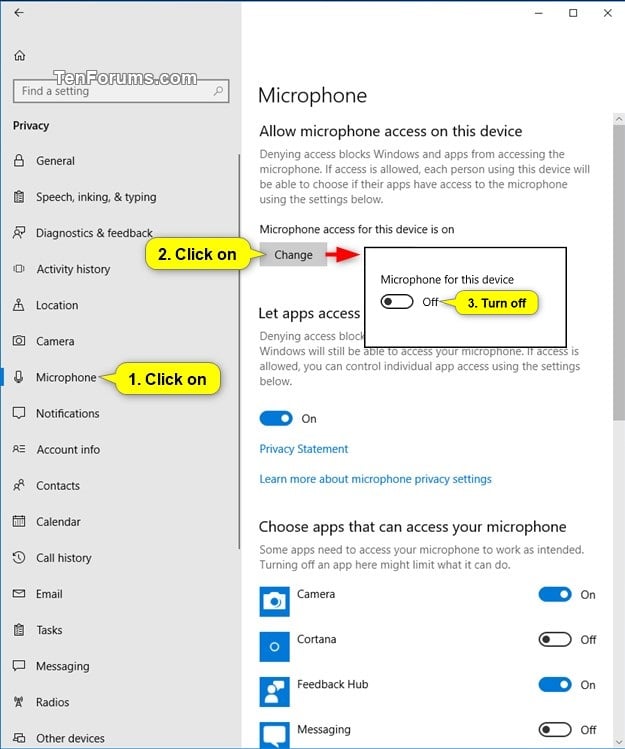
Windows 10 and 11 often block microphone access after updates, even if you’ve previously granted permission:
- Go to Settings > Privacy & security > Microphone
- Toggle Microphone access to On at the top
- Ensure Let apps access your microphone is enabled
- Scroll down and verify specific apps (Discord, Zoom, Teams) have microphone permissions toggled on
Pro Tip: Toggle these settings off and on again—Windows sometimes glitches and fails to properly apply permissions until you refresh them.
Resolve Logitech G HUB Software Conflicts
The Logitech G HUB software enhances your headset but can also cause microphone conflicts when misconfigured.
Disable Blue VO!CE Microphone Processing
Logitech’s Blue VO!CE technology enhances voice quality but often causes microphone failures:
- Open Logitech G HUB and select your headset
- Navigate to the Microphone tab
- Toggle Blue VO!CE completely off
- Try different microphone profiles to see if one works while others fail
Expert Note: Some users experience microphone failure specifically when certain Blue VO!CE filters are enabled—disabling the entire suite isolates whether the processing software is causing your Logitech G Pro headset microphone not working issue.
Perform Complete G HUB Reinstallation
Corrupted G HUB installations frequently cause microphone detection problems:
- Uninstall G HUB via Windows Apps & features
- Open Device Manager, expand Sound, video and game controllers, and uninstall all Logitech G Pro X entries
- Disconnect your headset and restart your computer
- Download the latest G HUB installer from Logitech’s website
- Right-click the installer and select Run as administrator
- Reconnect your headset after installation completes
Warning: Skipping the Device Manager step leaves behind driver remnants that cause conflicts with the fresh installation—this complete removal process is essential for resolving persistent microphone issues.
Advanced Solutions for Stubborn Logitech G Pro X Mic Problems
When basic fixes fail, these advanced techniques resolve the most stubborn Logitech G Pro headset microphone not working scenarios.
Update or Roll Back Audio Drivers Through Device Manager
Outdated or incompatible drivers frequently cause microphone failures:
- Press
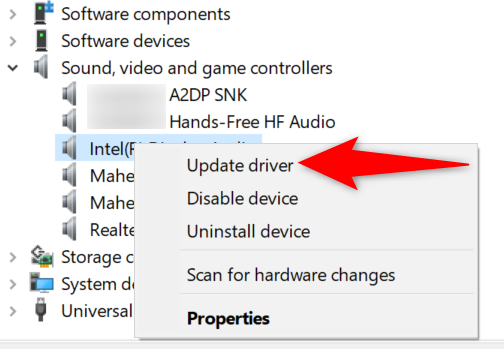
Windows + Xand select Device Manager - Expand Audio inputs and outputs and Sound, video and game controllers
- Right-click your audio devices and select Update driver
- Choose Search automatically for drivers
- If recently updated, select Properties > Driver tab > Roll Back Driver if available
Pro Tip: Some users resolve microphone issues by specifically updating the USB Composite Device drivers in Device Manager—this often overlooked component manages USB audio functionality.
Disable Windows Sonic and Audio Enhancements
Windows audio processing features can conflict with your headset:
- Right-click the speaker icon and select Sound settings
- Under Output, click Additional sound options
- Select your Logitech headset and click Properties
- Go to the Spatial sound tab and change from Windows Sonic for Headphones to Off
- Navigate to the Enhancements tab and check Disable all enhancements
Expert Note: Windows 11’s auto-volume control frequently overrides headset microphone settings—disabling all audio enhancements creates a direct signal path from your microphone to applications.
When to Seek Professional Help for Your Logitech G Pro Headset
If you’ve tried every solution and your Logitech G Pro headset microphone still not working, consider these final steps:
- Perform a factory reset: Consult Logitech’s support site for model-specific reset procedures
- Test with a different user account: Creates a clean environment to rule out profile corruption
- Check warranty status: Logitech offers 2-year warranties on most G Pro headsets
- Contact Logitech Support: Have your product serial number ready and reference specific troubleshooting steps you’ve already attempted
Final Recommendation: If your microphone works on other devices but not your PC after exhaustive troubleshooting, the issue is almost certainly software-related. However, if the microphone fails across all devices with proper connection, you’re likely dealing with a hardware failure covered under warranty.
Final Note: Most Logitech G Pro headset microphone not working issues stem from that critical second click during cable insertion or incorrect mute switch positioning—always verify these physical connections first before diving into software solutions. By following this systematic approach, you’ll resolve your microphone problems faster and get back to gaming or working with crystal-clear audio. Remember to perform monthly maintenance checks on your cable connections to prevent future microphone failures.



