
Is your Logitech G Pro X headset picking up everything except your voice? A non-functional microphone can turn a premium headset from a powerful communication tool into a source of immense frustration. Whether you’re cut off from your team mid-game, inaudible on a critical call, or sounding distorted in voice chat, the problem can feel isolating and interruptive.
This guide provides a complete, step-by-step troubleshooting path to diagnose and fix your G Pro X microphone, from the simplest physical checks to advanced software tweaks. Follow this structured approach to restore clear, reliable communication without wasting hours on ineffective fixes.
Check Your Physical Mute Switch Before Anything Else
This is one of the most common oversights with the Logitech G Pro X headset. The inline mute switch on the cable is easy to accidentally toggle without realizing it. Before you spend hours tweaking software settings, take 30 seconds to verify this physical switch isn’t causing your microphone problems.
Slide the mute switch up and down several times to ensure it’s making proper contact. Sometimes the switch can get stuck in the muted position due to debris or mechanical failure. If you hear a faint click when toggling it, that’s a good sign it’s functioning correctly. Many users report their Logitech G Pro X mic not working issue disappeared after realizing they’d accidentally muted themselves during intense gameplay.
Verify Proper Connection to Your Computer

Many Logitech G Pro X microphone problems stem from improper connections. The headset supports both USB and 3.5mm connections, and each requires specific attention.
For USB connections, plug directly into a motherboard port on the back of your PC rather than front-panel ports or USB hubs. Front-panel ports often have weaker power delivery that can cause intermittent microphone issues. If you’re using the 3.5mm connection, ensure the jack is fully inserted into the correct port (usually pink or marked with a microphone icon).
Test on Multiple Devices to Isolate the Problem
Connect your headset to a smartphone, tablet, or different computer. If the microphone works on another device, your original computer’s settings are the issue. If it fails everywhere, you likely have a hardware problem that may require contacting Logitech support. This simple test saves hours of unnecessary troubleshooting by immediately identifying whether the problem is with your headset or your system configuration.
Set Logitech G Pro X as Default Microphone in Windows
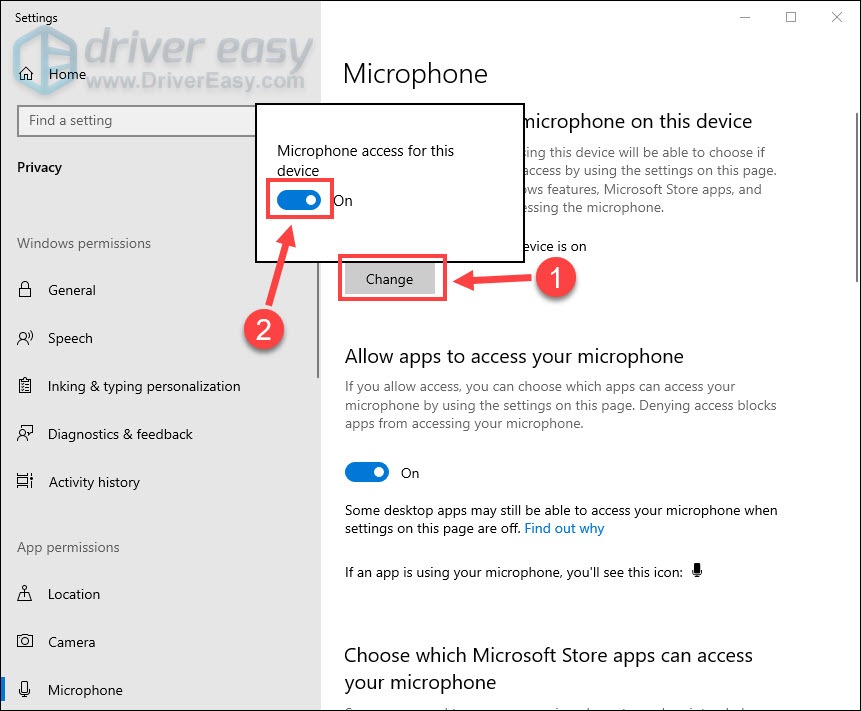
Windows often defaults to the wrong input device, especially if you’ve recently connected other audio equipment. You must explicitly set your G Pro X as the default microphone to resolve Logitech G Pro X mic not working issues.
Configure Windows Sound Settings Properly
- Right-click the sound icon in your taskbar and select “Open Sound settings”
- Under Input, select “Logitech G Pro X” from the dropdown menu
- Click “Device properties” and ensure the volume slider is up
- Under Related settings, click “Sound Control Panel”
- In the Recording tab, right-click “Logitech G Pro X” and select “Set as Default Device”
Enable Microphone Privacy Permissions
Windows 10/11 have strict privacy controls that often block microphone access:
– Go to Settings > Privacy & security > Microphone
– Toggle “Microphone access” and “Let apps use my microphone” ON
– Scroll down and ensure individual apps (Discord, Zoom, games) have microphone permissions
– Disable “Let Windows apps access your voice activation” if not needed
Fix Discord-Specific Microphone Problems in Minutes

Discord is where most G Pro X users encounter microphone issues, as the app has its own audio settings that override Windows defaults.
Configure Discord Voice Settings Correctly
- Open Discord and go to User Settings > Voice & Video
- Under Input Device, select “Logitech G Pro X” (not Default)
- Run the “Let’s Check” test to verify input
- Disable “Automatically determine input sensitivity” and set a manual level
- Turn off Echo Cancellation in Advanced settings
If your Logitech G Pro X mic not working issue only happens in Discord, these settings adjustments will likely solve your problem. Discord sometimes retains old device configurations even after you’ve changed Windows settings, causing persistent microphone silence during critical team communications.
Update Logitech G Hub and Headset Firmware Properly
Outdated software is a common culprit behind Logitech G Pro X microphone problems. The G Hub application serves as the control center for your headset’s features.
Install Critical Updates
- Download the latest Logitech G Hub from Logitech’s official website
- Open G Hub and select your G Pro X under devices
- Check for firmware updates (G Hub will notify you if available)
- Navigate to Microphone settings and ensure Blue VO!CE is configured correctly
Updating your firmware often resolves microphone issues that appear after Windows updates. The G Pro X relies heavily on proper firmware to function correctly, so never skip these updates. Many users report microphone functionality returning immediately after firmware updates that addressed specific audio driver conflicts.
Reinstall Audio Drivers to Fix Persistent Issues

When basic troubleshooting fails, corrupted or outdated audio drivers are usually to blame for Logitech G Pro X mic not working problems.
Perform a Clean Driver Reinstallation
- Press Windows Key + X and select Device Manager
- Expand “Sound, video and game controllers” and “Audio inputs and outputs”
- Right-click your G Pro X device and select “Uninstall device”
- Check “Attempt to remove the driver software” and click Uninstall
- Unplug your headset, restart your computer, then reconnect
Windows will automatically reinstall generic drivers upon reboot. For best results, download the latest audio drivers from your motherboard manufacturer’s website before reconnecting your headset. This process clears corrupted driver files that often cause microphone detection issues.
Check Windows Audio Services That Control Your Microphone
Several Windows services must be running properly for your microphone to function. If these services stop or malfunction, your Logitech G Pro X mic won’t work regardless of other settings.
Restart Critical Audio Services
- Press Win + R, type “services.msc”, and hit Enter
- Find “Windows Audio” and “Windows Audio Endpoint Builder”
- If either shows “Stopped,” right-click and select “Start”
- Set both to “Automatic” startup type
Restarting these services often fixes microphone issues that appear suddenly without explanation. It’s a quick fix that takes less than a minute but resolves many seemingly complex problems. Some users have reported microphone functionality returning after simply restarting the Windows Audio service following system updates.
Disable USB Selective Suspend to Prevent Disconnects
Windows power management features can interfere with USB audio devices like your G Pro X, causing intermittent microphone failures.
Adjust Power Management Settings
- Open Device Manager and expand “Universal Serial Bus controllers”
- Right-click each “USB Root Hub” entry and select Properties
- Go to the Power Management tab
- Uncheck “Allow the computer to turn off this device to save power”
- Click OK and restart your computer
This prevents Windows from putting your USB ports into sleep mode, which commonly causes the microphone to cut out during extended gaming sessions or meetings. Many competitive gamers report this fix eliminated their intermittent microphone issues during long tournament matches.
Final Verification and When to Seek Professional Help
After completing these steps, test your microphone thoroughly before considering more drastic measures.
Confirm Your Fix with Multiple Tests
- Use Windows Voice Recorder to record and playback audio
- Visit online microphone testing websites
- Test in multiple applications (Discord, Zoom, games)
- Have a friend verify your audio quality
If your Logitech G Pro X mic not working issue persists after following this complete troubleshooting path, you may have a hardware failure. Contact Logitech support with your warranty information, as the headset may need professional repair or replacement. Before reaching out, document which steps you’ve tried—this helps support representatives identify potential solutions more quickly.
By methodically working through these steps, most users can restore full microphone functionality to their G Pro X headset without needing professional assistance. The key is to approach troubleshooting systematically, starting with the simplest solutions before moving to more complex ones. With your microphone working reliably again, you’ll be back to clear communication during gaming sessions, meetings, and calls without frustrating audio interruptions.



