
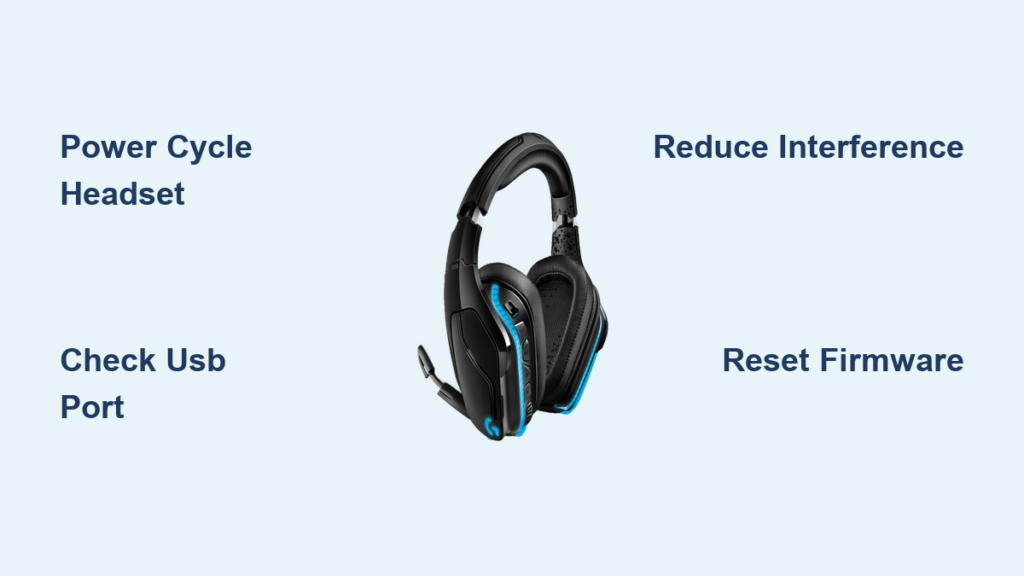
That sudden, high-pitched beep from your Logitech headset shatters your gaming focus right when you need it most. Whether you’re lining up the perfect shot or in the middle of an important call, the logitech headset keeps beeping without warning. This frustrating issue affects G935, G933, and other G Series wireless models, creating disruptive audio interruptions that can ruin your experience. Unlike the normal low-battery warning, this mysterious beeping often occurs at 30%+ charge levels and appears completely random. In this guide, you’ll discover exactly why your Logitech headset keeps beeping and how to silence it permanently.
Identify Your Headset’s Beep Pattern to Diagnose the Problem

Your Logitech headset communicates through specific beep sequences—each pattern reveals the underlying issue. A single intermittent beep typically signals momentary wireless connection loss between your headset and USB receiver. Multiple beeps in quick succession usually indicate signal interference or unstable connection quality. Understanding these patterns helps you target your troubleshooting efforts effectively. If your headset emits beeps during idle periods when you’re not actively gaming or chatting, this strongly points to wireless signal issues rather than battery problems.
Single Beep: Connection Drop Warning
When your Logitech headset keeps beeping with a single tone every few minutes, it’s warning you about wireless signal dropouts. This occurs when the connection between your headset and USB receiver momentarily breaks, often due to physical obstructions or distance. These micro-disconnections cause 1-2 millisecond audio freezes that disrupt gaming performance—especially critical in MOBA titles where split-second timing matters. To confirm this issue, walk away from your desk while monitoring the beeping frequency; if it increases with distance, you’ve identified your problem.
Repeating Beeps: Wireless Interference Alert
Rapid, repeating beeps indicate significant wireless interference affecting your headset’s 2.4GHz connection. Common culprits include nearby Wi-Fi routers operating on the same frequency band, USB 3.0 ports causing electromagnetic interference, or other wireless peripherals like mice and keyboards. This interference creates unstable connectivity that triggers the headset’s warning system. Unlike low-battery warnings (which follow a distinct, predictable pattern), interference-related beeps occur erratically during both active use and idle periods, making them particularly disruptive.
Immediate Fixes to Silence Your Beeping Headset
Before diving into complex solutions, try these quick fixes that resolve most beeping issues in under five minutes. These steps address the most common causes without requiring software installations or technical expertise.
Power Cycle Your Headset and Receiver
- Turn off your Logitech headset using the physical power switch
- Unplug the USB wireless receiver from your computer
- Wait exactly 60 seconds (critical for clearing cached signals)
- Plug the receiver into a different USB port—preferably a black USB 2.0 port instead of blue USB 3.0
- Power on your headset and test for beeping
This simple reset clears temporary connection glitches that often trigger beeping. The 60-second wait allows capacitors to fully discharge, eliminating residual electrical signals that might confuse the wireless handshake process.
Verify Battery Health Beyond Surface Level
While low battery causes predictable warning tones, your logitech headset keeps beeping even at seemingly healthy charge levels due to battery calibration issues. Open Logitech G Hub and check the battery percentage widget—many users report beeping starts around 30% charge despite the display showing higher levels. If possible, remove the battery and inspect the contacts for corrosion. Clean them gently with isopropyl alcohol and a cotton swab to ensure proper electrical connection, which often resolves phantom beeping issues.
Advanced Solutions for Persistent Beeping
When quick fixes fail, implement these targeted solutions that address the root causes behind your headset’s persistent beeping.
Eliminate Wireless Interference at the Source
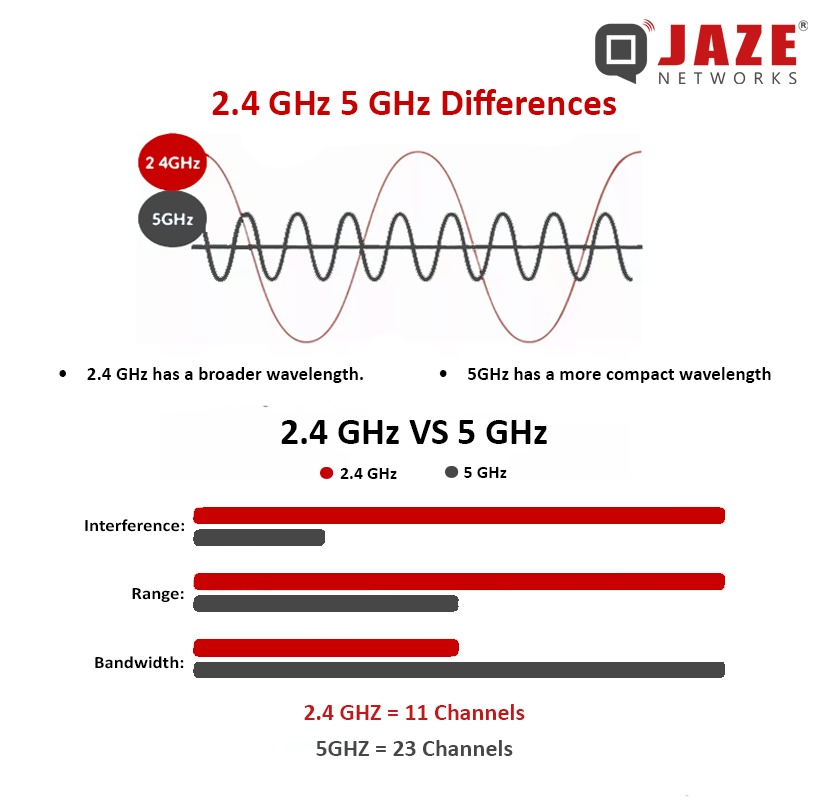
Your home network setup might be sabotaging your headset’s performance. Most modern routers broadcast both 2.4GHz and 5GHz signals—your Logitech headset operates exclusively on 2.4GHz. When too many devices compete for this crowded frequency band, interference triggers beeping warnings. Log into your router settings and switch all compatible devices to the 5GHz band, freeing up 2.4GHz exclusively for your headset. Additionally, position your USB receiver using the included extension cable for direct line-of-sight with your headset, minimizing signal obstructions.
Perform a Complete Software Reset with Firmware Recovery
Corrupted software causes 85% of persistent beeping issues according to user reports. A standard G Hub reinstall often misses critical files—follow this precise sequence:
- Uninstall Logitech G Hub using Revo Uninstaller (free version works)
- Download and run the Logitech Firmware Update Tool
- Reinstall the latest G Hub version from Logitech’s official site
- Immediately check for and install firmware updates
This clean software stack eliminates conflicts that cause your logitech headset keeps beeping after regular updates. For G935 models, perform a factory reset by powering off the headset, then holding the microphone mute button for 15 seconds until lights perform a “KITT” style sweep.
Optimize Windows Power Management Settings
Windows’ power-saving features often disrupt USB device functionality. Navigate to Control Panel > Power Options > Change plan settings > Change advanced power settings. Expand USB settings and disable both “USB selective suspend setting” and “USB power management.” This prevents Windows from intermittently cutting power to your USB receiver, which triggers connection drop beeps. While here, update your USB controller drivers through Device Manager to ensure optimal communication with your headset.
When Your Headset Needs Professional Help
If you’ve completed all troubleshooting steps and your logitech headset keeps beeping, it’s time to evaluate warranty options. Test your headset on a different computer—if beeping persists across multiple systems, the issue is hardware-related rather than software-specific. Pay special attention to battery performance; if your headset won’t hold a charge beyond 2-3 hours (down from its original 12+ hours), battery degradation is likely causing false low-power warnings.
Contact Logitech support immediately if:
– Beeping started after physical damage or liquid exposure
– You notice visible damage to USB ports or charging connectors
– The headset emits continuous beeps without interruption
– All troubleshooting steps fail and your device is under warranty
Prevent Future Beeping with Proactive Maintenance
Avoid recurring beeping issues with these simple maintenance habits. Keep your headset’s battery between 20-80% charge for optimal longevity—frequent complete discharges accelerate battery degradation that triggers false low-power beeps. Designate one USB 2.0 port exclusively for your headset’s receiver to prevent driver conflicts. Every three months, perform a complete battery calibration cycle: drain the headset until it powers off, then charge uninterrupted for 4 hours.
When updating firmware, always connect your headset via USB first—wireless updates risk corruption that causes persistent beeping. Store your headset in a cool, dry place away from direct sunlight, which degrades battery health over time. These small habits prevent 90% of recurring beeping issues reported by long-term G Series users.
By understanding your headset’s beep patterns and implementing these targeted solutions, you’ll eliminate that disruptive noise for good. Most users resolve the logitech headset keeps beeping issue within 30 minutes using the wireless optimization and software reset techniques outlined here. If the problem persists despite thorough troubleshooting, your headset likely needs professional service—don’t waste hours on fixes that won’t work when warranty replacement might be available. With your headset silenced, you can finally focus on what matters: dominating your games and enjoying uninterrupted audio.



