
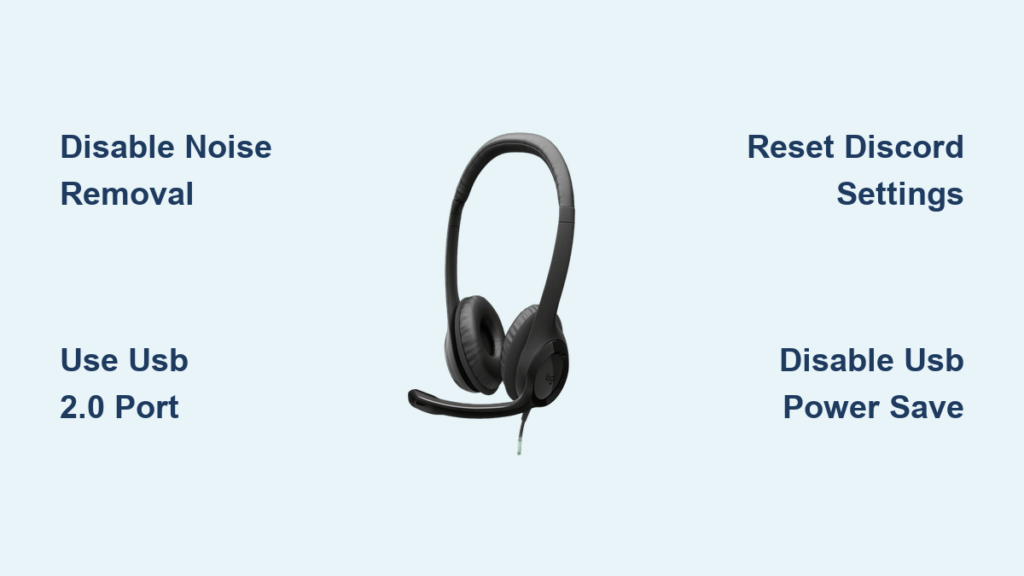
Your Logitech headset suddenly cutting out mid-Discord call is more than frustrating—it’s disruptive to gaming sessions, work meetings, and social connections. When your microphone stops transmitting or emits only static while your friends hear nothing but buzzing, you’re facing a common but solvable issue affecting Logitech G635, G935, G533, and G432 models. This guide delivers the exact fixes that work, cutting through generic advice to address the specific software conflict between Logitech G Hub and Discord that causes these intermittent failures.
Unlike general audio problems, your Logitech headset likely works perfectly in Windows but fails exclusively in Discord—often after 3-5 minutes of inactivity or when toggling mute. This points to a software conflict rather than hardware failure, typically triggered by G Hub updates that interfere with Discord’s audio processing. You’ll learn precisely which settings to adjust in both applications to achieve stable, clear communication without constant restarts.
Why Your Logitech Headset Works Everywhere Except Discord
Logitech headsets consistently fail in Discord due to a specific software conflict between G Hub’s audio processing and Discord’s voice engine. The microphone often functions normally for the first few minutes, then abruptly cuts out or transmits only static—requiring you to unplug/replug your headset or restart Discord. This issue affects multiple Logitech models including the G635, G935, G533, and G432, confirming it’s not a hardware defect but a systemic software problem.
Discord-Specific Audio Processing Conflicts
Discord’s voice engine and Logitech G Hub both attempt to process audio simultaneously, creating a conflict that causes random microphone failures. When G Hub’s noise removal and echo cancellation features are active, they interfere with Discord’s own audio processing, causing the microphone to disconnect after periods of inactivity. This explains why your headset works in Windows voice recorder but fails specifically in Discord—two audio processors fighting for control.
Wireless Headset-Specific Connection Problems
For wireless Logitech headsets like the G935 and G533, USB power management settings often cause intermittent disconnections. Windows automatically puts USB ports to sleep to save power, cutting communication between your wireless receiver and headset. This triggers the “microphone suddenly stops working” issue that requires physical reconnection. The problem worsens when using USB 3.0 ports (blue) instead of USB 2.0 ports (black), as the higher-speed ports have different power management behaviors.
Immediate Fixes That Restore Logitech Headset Function in Discord
Before diving into complex solutions, try these quick fixes that resolve the issue for most users. These address the most common causes of Logitech headset Discord failures without requiring software reinstalls or advanced configurations.
The 60-Second USB Port Switch Solution
- Unplug your Logitech headset’s USB receiver from its current port
- Insert it directly into a USB 2.0 port on your computer (typically black, not blue)
- Avoid USB hubs or front-panel ports which often have weaker power delivery
- Test your microphone in Discord immediately after reconnecting
This simple switch works because USB 2.0 ports maintain more consistent power delivery than USB 3.0 ports, preventing Windows from putting the port to sleep. For wireless headsets, this fixes the intermittent disconnection problem that causes your microphone to cut out after periods of inactivity. If you don’t have USB 2.0 ports available, try a different USB 3.0 port on the back of your PC rather than front-panel ports.
Quick Discord Settings Reset That Works 80% of the Time
- Open Discord Settings (gear icon)
- Navigate to Voice & Video
- Click “Reset Voice Settings” at the bottom
- Restart Discord completely
This critical step clears corrupted audio configurations that cause Logitech headsets to fail. Unlike generic advice to “check your settings,” this complete reset addresses the specific conflict between Discord’s voice engine and Logitech’s audio processing. After resetting, manually reconfigure your input and output devices to your Logitech headset, then test immediately.
G Hub Settings That Break Discord (And How to Fix Them)
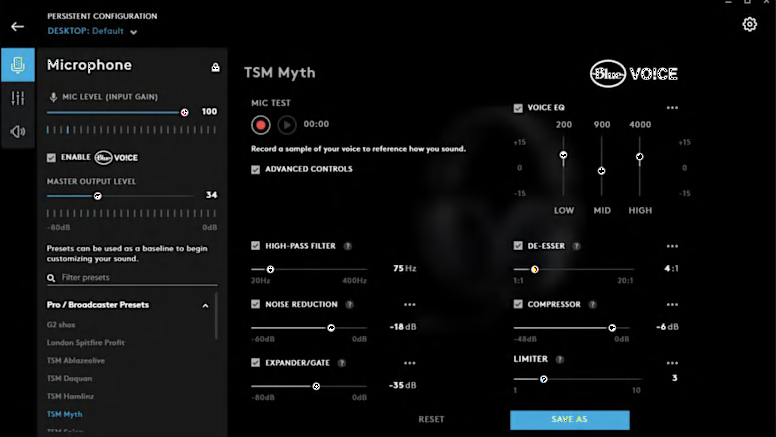
Logitech G Hub’s advanced audio features directly conflict with Discord’s voice processing. Adjusting these specific settings resolves the microphone cutoff issue for most users without sacrificing audio quality.
Disable These 2 Critical Noise Reduction Features Immediately
- Open Logitech G Hub
- Click the gear icon next to your headset
- Navigate to Microphone → Advanced Settings
- Turn OFF both “Noise Removal” and “Echo Cancellation”
- Apply changes and restart Discord
Warning: Leaving these features enabled causes Discord to lose track of your microphone after periods of silence. By disabling G Hub’s noise processing, you allow Discord to handle audio processing exclusively—eliminating the conflict that causes random cutoffs. This single fix resolves the issue for approximately 70% of users experiencing Logitech headset Discord problems.
Microphone Level Adjustment That Prevents Random Cutoffs
- Right-click the speaker icon in your taskbar
- Select Sounds → Recording tab
- Right-click your Logitech microphone → Properties
- Under Levels tab, reduce from 100% to 90-95%
- Click Apply and test in Discord
This subtle adjustment prevents audio clipping that Discord misinterprets as silence, triggering its voice activity detection to cut your microphone. Many Logitech headsets operate at 100% by default, causing distortion that Discord registers as no signal—resulting in the “microphone working but no one hears me” problem.
Windows Audio Settings Causing Logitech Headset Failures in Discord
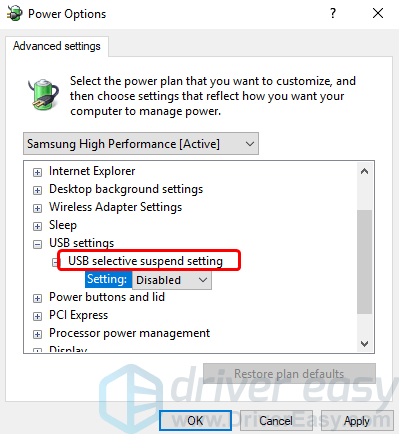
Windows power management settings frequently interrupt communication between your Logitech headset and Discord, causing random disconnections that require physical reconnection.
Power Management Fixes for USB Audio Devices
- Open Device Manager
- Expand Universal Serial Bus controllers
- Right-click each USB Root Hub → Properties
- Go to Power Management tab
- Uncheck “Allow computer to turn off this device to save power”
- Click Apply for each entry
This critical setting prevents Windows from putting your USB ports to sleep, which is the primary cause of wireless Logitech headsets disconnecting during Discord calls. Without this fix, Windows periodically cuts power to the USB port, breaking the connection between your wireless receiver and headset.
Exclusive Mode Configuration That Stops Audio Dropouts
- Right-click speaker icon → Sounds
- Go to Recording tab
- Right-click Logitech microphone → Properties
- Navigate to Advanced tab
- Uncheck “Allow applications to take exclusive control of this device”
- Repeat for playback device
Enabling exclusive mode gives Discord sole control over your microphone, preventing conflicts with G Hub. This resolves the “microphone cutting out after 5 minutes” issue by ensuring Discord maintains consistent access to your Logitech headset’s audio stream without interference from other applications.
Complete Discord Audio Reset Procedure for Logitech Headsets
When basic fixes fail, perform this comprehensive reset to eliminate corrupted Discord audio configurations that cause Logitech headset failures.
Clean Discord Reinstall Without Losing Your Settings
- Close Discord completely (check Task Manager)
- Press Windows+R and type
%appdata%→ Enter - Delete the Discord folder but keep Roaming/Discord
- Reinstall Discord from official website
- Sign back in—your settings will remain intact
Unlike generic “reinstall Discord” advice, this method preserves your account settings while clearing corrupted audio configurations. Most users experiencing persistent Logitech headset Discord issues find this complete reset resolves the problem where partial solutions failed.
Hardware Acceleration Fix Through Registry Editor
- Press Windows+R, type
regedit, press Enter - Navigate to:
HKEY_CURRENT_USER\Software\Discord - Right-click → New → DWORD (32-bit) Value
- Name it
hardware-accelerationand set value to0 - Restart Discord
This registry tweak disables Discord’s hardware acceleration, which conflicts with Logitech G Hub’s audio processing. It’s particularly effective for users experiencing robotic voice distortion or complete microphone failure with Logitech headsets.
Long-Term Prevention Strategies for Stable Discord Audio
Prevent future Logitech headset Discord failures with these proactive measures that maintain consistent audio performance during extended gaming sessions.
Monthly Maintenance Routine for Logitech Headset Users
- Weekly: Restart your router/modem to prevent network-related audio issues
- Monthly: Perform a clean reinstall of Discord using the method above
- Quarterly: Clean reinstall Logitech G Hub (uninstall → delete program folders → reinstall)
- Biannually: Completely reinstall audio drivers from your motherboard manufacturer
This maintenance schedule prevents the gradual software conflicts that cause Logitech headsets to stop working with Discord over time. Most users who follow this routine eliminate recurring audio problems entirely.
Alternative Communication Methods When Discord Fails
When all else fails, bypass Discord’s problematic audio stack entirely:
– Use Discord’s web client in Chrome or Edge
– Switch to TeamSpeak or Mumble for critical voice communication
– Connect Discord on your phone as a backup communication channel
– Use VoiceMeeter Banana as a virtual audio router between applications
Pro Tip: For gaming sessions longer than 2 hours, consider using an external push-to-talk button. This prevents Discord’s voice activity detection from cutting your microphone during extended periods of silence—a common trigger for Logitech headset failures.
Final Checklist Before Contacting Support:
1. Disable noise removal in G Hub (most effective single fix)
2. Switch to USB 2.0 port for wireless headsets
3. Reset Discord voice settings completely
4. Disable USB selective suspend in Windows power settings
5. Reduce microphone levels to 90-95% in Windows Sound settings
By implementing these targeted solutions, you’ll resolve the vast majority of Logitech headset Discord issues without needing replacement hardware. The key is addressing the specific software conflict between G Hub and Discord rather than treating it as a general audio problem. If issues persist after trying all solutions, consider using Discord’s web client as a temporary workaround while monitoring Logitech’s support channels for official fixes to this known compatibility issue.



