

Your wireless keyboard suddenly stops responding mid-sentence, or your mouse cursor freezes during an important presentation—all because your Logitech receiver isn’t working. This frustrating scenario affects thousands of users daily, especially those relying on MX Keys keyboards and other Unifying-compatible devices. When your Logitech receiver not working issue strikes, your productivity grinds to a halt regardless of whether you’re using Windows, Linux, or a dual-boot system. The good news is that most receiver failures can be resolved without replacing hardware. In this guide, you’ll discover proven troubleshooting steps to diagnose and fix your unresponsive Logitech Unifying Receiver, whether the problem stems from a simple connection glitch or more complex system conflicts.
Identify if Your Logitech Receiver Has Failed Completely
Before diving into complex fixes, determine whether your receiver is truly dead or just experiencing temporary communication issues with your devices.
Check for Physical Damage and Proper Connection
Inspect your Logitech Unifying Receiver for visible damage that could explain why your receiver isn’t working. Examine the USB connector for bent pins, debris in the port, or signs of overheating. Many users accidentally damage receivers by forcing them into USB ports at the wrong angle. Try connecting the receiver to a different USB port on your computer—preferably a USB 2.0 port directly on your motherboard rather than through a hub or front-panel connection. If your receiver fits loosely in the port, this poor connection could be why your Logitech receiver not working issue exists. For stubborn connections, use a USB extension cable to ensure proper alignment and reduce physical stress on the tiny receiver.
Test the Receiver on Multiple Computers
The fastest way to isolate a hardware failure is to test your Logitech receiver on another computer. Plug it into a friend’s machine or a different device you own. If your keyboard or mouse works immediately, the problem lies with your original computer’s configuration, not the receiver itself. Conversely, if the receiver fails on multiple machines, you’re likely dealing with a dead receiver that needs replacement. This simple test saves hours of unnecessary troubleshooting and confirms whether your Logitech receiver not working problem is isolated to one system.
Execute Immediate Fixes for Unresponsive Logitech Receivers
Most Logitech receiver not working issues stem from temporary glitches that require simple resets rather than complex technical solutions.
Perform a Complete Power Cycle
Many users overlook this critical first step when their Logitech receiver stops working. Turn off your keyboard or mouse completely, unplug the Unifying Receiver from your computer, and restart your system. Wait 30 seconds to allow residual power to dissipate from USB controllers. After your computer fully boots, plug the receiver into a different USB port before powering on your peripheral device. This power cycle clears temporary communication errors between your devices and often resolves why your Logitech receiver not working issue appeared suddenly.
Force Re-pair Your Devices Using Advanced Mode
When standard pairing fails, access the hidden Advanced menu in Logitech Unifying Software. Download the latest version from Logitech’s official site, launch the application, and click “Advanced…” in the bottom-right corner. This reveals options to reconnect or re-pair devices even when they don’t appear in the standard interface. Follow the on-screen prompts to put your keyboard or mouse into pairing mode (usually by pressing a small button on the device’s bottom), then select “Add” in the software. This advanced pairing process bypasses common communication failures that make your Logitech receiver not working despite proper connection.
Resolve Driver and Software Conflicts Causing Receiver Failure
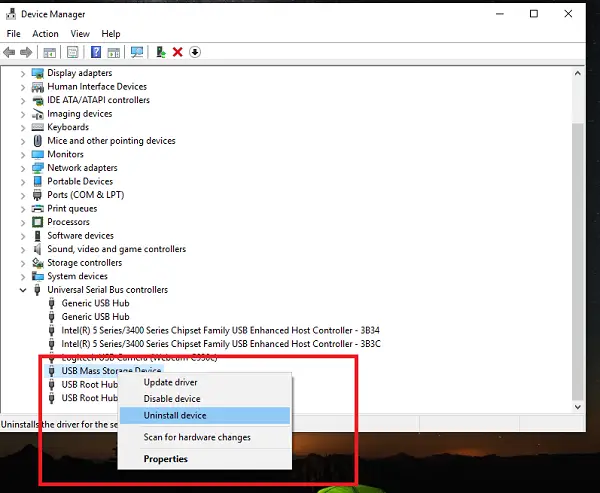
Driver issues account for most Logitech receiver not working scenarios, especially after system updates or when switching between operating systems.
Completely Reset USB Drivers in Windows
When Windows misidentifies your Logitech receiver, perform a full USB driver reset:
- Open Device Manager and expand “Universal Serial Bus controllers”
- Right-click each “USB Root Hub” and select “Uninstall device”
- Check “Attempt to remove the driver for this device” when prompted
- Restart your computer—Windows will automatically reinstall clean USB drivers
This process eliminates corrupted driver files that prevent your system from recognizing the Unifying Receiver. After rebooting, plug your receiver into a different USB port and check if your devices respond immediately.
Disable USB Power Management That Kills Receiver Functionality
Windows’ power-saving features frequently cause Logitech receiver not working problems by cutting power to the USB port. Prevent this by:
- Open Device Manager and expand “Universal Serial Bus controllers”
- Right-click each “USB Root Hub” and select “Properties”
- Go to the Power Management tab
- Uncheck “Allow the computer to turn off this device to save power”
- Click OK and repeat for all USB Root Hubs
This critical setting prevents Windows from disabling your receiver during periods of inactivity—a common reason why your Logitech receiver stops working after your computer wakes from sleep.
Diagnose Hardware-Specific Failures in Your Logitech Receiver
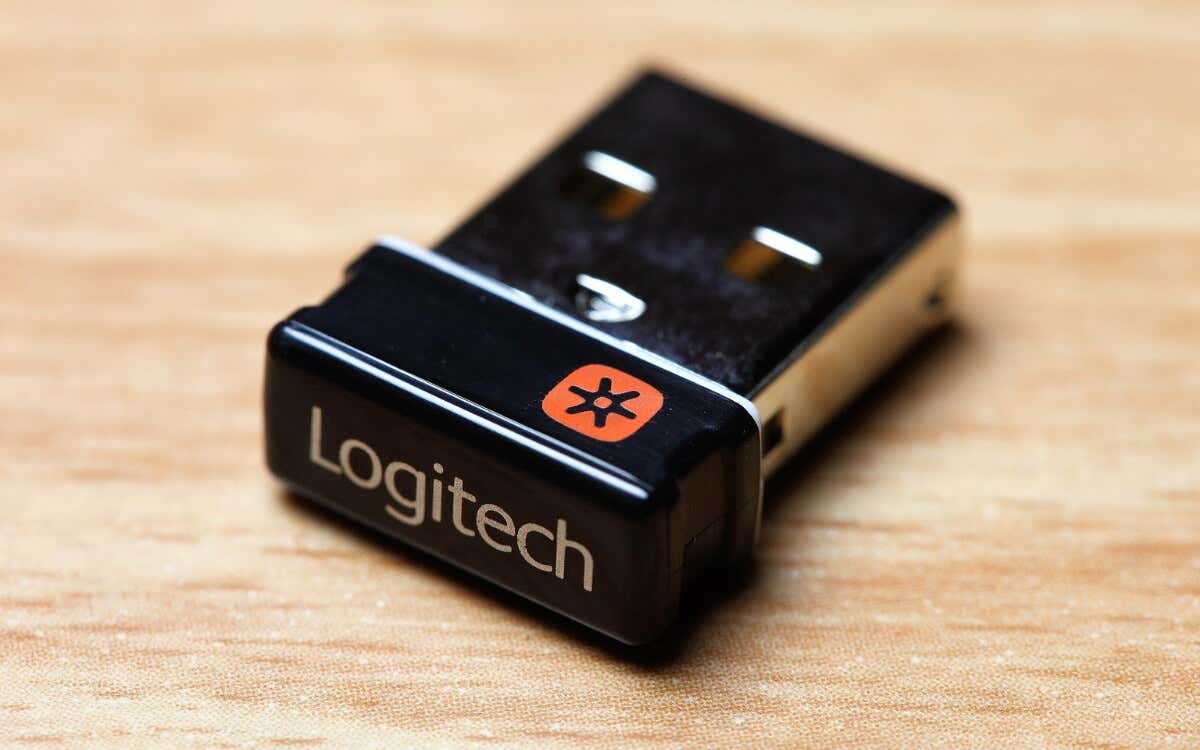
When software fixes fail, investigate potential hardware failures causing your Logitech receiver not working issue.
Test for Physical Damage Using Multiple Verification Methods
Examine your Unifying Receiver under bright light for microscopic damage. Many failed receivers show subtle signs like discoloration near the USB connector or tiny cracks in the casing. Test the receiver with another Logitech Unifying-compatible device if available. If you have multiple receivers, try pairing your keyboard with a different one. This cross-testing confirms whether the problem lies with the receiver itself or your keyboard/mouse. For MX Keys users specifically, check if the keyboard works via Bluetooth—if it does, the Unifying Receiver is likely faulty.
Perform a Full Hardware Reset on Your MX Keys Keyboard
MX Keys keyboards require specific reset procedures when the receiver stops working:
- Turn off your keyboard using the physical switch
- Press and hold the ESC key
- While holding ESC, flip the power switch to ON
- Release ESC after 2-3 seconds
- The keyboard should now enter pairing mode
This specialized reset clears the keyboard’s connection memory and prepares it for re-pairing with your Logitech Unifying Receiver. After completing this reset, follow the advanced pairing steps mentioned earlier to reconnect your devices.
When to Replace Your Logitech Unifying Receiver

If all troubleshooting fails, determine whether replacement is your only option for resolving the Logitech receiver not working problem.
Confirm Receiver Failure Through Comprehensive Testing
Before declaring your receiver dead, verify failure through multiple independent tests:
– Test the receiver on at least three different computers
– Try pairing it with another Unifying-compatible device
– Check if the receiver appears in Device Manager (Windows) or lsusb (Linux)
– Inspect for physical damage using magnification
If the receiver fails all these tests, it’s almost certainly defective. Genuine Logitech Unifying Receivers are replaceable—Logitech sells replacement receivers separately from keyboards and mice.
Obtain a Replacement Receiver Without Replacing Your Entire Setup
Don’t replace your entire keyboard just because the receiver failed. Logitech sells replacement Unifying Receivers (model C-U0007) that cost significantly less than a new keyboard. After installing the new receiver, use the Logitech Unifying Software to pair it with your existing keyboard or mouse. This solution preserves your investment in premium peripherals while solving the Logitech receiver not working issue permanently.
Prevent Future Logitech Receiver Failures
Avoid recurring Logitech receiver not working problems with these proactive measures.
Implement Receiver Protection Best Practices
Prevent future failures by:
– Always using a USB extension cable to reduce physical stress on the receiver
– Never forcing the receiver into a USB port at an angle
– Keeping the receiver clean from dust and debris
– Avoiding hot-plugging (removing while devices are active)
These simple habits significantly extend your receiver’s lifespan and prevent sudden failures during critical work sessions.
Schedule Regular Maintenance for Your Wireless Setup
Create a monthly maintenance routine:
1. Update Logitech Unifying Software and device firmware
2. Clean USB ports with compressed air
3. Test alternative USB ports for optimal performance
4. Verify power management settings haven’t reset after updates
This preventative maintenance catches potential issues before they cause your Logitech receiver not working problems, ensuring uninterrupted productivity with your wireless peripherals.
When your Logitech receiver stops working, systematic troubleshooting saves time and money. Start with simple connection checks and power cycles before progressing to driver resets and hardware diagnostics. Most issues resolve with USB power management adjustments or advanced re-pairing techniques. For MX Keys users, specialized keyboard resets often restore functionality without hardware replacement. If your receiver is truly dead, replacement receivers cost far less than new keyboards. Implement the preventative measures outlined here to avoid future Logitech receiver not working scenarios—your productivity depends on reliable wireless connections. If all else fails, contact Logitech support with your device’s serial number for warranty assistance or replacement options.



