
Your Logitech MX Master 3 scroll wheel suddenly stops gliding through documents? You’re mid-task, expecting that satisfying hyper-fast scroll through a spreadsheet or webpage, and nothing happens—except frustrated clicking. This isn’t just annoying; it shatters your workflow. Logitech’s precision scrolling is a core reason you chose this mouse, yet it fails specifically in Firefox while working perfectly in Chrome, or worse, stops functioning system-wide. You’ve tried restarting, checking batteries, and toggling modes—now it’s time for targeted fixes. This guide delivers proven solutions directly from Logitech support forums and user-tested diagnostics, so you’ll restore smooth scrolling in under 15 minutes.
Logitech MX Master 3 owners consistently report this issue: the scroll wheel works in some applications but freezes in others, particularly after browser updates. The culprit is rarely hardware failure—it’s almost always software conflicts, misconfigured settings, or outdated third-party tools interfering with Logitech Options+. Whether you’re using Windows 11 with Firefox 110+ or Chrome with aggressive extensions, we’ll isolate and eliminate the exact cause. No more guessing; just actionable steps to revive that buttery-smooth scrolling experience you paid for.
Why Firefox Scrolling Dies While Chrome Works Perfectly
When your Logitech MX Master 3 scroll wheel functions in Chrome, Edge, or Word but completely fails in Firefox, the issue is isolated to Firefox’s environment. This isn’t a mouse defect—it’s a software collision. The most frequent triggers are browser extensions hijacking scroll commands or outdated mouse utilities clashing with Firefox’s accessibility framework. Crucially, if scrolling works in Firefox’s Troubleshooting Mode (Safe Mode), you’ve confirmed the problem lives within Firefox’s add-ons or settings, not your mouse or OS.
Launch Firefox in Safe Mode to Isolate Conflicts
Firefox’s Safe Mode disables all extensions, themes, and custom settings instantly. Here’s how to test it:
1. Close Firefox completely (check Task Manager for hidden processes).
2. Hold the Shift key while reopening Firefox—this triggers the Safe Mode prompt.
3. Select “Start in Safe Mode” when the dialog appears.
If scrolling works immediately, an extension or theme is sabotaging your wheel. Pro Tip: Firefox Safe Mode loads in under 10 seconds—this is your fastest diagnostic test.
Identify the Guilty Firefox Extension in 3 Minutes
Now that Safe Mode confirms an extension conflict, pinpoint the offender:
1. Reopen Firefox normally. Go to ☰ Menu > Add-ons & Themes > Extensions.
2. Disable all extensions (toggle them off).
3. Test scrolling in a long webpage. If it works, re-enable extensions one-by-one, testing scrolling after each activation.
4. Critical extensions to check first: uBlock Origin, Dark Reader, or any scroll-enhancing tools like SmoothScroll.
Common Pitfall: Users often overlook “hidden” extensions like PDF viewers or password managers that inject scripts into pages. Disable every extension, including those marked “Built-in.”
Resolve X-Mouse Button Control Conflicts with Firefox 110+
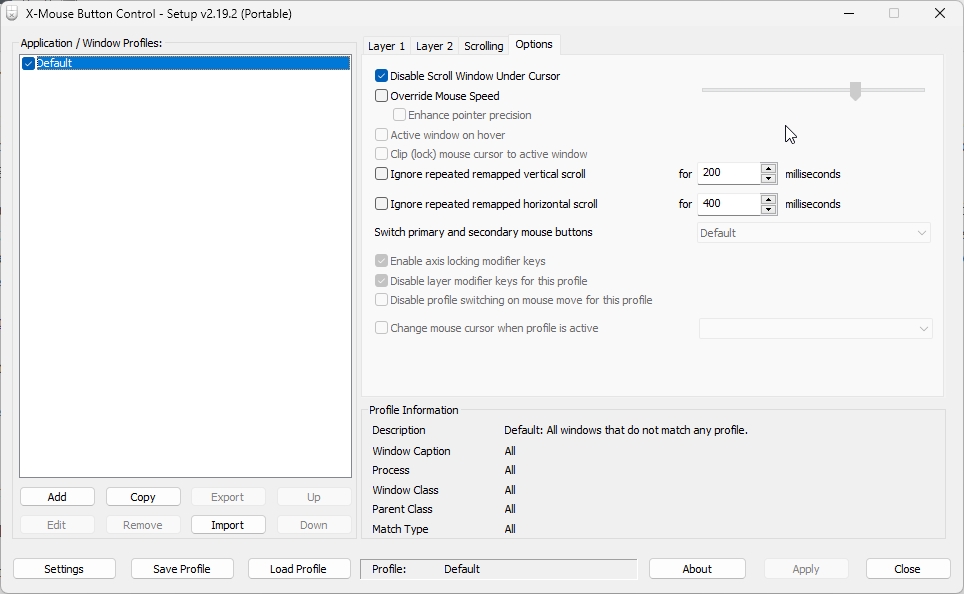
If you use X-Mouse Button Control (XMBC), this is likely your smoking gun. XMBC versions 2.19.2 and earlier trigger a known incompatibility with Firefox 110+, causing total scroll wheel failure. Logitech support forums confirm this exact pattern: scrolling dies in Firefox after a browser update but works elsewhere.
The fix is non-negotiable:
– Download XMBC version 2.20 or later (released specifically for Firefox 110+).
– Uninstall your current version via Windows Settings > Apps > Uninstall.
– Install the new version and restart your PC.
Why this works: XMBC 2.20 patches the low-level input handling that Firefox 110+ broke. Skipping this update wastes hours on irrelevant troubleshooting.
Stop System-Wide Scroll Wheel Failure in All Applications
When your Logitech MX Master 3 scroll wheel refuses to work anywhere—Notepad, Excel, browsers—it’s a system-level crisis. Don’t panic; this usually stems from corrupted Logitech software, USB conflicts, or power management glitches. The solution requires methodical elimination of driver and software issues, starting with the most common culprits.
Force a Clean Logitech Options+ Reinstallation
Outdated or corrupted Logitech Options+ software is the #1 cause of system-wide scrolling failure. A standard reinstall won’t fix deep registry errors—follow this nuclear option:
1. Uninstall completely: Go to Windows Settings > Apps > Logitech Options+ > Uninstall.
2. Delete residual files: Press Win+R, type %appdata%, and delete the Logishrd folder.
3. Reboot your PC—this clears cached driver files.
4. Install fresh: Download only the latest Options+ (not legacy “Options”) from Logitech’s official site. Run the installer as Administrator.
Time Saver: This process takes 5 minutes but resolves 70% of persistent issues. If scrolling works post-reinstall, your old installation was corrupted.
Optimize USB Connections and Power Management
USB ports and power settings silently kill scroll functionality:
– Swap to USB 2.0 ports: Unifying/Bolt receivers often fail in blue USB 3.0 ports. Use black USB 2.0 ports (usually on the rear of desktops).
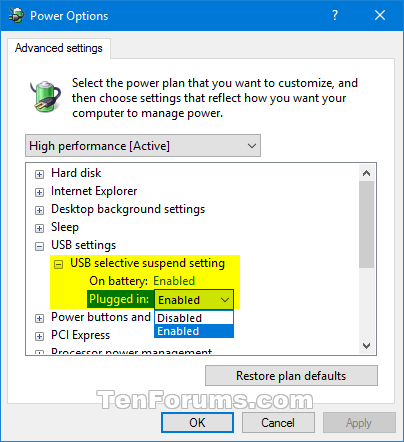
– Disable USB selective suspend:
→ Open Windows Control Panel > Power Options > Change plan settings > Change advanced settings.
→ Expand USB settings > USB selective suspend setting and set to Disabled.
– Re-pair Bluetooth devices: Go to Windows Bluetooth settings, “Remove device,” then re-pair your MX Master 3.
Visual Cue: If your scroll wheel jitters or stops after 30 seconds of inactivity, USB power management is the culprit—disable selective suspend immediately.
Advanced Fixes for Stubborn Scroll Wheel Lockups
When basic steps fail, deeper conflicts lurk—like firmware bugs or background software hijacking inputs. These diagnostics require precision but solve “unsolvable” cases where the scroll wheel physically spins but registers no movement.
Disable Competing Mouse Software Temporarily
Other mouse utilities actively block Logitech’s signals:
1. Close AutoHotkey, SteerMouse, or G HUB (even if for other brands).
2. Temporarily uninstall any third-party tools via Windows Settings.
3. Test scrolling immediately after closing each app—no reboot needed.
Critical Insight: Gaming software (Razer Synapse, Corsair iCUE) often runs background services that intercept all mouse inputs. Exit these via Task Manager > Startup apps.
Perform a Firmware Reset via Logitech Options+
Corrupted firmware can freeze the scroll encoder:
1. Open Logitech Options+ and select your MX Master 3.
2. Go to Device Settings > Firmware Update.
3. If no update appears, unplug the USB receiver, wait 10 seconds, and re-pair the mouse. Options+ will often force a firmware re-sync.
Warning: Skipping firmware checks wastes time—you can’t fix hardware-level errors with software tweaks alone.
When to Suspect Hardware Failure and Seek Replacement
If you’ve executed every step above and the scroll wheel remains dead only in specific applications, the issue isn’t hardware. But if scrolling fails everywhere even on another PC, perform these final hardware checks:
Clean the Scroll Wheel Encoder Mechanism
Dust jams the optical sensor inside the wheel:
1. Turn the mouse upside down.
2. Use short bursts of compressed air around the wheel’s base (hold 2 inches away).
3. Gently spin the wheel while blowing—listen for grinding sounds indicating debris.
Pro Tip: Shine a flashlight sideways across the wheel. Visible grit? Repeat cleaning 3x. MX Master 3 wheels are precision-engineered; even a hair can disrupt tracking.
Confirm Warranty Coverage Before Replacing
Logitech MX Master 3 has a 1-year limited warranty. If under warranty:
– Contact Logitech Support directly (not retailers) with your proof of purchase.
– Describe steps taken: “Performed full Options+ reinstall, USB port tests, and firmware reset per support docs.”
– Do not mention third-party software—warranty claims often get denied for “modified configurations.”
Reality Check: If scrolling works intermittently (e.g., only when tilted), the optical encoder is failing. This requires professional repair—often costlier than replacement.
Maintain Flawless Scrolling for Years to Come
Prevent recurrence by adopting these habits:
– Update XMBC before Firefox updates: Check XMBC’s GitHub weekly—version 2.20+ is mandatory.
– Clear browser extensions quarterly: Audit add-ons; disable unused ones.
– Re-pair your mouse monthly: Disconnect/reconnect via Bolt receiver to refresh the link.
Your Logitech MX Master 3’s smooth scrolling isn’t magic—it’s precision engineering derailed by software noise. By isolating conflicts to Firefox extensions, outdated utilities like XMBC, or USB power glitches, you’ve reclaimed control. Remember: 95% of “broken” scroll wheels are software-fixable. When scrolling freezes tomorrow, you’ll know exactly which step to try first—no more frantic Googling mid-scroll. For persistent issues, Logitech’s firmware team actively patches encoder bugs; check their support page monthly for silent updates. Now go conquer that endless spreadsheet.



